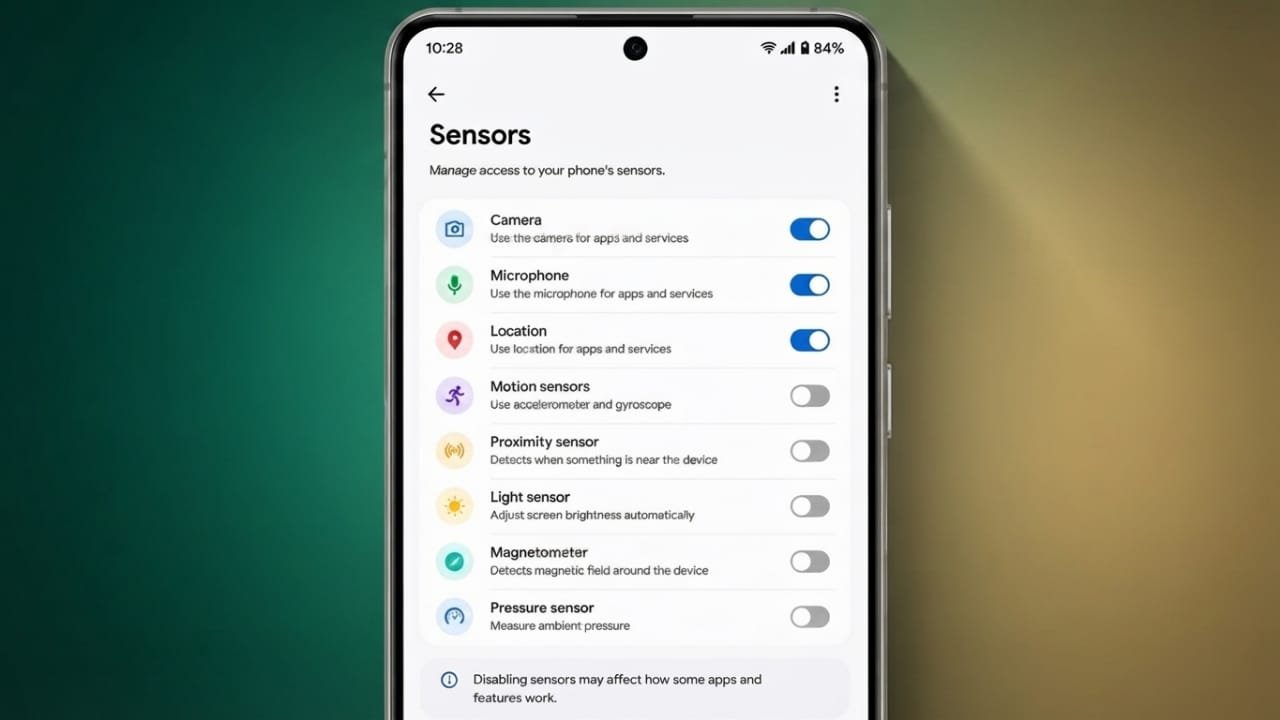
Smartphones rely on many built-in sensors to deliver useful features every day. While these sensors make your phone smarter and more convenient, there are times when you may want extra privacy. Android includes a built-in option that lets you temporarily disable most hardware sensors with a single tap.
If your device runs Android 10 or later, you can use this feature without installing any third-party apps. Here’s how it works and when it can be useful.
Also read: How to Manage Android Autofill Settings on Your Phone
What Are Android Phone Sensors?
Modern Android phones include several hardware sensors that help different apps and system features function properly. Common sensors include:
- Microphone for voice calls and audio recording
- Camera for taking photos and recording videos
- Accelerometer to detect movement and orientation
- Gyroscope for accurate motion tracking
- Proximity sensor to detect nearby objects
- Magnetometer for compass functionality
- Other sensors used for brightness, gestures, and device performance
These sensors improve the overall smartphone experience, but you may occasionally want to limit their access for privacy reasons.
Why Disable Phone Sensors?
There are situations where temporarily turning off hardware sensors can provide additional peace of mind.
Some benefits include:
- Preventing apps from accessing supported sensors
- Adding an extra layer of privacy during confidential meetings
- Protecting personal or business conversations
- Reducing unnecessary sensor activity
- Giving you more control over your device’s hardware
This feature is especially useful when privacy is your priority.
Check Your Android Version First
The Sensors Off option is available only on devices running Android 10 or newer.
To check your Android version:
- Open Settings.
- Go to About Phone.
- Find the Android Version section.
If an update is available, installing the latest software can provide improved security and privacy features.
How to Enable the Sensors Off Feature
Before you can use this option, you’ll need to enable Developer Options.
Step 1: Turn On Developer Options
- Open Settings.
- Tap About Phone.
- Locate Build Number.
- Tap it several times until Developer Options are enabled.
- Enter your device PIN or password if prompted.
Enabling Developer Options is safe and does not damage your device.
Step 2: Add the Sensors Off Tile
Once Developer Options are enabled:
- Return to Settings.
- Open System.
- Select Developer Options.
- Find Quick Settings Developer Tiles.
- Enable the Sensors Off toggle.
Android will automatically add a Sensors Off tile to the Quick Settings panel.
Step 3: Disable the Sensors
- Swipe down from the top of the screen to open Quick Settings.
- Tap the Sensors Off tile.
Supported sensors are immediately disabled. Tap the tile again whenever you want to restore normal functionality.
How to Know Sensors Are Disabled
When sensors are turned off, Android displays a status icon in the notification area. This lets you quickly confirm that the feature is active without reopening the settings menu.
What Happens When Sensors Are Disabled?
Turning on Sensors Off temporarily blocks access to supported hardware sensors.
Some changes you may notice include:
- The microphone cannot record audio.
- Camera apps cannot capture photos or videos.
- Motion-based sensors stop working.
- Compass functionality becomes unavailable.
- Some apps may display limited functionality or error messages.
Once you enable sensors again, everything returns to normal.
Features That Continue Working
Disabling sensors does not stop your phone from performing many everyday tasks.
These features continue to work normally:
- Wi-Fi
- Mobile data
- Internet browsing
- Phone speakers
- Touchscreen and keyboard
- Most apps that do not rely on disabled sensors
Keep in mind that voice typing and other microphone-dependent features will not work while sensors remain disabled.
Things to Keep in Mind
Before using this feature, remember:
- It requires Android 10 or later.
- Some manufacturers may place the option in a slightly different menu.
- Google Pixel devices generally support it.
- Many Samsung phones also include this feature.
- You can enable or disable sensors at any time using the Quick Settings tile.
Also read: How to Fix Notification Problems on Android
Final Thoughts
The Sensors Off feature gives Android users a simple way to improve privacy whenever needed. With just one tap, you can temporarily prevent supported sensors from being accessed without permanently changing your device settings.
If you regularly attend confidential meetings or simply want more control over your phone’s hardware, this built-in Android feature offers a convenient and reliable privacy option while allowing essential phone functions to continue working normally.

Jatin Rajput (Tech Golu) — Tech blogger & YouTuber with 6+ years of experience in WhatsApp, Instagram, Facebook, and mobile guides. Founder of TechGolu.in.