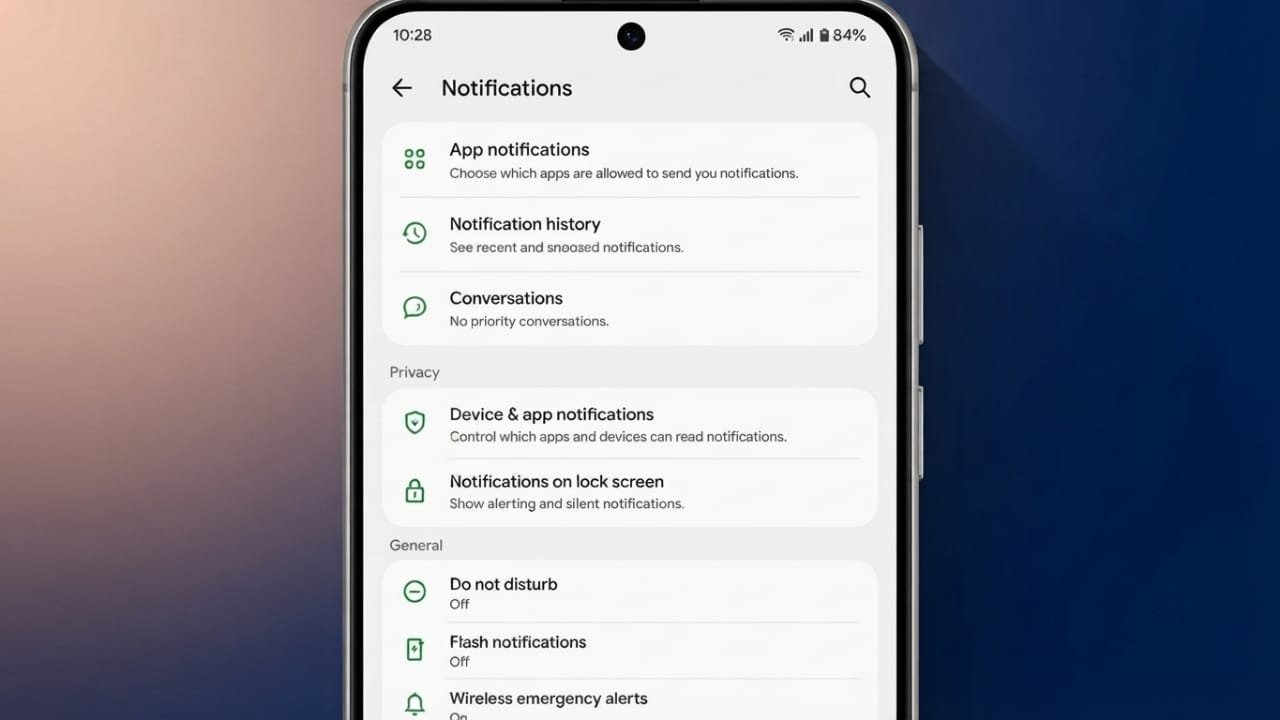
Missing notifications can be frustrating, especially when they cause you to miss important calls, messages, emails, or reminders. In most cases, the issue is caused by incorrect settings, network problems, battery restrictions, or app permissions. The good news is that you can usually fix the problem without any technical knowledge.
This guide walks you through the most effective ways to restore notifications on your Android device.
Also read: How to Use Split Screen on Android Auto with Coolwalk
1. Check Your Internet Connection
Most apps require an active internet connection to deliver notifications.
Advertisements
- Connect to a stable Wi-Fi network or enable mobile data.
- Open a website or search on Google to confirm your connection is working.
- If the internet is unstable, reconnect to the network or restart your router if needed.
Once your connection is working normally, check whether notifications start arriving.
2. Turn Off Do Not Disturb
Do Not Disturb (DND) can silence notifications without you noticing.
To disable it:
- Open Settings.
- Tap Notifications.
- Select Do Not Disturb.
- Turn the feature off.
You can also swipe down from the top of the screen and disable DND from the Quick Settings panel.
3. Allow Important Apps During Do Not Disturb
If you prefer to keep Do Not Disturb enabled, you can still allow notifications from selected apps.
Steps:
- Open Settings > Notifications > Do Not Disturb.
- Tap Apps.
- Select Add apps.
- Choose the apps that should always send notifications.
4. Restart Your Phone
A simple restart can fix temporary software glitches that prevent notifications from working.
Restarting refreshes background services and reconnects network processes, which often resolves minor issues.
5. Verify Android Notification Settings
If system notifications are disabled, apps won’t be able to send alerts.
Check your notification settings:
- Open Settings.
- Tap Notifications.
- Make sure notifications are enabled for your device.
6. Review Notification History
Android’s Notification History can help you determine whether alerts were received but dismissed.
Checking this feature can also help identify when the issue first started or whether a recent app update caused the problem.
7. Enable Notifications for Individual Apps
Sometimes only one app stops sending notifications.
To check:
- Open Settings.
- Go to Notifications.
- Select App notifications or App settings.
- Turn notifications on for the affected app.
8. Check Notification Categories
Many Android apps organize notifications into categories such as messages, mentions, announcements, or updates.
If a category is disabled, only those specific notifications will stop.
To review them:
- Long-press the app icon.
- Tap App info.
- Select Notifications.
- Enable the categories you want to receive.
9. Review In-App Notification Settings
Many apps have their own notification controls.
For example:
- Messaging apps may let you mute conversations.
- Social media apps may allow you to disable likes, comments, or message alerts.
- Productivity apps often let you customize notification types.
Open the affected app and verify its notification preferences.
10. Show Notifications on the Lock Screen
If notifications are hidden on the lock screen, you may think they are not arriving.
Enable lock screen notifications:
- Open Settings.
- Tap Notifications.
- Select Lock screen notifications.
- Choose to display notifications on the lock screen.
11. Disable Battery Saver
Battery Saver reduces background activity, which can delay or block notifications.
To turn it off:
- Open Settings.
- Tap Battery.
- Select Battery Saver.
- Switch it off.
12. Remove Battery Optimization Apps
Some third-party battery-saving apps restrict background activity more aggressively than Android itself.
If you use one of these apps, consider disabling or uninstalling it to improve notification reliability.
13. Turn Off Adaptive Battery
Adaptive Battery limits background activity for apps it considers less important.
To disable it:
- Open Settings.
- Go to Battery.
- Open Adaptive preferences.
- Turn off Adaptive Battery.
14. Disable App Pausing
Unused apps may be paused automatically, preventing them from running in the background.
Check this setting:
- Long-press the app icon.
- Tap App info.
- Turn off Pause app activity if unused.
15. Review Deep Sleeping Apps
Some Android manufacturers include features that place apps into a deep sleep state.
If an important app appears in this list, remove it so it can continue running in the background.
16. Lock Important Apps in Memory
Certain devices automatically close inactive apps to save battery.
You can reduce this behavior by locking important apps:
- Open the Recent Apps screen.
- Find the app.
- Tap its icon.
- Select Lock or a similar option if available.
17. Allow Background Data
Apps need background internet access to receive notifications.
To enable it:
- Long-press the app icon.
- Open App info.
- Tap Mobile data & Wi-Fi.
- Turn on Background data.
18. Check Mobile Data Restrictions
If you’ve enabled data limits or restricted background data, notifications may stop when using mobile data.
Review your data settings and remove any unnecessary restrictions.
19. Clear the App Cache
Damaged cache files can cause apps to behave unexpectedly.
To clear cache:
- Open App info.
- Tap Storage.
- Select Clear Cache.
If the issue continues, you can clear app data, but remember that doing so may reset the app’s settings.
20. Update Your Apps
Older app versions may contain bugs that affect notifications.
Open the Google Play Store and install any available updates for your apps.
21. Install Android Updates
Keeping Android updated helps improve performance, security, and compatibility.
Go to Settings > System > Software Update and install any available updates.
22. Make Sure Airplane Mode Is Off
Airplane Mode disables network connections, preventing apps from receiving notifications.
If it’s enabled, turn it off and reconnect to your network.
Common Notification Issues
Notification problems may appear in different ways, such as:
- No notifications from any app.
- Notifications missing from only one app.
- Notifications stop after opening an app.
- Alerts work only on Wi-Fi.
- Alerts work only on mobile data.
Recognizing the exact symptom makes troubleshooting much easier.
Common Reasons Notifications Stop Working
The most frequent causes include:
- No internet connection.
- Do Not Disturb enabled.
- Airplane Mode turned on.
- Notifications disabled for the device or an app.
- Notification categories turned off.
- Battery Saver or Adaptive Battery restrictions.
- Background data disabled.
- Corrupted app cache.
- Outdated apps.
- An outdated Android version.
Also read: How to Make Your iPhone Screen Even Darker: A Complete Ultra Dark Mode Guide
Final Thoughts
Most Android notification issues can be fixed by reviewing your internet connection, notification permissions, battery settings, and app configuration. Keeping your apps and Android system updated also helps prevent future problems.
If notifications suddenly stop working, work through the steps in this guide one by one. In most cases, you’ll identify the cause and restore normal notification delivery without needing advanced troubleshooting.

Jatin Rajput (Tech Golu) — Tech blogger & YouTuber with 6+ years of experience in WhatsApp, Instagram, Facebook, and mobile guides. Founder of TechGolu.in.