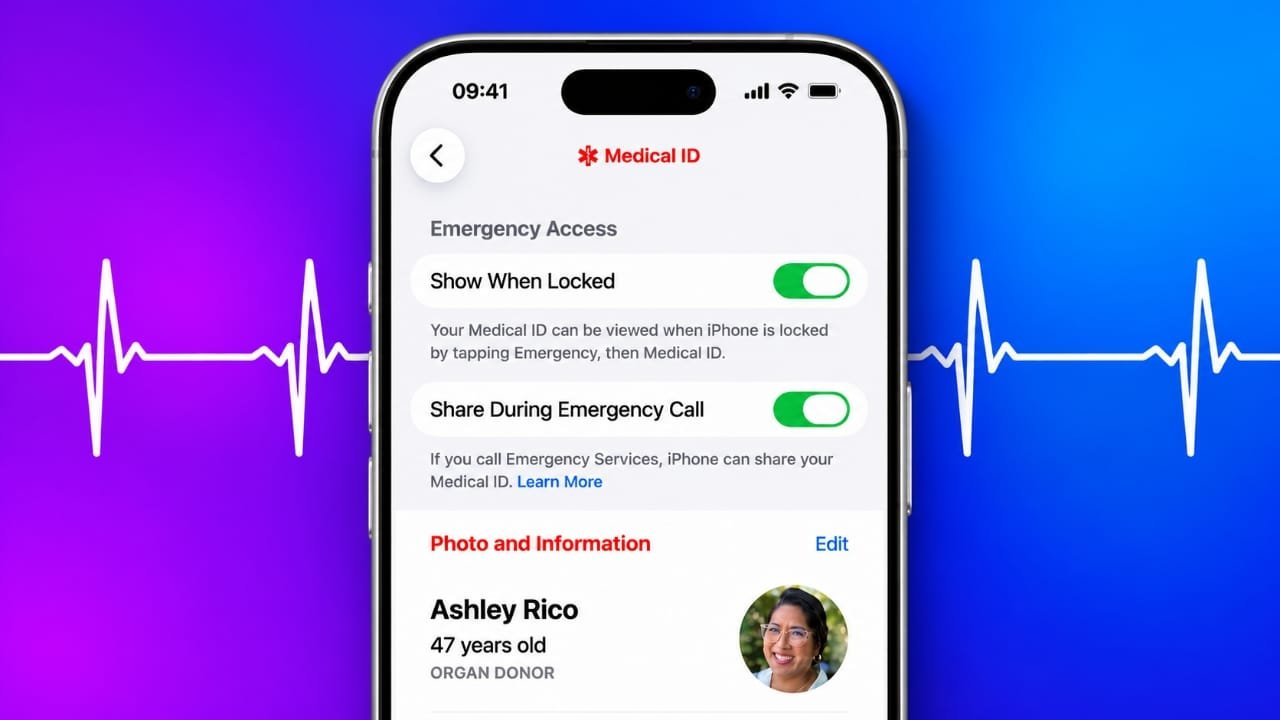
An emergency can happen when you least expect it. If you are injured or suddenly become unable to communicate, the people helping you may not know about your medical conditions, allergies, medicines, or whom they should contact.
Apple’s Medical ID feature is designed for situations like this. It allows important medical information and emergency contact details to be viewed from an iPhone’s Lock Screen without entering the device passcode.
Setting it up takes only a few minutes. Once enabled, it can give someone helping you useful information when you cannot provide it yourself.
Also read: How to Fix Wi-Fi Problems on a Mac: 10 Simple Solutions
What Is Medical ID on an iPhone?
Medical ID is a feature built into Apple’s Health app. You can use it to store selected health information, such as allergies, medications, medical conditions, blood type, and emergency contacts.
When you enable Show When Locked, this information can be accessed from the Lock Screen. This means a person assisting you does not need to unlock your iPhone to view the information you have chosen to share.
For example, imagine that you are involved in an accident and cannot answer questions. If you have listed an important allergy or medical condition in Medical ID, a person assisting you may be able to see that information and contact one of your emergency contacts.
Medical ID can also be accessed through a connected Apple Watch.
What Information Can You Add to Medical ID?
Apple allows you to add several types of information. You do not have to fill in every section.
| Information | Why it can be useful |
|---|---|
| Name and date of birth | Helps identify you |
| Medical conditions | Provides important background about your health |
| Medications | Lets helpers know about medicines you currently take |
| Allergies and reactions | Can alert others to known allergies |
| Blood type | Provides information that may be relevant in an emergency |
| Height and weight | Gives additional basic information |
| Emergency contacts | Helps others reach your chosen contacts |
| Other available health details | Lets you share information you consider important |
Only add information you are comfortable making available from the Lock Screen.
How to Set Up Medical ID on an iPhone
You can create or edit your Medical ID directly from the Health app.
- Open the Health app on your iPhone.
- Tap your profile picture in the top-right corner.
- Select Medical ID.
- If this is your first time setting it up, tap Get Started. If you already have a Medical ID, tap Edit.
- Enter the information you want to include, such as medical conditions, medications, allergies, and blood type.
- Scroll down to the Emergency Contacts section.
- Tap Add Emergency Contact and select a person from your contacts.
- Choose the relationship, such as parent, spouse, sibling, or another appropriate option.
- Turn on Show When Locked.
- Tap Done to save your information.
Take a moment to check everything before saving it. In particular, make sure medication names and other important details are entered correctly. If you are unsure about a piece of information, it is better not to guess.
Choosing Emergency Contacts
Your emergency contacts can be especially useful if you are unable to contact your family yourself.
Consider adding people who are likely to answer their phone and who know how to reach your family if necessary.
You can also add more than one emergency contact. Having multiple contacts may be useful if the first person cannot be reached.
Your emergency contacts do not need to own an iPhone. A normal mobile number can be used.
How to View Medical ID on a Locked iPhone
One of the main advantages of Medical ID is that it can be accessed without unlocking the phone when Show When Locked is enabled.
The exact steps depend on the iPhone model.
On Face ID iPhones
- Wake the iPhone.
- Swipe up to reach the passcode screen.
- Tap Emergency.
- Select Medical ID.
The available Medical ID information can then be viewed.
On iPhones with a Home Button
- Wake the iPhone.
- Go to the passcode screen.
- Tap Emergency.
- Tap Medical ID.
The person helping you can view the information you have chosen to make available.
You can also check your own Medical ID from the Health app at any time to make sure the information is still correct.
Why You Should Keep Medical ID Updated
Creating Medical ID once and forgetting about it is not enough.
Your information can change over time. For example, you may start or stop taking a medicine, develop a new allergy, or change your emergency contact.
It is a good idea to review your Medical ID whenever an important health or contact detail changes.
To edit it:
- Open the Health app.
- Tap your profile picture.
- Select Medical ID.
- Tap Edit.
- Make the required changes.
- Tap Done.
Also check that Show When Locked is still enabled if you want your information to remain accessible from the Lock Screen.
Medical ID and Emergency SOS in India
Medical ID and Emergency SOS serve different purposes, but they can be useful together.
Emergency SOS allows an iPhone user to quickly contact emergency services. In India, 112 is the national emergency number.
After an Emergency SOS call, the iPhone can also notify emergency contacts and share location information according to the Emergency SOS settings available on the device.
Medical ID, on the other hand, provides information that may help someone understand your medical background if you are unable to explain it yourself.
Because the availability of some Emergency SOS features can vary by country and device, it is worth checking the settings on your own iPhone.
What About “Share During Emergency Call”?
Some iPhones and regions support a feature called Share During Emergency Call. When available, it can allow certain Medical ID information to be shared with emergency services during an emergency call.
However, this feature is not available in every country.
Therefore, you should not assume that emergency services in India will automatically receive all the information stored in your Medical ID.
The Show When Locked option remains important because it allows a person physically helping you to access the Medical ID information from your iPhone.
Is Medical ID Private?
Medical ID is not completely private when you enable Show When Locked.
Anyone who has physical access to your iPhone may be able to view the information you have made available through the Lock Screen.
For that reason, think carefully about what you add.
Avoid putting unnecessary sensitive information into Medical ID, such as identification numbers, financial information, passwords, or insurance details.
The goal is to provide useful emergency information without exposing information that a stranger does not need.
How to Hide Medical ID From the Lock Screen
If you no longer want your Medical ID to be accessible while the iPhone is locked, you can turn off the option.
Go to:
Health → Profile Picture → Medical ID → Edit → Show When Locked
Turn off Show When Locked and save the changes.
Keep in mind that doing this also means someone helping you will not be able to access your Medical ID from the Lock Screen.
Frequently Asked Questions
Can someone see my Medical ID without unlocking my iPhone?
Yes, if you have enabled Show When Locked. A person can use the Emergency option on the Lock Screen to access the Medical ID without knowing your passcode.
Does Medical ID work in India?
Yes. You can create a Medical ID and make it available from the Lock Screen in India. However, some additional emergency features may have country-specific availability.
Do emergency contacts need an iPhone?
No. Your emergency contacts can generally be regular mobile phone users. They do not have to own an iPhone.
Can I add more than one emergency contact?
Yes. You can add multiple contacts so that more than one person can be reached if necessary.
Should I add every medical detail?
No. Add the information that could genuinely be useful in an emergency and that you are comfortable making accessible from the Lock Screen.
How often should I check my Medical ID?
There is no fixed schedule you must follow. Check it whenever your medications, allergies, medical information, or emergency contacts change.
Also read: How to Turn Off an iPhone Using a Computer: Methods That Actually Work
Final Thoughts
Medical ID is a small iPhone feature that can be useful during an emergency. It gives you a way to make selected medical information and emergency contact details available even when your phone remains locked.
To set it up, open the Health app, go to your profile, select Medical ID, enter the information you want to share, add your emergency contacts, and enable Show When Locked.
After setting it up, check the information occasionally and update it whenever something changes. It is also worth telling your close family members that Medical ID is available on your iPhone so they know where to find it if they ever need to help you.

Jatin Rajput (Tech Golu) — Tech blogger & YouTuber with 6+ years of experience in WhatsApp, Instagram, Facebook, and mobile guides. Founder of TechGolu.in.