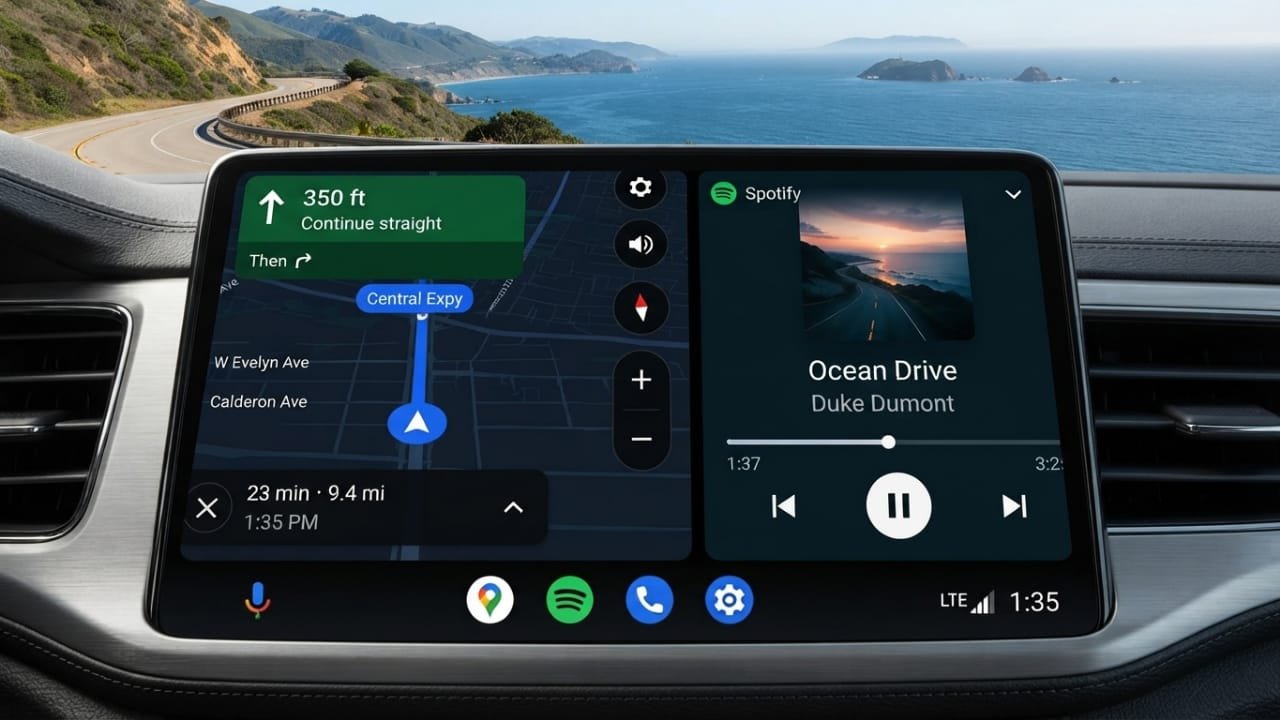
Android Auto’s split-screen feature makes driving more convenient by showing more than one app at the same time. With the Coolwalk interface, you can keep your navigation visible while also controlling music, podcasts, or other supported apps without constantly switching screens.
This smarter layout helps reduce distractions and makes everyday driving more comfortable.
Also read: How to Make Your iPhone Screen Even Darker: A Complete Ultra Dark Mode Guide
What Is Coolwalk in Android Auto?
Google introduced the Coolwalk interface to give Android Auto a cleaner and more modern design. It began rolling out widely in early 2023 after being announced in 2022.
One of the biggest improvements was multitasking. Instead of opening one app at a time, Coolwalk lets you view multiple supported apps together on compatible displays. This makes it easier to access important information while staying focused on the road.
How Split Screen Works
When split screen is active, Android Auto automatically arranges compatible apps on the display.
Usually, your navigation app takes up the larger area, while the smaller section shows media controls for music or podcasts. This allows you to follow directions and manage playback without leaving your map.
For example, if you start navigation with Waze and then play music through Spotify, the map remains on the main part of the screen while Spotify appears beside it. If you later switch to another supported media app, such as Pocket Casts, Android Auto updates the media section automatically without interrupting navigation.
Switching to Full-Screen View
There may be times when you want one app to use the entire display, especially during navigation.
To switch layouts, tap the multi-window icon on the Android Auto screen. This changes from split-screen mode to a full-screen view of the selected app. You can tap the icon again whenever you want to return to the split layout.
Update Android Auto First
If you do not see the split-screen feature, check whether your Android Auto app is up to date.
Open the Google Play Store on your phone, search for Android Auto, and install any available updates. After updating, reconnect your phone to your vehicle. On supported systems, the split-screen layout should become available automatically.
If your display is still showing only one app, exit full-screen mode using the multi-window button.
Customize the Screen Layout
Android Auto allows you to choose which side of the display is easier to reach.
To change the layout:
- Open Android Auto on your phone.
- Go to General settings.
- Scroll down and select Change Layout.
- Choose either:
- Media Closer to Driver
- Navigation Closer to Driver
Select the option that feels most comfortable for your driving position.
Some vehicles also allow this setting to be changed directly from the car’s infotainment system through the Android Auto display settings.
Smart Notifications While Driving
Android Auto is designed to display notifications in a simple and organized way.
Incoming messages, calls, and other alerts appear without completely covering your navigation screen. If Google Assistant is available, you can respond to messages using voice commands, helping you keep your attention on driving.
Supported Apps
You do not need to manually add compatible apps. Once installed on your phone, supported apps can appear automatically in Android Auto.
Popular navigation apps include:
- Google Maps
- Waze
Common media apps include:
- Spotify
- Pocket Casts
- Other supported podcast and music apps
Switching between media apps is automatic, while your navigation continues running in the background.
Benefits of Split Screen
Using split screen offers several practical advantages:
- View maps and media controls together.
- Reduce the need to switch between apps.
- Access notifications more easily.
- Control music or podcasts with fewer taps.
- Use Google Assistant for hands-free responses.
- Choose a layout that suits your driving position.
- Stay focused by keeping important information visible.
Things to Keep in Mind
Although split screen works well on most supported systems, there are a few limitations.
Navigation usually receives the largest part of the display, and some vehicles may not always let media apps use the full screen while navigation is active. If the layout does not behave as expected, closing the navigation app and reopening your media app may help.
Available features can also vary depending on your vehicle, display size, Android version, and Android Auto compatibility.
Reset or Disable Android Auto
If you experience connection problems or want to remove saved vehicles, you can reset Android Auto.
Open Android Auto settings, go to Previously Connected Cars, and choose Forget All Cars. This removes saved vehicle connections, allowing you to set them up again if needed.
Android Auto and Apple CarPlay
Apple CarPlay also includes a dashboard view that displays navigation and media together. Both Android Auto and CarPlay are designed to reduce distractions by making important information available on a single screen.
Future Improvements
Google continues to improve Android Auto with updated designs and support for different display shapes. Future versions are expected to provide an even better experience on a wider range of vehicle infotainment systems while keeping multitasking simple and easy to use.
Also read: How to Enable the Microphone on an Android Phone
Final Thoughts
Android Auto’s split-screen feature, powered by the Coolwalk interface, makes daily driving more convenient by displaying navigation, music, calls, and notifications together. With an updated Android Auto app and a compatible vehicle, you can enjoy a cleaner interface, fewer distractions, and easier access to the apps you use most during every journey.

Jatin Rajput (Tech Golu) — Tech blogger & YouTuber with 6+ years of experience in WhatsApp, Instagram, Facebook, and mobile guides. Founder of TechGolu.in.