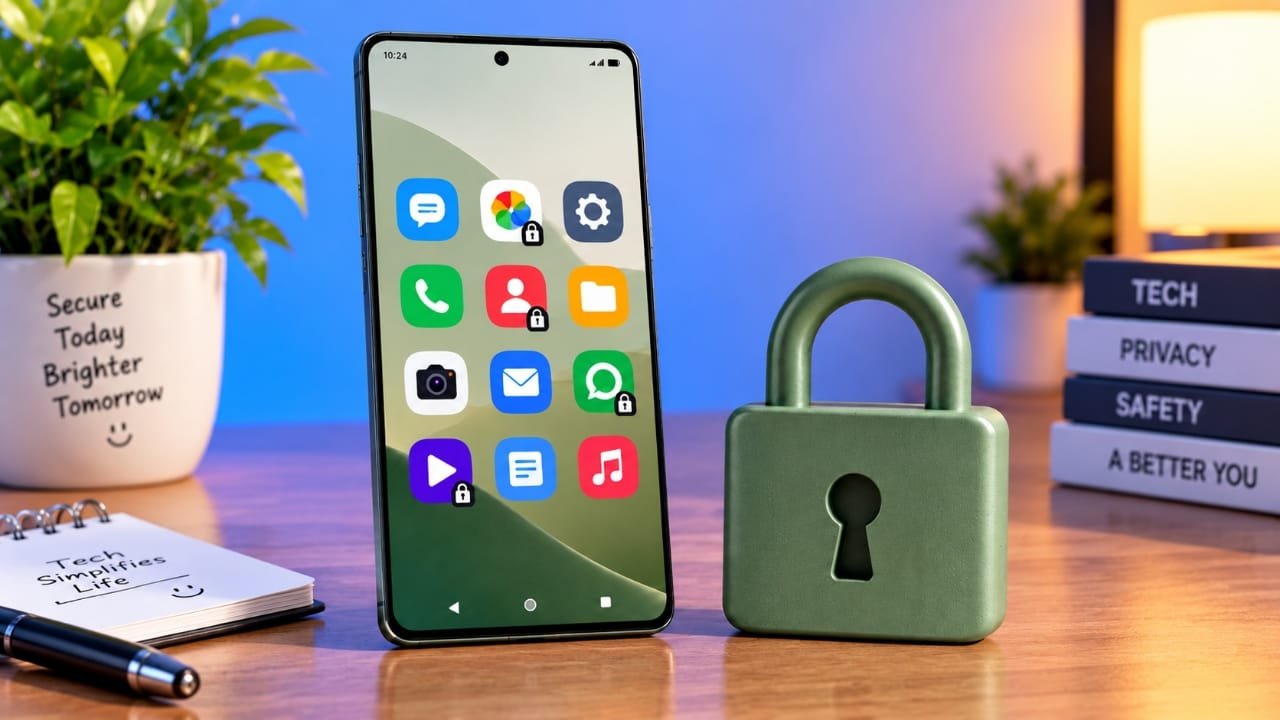
If you sometimes hand your unlocked phone to friends or family, you may not want them opening personal apps such as WhatsApp, Instagram, Messages, Gallery, or banking apps.
The good news is that you may not need to install a separate app locker for this. Many Android phones come with privacy and security features that can protect individual apps using a PIN, password, pattern, or fingerprint.
The exact options depend on your phone brand and Android version, but there are several things you can check before downloading anything from the Play Store.
Also read: iPhone 18 Pro Colors: Burgundy, Glacier, Silver and Black
Check Your Phone for Built-In App Lock
The easiest place to start is your phone’s Settings app.
Instead of searching through different menus, use the Settings search box and type App Lock. This is useful because manufacturers often place the feature in different sections of Settings.
If your phone supports App Lock, open the option and follow the setup instructions. You may need to create a privacy password or enable another security method.
After setting it up, select the apps you want to protect. You can choose only the apps that contain private information rather than locking every app on your phone.
Once an app is protected, your phone will normally require the selected security method before allowing access.
Xiaomi, Redmi and POCO Phones
Xiaomi, Redmi, and POCO devices may include a built-in App Lock feature, although its location can vary depending on the software version.
Open Settings and search for App Lock. You can also check the phone’s security or privacy-related settings if the search does not immediately show it.
After opening App Lock, select the apps you want to protect and complete the security setup.
For example, if your main concern is someone looking through your private conversations or photos, you can lock apps such as WhatsApp and Gallery without applying the lock to everything else.
OnePlus, OPPO and Realme Phones
OnePlus, OPPO, and Realme phones may also provide built-in app protection features.
The easiest approach is again to open Settings and search for App Lock. The name or location of the feature can change between devices and software versions.
If the feature is available, choose the apps you want to protect and set up the required privacy security. Supported phones may also allow fingerprint authentication for quicker access.
If you recently updated your phone and cannot find the option where it used to be, try the Settings search instead of following an old menu path.
What If Your Phone Doesn’t Have App Lock?
Some Android phones do not offer a traditional App Lock feature. If you cannot find it in Settings, check whether your device supports Private Space.
Private Space is designed to keep selected apps in a separate, protected area of the phone. Rather than placing a lock directly over an app in your regular app list, it creates a separate space that can be locked.
On supported Android devices, you can generally find it under:
Settings > Security & privacy > Private Space
The exact menu may differ depending on the device and Android version.
After setting up Private Space, you can add the apps you want to keep separate. When the space is locked, the apps inside it are protected from normal access.
Some supported devices also provide an option to hide Private Space while it is locked.
Samsung Galaxy Phones Have Secure Folder
Samsung Galaxy users have another option called Secure Folder.
If you cannot find App Lock on your Samsung phone, search Settings for Secure Folder.
Secure Folder creates a protected area where you can keep supported apps, photos, files, and other personal content. Depending on the device, it can be protected with a PIN, password, pattern, or biometric authentication.
For example, instead of keeping certain personal photos in your regular Gallery, you can move them into Secure Folder. You can also add apps that you want to keep separate from the main phone environment.
The exact features available can vary by Galaxy model and software version.
Check Whether the App Has Its Own Lock
You may not always need to protect an app through Android’s system settings.
Some apps include their own privacy or security options. WhatsApp, for example, provides biometric-related privacy features on supported devices.
Banking and payment applications may also require additional authentication before allowing access to sensitive information.
If you only want to protect one particular application, open its settings and look for options related to Privacy, Security, Screen Lock, or Biometric Lock.
Using the app’s own security feature can sometimes be simpler than setting up a separate system-wide app lock.
Hide Private Notification Content
Locking an app is only part of protecting your privacy.
Notifications can sometimes display message previews on the lock screen. This means someone could potentially see part of a WhatsApp or Messages conversation without opening the app itself.
To prevent this, open:
Settings > Notifications
Then look for the lock-screen notification settings. Depending on your phone, you may be able to hide sensitive notification content while still receiving notifications.
For example, your phone can show that you have received a new message without displaying the actual message text on the lock screen.
The exact names of these settings vary between Android phones.
Which Option Should You Use?
The right option depends on what your phone supports and what you want to protect.
| Feature available on your phone | What it can do |
|---|---|
| Built-in App Lock | Protect selected apps directly |
| Private Space | Keep selected apps inside a separate locked area |
| Samsung Secure Folder | Store protected apps, photos and files separately |
| App’s own privacy feature | Protect a specific app using its built-in security |
If your phone has App Lock, it is a straightforward option when you only want to protect a few applications.
If you want a more separated private area, Private Space can be useful on supported Android devices. Samsung users can consider Secure Folder when they want to keep apps and personal files in a protected section.
Also read: Apple Watch Series 12 Price in India: Health Features, Battery and Specs
You May Not Need a Third-Party App Locker
Before installing another app from the Play Store, check your phone’s existing privacy features.
Search Settings for terms such as App Lock, Private Space, or Secure Folder. Also check the privacy settings of the individual app you want to protect.
Using a built-in feature can save you from installing an additional application just to add basic app protection. It also keeps the setup within the security tools already provided by your phone.
So, if you want to protect WhatsApp, Gallery, Instagram, or another private app, start by checking what your Android phone already offers. In many cases, you can set up the protection without downloading an additional app.

Jatin Rajput (Tech Golu) — Tech blogger & YouTuber with 6+ years of experience in WhatsApp, Instagram, Facebook, and mobile guides. Founder of TechGolu.in.