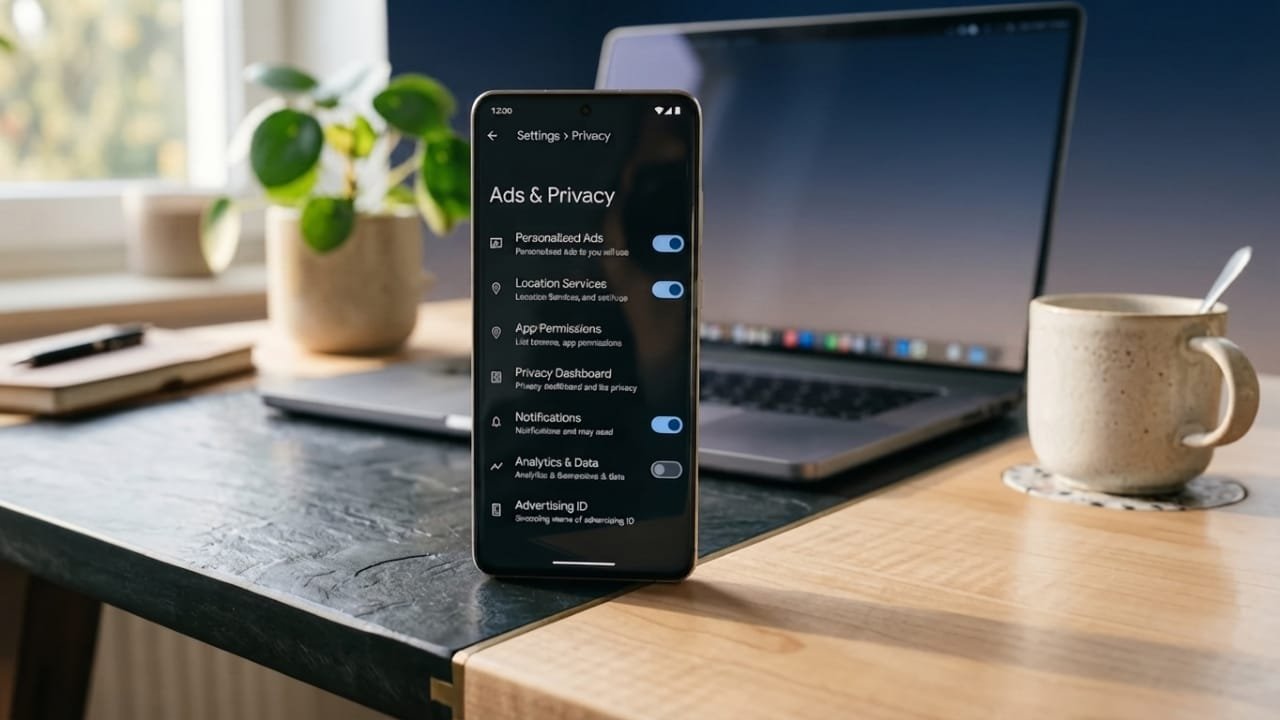
Seeing too many ads on your Android phone can quickly become annoying. They may appear while you’re browsing the web, using free apps, or even as unexpected notifications. In some cases, ads can also show up because of a recently installed app or incorrect settings.
The good news is that you don’t need risky third-party tools to deal with most of these ads. By making a few changes to your phone’s settings, you can significantly reduce unwanted advertisements and enjoy a cleaner experience.
Also read: How to Disable Android Phone Sensors to Improve Privacy
Why Does Your Android Phone Show Ads?
Advertisements can appear for different reasons. Identifying the source makes it much easier to solve the problem.
Advertisements
Some common causes include:
- Free apps that display ads to support developers.
- Apps installed from untrusted websites.
- Browser notification permissions given to unknown sites.
- Adware or unwanted software.
- Promotional recommendations built into some phone brands.
Once you know where the ads are coming from, you can take the right steps to stop them.
1. Remove Unwanted Browser Notifications
Many pop-up ads are actually browser notifications from websites that were accidentally allowed to send alerts.
If you use Google Chrome:
- Open Chrome.
- Tap the three-dot menu.
- Go to Settings.
- Open Notifications.
- Remove permission for websites you don’t recognize or no longer trust.
This simple step often stops random advertising notifications immediately.
2. Uninstall Recently Added Apps
If the ads started appearing after installing a new app, that app could be responsible.
To check:
- Open Settings.
- Tap Apps.
- Sort the list by Recently Installed if the option is available.
- Remove any app that seems unfamiliar or suspicious.
Whenever possible, install apps only from trusted sources instead of downloading APK files from unknown websites.
3. Reduce Personalized Advertising
Android lets you limit personalized ads linked to your activity.
To review this setting:
- Open Settings.
- Tap Google.
- Open Ads or Privacy, depending on your Android version.
- Turn off Ad Personalization if the option is available.
This won’t remove every advertisement, but it can reduce targeted ads.
4. Turn Off Promotional Recommendations
Some Android manufacturers include promotional suggestions inside their built-in apps.
Check apps such as:
- File Manager
- Themes
- Security
- Browser
- App Store
Look for options like:
- Recommendations
- Promotional Content
- Personalized Services
- Receive Suggestions
Disable these features if you don’t want promotional content. The wording may differ depending on your phone brand.
5. Scan Your Device for Security Issues
If ads appear even when you’re not using any app, it’s worth checking your phone for unwanted software.
Use your phone’s built-in security tools or Google Play Protect.
To run a Play Protect scan:
- Open the Google Play Store.
- Tap your profile icon.
- Select Play Protect.
- Start a security scan.
This helps identify potentially harmful apps installed on your device.
6. Manage App Notification Permissions
Some apps send promotional notifications that can become distracting.
To turn them off:
- Open Settings.
- Tap Notifications.
- Select the app.
- Disable notifications if you don’t need them.
This keeps the app installed while preventing unnecessary alerts.
7. Keep Android Updated
Software updates often include security improvements and bug fixes that help protect your phone.
To check for updates:
- Open Settings.
- Go to Software Update.
- Tap Check for Updates.
Installing the latest updates helps keep your device secure and running smoothly.
Tips to Prevent Future Ads
You can reduce unwanted ads by following a few simple habits:
- Download apps only from trusted sources like the Google Play Store.
- Avoid allowing notification access to unknown websites.
- Ignore fake warning messages claiming your phone is infected.
- Install apps from reputable developers.
- Review app permissions from time to time.
Frequently Asked Questions
Can I remove every ad from my Android phone?
Not always. Ads inside free apps are usually part of the app’s business model. In many cases, the only way to remove them is by purchasing the premium version. However, browser notifications and unwanted pop-up ads can often be stopped.
Why are ads appearing on my home screen?
This usually happens because of a recently installed app or a launcher that includes promotional content. Removing the app or changing the launcher often fixes the issue.
Are ad-blocking apps safe?
Some are safe, but only if they come from trusted developers. Be cautious of apps that request unnecessary permissions or come from unofficial websites.
Will a factory reset remove unwanted ads?
A factory reset can remove adware or unwanted apps, but it should be considered only after trying safer troubleshooting methods since it erases your personal data.
Also read: How to Manage Android Autofill Settings on Your Phone
Final Words
Most unwanted ads on Android phones can be reduced by adjusting browser permissions, removing suspicious apps, checking notification settings, and keeping your device updated. These methods are safe, easy to follow, and work on most Android devices without relying on risky third-party software.
If the problem continues, run a security scan and carefully review any apps you’ve installed recently. In many cases, finding the source of the ads is all that’s needed to restore a clean and distraction-free experience.

Jatin Rajput (Tech Golu) — Tech blogger & YouTuber with 6+ years of experience in WhatsApp, Instagram, Facebook, and mobile guides. Founder of TechGolu.in.