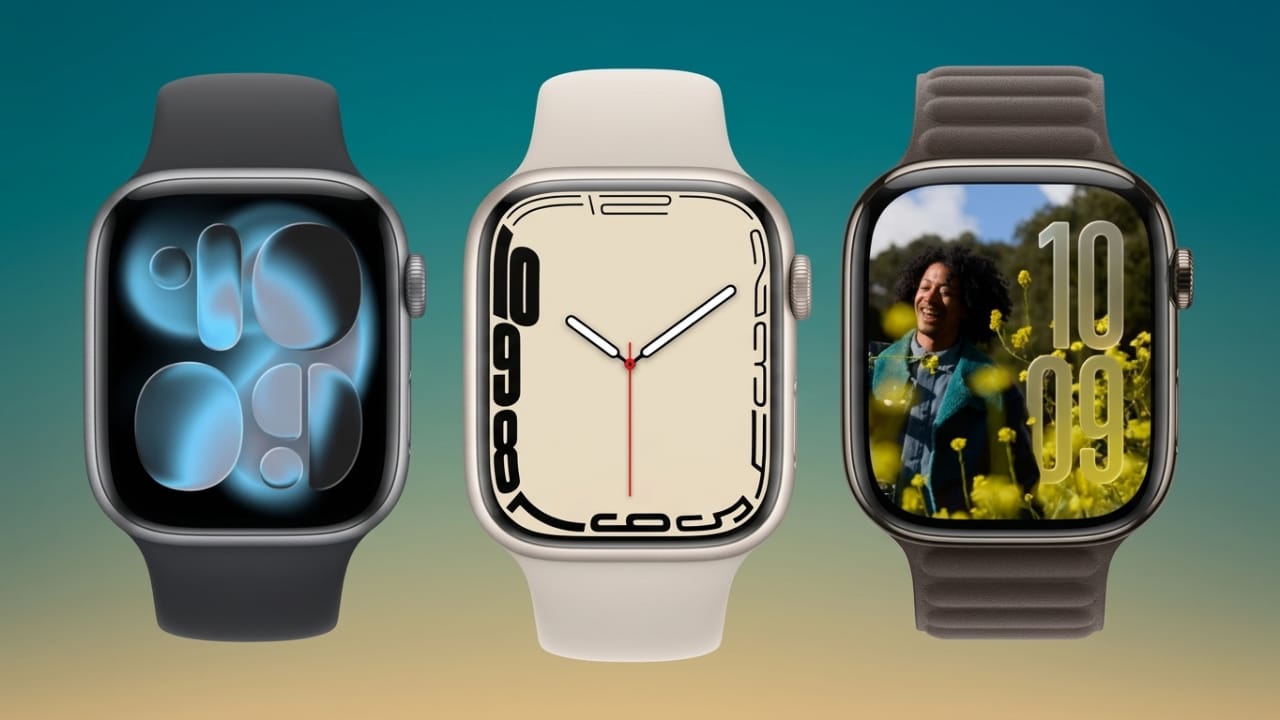
Customizing your Apple Watch face is one of the easiest ways to make the watch feel more personal and useful. Whether you want a clean professional look, a fitness-focused layout, or a fun design with your favorite photos, Apple Watch gives you plenty of options.
You can quickly switch between different styles, change colors, add widgets, and organize useful information directly on the screen. In this guide, you’ll learn simple methods to change and customize Apple Watch faces using both the watch and a paired iPhone.
Also read: How to Turn Off Voice Navigation in Google Maps on Android and iPhone
Why Customize Apple Watch Faces?
Changing watch faces is not only about appearance. A customized watch face can also improve daily usability.
Here are some common reasons people personalize their Apple Watch:
- Access important information faster
- Match the watch with outfits or occasions
- Create separate faces for work, fitness, or travel
- Improve readability and screen organization
- Keep the watch looking fresh and interesting
Apple Watch allows users to save multiple watch faces and switch between them anytime.
How to Change Apple Watch Face Directly on the Watch
Changing the watch face from the Apple Watch itself only takes a few seconds.
Wake Up the Apple Watch
First, activate the screen by:
- Raising your wrist
- Tapping the display once
After the display turns on, you can begin customization.
Press and Hold the Current Watch Face
Touch and hold the active watch face for a moment.
The watch face gallery will open automatically. You’ll now see saved watch faces and available styles.
Swipe Through Different Watch Faces
Swipe left or right on the screen to browse available designs.
This lets you compare different layouts, colors, and styles before selecting one.
You can explore options such as:
- Minimal layouts
- Fitness-focused faces
- Analog clock styles
- Photo watch faces
- Information-heavy designs
Select a Watch Face
Tap the watch face you want to use.
The selected design will instantly appear on your Apple Watch.
Many users keep separate watch faces for:
- Work
- Gym sessions
- Travel
- Casual use
- Holidays and special events
How to Customize Apple Watch Faces
After selecting a watch face, you can personalize it further.
Open the Edit Screen
Press and hold the watch face again, then tap Edit.
Different watch faces offer different customization options.
Change Colors and Styles
You can modify:
- Color themes
- Dial styles
- Number styles
- Background appearance
- Layout designs
Some users prefer bright colors for outdoor visibility, while others choose darker themes for a cleaner professional look.
Add Useful Complications
Complications are small widgets that show information directly on the watch face.
Popular complications include:
- Weather updates
- Calendar reminders
- Fitness tracking
- Battery percentage
- Music controls
- Heart rate data
- World clocks
These shortcuts help users check information quickly without opening apps repeatedly.
Save the Watch Face
Once customization is complete, press the Digital Crown.
Your Apple Watch will automatically save all changes.
How to Change Apple Watch Faces Using iPhone
Many users prefer using an iPhone because the larger screen makes customization easier.
The Watch app provides better visibility and smoother navigation.
Open the Watch App
Launch the Watch app on your paired iPhone.
Make sure the Apple Watch remains connected during the process.
Tap Face Gallery
At the bottom of the screen, tap Face Gallery.
This section contains many watch face categories, including:
- Modern designs
- Sports layouts
- Elegant analog styles
- Colorful themes
- Productivity-focused faces
Browse Categories
Scroll through available watch face collections and open any category you like.
Each face offers different layouts and features.
Some focus on health and fitness tracking, while others prioritize simplicity and style.
Customize the Watch Face
After selecting a design, you can adjust:
- Colors
- Fonts
- Styles
- Complications
- Screen layout
You can also preview changes before applying them.
Add Complications from iPhone
The iPhone interface makes complication management easier.
You can quickly add useful widgets such as:
- Weather
- Activity tracking
- Calendar events
- Battery status
- Stopwatch
- Time zones
This improves convenience during busy daily routines.
Tap Add
After finishing customization, tap Add.
The watch face will sync automatically with your Apple Watch.
Switching Between Saved Watch Faces
Apple Watch allows multiple saved watch faces at the same time.
To switch between them:
- Wake the watch
- Swipe left or right across the screen
This feature is useful for changing styles throughout the day.
For example:
- Fitness face during workouts
- Professional layout at work
- Simple night mode in the evening
Popular Apple Watch Faces in 2026
Apple continues adding new styles and improving existing ones.
Here are some popular choices among users.
Modular
The Modular face focuses on productivity and information.
It supports several complications, making it useful for:
- Office work
- Scheduling
- Travel
- Daily planning
Chronograph
Chronograph combines classic watch styling with stopwatch functionality.
It’s popular among:
- Athletes
- Fitness users
- Sports enthusiasts
The large display also improves readability.
Photo Watch Face
This option lets users display personal photos directly on the watch.
People often use:
- Family pictures
- Vacation photos
- Pets
- Favorite memories
It adds a personal touch to the device.
Infograph
Infograph supports many complications on one screen.
It’s ideal for users who want:
- Health tracking
- Weather updates
- Calendar reminders
- Activity monitoring
Everything stays visible at a glance.
California
California blends traditional analog design with modern customization.
It offers:
- Elegant appearance
- Clean layouts
- Custom color choices
Many users like it for formal or professional settings.
Do Watch Faces Affect Battery Life?
Yes, some watch faces can consume more battery than others.
Faces with:
- Constant animations
- Bright colors
- Multiple complications
may use more power.
Simpler watch faces usually help improve battery life throughout the day.
Users who travel frequently or use fitness tracking often prefer cleaner layouts for better battery efficiency.
Benefits of Apple Watch Customization
Customizing your Apple Watch can improve both appearance and functionality.
Faster Access to Information
Complications help users quickly check:
- Weather
- Meetings
- Fitness stats
- Battery percentage
without opening apps repeatedly.
Better Personalization
Different watch faces let users match:
- Outfits
- Moods
- Events
- Work environments
This makes the device feel more personal.
Cleaner Navigation
Simple layouts reduce clutter and improve readability.
This is especially useful for:
- Beginners
- Older users
- Busy professionals
Fresh Experience
Changing watch faces regularly keeps the Apple Watch feeling new and interesting.
Many people create:
- Holiday themes
- Workout layouts
- Weekend designs
- Professional office styles
Also read: Instagram Removes End-to-End Encryption for Direct Messages
FAQs
Can I save multiple Apple Watch faces?
Yes, Apple Watch allows users to save several customized watch faces and switch between them anytime.
Do I need an iPhone to change watch faces?
No, you can change watch faces directly from the Apple Watch. However, using an iPhone makes customization easier because of the larger screen.
Can I use personal photos as watch faces?
Yes, Apple Watch supports photo watch faces using images from your photo library.
Which watch face is best for productivity?
Many users prefer the Modular or Infograph watch faces because they support multiple complications and quick information access.
Does changing watch faces slow down the Apple Watch?
No, changing watch faces does not normally affect performance. However, heavily animated faces may use slightly more battery.
Conclusion
Apple Watch face customization is a simple way to improve both style and usability. Whether you prefer a clean professional look, a fitness-focused layout, or a personalized photo background, Apple provides many options for different needs.
You can customize colors, layouts, and complications directly from the watch or through a paired iPhone. Saving multiple watch faces also makes it easy to switch styles throughout the day.
With regular customization, your Apple Watch can stay practical, organized, and visually fresh every day.

Jatin Rajput (Tech Golu) — Tech blogger & YouTuber with 6+ years of experience in WhatsApp, Instagram, Facebook, and mobile guides. Founder of TechGolu.in.