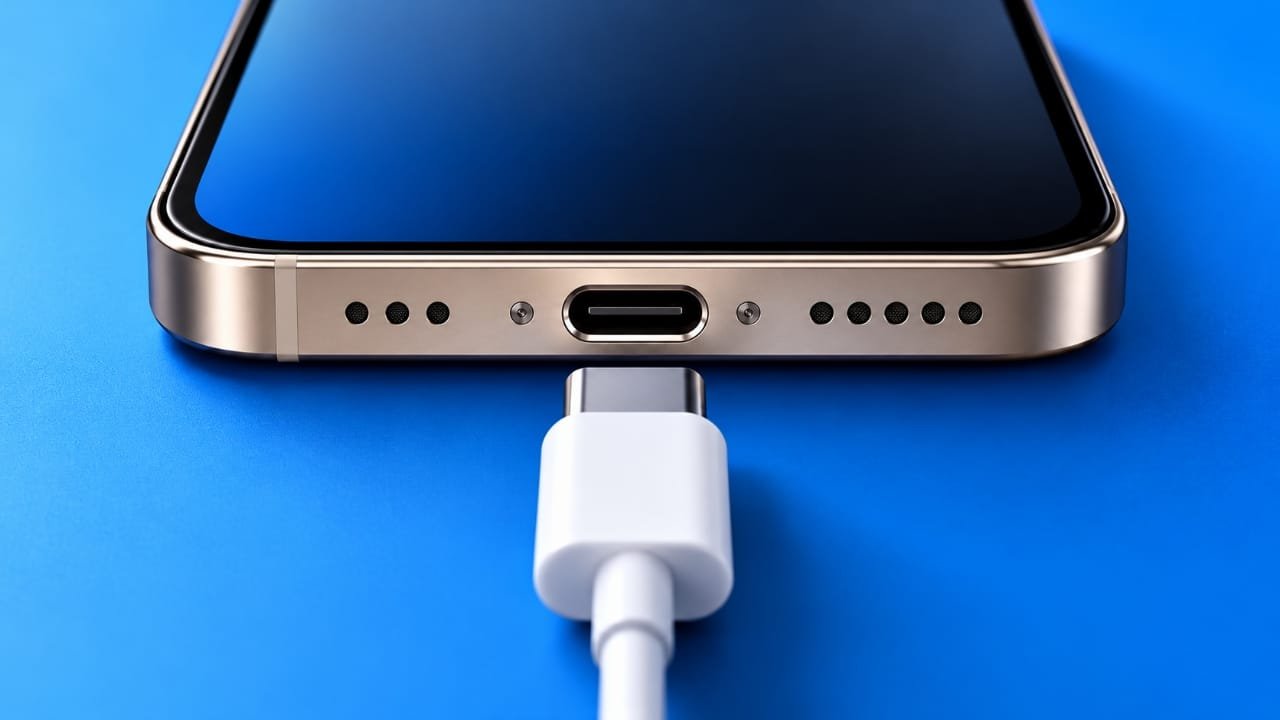
If your iPhone is not charging through its USB-C port, the issue could be related to a damaged cable, a faulty power adapter, dirt inside the port, moisture, or a software problem. In some cases, the charging port itself may be damaged.
Start by testing another compatible cable and adapter, checking the power outlet, and restarting your iPhone. If necessary, inspect the port carefully and follow safe cleaning and drying practices. When these steps do not help, professional repair may be required.
Also read: Claude Haiku 5.5: Features, Pricing, and Availability
Why Is Your iPhone USB-C Port Not Charging?
A charging problem does not always mean your iPhone has a hardware fault. Sometimes, the cause is as simple as a damaged cable or an unreliable power source.
Dust and pocket lint can also collect inside the USB-C connector and prevent the cable from making proper contact. Software issues and moisture detection may interrupt charging as well.
Before paying for repairs, try the following seven troubleshooting methods to narrow down the cause.
1. Inspect Your USB-C Cable and Power Adapter
The charging cable and adapter are good places to start when your iPhone stops charging. A cable may look normal on the outside but still have an internal fault. Similarly, a damaged adapter may fail to deliver power correctly.
Disconnect the cable and examine both connectors. Look for bent parts, damaged insulation, exposed wires, or signs of corrosion.
Try connecting your iPhone with another compatible USB-C cable. If the replacement cable works, the original one may need to be replaced. You can also test a different compatible power adapter to check whether the charger is responsible.
Keep these points in mind:
- Avoid cables with exposed wires or damaged connectors.
- Use compatible charging accessories from reputable manufacturers.
- Check both ends of the cable for visible damage.
- Replace accessories that become unusually hot or show signs of electrical damage.
If changing the cable or adapter solves the problem, there may be no need to inspect the phone further.
2. Try a Different Power Outlet
Sometimes, the charging equipment is working correctly, but the power source is not.
A loose wall connection, faulty socket, or switched-off power outlet can prevent your iPhone from charging. Testing another outlet is a simple way to rule out this possibility.
Unplug your charger and connect it to a different working wall outlet. Make sure the adapter is firmly connected and the cable is properly inserted into your iPhone.
If charging starts normally, the original outlet or power connection may have been the cause.
If nothing changes, continue with the next troubleshooting step.
3. Restart Your iPhone and Check for iOS Updates
Temporary software problems can sometimes affect normal device operation. Restarting your iPhone may help clear a minor glitch that is interfering with charging.
For most iPhones with Face ID, follow these steps:
- Press and hold the Side button and either Volume button until the power-off slider appears.
- Drag the slider to turn off your iPhone.
- Wait about 30 seconds.
- Press and hold the Side button until the Apple logo appears.
Once the phone starts, reconnect the charging cable and check whether the battery indicator shows that it is charging.
You should also check for available iOS updates. Open Settings > General > Software Update and follow the instructions if an update is available.
An update may fix certain software-related problems, although it will not repair a physically damaged charging port.
4. Check and Clean the USB-C Port Carefully
Dust and lint can build up inside your iPhone’s charging port, especially if you regularly carry the device in a pocket or bag.
When debris collects around the connector, the cable may not fit properly or maintain a reliable connection. Before attempting any cleaning, disconnect the charger and turn off your iPhone.
Use a light source to inspect the port. If you notice visible debris, do not push it deeper into the connector or scrape the internal contacts.
Follow these safety precautions:
- Do not insert needles, pins, paper clips, or other metal objects.
- Do not pour cleaning liquids into the port.
- Avoid tools that could scratch or bend the internal contacts.
- Do not use compressed air to remove debris.
- Follow Apple’s cleaning guidance for your specific iPhone model.
If the dirt is difficult to remove safely, ask a qualified technician to clean and inspect the port.
Afterward, reconnect the cable and see whether charging works normally. If the issue remains, another cause may be responsible.
5. Check for Moisture in the Charging Port
Your iPhone may temporarily prevent wired charging when it detects liquid in the USB-C connector. This protection helps reduce the risk of damage to the connector and cable.
If you receive a liquid-detection alert or suspect that moisture has entered the port, disconnect the cable immediately.
Place your iPhone in a dry area with good airflow. Keep the connector facing downward if practical, and allow time for the moisture to evaporate naturally.
Avoid these actions:
- Do not use a hair dryer or another external heat source.
- Do not insert tissues, cotton swabs, or other objects into the port.
- Do not use compressed air.
- Do not place the phone in a container of rice.
Wait until the connector is completely dry before attempting to charge it again. Drying can take several hours and, in some cases, up to 24 hours.
If the liquid alert continues after the port has dried, or you notice signs of corrosion or other damage, contact Apple Support or an authorised service provider.
6. Look for Signs of Physical Damage
If your iPhone has been dropped or the charging cable has been pulled sharply, the USB-C port may have suffered physical damage.
A damaged connector may prevent the cable from making proper contact. In more serious cases, internal components may also be affected.
Look for warning signs such as:
- The charging cable feels unusually loose when connected.
- Charging repeatedly starts and stops.
- The phone charges only when the cable is held at a particular angle.
- Several known-working cables and adapters fail to charge the device.
- The USB-C port has visible damage or signs of corrosion.
If you notice any of these problems, avoid forcing the cable into the port or repeatedly moving it to find a working position. This may worsen the damage.
A professional inspection can help determine whether the port needs cleaning, repair, or replacement.
7. Test Another Compatible Charging Setup
Before arranging a repair, try to confirm whether the problem comes from your iPhone or its accessories.
Use a known-working USB-C cable, a suitable power adapter, and a working wall outlet. Connect everything securely and allow a short time for the charging indicator to appear.
You can also check whether your iPhone connects to a compatible computer through USB-C, if you have one available. A failed computer connection does not automatically mean the charging port is damaged, but it may provide another clue.
Here is how to interpret the results:
- Your iPhone charges with a different cable: The original cable may be faulty.
- A different adapter fixes the issue: The original adapter may be the problem.
- The phone charges from another outlet: Check the original power source.
- No tested setup works: The problem may involve the port, software, battery, or another internal component.
These tests can help narrow down the cause, but they cannot always identify the exact fault. If charging still fails, professional diagnosis is the next reasonable step.
When Should You Get Your iPhone Repaired?
If you have checked the cable, adapter, outlet, software, and charging port without success, it may be time to seek professional help.
A technician can inspect the USB-C connector and check for damaged contacts, internal faults, or other hardware problems. Depending on the findings, the solution might involve cleaning, a component repair, or a replacement part.
Where Can You Get Your iPhone Repaired in India?
You can contact Apple Support, visit an Apple Store where available, or arrange a service appointment with an Apple Authorised Service Provider.
Before booking a repair, ask about the estimated cost, expected turnaround time, replacement parts, and service warranty. Repair eligibility and charges depend on the device, its condition, and your coverage.
If your iPhone is covered by a warranty or AppleCare plan, check the applicable terms before paying for a repair. Accidental damage and other exclusions may affect coverage.
Independent repair shops are another option, but check the technician’s qualifications, the quality of replacement parts, and any potential effect on your existing coverage.
Avoid opening the phone or attempting to replace the USB-C port yourself unless you have the necessary training and equipment.
Frequently Asked Questions
Why is my iPhone USB-C port not charging?
Common reasons include a faulty charging cable, a damaged adapter, a problem with the power outlet, debris inside the port, moisture detection, or a hardware fault. Test compatible accessories first before assuming that the phone needs repair.
Can I clean my iPhone charging port with a toothbrush?
It is best to follow Apple’s specific cleaning instructions for your iPhone model. Do not insert a toothbrush or other object into the connector unless the manufacturer’s guidance explicitly permits that method. The internal contacts are delicate and can be damaged by unsuitable tools.
Why does my iPhone charge very slowly?
Slow charging can result from the power adapter, cable, temperature, battery condition, or the phone’s current power usage. Try a compatible adapter and cable, and check whether the device is unusually hot or cold. If charging remains unusually slow, contact Apple Support for further guidance.
Why does my USB-C cable feel loose?
The connector may not be fitting properly because of accumulated debris, a worn cable, or damage to the charging port. Avoid forcing the cable or holding it at an angle to maintain a connection. Inspect the accessories and arrange a professional check if the problem continues.
Can Apple repair or replace an iPhone USB-C port?
Apple or an authorised service provider can assess the device and explain the available repair options. Whether the port can be repaired separately or requires a larger repair depends on the model and the damage. Contact Apple Support for current pricing and service eligibility.
Can I charge my iPhone if the USB-C port is wet?
Do not connect a cable while the port is wet or a liquid-detection warning is active. Disconnect the accessory and allow the connector to dry naturally. Follow Apple’s liquid-detection instructions before trying wired charging again.
Also read: How to Monitor and Reduce Screen Time on Android
Final Thoughts
An iPhone that refuses to charge through its USB-C port can be frustrating, but the cause is not always serious. A faulty cable, unsuitable adapter, or problem with the power outlet may be responsible.
Start with the simplest checks, restart your iPhone, and inspect the charging port without using sharp tools or liquids. If moisture is present, let the connector dry completely before reconnecting a cable.
When several working accessories fail to charge your phone, or the connector appears loose or damaged, seek professional assistance. Identifying the cause before arranging a repair can help you avoid unnecessary expenses and protect your iPhone from further damage.

Jatin Rajput (Tech Golu) — Tech blogger & YouTuber with 6+ years of experience in WhatsApp, Instagram, Facebook, and mobile guides. Founder of TechGolu.in.