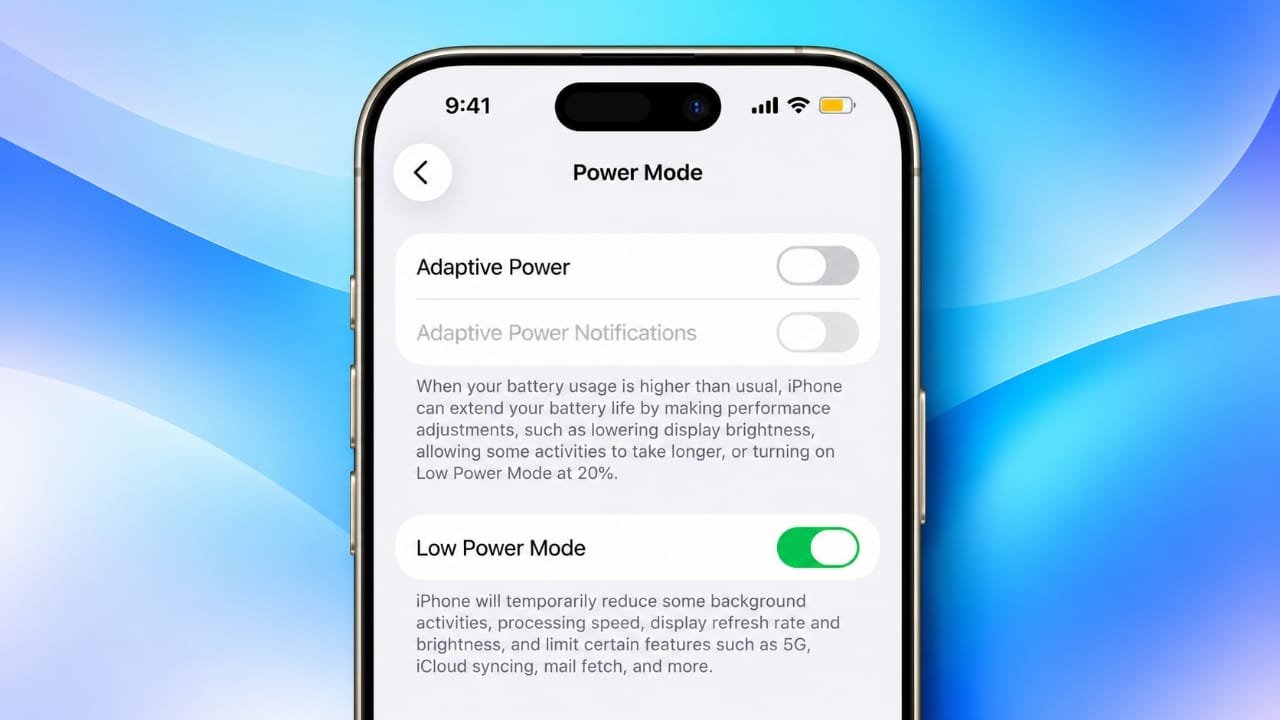
Low Power Mode and Battery Saver are useful features when your device is running low on battery. They reduce certain background activities and other power-hungry functions so your device can stay usable for longer.
However, you may not want these restrictions when your battery level is comfortable or when you need normal device performance. Fortunately, turning off the feature is usually quick.
This guide explains how to disable Low Power Mode on iPhone, iPad, Apple Watch, and Android devices.
Also read: ChatGPT Plus Free Trial in India: How to Check If You’re Eligible
How to Turn Off Low Power Mode on iPhone
Low Power Mode helps an iPhone use less power by limiting some background and system activities. Depending on the iPhone model and software version, you may notice changes to background updates, downloads, display behavior, and other features.
If you want your iPhone to operate normally again, you can turn Low Power Mode off from Settings or Control Center.
Turn Off Low Power Mode From Settings
The Settings app provides a straightforward way to change the battery setting.
- Open Settings on your iPhone.
- Tap Battery.
- Find Low Power Mode or the relevant power-mode option.
- Turn the setting off.
The exact menu can vary depending on your iPhone model and iOS version. If you do not see the option in exactly the same place, look inside the Battery section.
Once disabled, your iPhone can return to its usual background activity and system behavior.
Turn Off Low Power Mode From Control Center
Control Center can be more convenient when you want to change the setting quickly.
On newer iPhones:
- Swipe down from the top-right corner of the screen.
- Find the battery or Low Power Mode control.
- Tap it to turn the feature off.
On older iPhone models with a Home button, you may need to swipe up from the bottom of the screen to open Control Center.
If the required control is missing, you can customize Control Center and add the appropriate option when supported by your iOS version.
Ask Siri to Turn Off Low Power Mode
You can also use Siri if you prefer a voice command.
Activate Siri and say:
“Turn off Low Power Mode.”
If Siri supports the command on your device and software version, it can change the setting without requiring you to open the Settings app.
How to Turn Off Low Power Mode on iPad
Supported iPad models also include Low Power Mode.
To disable it:
- Open Settings.
- Tap Battery.
- Locate Low Power Mode.
- Switch it off.
You may also be able to access the relevant control through Control Center, depending on your iPad model and software version.
How to Turn Off Low Power Mode on Apple Watch
Apple Watch has its own Low Power Mode to help extend battery life. While it is active, some features and background activities may work differently.
To turn it off:
- Open the Control Center on your Apple Watch.
- Tap the battery percentage button.
- Find Low Power Mode.
- Turn the feature off.
The exact Control Center gesture can vary between Apple Watch software versions and models, so use the method provided by your current watchOS version.
After disabling Low Power Mode, features that were limited by the power-saving setting can return to their normal behavior.
How to Turn Off Battery Saver on Android
Android devices usually call their battery-saving feature Battery Saver, Power Saving Mode, or something similar.
The name and location can vary considerably between manufacturers such as Samsung, Google, Xiaomi, OnePlus, Motorola, and others.
Turn Off Battery Saver From Settings
Try the following general steps:
- Open Settings.
- Go to Battery.
- Look for Battery Saver, Power Saving Mode, or a similar option.
- Open the setting.
- Turn the feature off.
Some phones may place battery controls under sections such as Battery and device care, Battery and performance, or Power management.
If your phone uses a different menu structure, use the Settings search box and type Battery Saver or Power Saving.
Turn Off Battery Saver From Quick Settings
Quick Settings is usually the fastest way to disable Battery Saver.
- Swipe down from the top of the screen.
- Look for Battery Saver, Power Saving, or a similar tile.
- Tap the tile to turn it off.
If you cannot see the option, swipe down again to expand the Quick Settings panel. You may also be able to edit the panel and add the battery-saving control.
How to Turn Off Extreme Battery Saver
Some Android devices offer an Extreme Battery Saver or similarly named feature. It applies stronger restrictions than the standard Battery Saver mode.
When enabled, some applications may be paused or restricted to reduce battery consumption.
If your phone includes this feature:
- Open Settings.
- Go to Battery.
- Look for Extreme Battery Saver or a similar option.
- Turn it off.
The available options depend on the manufacturer and Android version installed on your phone.
How to Stop Battery Saver From Turning On Automatically
If Battery Saver keeps activating by itself, an automatic battery setting may be responsible.
Many Android phones allow Battery Saver to start when the battery reaches a particular percentage.
For example, a device may be configured to activate Battery Saver when the battery becomes low. The exact percentage and available options depend on the phone.
To check:
- Open Settings.
- Go to Battery.
- Open Battery Saver or Power Saving.
- Look for options related to Schedule, Automatic activation, or a battery percentage.
- Change or disable the automatic setting if you prefer manual control.
Menu names can differ between Android manufacturers.
Check iPhone Shortcuts Automations
If Low Power Mode repeatedly turns back on after you disable it, an automation could be responsible.
The Shortcuts app can contain personal automations that change settings when certain conditions are met.
To check:
- Open the Shortcuts app.
- Go to Automation.
- Review your existing automations.
- Look for rules involving battery level or Low Power Mode.
- Disable or remove an unwanted automation if necessary.
Only change automations that you recognize and no longer need.
What Changes When Low Power Mode Is Enabled?
Power-saving modes are designed to reduce energy consumption. As a result, some device functions may work differently while the feature is active.
Depending on your device, you may notice:
- Less frequent background activity
- Delayed or less frequent updates from some apps
- Restrictions on automatic downloads
- Changes to certain display effects
- Reduced display refresh rate on supported devices
- Restrictions on some network or background functions
- Changes to overall device performance
Not every device applies the same restrictions. Apple and Android manufacturers can use different approaches to conserve battery.
Why Turn Off Low Power Mode?
There is no need to keep a battery-saving mode enabled all the time if you do not need it.
For example, you may want normal device behavior when:
- Your battery has plenty of charge
- You are close to a charger
- You need apps to update normally
- You are downloading files
- You want supported display features to operate normally
- You are using the device for demanding tasks
Turning the feature off allows the device to return to its regular power-management settings.
Ways to Save Battery Without Battery Saver
You can also reduce battery consumption without keeping a full power-saving mode enabled.
Reduce Screen Brightness
The display can use a significant amount of power. Keeping brightness at a comfortable level instead of using maximum brightness can help reduce battery consumption.
Use Adaptive Battery Features
Many Android phones include battery-management features that learn how you use your device and manage background activity accordingly.
If your phone provides Adaptive Battery, check its settings to see whether it suits your usage.
Reduce the Display Refresh Rate
A higher refresh rate can require more power. Some devices allow you to select a lower refresh rate when longer battery life is more important than smoother scrolling.
The available options depend on your device.
Keep the Phone Cool
Excessive heat can affect battery performance and may cause the device to consume power more quickly.
Avoid leaving your phone in very hot places, such as a car exposed to direct sunlight.
Review Background Activity
Check your battery settings to see which apps are consuming the most power.
If an app is using an unusually large amount of battery and you do not need its background activity, review its permissions and battery settings.
Check Battery Usage Regularly
Both iPhone and Android devices provide battery-usage information. Reviewing this information can help you identify apps or features that are consuming more power than expected.
This can be a better long-term approach than keeping an aggressive power-saving mode enabled all the time.
Frequently Asked Questions
Does turning off Low Power Mode improve iPhone performance?
It can allow features that were restricted by Low Power Mode to return to their normal behavior. The actual difference depends on your iPhone model, iOS version, and the tasks you are performing.
Does Low Power Mode damage the battery?
Low Power Mode is a built-in power-management feature. Using it does not mean that your battery is being damaged. It is designed to reduce power consumption.
Why does Battery Saver turn on automatically on Android?
Your phone may have an automatic Battery Saver schedule or a setting that activates it when the battery reaches a selected level. Check the Battery Saver settings to change this behavior.
Can I turn off Battery Saver without charging my phone?
Yes. On supported devices, you can normally disable Battery Saver manually from Settings or Quick Settings without connecting the phone to a charger.
Why does Low Power Mode keep coming back on my iPhone?
Check the Shortcuts app for personal automations that may be configured to enable Low Power Mode when a particular battery condition is reached..
Also read: Apple Pay Launches in India: Axis Bank Cards, Supported Devices and Setup Guide
Final Thoughts
Low Power Mode and Battery Saver are useful when you need to make your battery last longer, but they are not always necessary.
If your device has enough charge and you want regular system behavior, you can turn the feature off through Settings, Control Center, Quick Settings, or other available controls.
Because menus vary between device models and software versions, the exact steps may look slightly different on your phone, tablet, or smartwatch. If the option is difficult to find, searching for Battery, Battery Saver, or Low Power Mode within Settings is usually a good place to start.

Jatin Rajput (Tech Golu) — Tech blogger & YouTuber with 6+ years of experience in WhatsApp, Instagram, Facebook, and mobile guides. Founder of TechGolu.in.