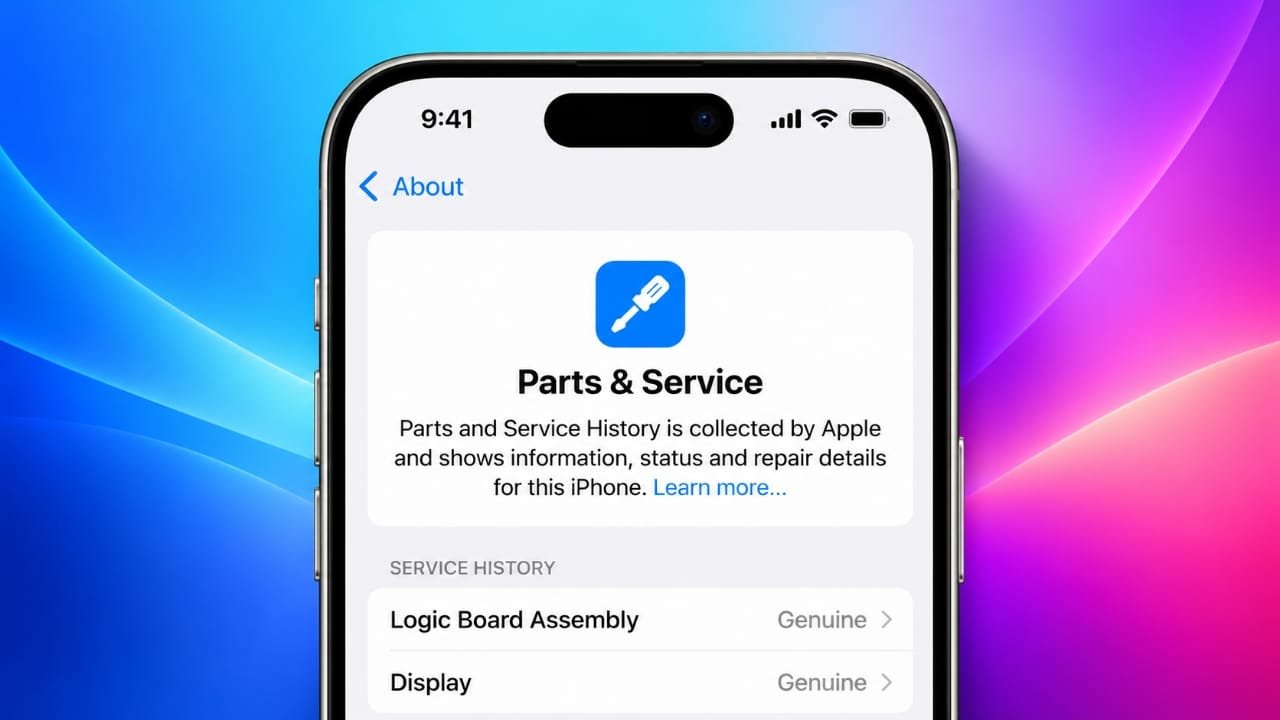
If your iPhone has ever been repaired or you are planning to buy a used or refurbished model, checking its repair history can be useful. Apple includes a Parts and Service History section in Settings that can show whether certain components have been replaced and, in some cases, whether Apple can verify those parts.
This guide explains where to find the feature, which iPhone models support it, and what labels such as Genuine, Used, Unknown, and Unverified mean.
Also read: How to Change the Default Search Engine in Safari on iPhone, iPad, and Mac
What Is Parts and Service History on iPhone?
Parts and Service History is an iPhone feature that provides information about certain replacement components installed during a repair.
Depending on your iPhone model and the component involved, the section may show information about parts such as the:
- Battery
- Display
- Camera
- Logic Board
- Other supported components
The information can be particularly helpful when checking a second-hand iPhone. For example, if a seller says the phone has never been repaired but the Parts and Service History section shows a replacement component, you can ask for more details before buying it.
Keep in mind that the information shown depends on the iPhone model, iOS version, and type of repair.
How Does Apple Verify Replaced Parts?
Apple uses software and calibration processes to configure supported replacement components after a repair.
On compatible devices, Repair Assistant can help complete the required calibration after certain parts have been replaced. Some supported previously used parts can also be configured when they are compatible with the device.
The Parts and Service History section is designed as information for the device owner. It is not something you normally edit manually.
If an iPhone has no applicable repair history, this section may not appear in Settings.
When Should You Check the Service History?
There are several situations where checking this information makes sense.
Before Buying a Used iPhone
This is one of the most useful times to check. You can compare the information shown on the iPhone with what the seller has told you about its repair history.
After a Repair
If you recently replaced a battery, display, or camera, checking the section can help you understand how the replacement is identified by the iPhone.
When Troubleshooting a Problem
If you are experiencing issues after a repair, the service history may provide useful information about previously replaced components.
Before Selling or Trading In
A potential buyer or trade-in provider may ask about repairs. Checking the history beforehand lets you know what information is visible on the device.
Which iPhones Support Parts and Service History?
Apple introduced Parts and Service History with iOS 15.2 and expanded the feature to more models and components over time.
The supported information varies by model. In general:
| iPhone models | Supported parts |
|---|---|
| iPhone XR, XS, XS Max and iPhone SE (2nd and 3rd generation) | Battery |
| iPhone 11 series | Battery and display |
| iPhone 12 series and later | Battery, display, cameras and other supported components |
On newer iPhone models, Apple can also identify when a supported replacement component was previously used in another iPhone.
Because Apple can change supported models and components through software updates, the exact information available on your device may differ.
How to See Parts and Service History on iPhone
Checking the information only takes a few steps.
- Open Settings on your iPhone.
- Tap General.
- Select About.
- Look for Parts and Service History.
- Tap the section to see information about supported replacement components.
If your iPhone has had a supported repair, you may see entries for components such as the battery, display, or camera.
You may also see additional information about a component, including its service status.
Keeping your iPhone connected to the internet can be useful when the device needs to complete verification or repair-related processes.
What Do the Different Labels Mean?
The wording displayed by your iPhone can help explain the status of a replacement component.
Genuine
A Genuine label indicates that Apple can identify the component as a genuine Apple part and that the relevant repair or configuration process has been completed.
However, this label does not necessarily mean that the repair was performed directly by an Apple Store. Genuine Apple parts may also be available through other repair channels supported by Apple.
Used
On supported newer iPhone models, a Used label can indicate that a genuine Apple component was previously installed in another iPhone.
A used component is not automatically the same as a new component. Its previous use may be relevant when evaluating a repaired or second-hand device.
Unknown
An Unknown message means the iPhone cannot verify the component or its repair information.
This can happen for several reasons. For example, the component may not be recognized, may not be functioning as expected, may not have been properly configured after installation, or may have been modified.
An Unknown label does not automatically prove that a component is counterfeit or that the entire iPhone is unsafe. It simply means that the device cannot verify the part or repair status.
Unverified
An Unverified message can appear in connection with a previously replaced Logic Board.
Because the Logic Board is closely associated with important device functions, certain features may be affected depending on the repair and device configuration.
Finish Repair
If a supported repair has not completed its required configuration or calibration, the iPhone may display a Finish Repair message.
On supported repairs, Repair Assistant can be used to complete the process.
What Does a Genuine Apple Part Mean?
A genuine Apple component is an Apple part designed for use with the relevant device.
Apple’s repair ecosystem includes Apple Stores, Apple Authorized Service Providers, Independent Repair Providers, and Self Service Repair options where supported. Availability and repair options vary depending on the device and region.
Using an appropriate component and completing the required calibration can help ensure that supported features work as intended.
However, a Genuine label should not be treated as a guarantee that every other aspect of a previous repair was performed perfectly. If you notice a problem, the device should still be properly diagnosed.
What Does a Used Part Mean?
A used part is a component that was previously installed in another device.
For supported repairs, Apple provides Repair Assistant and other software processes that can help configure compatible reused parts.
If you are purchasing a used iPhone, seeing a Used label is useful information. It tells you that the component has a previous installation history rather than being a brand-new replacement.
What Does an Unknown Part Mean?
An Unknown part deserves a closer look, especially when buying a second-hand iPhone.
The message means the device cannot verify the component or its repair status. It does not tell you by itself exactly why verification failed.
Possible reasons include:
- The part cannot be verified by the iPhone.
- The component is not functioning as expected.
- The repair process was not completed.
- The component was modified.
- The part was not properly linked or configured after installation.
If you see this message after a repair, contacting the repair provider can help determine what happened.
What Should You Do If Your iPhone Shows Unknown or Unverified?
If you find an Unknown or Unverified component, avoid making assumptions based only on the message.
Instead, consider these steps:
- Ask the repair provider what component was installed.
- Check your repair receipt or service documentation.
- Ask whether the required calibration or configuration was completed.
- If necessary, have the iPhone inspected by Apple or an appropriate repair provider.
- If you are buying a used iPhone, ask the seller for details about the repair.
For a second-hand purchase, you should also consider how the repair history could affect the device’s future trade-in or resale options.
How to Finish an Incomplete Repair
If your iPhone shows a Finish Repair option after a supported component replacement, you may be able to complete the process using Repair Assistant.
Generally, you should:
- Connect the iPhone to Wi-Fi.
- Make sure the battery has sufficient charge.
- Open Settings.
- Go to General > About.
- Open Parts and Service History.
- Select Restart & Finish Repair, if the option is available.
- Follow the instructions displayed on the screen.
The exact process can vary depending on the iPhone model and the component that was replaced.
Can Service History Be Cleared or Changed?
The Parts and Service History section is intended to provide repair information rather than function as a manually editable log.
If the same component has been repaired multiple times, the iPhone may show information about the most recent repair rather than displaying every historical repair for that component.
For this reason, it is also a good idea to keep your repair receipts and service records.
Things to Check After an iPhone Repair
After receiving your iPhone from a repair, take a few minutes to test the important functions.
Check things such as:
- Touchscreen response
- Display brightness and quality
- Battery charging
- Cameras
- Speakers and microphone
- Face ID or Touch ID, where applicable
- Cellular connectivity
- Wi-Fi and Bluetooth
- Buttons and other hardware
You can then open Settings > General > About > Parts and Service History and check whether the repair information matches what you were told.
Tips for Buying a Used or Refurbished iPhone
If you are buying a second-hand iPhone, Parts and Service History should be only one part of your inspection.
Also check:
- Battery health
- Physical condition
- Camera and display
- Face ID or Touch ID
- Charging port
- Network connectivity
- Activation Lock status
- Whether the phone is fully erased before purchase
- Original purchase or repair documentation, when available
Most importantly, compare the seller’s claims with the information shown on the device.
Keep Your Repair Records
Even though your iPhone can display information about supported repairs, keeping invoices and service receipts is still useful.
A repair document can provide details that may not appear in Parts and Service History, such as the date of service, repair provider, and specific work performed.
If you plan to sell the iPhone later, these records can also help explain its repair history to a potential buyer.
What About iPhone Preparation Before Repair or Trade-In?
Before handing your iPhone to a repair provider or preparing it for trade-in, follow Apple’s current instructions for the device and iOS version you are using.
Newer iOS versions may include updated preparation workflows, so instructions from an older iOS release may not exactly match what you see on your iPhone.
Always follow the options and instructions displayed on your own device.
Also read: How to Hide Your Caller ID on iPhone When Making a Call
Final Thoughts
Parts and Service History is a useful tool for understanding the repair history of a supported iPhone.
Whether you already own the device or are considering a used model, checking this section can give you additional information about replaced components and their verification status.
Labels such as Genuine, Used, Unknown, Unverified, and Finish Repair can provide clues about what happened during a repair. However, they should be considered alongside the phone’s physical condition, functionality, repair records, and other checks.
If you are buying a used iPhone, take a few minutes to inspect this information before completing the purchase. It can help you ask the right questions and make a more informed decision.

Jatin Rajput (Tech Golu) — Tech blogger & YouTuber with 6+ years of experience in WhatsApp, Instagram, Facebook, and mobile guides. Founder of TechGolu.in.