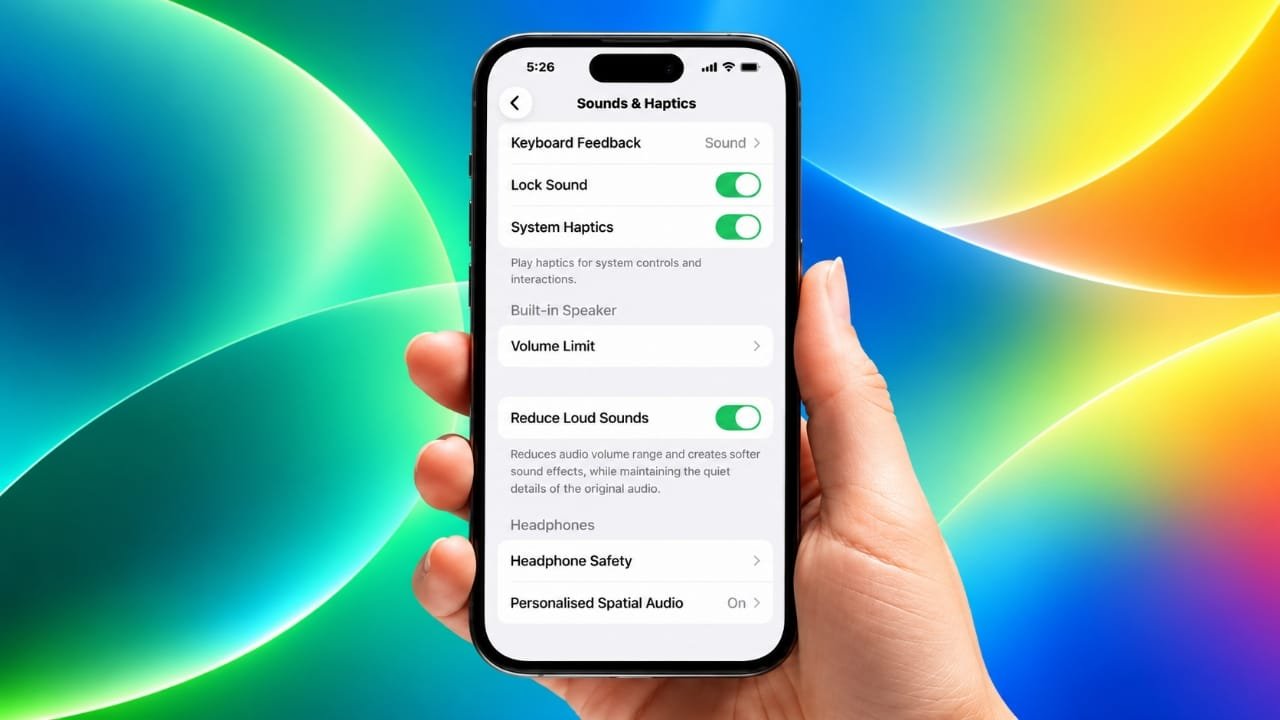
If your iPhone speaker or headphones sound too loud, iOS 27 gives you several settings that can help control the audio level.
There are separate options for the built-in iPhone speaker and connected headphones. You can soften loud sounds from the speaker, set a maximum speaker volume, or reduce the volume level for headphones and AirPods.
Because these settings work differently, it is important to choose the one that matches the type of audio you want to control.
Also read: iPhone Touch Disease: Symptoms, Causes, Affected Models and Repair Options
How to Turn On Reduce Loud Sounds for the iPhone Speaker
If the built-in iPhone speaker is producing sounds that feel too loud, you can enable the Reduce Loud Sounds option.
Follow these steps:
- Open the Settings app on your iPhone.
- Tap Sounds & Haptics.
- Look for the Built-In Speaker section.
- Turn on Reduce Loud Sounds.
This option works with the iPhone’s built-in speaker. It does not control audio coming through headphones or AirPods.
Keep in mind that Reduce Loud Sounds is simply an on/off setting. It does not provide a slider for choosing a particular volume level or decibel limit.
If you want to control the highest volume your iPhone speaker can reach, use the separate Volume Limit option.
How to Set a Maximum Volume for the iPhone Speaker
You can also set a maximum output level for the iPhone’s built-in speaker.
To do this:
- Go to Settings.
- Open Sounds & Haptics.
- Tap Built-In Speaker.
- Select Volume Limit.
- Turn on Limit Maximum Volume.
- Move the slider to your preferred maximum level.
This setting creates a ceiling for the speaker volume. Even if you increase the volume later, it cannot go beyond the limit you have selected.
You can also use this feature together with Reduce Loud Sounds. The two settings serve different purposes: one reduces the intensity of loud speaker sounds, while the other limits the maximum volume.
How to Reduce Loud Audio From Headphones or AirPods
The speaker settings do not apply to headphones. If you are using headphones or AirPods and want to reduce loud audio, you need to use the headphone safety controls.
Here’s how:
- Open Settings.
- Tap Sounds & Haptics.
- Select Headphone Safety.
- Turn on Reduce Loud Audio.
- Adjust the slider to choose the level you want.
This control is separate from the settings for the built-in iPhone speaker.
If you cannot see the relevant headphone option, connect your headphones and check the settings again. Availability can depend on the headphones being used.
How to Keep Media Volume Separate From Ringtone Volume
The iPhone’s side volume buttons can control different types of sound depending on what you are doing.
When music, a video, or another type of media is playing, the buttons normally adjust the media volume. When media is not playing, the same buttons can adjust the ringtone and alert volume.
If you do not want the side buttons to change your ringtone and alert volume, you can change this behavior.
Go to:
Settings > Sounds & Haptics
Then turn off Change with Buttons.
After that, you can adjust the ringtone and alert level separately using the Ringtone and Alert Volume slider.
If a notification sound seems too loud, remember that Reduce Loud Sounds is not designed to control notification volume.
Is Reduce Loud Sounds the Same as Headphone Safety?
No. These are separate controls.
Reduce Loud Sounds under the built-in speaker settings is intended for audio played through the iPhone’s own speaker.
For headphones or AirPods, use:
Settings > Sounds & Haptics > Headphone Safety > Reduce Loud Audio
There is also a separate Volume Limit setting for the built-in speaker. This option is designed to restrict how high the speaker volume can go.
Understanding the difference between these settings can make it easier to control your iPhone’s audio without accidentally changing the wrong volume setting.
Also read: How to Turn Your iPhone or Android Phone Into a Mobile Hotspot
What to Check If Your iPhone Sounds Too Quiet
If your music or videos suddenly sound quieter than expected, first check the regular media volume using the side buttons or Control Center.
You should also check whether you have enabled a speaker volume limit or changed the headphone audio settings.
The right setting depends on where the sound is coming from:
- iPhone speaker: Use Reduce Loud Sounds or Volume Limit.
- Headphones or AirPods: Check Headphone Safety and Reduce Loud Audio.
- Ringtone and alerts: Adjust the Ringtone and Alert Volume slider under Sounds & Haptics.
- Music and videos: Adjust the media volume while the content is playing.
Using the correct control can help you manage different types of audio without changing settings that you do not want to change.

Jatin Rajput (Tech Golu) — Tech blogger & YouTuber with 6+ years of experience in WhatsApp, Instagram, Facebook, and mobile guides. Founder of TechGolu.in.