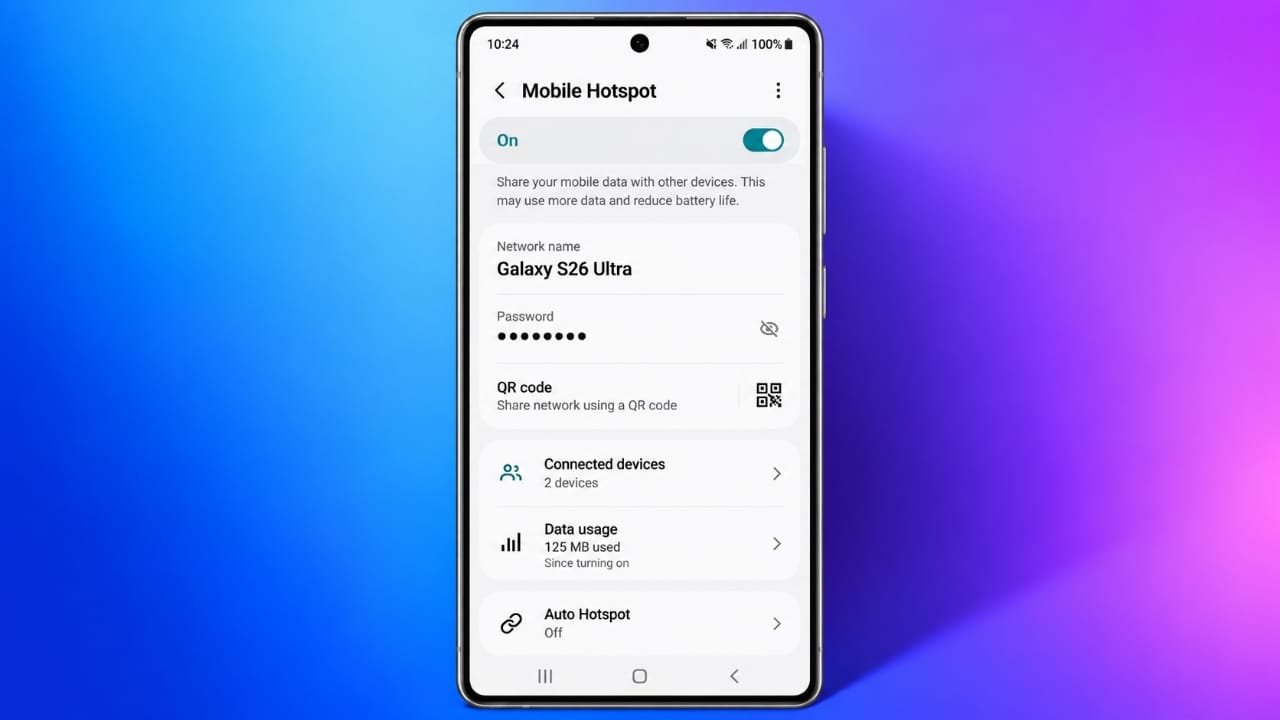
When regular Wi-Fi is not available, your smartphone can provide another way to get your other devices online. Both iPhone and Android phones can share their mobile data through a feature called a mobile hotspot.
You can use a phone hotspot with laptops, tablets, computers, and some smart TVs. The exact steps may vary depending on your phone model and mobile carrier.
Also read: How to Turn On Theft Detection Lock on Android
What Is a Mobile Hotspot?
A mobile hotspot turns your smartphone into a small wireless network. Instead of connecting to a home or public Wi-Fi network, another device connects to your phone and uses its cellular data.
For example, if you are working on a laptop somewhere without Wi-Fi, you can enable the hotspot on your phone and connect the laptop to it.
Most modern iPhones and Android phones support this feature, although availability and settings can differ between devices and mobile plans.
What Devices Can Use a Phone Hotspot?
A hotspot can be useful for several everyday devices, including:
- Laptops
- Tablets
- Desktop computers
- Some smart TVs
- Other Wi-Fi-enabled devices
The connection speed depends largely on your cellular signal, network congestion, your phone, and your carrier’s hotspot policies. A strong 4G or 5G connection can generally provide a better experience than a weak cellular signal.
Check Your Mobile Plan First
Having a hotspot option on your phone does not always mean unlimited hotspot data is included with your plan.
Depending on your carrier and plan, you may have:
- A monthly hotspot data allowance
- A separate high-speed hotspot limit
- Reduced speeds after reaching a certain amount of data
- Additional hotspot data options
- Specific hotspot restrictions
Before using your phone as a hotspot regularly, check your carrier’s current plan details. This is particularly important if you intend to stream videos, download large files, or work online for several hours.
Why Use a Personal Hotspot Instead of Public Wi-Fi?
Public Wi-Fi can be convenient, but using your own phone’s connection can be simpler when you need internet access quickly.
With a personal hotspot, you control the network password and decide which devices can connect. You also do not need to search through nearby public networks.
However, there is an important trade-off: a hotspot can use your mobile data and drain your phone’s battery quickly.
For longer sessions, keeping your phone connected to a charger can help prevent the battery from running low.
How to Turn an iPhone Into a Hotspot
Apple provides a built-in Personal Hotspot feature on supported iPhones.
- Open the Settings app.
- Tap Personal Hotspot. On some versions of iOS, you may need to go through Cellular first.
- Turn on Allow Others to Join.
- Check the Wi-Fi password shown on the same screen.
- Connect your other device to the iPhone’s hotspot using Wi-Fi.
If the Personal Hotspot option is missing, your carrier or mobile plan may not support the feature.
Change Your iPhone Hotspot Password
You can change the hotspot password from the Personal Hotspot settings.
Choose a password that is difficult for other people to guess. Avoid using information such as your birthday, phone number, pet’s name, or simple number sequences.
A unique password containing a mixture of letters, numbers, and symbols can make your hotspot harder for unwanted users to access.
Connect a Device to an iPhone Hotspot Over Wi-Fi
Wi-Fi is usually the easiest way to connect another device.
On the laptop, tablet, or other device:
- Open its Wi-Fi settings.
- Look for your iPhone’s network name.
- Select the network.
- Enter the hotspot password.
- Wait for the device to establish the connection.
Your connected device should then use the iPhone’s cellular data.
If you do not know your iPhone’s network name, you can usually find it under Settings > General > About > Name.
Use USB Tethering With an iPhone
An iPhone can also share its connection with a computer using a suitable USB cable.
Connect the iPhone to the computer and make sure Personal Hotspot is enabled. Depending on the computer and operating system, you may need to trust the connected iPhone or install the required Apple software before the connection works.
USB tethering can be useful when you prefer a wired connection instead of Wi-Fi.
Use Bluetooth for iPhone Internet Sharing
Bluetooth is another supported method for sharing an iPhone’s internet connection with compatible devices.
First, pair the iPhone with the other device. Then use the device’s Bluetooth networking options to establish the connection.
For most people, Wi-Fi is more convenient, but Bluetooth can be useful in situations where a wireless Wi-Fi connection is not suitable.
How to Check Whether Your iPhone Hotspot Is Active
When a device is using your iPhone’s Personal Hotspot, iOS displays an indicator at the top of the screen.
You can also open Control Center to check the current connection status. The exact appearance of the indicator can vary depending on the iPhone model and iOS version.
How to Turn a Samsung Galaxy Into a Hotspot
Samsung Galaxy phones include a Mobile Hotspot feature.
The menu names can vary slightly between Galaxy models and One UI versions, but the general process is:
- Open Settings.
- Tap Connections.
- Select Mobile Hotspot and Tethering.
- Tap Mobile Hotspot.
- Turn the feature on.
- Open the hotspot settings if you want to change the network name or password.
Use a unique password so nearby people cannot easily guess it.
How to Turn a Google Pixel Into a Hotspot
Google Pixel phones use a different settings layout.
To enable a hotspot:
- Open Settings.
- Tap Network & internet.
- Select Hotspot & tethering.
- Tap Wi-Fi hotspot.
- Turn on the hotspot.
- Review or change the network name and password if needed.
Once enabled, other Wi-Fi devices can connect to the Pixel using the displayed network details.
Android Offers Several Tethering Options
Android phones can provide more than one way to share mobile data. The available options depend on the manufacturer, Android version, and device.
Wi-Fi Hotspot
This creates a wireless network that other devices can join. It is generally the simplest option.
USB Tethering
You can connect your phone to another device with a USB cable and share the mobile connection.
Bluetooth Tethering
This allows compatible devices to use the phone’s internet connection through Bluetooth.
Ethernet Tethering
Some Android phones support Ethernet tethering with compatible hardware, such as a suitable USB adapter.
For everyday use, Wi-Fi hotspot is usually the most convenient choice.
Change Android Hotspot Settings
Android provides several settings for controlling your hotspot.
Depending on your phone, you may be able to change:
- Network name
- Hotspot password
- Security settings
- Wi-Fi band
- Automatic hotspot settings
- Connected-device permissions
Some phones allow you to choose between different Wi-Fi bands. The best option depends on the connected device and your surroundings, so changing this setting does not always guarantee faster internet.
How to Keep Your Hotspot Secure
A mobile hotspot should be protected with a strong password.
After enabling the feature, check which devices are connected through your phone’s hotspot settings. Many Android phones provide a Connected Devices section, while iPhones provide hotspot connection indicators and controls.
If you see a device you do not recognize, disconnect the hotspot and change the password before enabling it again.
Some Android devices also provide an option to block individual connected devices.
What to Do If Someone Connects Without Permission
If an unfamiliar device appears on your hotspot, there is no need to panic.
First, turn off the hotspot. Then change the hotspot password to something completely different before turning it back on.
On supported Android devices, you may also be able to block the unknown device directly from the hotspot settings.
Using a unique password is one of the easiest ways to reduce unwanted connections.
Keep an Eye on Mobile Data Usage
Every device connected to your hotspot uses your phone’s cellular data.
Simple tasks such as checking email may use relatively little data, while video streaming, large downloads, cloud backups, and software updates can consume much more.
If your mobile plan has a limited hotspot allowance, regularly check your data usage. This can help you avoid reaching your high-speed limit unexpectedly.
Keep Your Phone Charged
Running a hotspot can put additional demand on your smartphone’s battery.
If you are using the hotspot for an extended period, keep the phone connected to a charger when practical. This is especially useful when your laptop or another device needs an internet connection for several hours.
Hotspot Speed Depends on Cellular Coverage
Your hotspot connection cannot perform better than the cellular connection available to your phone.
A weak signal can result in slower speeds or an unstable connection. Network congestion can also affect performance, even when your phone shows a strong signal.
If the connection is slow, try moving to an area with better cellular reception. Your carrier’s network conditions and hotspot policies can also affect the experience.
Quick Mobile Hotspot Checklist
Before using your phone as a hotspot, check the following:
- Your mobile plan supports hotspot usage.
- You have enough hotspot data available.
- Your phone has sufficient battery power.
- Your cellular signal is reasonably strong.
- Your hotspot has a unique password.
- Only trusted devices are connected.
- You turn off the hotspot when you no longer need it.
These simple steps can make mobile hotspot use more convenient and help you avoid common problems.
Also read: Samsung Galaxy A08 Launched With 6,000mAh Battery and Six Years of Updates
Final Thoughts
A mobile hotspot can be a useful backup when regular Wi-Fi is unavailable. Both iPhone and Android devices provide built-in options for sharing cellular internet with laptops, tablets, and other compatible devices.
For the best experience, keep your phone charged, use a strong hotspot password, and check your mobile plan’s data limits. If the connection becomes slow, remember that cellular coverage and network conditions can have a major effect on hotspot performance.

Jatin Rajput (Tech Golu) — Tech blogger & YouTuber with 6+ years of experience in WhatsApp, Instagram, Facebook, and mobile guides. Founder of TechGolu.in.