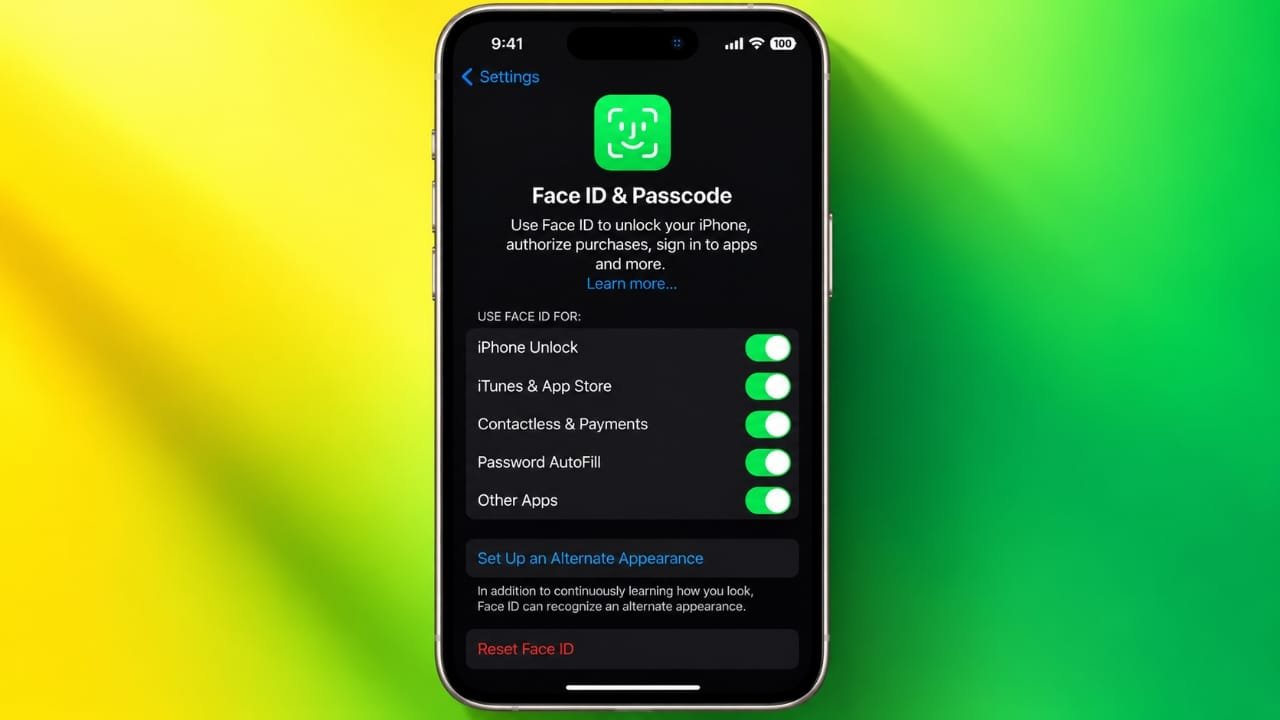
Face ID makes it easy to unlock a compatible iPhone without typing your passcode every time. Just look at your phone, and it can recognize you within seconds.
Apart from unlocking the device, Face ID can be used for Apple Pay, App Store purchases, password autofill, and authentication in supported apps.
Apple designed Face ID with security and privacy in mind. The facial information used for authentication is processed on the iPhone rather than being stored as a regular photo.
Also read: How to Fix iPhone Battery Draining Fast After iOS 26 Update
How Does Face ID Work on iPhone?
Face ID is Apple’s facial authentication system. It uses the sensors around the iPhone’s front camera to examine the shape and depth of your face.
During a scan, the TrueDepth camera system creates a detailed representation of your facial features. Your iPhone then compares the new scan with the facial information enrolled during setup.
The authentication process takes place on the device, using Apple’s Secure Enclave to protect the stored Face ID information.
The Main Components Behind Face ID
Face ID uses several components to recognize your face:
- Dot projector: Projects thousands of invisible infrared dots onto your face.
- Infrared camera: Detects the pattern of those dots and captures the required facial information.
- Flood illuminator: Provides infrared illumination so the system can recognize your face even when the surroundings are dark.
These components work together to measure facial depth and features. That’s why Face ID can normally work in a variety of lighting conditions.
Does Face ID Store a Photo of Your Face?
Face ID doesn’t simply save a normal photograph of your face for future comparisons.
Instead, the system creates a mathematical representation based on the information captured during enrollment. This information is protected by the Secure Enclave on your iPhone.
Face ID data is designed to remain on the device and isn’t stored in iCloud as part of your regular iCloud data.
Apps also don’t get direct access to your Face ID information. A supported app can request authentication, but it receives the authentication result rather than your actual facial data.
What Can You Use Face ID For?
Face ID can be used for several everyday tasks, depending on your iPhone and the apps you use.
Common uses include:
- Unlocking your iPhone
- Authorizing Apple Pay transactions
- Confirming App Store and other supported purchases
- Filling saved passwords with authentication
- Unlocking supported apps
- Signing in to compatible third-party apps
You can decide which features use Face ID.
Go to Settings > Face ID & Passcode, enter your passcode, and look under the Use Face ID For section. From there, you can turn individual features on or off.
How to Set Up Face ID on iPhone
Setting up Face ID only takes a few minutes. Before you begin, make sure you have already created a passcode for your iPhone.
Follow these steps:
- Open the Settings app.
- Tap Face ID & Passcode.
- Enter your iPhone passcode.
- Tap Set Up Face ID.
- Position your face inside the frame shown on the screen.
- Tap Get Started.
- Slowly move your head so that you complete the circle shown on the display.
- Complete the second scan when prompted.
- Tap Done after the setup finishes.
Try to keep your face clearly visible while setting up Face ID. Make sure the TrueDepth camera area isn’t covered.
Apple recommends keeping the iPhone at a comfortable distance from your face during setup. Around 25–50 cm is generally suitable.
Can You Add an Alternate Appearance?
Yes. Some people may look noticeably different because of changes such as facial hair, glasses, or other appearance changes.
On supported iPhones, you can add an alternate appearance by going to:
Settings > Face ID & Passcode > Set Up an Alternate Appearance
Then follow the instructions on the screen.
Keep in mind that the alternate appearance feature should be used carefully. Adding another person’s face could allow that person to authenticate with your iPhone.
Does Face ID Work With Glasses and Different Hairstyles?
Face ID is designed to handle many normal changes in appearance.
For example, it can generally continue working when you:
- Change your hairstyle
- Grow or shave facial hair
- Wear regular glasses
- Wear contact lenses
- Make other gradual changes to your appearance
Certain items that cover a large part of your face can make recognition more difficult.
How to Use Face ID With a Mask
Apple introduced a mask-related Face ID option through iOS updates for supported iPhone models.
When enabled, Face ID can use the visible area around your eyes to help authenticate you while you’re wearing a mask.
To check whether the feature is available on your iPhone:
- Open Settings.
- Tap Face ID & Passcode.
- Look for Face ID with a Mask.
- Turn it on if the option is available.
- Follow the instructions shown on the screen.
The exact options can vary depending on your iPhone model and iOS version.
Full-face Face ID generally provides more facial information, so mask recognition is intended for situations where part of your face is covered.
Adding Glasses for Mask Recognition
On supported devices, you may also see an option to add glasses while using Face ID with a mask.
Open Settings > Face ID & Passcode and follow the available setup instructions.
If you no longer want to use the feature, you can turn off Face ID with a Mask from the same settings page.
Unlocking an iPhone With an Apple Watch
Supported iPhones can also use an Apple Watch to help unlock the device when the user is wearing a face covering.
For this feature to work, the Apple Watch needs to be unlocked and worn on your wrist. It also needs to be close to the iPhone.
When the iPhone detects the required conditions, the Apple Watch can provide haptic feedback after the iPhone is unlocked.
Availability and requirements can vary depending on the iPhone, Apple Watch, and software versions.
Face ID Security and Privacy
Face ID is built around several security features rather than relying only on a standard camera image.
The system uses depth information and infrared scanning to create a more detailed facial representation. Apple’s Secure Enclave is used to protect the Face ID information stored on the device.
Your installed apps also don’t receive the stored Face ID data. Instead, they can request authentication and receive confirmation when authentication succeeds.
Face ID Can Adapt to Gradual Changes
Face ID can improve its recognition over time when successful authentication provides additional information about gradual changes to your appearance.
This can help the system continue recognizing you as your appearance changes naturally.
Face ID Can Check Your Attention
Face ID includes an attention feature on supported devices.
When attention detection is enabled, the iPhone can check whether you’re looking at the device before completing certain authentication actions.
This can provide an additional layer of protection in situations where you aren’t intentionally looking at the screen.
You can manage attention-related Face ID settings from:
Settings > Face ID & Passcode
When Does an iPhone Ask for the Passcode?
Face ID doesn’t completely replace your iPhone passcode.
There are situations where iOS requires the passcode instead of allowing Face ID to authenticate you. For example, the passcode can be required after certain security-related events, such as restarting the iPhone or after multiple unsuccessful Face ID attempts.
This is an important part of the overall security system.
If your iPhone asks for the passcode unexpectedly, enter it normally rather than assuming that Face ID is malfunctioning.
How to Temporarily Disable Face ID
You can temporarily prevent Face ID from being used without deleting your stored Face ID information.
On supported iPhones, press and hold the side button and either volume button together for a few seconds.
The emergency and power options will appear. After this action, your iPhone will require the passcode before Face ID can be used again.
This can be useful when you want the phone to require passcode authentication instead of facial authentication.
How to Turn Off Face ID Features
You don’t have to disable Face ID completely if you only want to stop using it for certain functions.
Go to:
Settings > Face ID & Passcode
After entering your passcode, you can control options such as:
- iPhone Unlock
- iTunes & App Store
- Wallet & Apple Pay
- Password AutoFill
- Other supported apps
The exact options can differ depending on your iPhone and installed software.
How to Reset Face ID
If you want to remove your existing Face ID setup, you can reset it.
Go to:
Settings > Face ID & Passcode > Reset Face ID
After resetting Face ID, the previous facial enrollment is removed. You can set it up again later by selecting Set Up Face ID.
Which iPhones Support Face ID?
Face ID was introduced with the iPhone X.
It was subsequently included on many newer iPhone models, including the iPhone XS, XS Max, XR, and later compatible models.
However, not every iPhone supports Face ID. Some iPhone models continue to use Touch ID instead.
Features such as mask recognition can also depend on the specific iPhone model and software version.
If you’re unsure whether your iPhone supports a particular Face ID feature, check the model’s specifications and the options available under Settings > Face ID & Passcode.
Is Face ID Completely Foolproof?
No security system should be treated as perfect.
Face ID is designed to provide strong everyday authentication, but there can be situations where facial recognition has difficulty distinguishing between very similar faces.
Apple has also documented that the probability of an incorrect match can be higher in certain circumstances, including cases involving closely related individuals.
Mask-based recognition can also provide less facial information than normal Face ID because part of the face is covered.
For important security situations, your iPhone passcode remains an essential backup.
Also read: How to Use the Calculator App on Apple Watch
Final Thoughts
Face ID is one of the easiest ways to secure a compatible iPhone while keeping everyday authentication convenient.
It uses infrared sensors and facial depth information rather than relying on an ordinary photograph. The facial information used by Face ID is protected on the device, while supported apps receive authentication results instead of direct access to that information.
You can use Face ID for unlocking your iPhone, approving payments, accessing passwords, and authenticating with supported apps. Features such as mask recognition can also make it more useful in everyday situations.
If you own a compatible iPhone, you can manage all of these options from Settings > Face ID & Passcode.

Jatin Rajput (Tech Golu) — Tech blogger & YouTuber with 6+ years of experience in WhatsApp, Instagram, Facebook, and mobile guides. Founder of TechGolu.in.