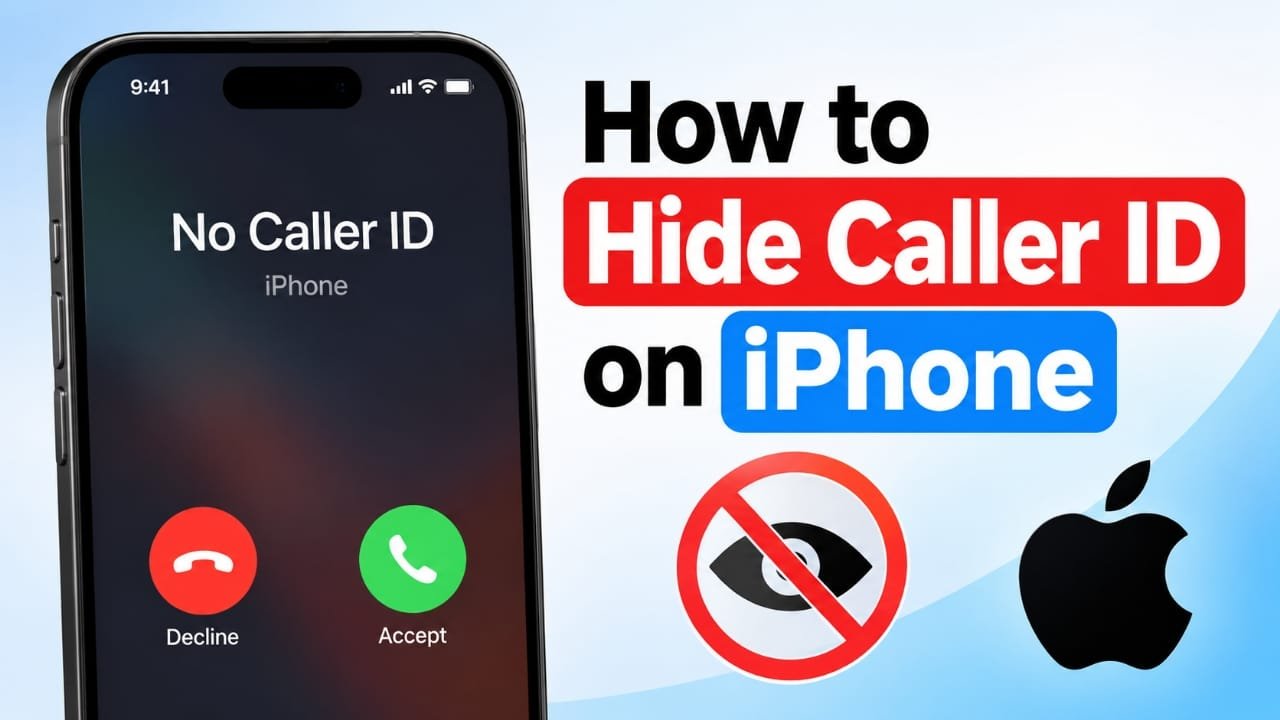
Want to make a phone call without displaying your phone number? On an iPhone, you can usually hide your Caller ID through the Phone settings or, depending on your mobile carrier, by using a dialing code.
The exact options can vary by carrier and country. In this guide, you’ll learn the main ways to hide your number, when the feature may not work, and how to turn Caller ID back on.
Also read: iMessage Not Working After iOS 26 Update? 10 Ways to Fix It
What Happens When You Hide Your Caller ID?
When Caller ID is disabled, the person receiving your call may see labels such as “No Caller ID,” “Private,” or a similar message instead of your phone number.
This can be useful when you want to keep your personal number private while making a particular call.
For example, someone might choose to hide their number when:
- Contacting a business for the first time
- Calling someone they do not know personally
- Keeping their personal number private
- Making a temporary call without sharing their number
However, hiding Caller ID does not make a call completely anonymous. Some services and organizations may still be able to identify or process the call through their own systems.
Method 1: Hide Your Caller ID From iPhone Settings
If your carrier supports Caller ID control through iPhone, you can disable it directly from the Settings app.
Steps to turn off Caller ID
- Open Settings on your iPhone.
- Tap Apps.
- Select Phone.
- Find Show My Caller ID.
- Turn the option off.
After this setting is disabled, your phone number will generally be hidden when you make outgoing calls.
What if “Show My Caller ID” is missing?
The option is controlled by your mobile carrier. If you cannot find it, or the setting appears unavailable, your carrier may not support changing Caller ID from the iPhone.
In that situation, you may need to use a supported dialing code or contact your carrier.
Method 2: Hide Your Number for One Call
If you normally want your number to appear but need to hide it for a particular call, some carriers provide a Caller ID blocking code.
In the United States, *67 is commonly used before the phone number. For example:
*67 + phone number
Then place the call normally.
The person receiving the call may see “No Caller ID” or a similar private-number notification.
Caller ID codes can vary by country
There is no single code that works everywhere. Codes can differ depending on your country and mobile network.
For example, codes such as #31#, 141, or other carrier-specific prefixes may be used in certain regions.
If you are in India or another country outside the United States, check with your mobile carrier before relying on a particular code. Using an incorrect prefix may simply result in the call failing or the number being displayed normally.
Method 3: Contact Your Mobile Carrier
If the Caller ID option on your iPhone is unavailable, your carrier may be able to manage the setting for you.
Depending on the network, Caller ID controls may be available through:
- The carrier’s official mobile app
- Your online account
- Customer support
- A local carrier store
Ask the carrier whether outgoing Caller ID blocking is available for your plan and how it can be enabled.
Some networks may offer the feature at no additional cost, while others may have different rules or charges.
When Caller ID Blocking May Not Work
Turning off Caller ID does not guarantee that your number will remain hidden in every situation.
Certain types of calls or services can have their own identification and routing systems. Emergency services, for example, may use available caller information for safety and response purposes.
Other services may also handle caller information differently.
Therefore, Caller ID blocking should be viewed as a way to prevent your number from being displayed to the ordinary recipient, rather than as a guarantee of complete anonymity.
How to Show Your Number Again
If you previously turned off Caller ID and now want your number to appear during normal calls, you can change the setting back.
Go to:
Settings → Apps → Phone → Show My Caller ID
Then turn Show My Caller ID back on.
If you do not see this option, contact your mobile carrier for instructions.
Also read: How to Reduce Loud Sounds on iPhone With iOS 27
Final Thoughts
Hiding your Caller ID on an iPhone is relatively simple when your carrier supports the feature. You can either disable Caller ID from the Phone settings, use a carrier-supported prefix for an individual call, or ask your network provider to manage the setting.
Keep in mind that Caller ID rules and dialing codes vary between countries and carriers. If a method does not work, checking with your network provider is the safest way to find the correct option for your number.
Before using Caller ID blocking, remember that it is intended for privacy—not to bypass identification requirements or mislead emergency services, businesses, or other legitimate systems.

Jatin Rajput (Tech Golu) — Tech blogger & YouTuber with 6+ years of experience in WhatsApp, Instagram, Facebook, and mobile guides. Founder of TechGolu.in.