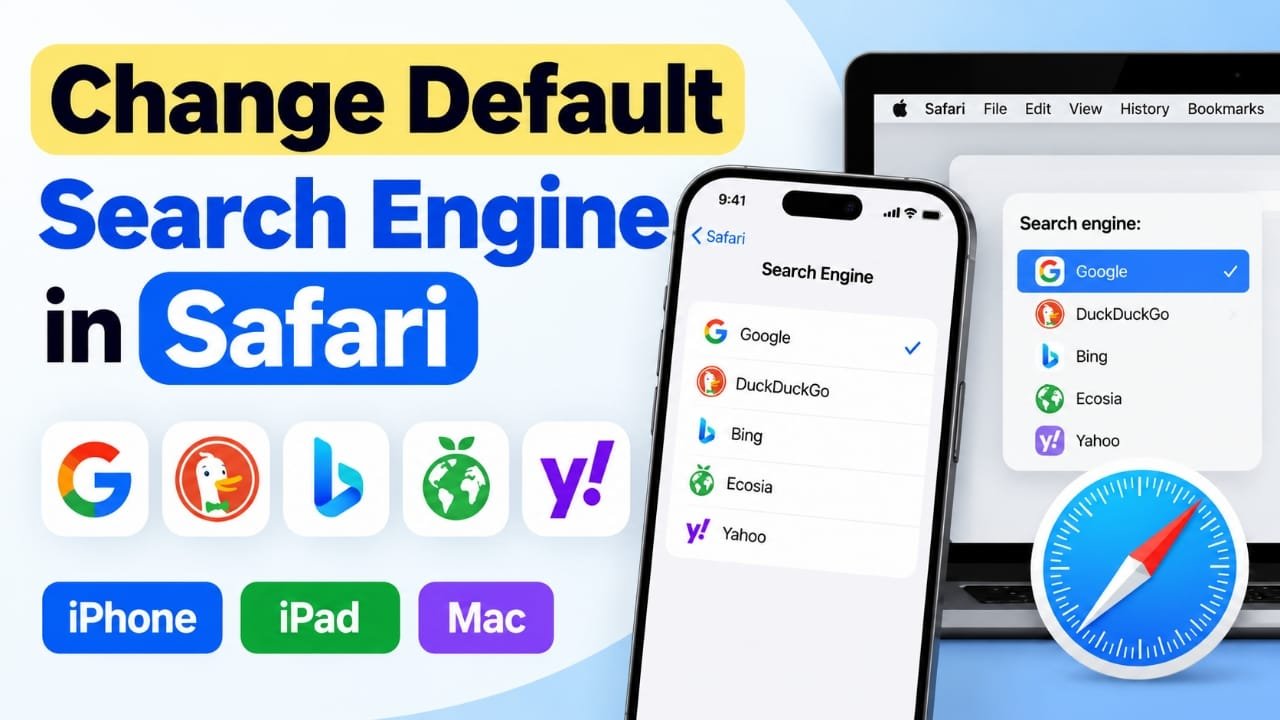
Safari gives you the freedom to choose which search engine you want to use. If you prefer Google, DuckDuckGo, Bing, Ecosia, or another available option, you can change Safari’s default search provider in just a few steps.
The setting is available on iPhone, iPad, and Mac. Safari also lets you choose a separate search engine for Private Browsing, which can be useful if you want a different search experience in private tabs.
In this guide, we’ll explain how to change the default search engine in Safari, how Private Browsing search works, and what to check if Safari does not let you change the setting.
Also read: How to Hide Your Caller ID on iPhone When Making a Call
What Happens When You Change Safari’s Search Engine?
Changing the default search engine only affects searches made through Safari.
For example, when you enter a question or keyword into Safari’s address and search bar, Safari sends that search to the engine you selected. The search suggestions and results will then come from that provider.
It does not change every search feature on your Apple device.
Features such as Spotlight and Siri can use their own search systems and may not follow the search engine selected in Safari. Similarly, changing Safari’s setting does not change the search engine used by other browsers such as Chrome or Firefox.
In short, the setting controls searches made through Safari.
Which Search Engines Can You Use in Safari?
Safari can provide several search engine choices, although the available options may differ depending on your country or region.
Common options include:
- Google: A widely used search engine with a large collection of web results.
- DuckDuckGo: Known for its focus on reducing tracking and protecting search privacy.
- Bing: Microsoft’s search engine with connections to other Microsoft services.
- Ecosia: An alternative search engine that supports environmental projects through its business model.
- Yahoo: A long-running search service that also offers news and other content.
The right choice depends on what matters most to you, such as search results, privacy features, or additional services.
How to Change the Default Search Engine on iPhone and iPad
You can change Safari’s search engine directly from the Settings app.
Follow these steps:
- Open Settings on your iPhone or iPad.
- Scroll down and select Apps.
- Tap Safari.
- Find the Search section.
- Tap Search Engine.
- Select the search engine you want to use.
The new setting is saved automatically. You do not normally need to restart Safari or confirm the change.
Open Safari and perform a search to check that your selected search engine is now being used.
How to Change the Default Search Engine on Mac
Changing the search engine on a Mac is also simple.
- Open Safari.
- Click Safari in the menu bar.
- Select Settings.
- Open the Search tab.
- Find the Search engine option.
- Click the menu next to it.
- Select your preferred search engine.
The new selection should take effect immediately.
In some versions of Safari, you can also use the search controls in the Smart Search field to quickly switch search providers for an individual search.
How to Use a Different Search Engine for Private Browsing
Safari can use a separate search engine for Private Browsing. This means you can keep one search provider for normal browsing and another for private tabs.
For example, you could use Google for everyday searches and select DuckDuckGo for Private Browsing.
On Mac
- Open Safari.
- Go to Safari → Settings.
- Select the Search tab.
- Turn off Also use in Private Browsing.
- Look for the Private Browsing search engine option.
- Select the search engine you want to use.
After making the change, Safari will use your selected provider when you perform searches in Private Browsing.
On iPhone and iPad
- Open Settings.
- Go to Apps → Safari.
- Turn off Also Use in Private Browsing.
- Tap Private Search Engine.
- Select the search engine you prefer.
Your selection will then be used for searches made in Safari’s Private Browsing mode.
Can You Set a Different Search Engine for Each Safari Profile?
Safari Profiles can help separate different types of browsing, such as work and personal activities.
However, Safari does not generally provide a separate default search engine setting for every profile. The default search engine can therefore remain the same across profiles.
If you regularly use different search providers, one simple workaround is to save their websites as Favorites. You can then open the provider you want whenever you need to use it.
Why Can’t I Change the Search Engine in Safari?
Sometimes the search engine option may be unavailable or changes may not work as expected. Here are some common reasons.
Screen Time Restrictions
On an iPhone or iPad, restrictions can prevent certain Safari settings from being changed.
Check:
Settings → Screen Time → Content & Privacy Restrictions
If restrictions are enabled, review the available settings and make sure Safari-related web restrictions are not preventing the change.
The exact options can vary depending on your device and software version.
Your Device Is Managed
A work or school device may have management policies that control certain settings.
If the search engine option is locked or unavailable on a managed device, you may need to contact the organization’s IT administrator.
Your Region Has Different Options
Safari’s available search engines can vary by country or region. If you do not see a particular provider in the list, it may not be offered as a built-in option in your region.
You can still visit a search provider’s website directly and save it as a Favorite for easier access.
Other Ways to Fix Safari Problems
If Safari is behaving unexpectedly, changing the search engine may not be enough. A few basic troubleshooting steps can help.
Keep Your Software Updated
Apple regularly releases software updates that can include Safari improvements, security fixes, and bug fixes. Keeping your iPhone, iPad, or Mac updated can help avoid problems caused by outdated software.
Clear Safari Website Data
If certain websites are loading incorrectly, clearing Safari’s website data may help. Keep in mind that this can remove stored website information, so you may need to sign in to some websites again.
Check Safari Extensions
Safari extensions can sometimes affect how websites or browser features behave.
If a problem started after installing or enabling an extension, temporarily disabling it can help determine whether the extension is responsible.
Check Your Network Settings
If websites are slow or fail to load, the issue may be related to your internet connection rather than Safari’s search engine.
Try another network first. If the problem continues, you can investigate network or DNS settings as a separate troubleshooting step.
Which Search Engine Should You Use in Safari?
There is no single search engine that is ideal for everyone.
If you prefer the search results and features offered by Google, you can keep Google as your default. If privacy-focused search is more important to you, DuckDuckGo may be worth considering.
Bing and Ecosia are also available alternatives in many regions.
You can change the setting whenever you want, so there is no need to treat your choice as permanent. Try different options for a while and see which one fits your everyday browsing needs.
Also read: iMessage Not Working After iOS 26 Update? 10 Ways to Fix It
Final Thoughts
Changing Safari’s default search engine is a quick way to personalize your browsing experience. The setting is available on iPhone, iPad, and Mac, and Safari also provides an option to use a different search provider for Private Browsing.
If the setting is unavailable, check Screen Time restrictions, device management policies, and regional availability. For other Safari problems, keeping your software updated and checking extensions or website data can also be useful.
Once you know where the setting is located, switching between available search engines takes only a few moments.

Jatin Rajput (Tech Golu) — Tech blogger & YouTuber with 6+ years of experience in WhatsApp, Instagram, Facebook, and mobile guides. Founder of TechGolu.in.