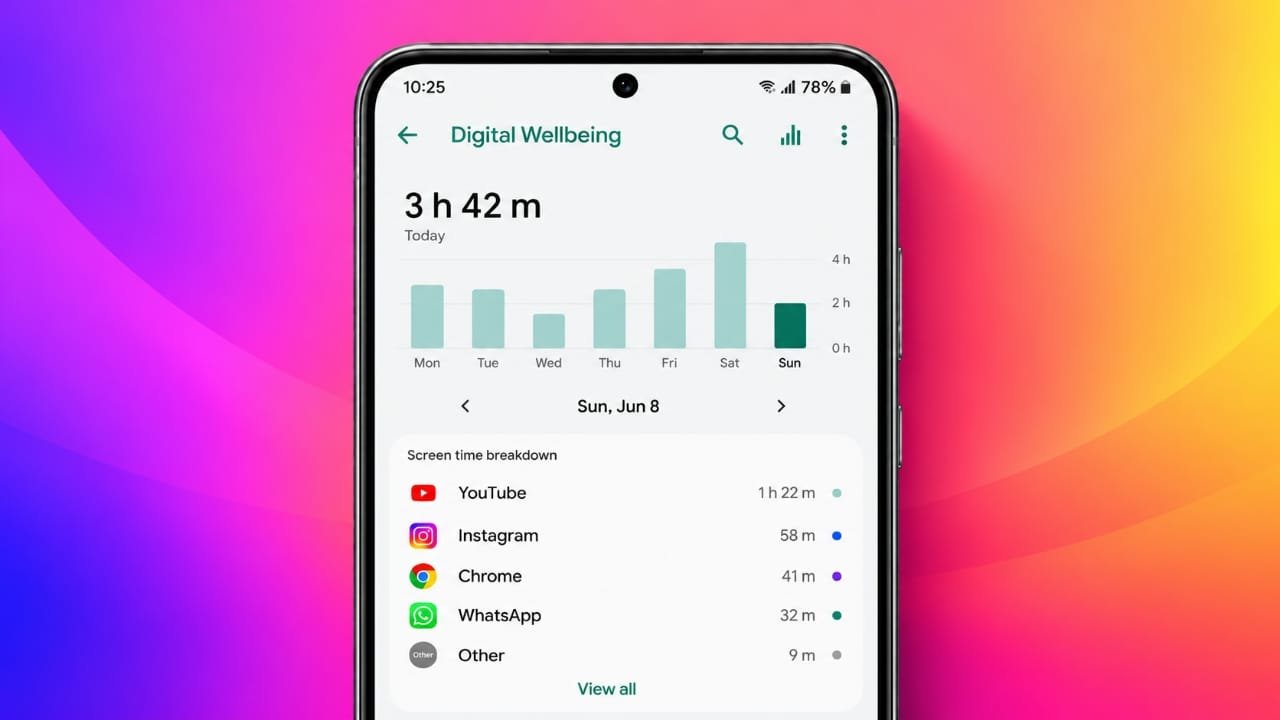
Smartphones, computers, and other digital devices are part of everyday life. We use them to communicate, work, learn, and relax. However, spending too much time on screens can leave less room for sleep, physical activity, and face-to-face conversations.
The goal is not to stop using technology completely. Instead, it is to understand your habits, avoid unnecessary distractions, and make better use of your time.
Android phones include built-in tools that help you track app usage and manage daily screen time. With a few simple adjustments, you can build a healthier balance between online and offline activities.
Also read: How to Set Up Emergency Contacts on iPhone in 2026
Key Takeaways
- Check your daily screen time to understand your current habits.
- Use Android’s Digital Wellbeing tools to manage app usage.
- Reduce unnecessary notifications and other digital distractions.
- Create regular periods for work, rest, and offline activities.
- Make small, realistic changes that are easy to maintain.
1. Check Your Current Screen Time
Before changing your phone habits, find out how much time you actually spend using your device. It is easy to underestimate the time spent scrolling through social media, watching videos, or switching between apps.
Android provides a built-in feature called Digital Wellbeing that helps you review your device usage.
To access it:
- Open the Settings app on your Android phone.
- Look for Digital Wellbeing & parental controls.
- Open the dashboard to review your screen time.
- Check which apps you use most often.
- Review other available activity details, such as notifications and device unlocks.
The exact menu names and available features may vary depending on your phone’s manufacturer and Android version.
If you use a computer regularly, you can also explore activity-tracking tools. ActivityWatch is a free, open-source option that can help you understand how you spend time on your computer.
What Should You Track?
Pay attention to these details over several days:
- Daily screen time: The total time you spend using your device.
- Frequently used apps: The applications that take up most of your time.
- Phone unlocks: How often you pick up and unlock your phone.
- Usage patterns: The times of day when you use your device most.
- Common triggers: Situations that lead you to check your phone without a specific reason.
For a clearer picture, observe your habits for one week before making major changes. This gives you a useful starting point and helps you identify which habits need attention.
2. Set Daily App Limits
Once you understand your usage patterns, decide which apps deserve less of your time. You do not need to reduce every activity equally. Focus first on the apps that distract you from work, studies, sleep, or personal responsibilities.
Digital Wellbeing includes app timers on supported Android devices.
To set an app timer:
- Open Settings.
- Select Digital Wellbeing & parental controls.
- Open the dashboard or app usage section.
- Choose an app you want to manage.
- Set a daily timer if the option is available.
When the allotted time is reached, Android generally pauses the selected app for the rest of the day. You may be able to change or remove the timer through Settings.
Start with a limit you can realistically follow. For example, if you spend two hours a day browsing social media, try reducing that time gradually instead of making a sudden, difficult change.
Review your progress every week and adjust your limits when necessary.
3. Control Notifications and Interruptions
Notifications can interrupt your concentration even when you are not actively using your phone. Messages, promotional alerts, and social media updates may encourage you to check your device repeatedly.
You can reduce these interruptions by changing your notification settings.
Consider these adjustments:
- Turn off notifications from apps that are not important.
- Keep alerts enabled for essential calls and messages.
- Use Do Not Disturb during work, study, or rest.
- Try Focus Mode if it is available on your device.
- Schedule quiet periods when you want to avoid unnecessary interruptions.
You do not have to silence every notification. The idea is to decide which alerts deserve your attention rather than allowing every app to interrupt you.
Create a Regular Bedtime Routine
Using your phone late at night can make it harder to maintain a consistent bedtime, especially when scrolling continues longer than expected.
Android’s Digital Wellbeing settings may include a Bedtime mode that helps you prepare for sleep by reducing visual distractions and managing notifications.
Set a regular time to stop browsing and put your phone aside. If you use your phone as an alarm, place it somewhere that makes late-night scrolling less convenient.
4. Make Your Phone Less Distracting
Your phone’s layout can influence how often you open certain apps. If distracting applications are always visible on your home screen, accessing them takes very little effort.
A few small changes can make unnecessary phone use less automatic.
Organize Your Home Screen
Move social media, games, and entertainment apps away from your main home screen. Keep frequently needed tools, such as your calendar, maps, or notes, easy to access.
You can also organize less frequently used apps into folders. The aim is to make opening distracting apps a deliberate choice instead of an automatic habit.
Try Grayscale Mode
Colorful icons and images can make a screen more visually engaging. Grayscale mode changes the display to black and white, which some people find less distracting.
Depending on your Android phone, you may find this option under Digital Wellbeing, Bedtime mode, Accessibility, or display-related settings.
Try it during periods when you want to concentrate or reduce casual scrolling.
Adjust Screen Lock Settings
Set your phone to lock automatically after a short period of inactivity, such as 30 seconds, if that suits your needs.
You can also review lock-screen notifications and hide sensitive message details when the phone is locked.
These adjustments can reduce unnecessary interactions while helping protect your privacy.
Keep Work Apps Under Control
If you regularly receive work emails or messages outside working hours, consider muting nonessential alerts or using a separate work profile if your device supports it.
You can also schedule a time to check email instead of opening it whenever a new notification appears.
This approach helps create a clearer boundary between work responsibilities and personal time.
5. Replace Screen Time With Offline Activities
Reducing phone use becomes easier when you have other activities to enjoy. Simply putting your phone away may not be enough if you have nothing planned.
Choose activities that fit your interests, schedule, and budget.
Here are some ideas:
- Read a printed book or magazine.
- Go for a walk in your neighborhood.
- Exercise at home or at a gym.
- Spend time outdoors.
- Learn to play a musical instrument.
- Cook a new recipe.
- Try drawing, painting, or another creative hobby.
- Build puzzles or model kits.
- Meet friends or family in person.
- Explore a local park or nearby place of interest.
You do not need to fill every free moment with a productive activity. Relaxing without a screen is also valuable.
The best alternative is one that you genuinely enjoy and can continue as part of your regular routine.
6. Create Phone-Free Areas at Home
Setting boundaries around where you use your phone can help reduce unnecessary screen time.
For example, you might decide to keep your phone away during meals, focused work, or conversations with family members.
Try these practical habits:
Keep the bedroom free from unnecessary device use. Charge your phone away from the bed if possible. If you need it nearby for emergencies, consider using Do Not Disturb settings with important contacts allowed through.
Avoid using your phone during meals. Eating without scrolling or watching videos can help you pay more attention to your food and the people around you.
Leave your phone aside during short walks. When practical and safe, enjoy your surroundings without repeatedly checking notifications.
Put your phone away during conversations. Giving people your full attention can make everyday interactions feel more meaningful.
Choose a dedicated place for your device. Keeping your phone on a desk or shelf instead of carrying it everywhere can make checking it less automatic.
Start with one phone-free area or activity. Once that becomes comfortable, add another boundary if needed.
7. Take Breaks From Continuous Screen Use
Screens are often necessary for work, education, and communication. Instead of trying to avoid them completely, build regular breaks into your day.
During breaks, stand up, stretch, walk around, or look at objects in the distance. If you spend many hours working on a computer, changing your posture and moving regularly can make your routine more comfortable.
You can also try the following:
- Take a short break between major tasks.
- Avoid switching between multiple apps without a clear purpose.
- Use a timer to remind yourself when it is time to pause.
- Step away from entertainment apps after reaching your planned limit.
- Spend some break time away from all screens.
If you experience eye discomfort, adjusting screen brightness, reducing glare, and taking regular visual breaks may help. Grayscale mode is an optional distraction-reduction tool, not a substitute for appropriate eye care.
8. Build Better Habits Gradually
Lasting changes usually come from routines that fit your everyday life. Setting too many restrictions at once can make it harder to maintain them.
A simple approach is to connect a new habit with something you already do.
For example:
- After breakfast, review your main tasks before opening social media.
- After finishing a work session, take a short walk.
- Before going to bed, place your phone in its charging spot.
- During lunch, keep your phone out of reach.
- At the end of the week, review your Digital Wellbeing dashboard.
These small actions can help you become more intentional about technology use.
Review Your Progress Every Week
Check your screen time once a week and compare it with your earlier results. Look at which apps have decreased in use and whether you are spending more time on activities that matter to you.
Do not judge progress by screen time alone. Some screen use is necessary for work, learning, navigation, and staying connected with others.
Instead, ask yourself whether your phone habits are helping you achieve your goals.
If a limit feels too strict, adjust it. If a particular app continues to distract you, consider changing its notification settings or moving it off your home screen.
The purpose is to develop a routine that works for you, not to achieve a perfect screen time number.
Frequently Asked Questions
How can I check screen time on Android?
Open Settings and look for Digital Wellbeing & parental controls. The dashboard usually displays daily usage information and app activity. Menu names may differ across Android devices.
Can I set a time limit for an app on Android?
Yes. Many Android phones offer app timers through Digital Wellbeing. Select an app, choose the timer option, and set a daily limit if supported.
Does Android have a Focus Mode?
Many Android devices include Focus Mode through Digital Wellbeing. It can temporarily pause selected distracting apps. Availability and settings may vary by device.
Is all screen time harmful?
No. Screen time can support learning, communication, work, and entertainment. The more useful goal is to manage unnecessary use and maintain enough time for sleep, movement, relationships, and offline interests.
How much screen time should I aim for each day?
There is no single daily limit that works for every adult. Your needs depend on work, studies, responsibilities, and personal circumstances. Start by reviewing your current usage and reducing activities that interfere with your priorities.
Also read: How to Turn Off Low Power Mode on iPhone, iPad, Apple Watch and Android
Final Thoughts
Managing screen time does not mean giving up your smartphone. It means using technology with greater awareness and making room for other parts of life.
Start by checking your Android usage, setting realistic app limits, and turning off unnecessary notifications. Then introduce phone-free periods and choose offline activities that you enjoy.
Small changes can help you spend your time more intentionally. Review your progress regularly, adjust your approach when needed, and focus on building habits you can maintain over the long term.

Jatin Rajput (Tech Golu) — Tech blogger & YouTuber with 6+ years of experience in WhatsApp, Instagram, Facebook, and mobile guides. Founder of TechGolu.in.