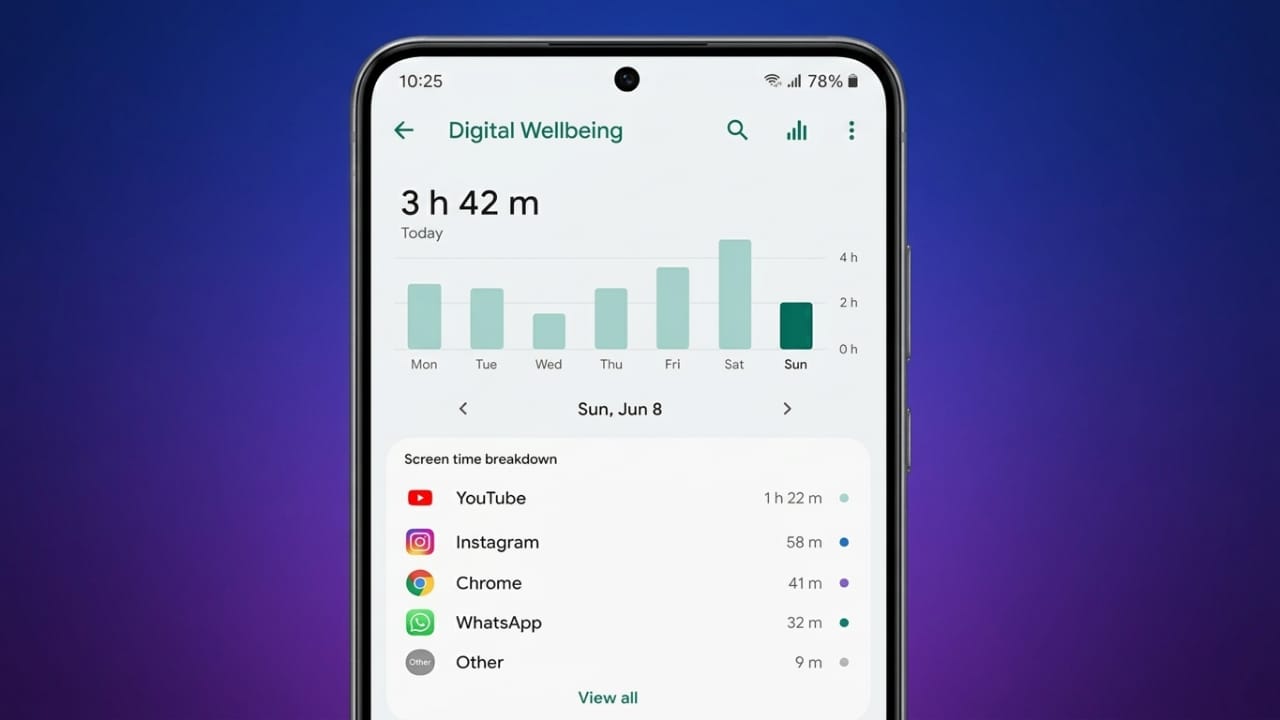
If you feel like you’re always glued to your phone, you’re not alone. Too much screen time can mess with your sleep, make it harder to concentrate, and leave you feeling more stressed than you’d like. The good news is that Android has built-in tools to help you take back control, whether you’re managing your own habits or keeping an eye on your kids’ phone use.
Also read: 3D Photo Live Wallpaper: Create Amazing 3D Cube Wallpapers with Your Favorite Photos
Get to Know Digital Wellbeing
Android’s Digital Wellbeing feature is basically a daily report card for your phone habits. It shows you which apps are eating up your time, how many notifications you’re getting, and how often you’re unlocking your screen.
Most people are surprised when they see the numbers. We tend to think we’re on our phones less than we actually are, and seeing the real data is often the first step toward changing things.
Turning On Digital Wellbeing
Here’s how to set it up:
- Open your phone’s Settings app.
- Tap Digital Wellbeing and parental controls.
- Open the menu in the top corner.
- Go to Settings or Manage your data.
- Tap Usage data access.
- Give the app permission to track your usage.
- If your phone has a Daily device usage option, switch it on.
Once that’s done, your phone will start quietly tracking your habits in the background.
Add a Shortcut for Quick Access
Want to check your stats without digging through menus every time?
- Go to Digital Wellbeing settings.
- Look for the shortcut display option.
- Turn on Show Digital Wellbeing on Apps screen (wording may vary by phone).
- Save your changes.
Now you’ll have an icon ready whenever you want to check in.
What Does It Actually Track?
Digital Wellbeing keeps tabs on things like:
- How much time you spend on your screen each day
- Which apps you’re using most
- How many notifications you’re getting
- How often you unlock your phone
- Your usage patterns over the week
Seeing this laid out clearly makes it a lot easier to spot habits you might want to change.
Take Control With Built-In Tools
Tracking your habits is useful, but Android also gives you ways to actually do something about them.
Set Time Limits on Distracting Apps
If certain apps tend to swallow up your whole evening, app timers can help.
- Open Digital Wellbeing settings.
- Scroll down to App timers.
- Tap the timer icon next to the app you want to limit.
- Search for the app if it’s not already showing.
- Pick one app or several.
- Set how much time you want to allow each day.
- Choose which days the timer should apply.
- Tap Done.
Once you hit your limit, the app grays out and becomes harder to open, which naturally cuts down on mindless scrolling.
Why bother with app timers?
- Less time lost to social media
- Better focus while working
- More consistent daily routines
- Less binge-watching
- An overall healthier relationship with your phone
Most people notice a difference within just a few days.
Use Bedtime Mode to Protect Your Sleep
Scrolling in bed is one of the easiest ways to delay falling asleep. Bedtime Mode is designed to help you unplug before you turn in for the night.
To set it up:
- Open Digital Wellbeing settings.
- Tap Bedtime mode.
- Tap Start to begin setup.
- Choose your usual sleep hours.
- Pick which days you want it active.
- Tap Next to finish and adjust extra settings.
Do Not Disturb
This silences calls, texts, and app alerts overnight, though you can still let certain contacts through if needed.
Screen Adjustments
Bedtime Mode can also switch your screen to dark mode and dim things down, which makes late-night scrolling a lot less tempting.
Quiet Down Your Notifications
Constant pings and buzzes pull your attention away all day long, and honestly, most of them aren’t that important.
To trim them down:
- Open Settings.
- Tap Notifications.
- Turn off alerts for apps you don’t need to hear from.
- Keep notifications on only for what really matters.
You can also schedule Do Not Disturb for specific times of day if you want quiet hours built into your routine.
Try Grayscale Mode
Bright colors are designed to keep you scrolling. Switching your screen to grayscale removes a lot of that visual pull.
On Samsung phones, here’s how:
- Open Accessibility settings.
- Tap Visibility enhancements.
- Open Color correction.
- Turn on Color Correction.
- Choose Grayscale.
A lot of people find their phone noticeably less appealing once the colors disappear.
Temporarily Delete Distracting Apps
If a particular app is a constant time sink, deleting it for a while can be surprisingly effective. Common culprits include:
- Social media apps
- Streaming apps
- Mobile games
- Anything else that tends to hook you
Don’t worry, your account and data stay safe. You can always reinstall the app later when you’re ready.
Apps Built for Healthier Phone Habits
If you want extra support, a few third-party apps are built specifically for this purpose, including Jomo, Opal, Refocus, Brick, AntiSocial, and Forest. They each take a slightly different approach, so it’s worth trying a couple to see what clicks for you.
Build Habits That Last Beyond the Settings Menu
Tools only go so far. Real change comes from the habits you build around them.
Take Regular Breaks From Your Phone
Short, phone-free stretches throughout the day can do wonders for your focus and mood. A few easy ways to start:
- Leave your phone in another room for a while
- Keep it in a drawer during certain hours
- Try a timed lockbox if you need extra help
- Resist the urge to check it “just for a second”
Many people find that a phone-free morning or evening makes a noticeable difference in how rested and calm they feel.
Train Your Focus Like a Muscle
Constantly checking your phone actually weakens your ability to concentrate over time. The good news is you can build it back up.
Try this simple exercise:
- Turn your phone on silent.
- Set a timer for fifteen minutes.
- Place your phone face down and out of reach.
- Don’t touch it until the timer goes off.
Check your notifications briefly afterward, then repeat. Over time, this kind of practice helps rebuild your attention span.
Find Offline Activities You Actually Enjoy
Filling your time with things you like doing makes it much easier to put the phone down. Some ideas:
- Reading
- Picking up a creative hobby
- Making art
- Exercising
- Going for walks
- Spending time outside
- Seeing friends in person
Set Boundaries as a Family
Getting everyone on board makes healthier habits stick. A few simple house rules can go a long way:
- No phones at the dinner table
- No scrolling during conversations
- Everyone respects the agreed-upon limits
- Hold each other accountable, kindly
Set Up Parental Controls
If you want to keep an eye on your child’s phone use, Android makes this fairly simple.
- Open Digital Wellbeing settings.
- Tap Parental controls.
- Tap Let’s get started (wording may vary).
- Choose your child’s Google account, or add one.
- Tap Next.
- Enter your own account details.
- Enter your child’s account password.
- Finish the setup.
From there, you’ll be able to check in on their screen activity as needed.
Check In on Your Progress
It helps to revisit your stats every week or so and ask yourself a few honest questions:
- Am I sleeping better?
- Do I feel less stressed?
- Is my focus improving?
- Am I using my time in ways I’m happy with?
Adjust as needed, and don’t skip celebrating the small wins. Progress doesn’t have to be dramatic to count.
Starting Fresh
If you ever want to reset your usage data and start tracking from scratch:
- Open Digital Wellbeing settings.
- Go to usage access settings.
- Turn off the permission.
- Wait 24 hours.
- Turn it back on.
Your phone will begin building a new usage history from that point.
Also read: Sequin Flip Live Wallpaper: Give Your Android Home Screen a Fun and Interactive Look
The Bottom Line
Android gives you plenty of tools to understand and manage your screen time, from usage tracking to app timers to Bedtime Mode. But the tools work best when they’re paired with real habits, like phone-free breaks, better offline hobbies, and support from the people around you. Small, consistent changes add up over time, leading to better focus, better sleep, and a healthier relationship with your phone.

Jatin Rajput (Tech Golu) — Tech blogger & YouTuber with 6+ years of experience in WhatsApp, Instagram, Facebook, and mobile guides. Founder of TechGolu.in.