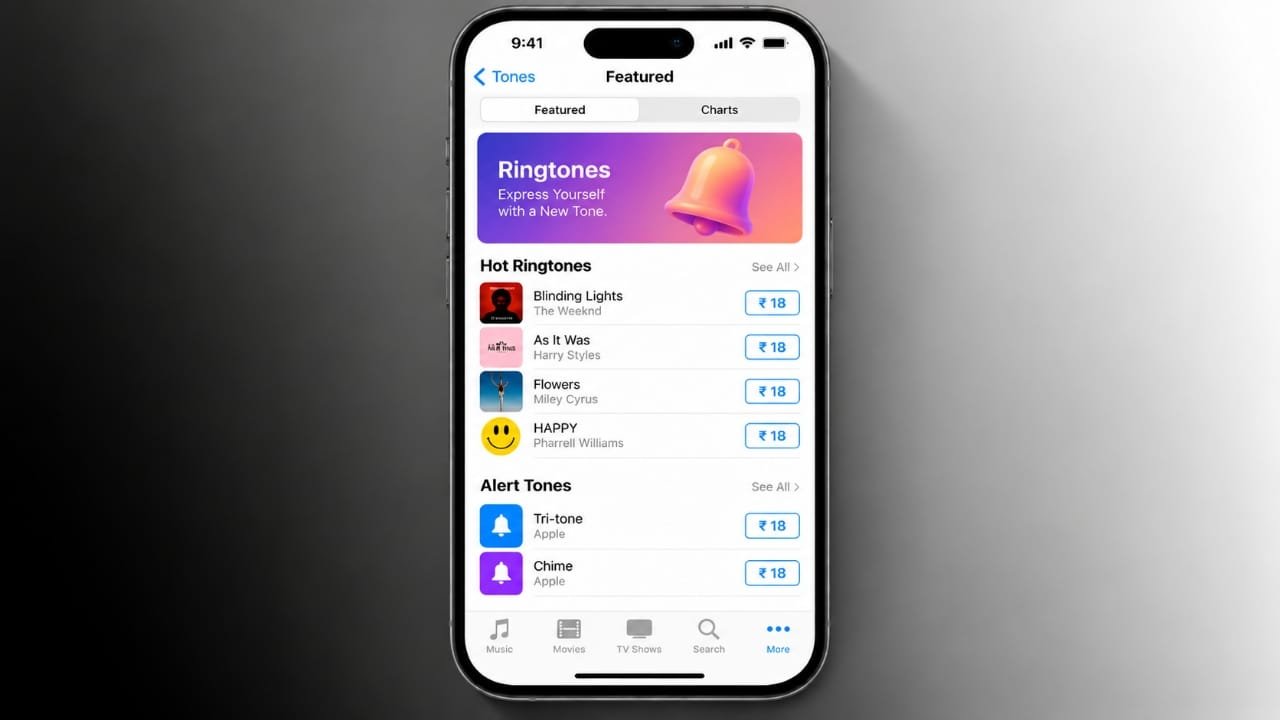
Changing your iPhone ringtone is an easy way to give your device a personal touch. Instead of using Apple’s default sounds, you can choose from a wide range of ringtones available in the iTunes Store. Before buying, you can listen to a preview so you know exactly what you’re getting.
Purchased tones can be used for incoming calls, text messages, and even assigned to individual contacts for a more personalized experience.
Also read: How to Remove an Email Account From iPhone: A Complete Guide
Open the Tones Section in the iTunes Store
To get started, open the iTunes Store app on your iPhone.
Advertisements
- Tap More at the bottom-right of the screen.
- Select Tones from the available options.
- You will be taken to Apple’s ringtone store, where you can browse different sound collections.
The store includes featured ringtones, popular choices, and sounds from different categories.
Browse Available Ringtones
If you’re not looking for a specific ringtone, browsing is a good place to start.
You can:
- Check the Featured section for recommended tones.
- Open Charts to see popular downloads.
- Explore Genres to find tones based on your favorite music styles.
Take advantage of the preview feature before purchasing. Listening first helps you choose a ringtone you’ll enjoy.
Search for a Specific Tone
Already know what you want? Use the search feature instead of browsing.
- Open the iTunes Store app.
- Tap Search.
- Enter the name of a song, artist, movie, TV show, or other keyword.
- Select the Ringtones results to view matching tones.
Tap the artwork or ringtone name to hear a preview and view additional information before making your purchase.
Purchase a Ringtone
Once you’ve found the ringtone you want:
- Tap the displayed price.
- Confirm your purchase when prompted.
- Authenticate using your Apple Account password, Face ID, or Touch ID, depending on your device.
After the purchase is complete, the ringtone will automatically download to your iPhone.
Choose Where the Ringtone Will Be Used
During the purchase process, Apple lets you decide how you’d like to use the new tone.
You can:
- Set it as your default ringtone for calls.
- Use it as your default text tone.
- Assign it to a specific contact.
- Tap Done if you’d rather choose later.
Even if you skip this step, you can change your ringtone at any time from your iPhone settings.
Find Your Purchased Ringtones
After the download finishes:
- Open Settings.
- Go to Sounds & Haptics (or Sounds on some older iPhone models).
- Tap Ringtone.
Your purchased ringtone should appear in the available list, ready to use.
Download Previously Purchased Ringtones Again
If you switch to a new iPhone or accidentally remove a purchased ringtone, you usually don’t need to buy it again.
To restore previous purchases:
- Open Settings.
- Tap Sounds & Haptics (or Sounds).
- Open Ringtone.
- Tap Download All Purchased Tones, if the option is available.
If you don’t see this option, it usually means:
- You have already downloaded all purchased tones.
- No ringtones have been purchased with your Apple Account.
Assign Different Ringtones to Contacts
Giving different people their own ringtone makes it easier to recognize who’s calling without checking your screen.
For example, you can:
- Use one ringtone for family members.
- Choose another for close friends.
- Keep a separate default ringtone for everyone else.
You can also use different sounds for text messages and notifications to make alerts easier to identify.
Other Ways to Get Ringtones
Buying from Apple’s Tone Store is the easiest option, but it’s not the only one.
Some third-party apps allow you to create custom ringtones from music you own or other audio clips. This gives you more flexibility, although the process usually takes extra time and setup.
If you prefer a quick and simple solution, purchasing directly from the iTunes Store remains the most convenient method.
Tips Before Buying
Keep these points in mind before completing your purchase:
- Listen to the ringtone preview first.
- Double-check the price before confirming.
- Make sure your Apple Account authentication is ready.
- Decide whether you want the ringtone for all calls or only certain contacts.
- Verify the ringtone appears in Settings > Sounds & Haptics after downloading.
- Restore previous purchases instead of paying for the same tone again.
Also read: How to Set Up and Use Personal Hotspot on Your iPhone
Final Thoughts
Buying ringtones on an iPhone is simple and only takes a few minutes. Browse Apple’s Tone Store, search for a specific sound, preview it, and complete the purchase. Once downloaded, you can use your new ringtone for calls, messages, or individual contacts. If you change devices later, you can also restore eligible purchased tones without buying them again.

Jatin Rajput (Tech Golu) — Tech blogger & YouTuber with 6+ years of experience in WhatsApp, Instagram, Facebook, and mobile guides. Founder of TechGolu.in.