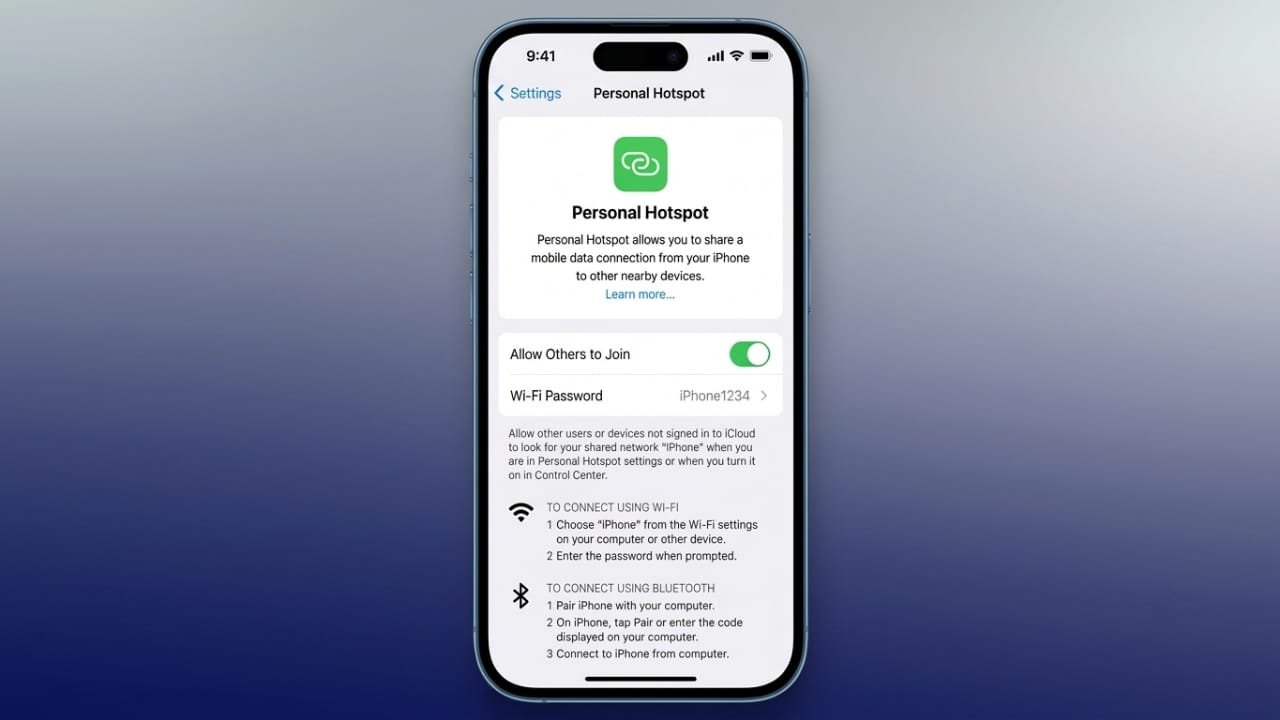
A Personal Hotspot lets you share your iPhone’s mobile data with other devices whenever Wi-Fi isn’t available. Whether you’re traveling, working remotely, or dealing with an internet outage, this feature can quickly provide an internet connection for your laptop, tablet, or another phone.
You can connect devices through Wi-Fi, Bluetooth, or a USB cable. If you use Apple devices, Instant Hotspot makes the process even faster by connecting compatible devices automatically.
Also read: Claude Code Can Now Work in the Background on Mac Without Interrupting Your Tasks
What Is Personal Hotspot?
Personal Hotspot allows your iPhone to act like a portable Wi-Fi router. Instead of using a home or office network, your iPhone shares its cellular data connection with nearby devices.
Advertisements
This feature is useful when you need internet access away from reliable Wi-Fi. Keep in mind that every connected device uses your mobile data, so it’s a good idea to monitor your usage, especially if your plan has data limits.
Requirements Before You Begin
Before turning on Personal Hotspot, make sure the following conditions are met:
- Your iPhone is running a supported version of iOS.
- Your mobile carrier includes Personal Hotspot or tethering in your data plan.
- Cellular data is turned on.
- You have an active mobile data connection.
Most major mobile carriers support Personal Hotspot, although some plans may limit hotspot usage or charge additional fees. If you don’t see the Personal Hotspot option in Settings, contact your carrier to confirm that your plan supports it.
How to Turn On Personal Hotspot
Setting up Personal Hotspot only takes a few moments.
- Open Settings.
- Tap Personal Hotspot. On some iPhones, you may need to open Cellular first.
- Turn on Allow Others to Join.
- Note the Wi-Fi password displayed on the screen.
If prompted, enable Wi-Fi or Bluetooth so other devices can connect.
Create a Strong Hotspot Password
Your hotspot password protects your internet connection from unauthorized users.
To change it:
- Open Settings > Personal Hotspot.
- Tap Wi-Fi Password.
- Enter a password with at least eight characters.
- Use a combination of letters and numbers for better security.
Avoid passwords that are too simple or difficult for other devices to recognize.
Change Your Hotspot Name
Your hotspot appears using your iPhone’s device name. You can customize it if you want something easier to identify.
Follow these steps:
- Open Settings.
- Go to General > About > Name.
- Enter a new device name and save it.
The updated name will appear whenever your hotspot is available.
Connect Devices Using Wi-Fi
Wi-Fi is the easiest way to use Personal Hotspot.
- Turn on Personal Hotspot.
- On the other device, open Wi-Fi settings.
- Select your iPhone from the list of available networks.
- Enter the hotspot password.
This method works with:
- iPhones
- iPads
- Android phones
- Windows laptops
- Mac computers
- Other Wi-Fi-enabled devices
Use Instant Hotspot on Apple Devices
If you own multiple Apple devices signed in with the same Apple Account, Instant Hotspot makes connecting much simpler.
To use it:
- Keep Wi-Fi and Bluetooth enabled on both devices.
- Make sure the devices are close to each other.
- Ensure your iPhone has an active cellular connection.
Your compatible Apple device can connect without manually entering the hotspot password.
Connect a Mac
On your Mac:
- Open the Wi-Fi menu.
- Select your iPhone from the available networks.
- The connection should begin automatically if Instant Hotspot is available.
Connect Another Apple Device
On another iPhone or iPad:
- Open Settings > Wi-Fi.
- Select your iPhone’s hotspot.
- Connect when prompted.
Apple TV and other supported Apple devices can also use Personal Hotspot when needed.
Connect with a USB Cable
A USB connection offers a stable internet connection for computers.
- Enable Personal Hotspot on your iPhone.
- Connect the iPhone to your computer using a USB cable.
- If asked, tap Trust on your iPhone.
- Allow the connection on your computer if prompted.
Windows users may need the latest Apple device software installed before the computer recognizes the connection.
Connect Using Bluetooth
Bluetooth is another option when Wi-Fi isn’t suitable.
- Turn on Personal Hotspot.
- Enable Bluetooth on your iPhone.
- Pair your iPhone with the other device.
- Complete the pairing process by confirming the matching code.
Once paired, the connected device can use your iPhone’s mobile data.
Check Connected Devices
When someone is connected to your hotspot, your iPhone displays a blue indicator at the top of the screen or on the Lock Screen.
This makes it easy to know when your hotspot is active and helps you spot unexpected connections.
Monitor Mobile Data Usage
Since every connected device uses your mobile data, keeping an eye on your usage is important.
Activities that typically consume more data include:
- HD video streaming
- Video calls
- Large file downloads
- Cloud backups
- App and software updates
Checking your mobile data usage regularly can help you avoid unexpected charges.
Does Personal Hotspot Cost Extra?
Whether Personal Hotspot costs extra depends on your mobile carrier and your current plan.
Many plans include hotspot access at no additional cost, while others may charge a monthly fee or reduce speeds after a certain amount of hotspot data is used.
For accurate information, review your carrier’s plan details before using the feature extensively.
Turn Off Personal Hotspot When Finished
After you’re done sharing your connection, disable Personal Hotspot to prevent unnecessary data usage.
Simply open Settings > Personal Hotspot and switch off Allow Others to Join.
This also prevents nearby devices from reconnecting automatically.
Troubleshooting Personal Hotspot Issues
If Personal Hotspot isn’t working, try these simple fixes:
- Make sure Allow Others to Join is enabled.
- Verify that cellular data is working.
- Restart both devices.
- Update your iPhone and the connecting device to the latest software.
- Double-check the hotspot password.
- Re-pair Bluetooth devices if you’re using Bluetooth.
- Try another connection method such as Wi-Fi, USB, or Bluetooth.
- Enable Maximize Compatibility if certain devices have trouble connecting.
In many cases, restarting both devices resolves temporary connection issues.
Also read: How to Manage Favorite Contacts on iPhone Quickly and Easily
Final Thoughts
Personal Hotspot is a convenient way to share your iPhone’s internet connection when traditional Wi-Fi isn’t available. Whether you connect through Wi-Fi, USB, Bluetooth, or Instant Hotspot, setup is quick and straightforward.
To get the best experience, keep an eye on your mobile data usage, use a strong password, and switch off Personal Hotspot when you’re finished. These simple habits help keep your connection secure and your data usage under control.

Jatin Rajput (Tech Golu) — Tech blogger & YouTuber with 6+ years of experience in WhatsApp, Instagram, Facebook, and mobile guides. Founder of TechGolu.in.