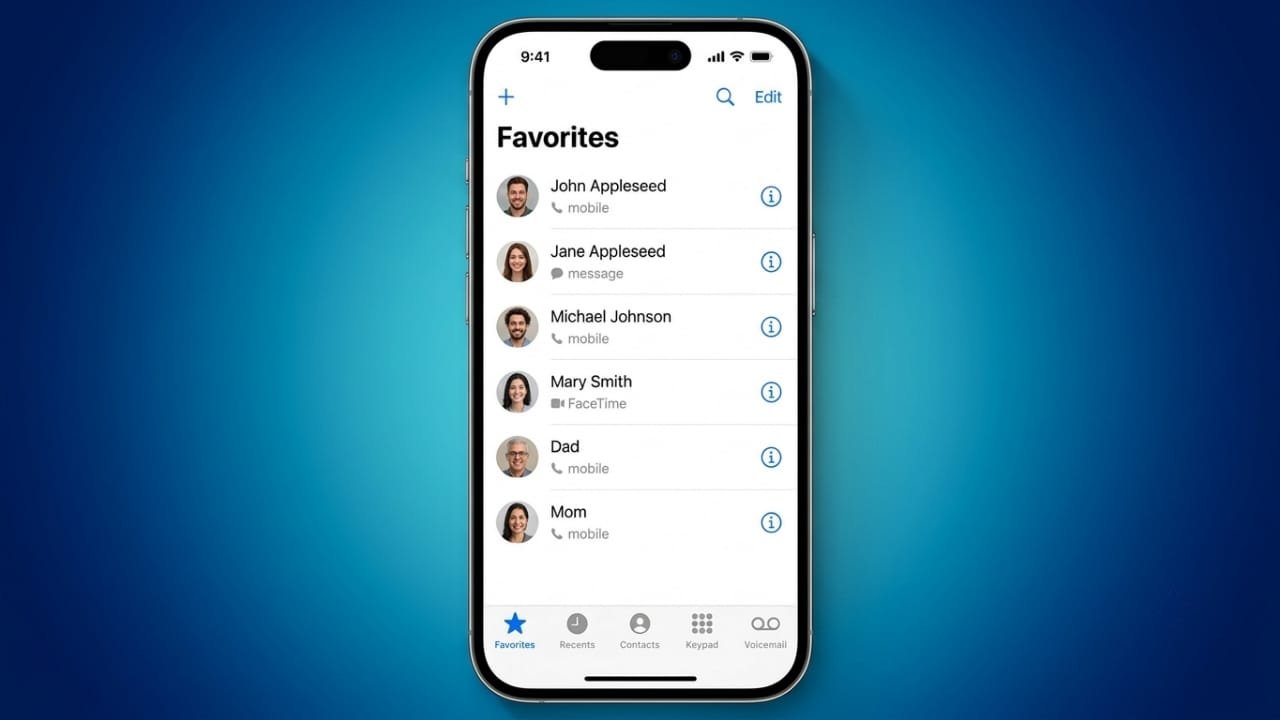
Keeping your most important contacts in the Favorites list on your iPhone can save time every day. Instead of searching through a long contact list, you can reach family, friends, or coworkers with just a tap. Whether you want to make a phone call, send a message, start a FaceTime call, or send an email, Favorites make everything faster.
The best part is that managing your Favorites is simple. You can add new contacts, change their order, remove people you no longer need, and even allow important calls to come through while Focus mode is enabled.
Also read: How to Add Your Driver’s License or State ID to Apple Wallet (2026 Guide)
Why Use Favorite Contacts?
Most people have dozens or even hundreds of contacts stored on their iPhone. Finding the same people over and over can become frustrating.
Advertisements
The Favorites feature creates quick shortcuts for the people you contact most often. This helps you:
- Call someone instantly.
- Send a text message faster.
- Start a FaceTime audio or video call.
- Send an email without searching through your contacts.
The communication options available depend on the information saved for that contact. If you have multiple phone numbers or email addresses stored, you’ll be able to choose the one you prefer.
Before adding someone to Favorites, make sure they are already saved in your Contacts app.
Method 1: Add a Favorite Using the Phone App
The Phone app offers one of the quickest ways to add a contact to your Favorites list.
Steps
- Open the Phone app.
- Tap Favorites at the bottom of the screen.
- Tap the + (plus) button.
- Find the contact you want to add.
- Select how you want to contact them, such as:
- Phone call
- Message
- FaceTime
- If multiple numbers or email addresses are available, choose the one you use most often.
The selected contact will immediately appear in your Favorites list, making future communication much easier.
Method 2: Add a Favorite from the Contact Card
You can also add someone directly from their contact details.
Steps
- Open the Contacts app.
- Select the contact you want.
- Tap Add to Favorites.
- Choose your preferred communication option.
The contact will be added to your Favorites list automatically.
Change the Order of Favorite Contacts
As your Favorites list grows, you may want to move your most-used contacts to the top.
To rearrange Favorites:
- Open the Phone app.
- Go to Favorites.
- Tap Edit.
- Press and hold the three-line icon beside a contact.
- Drag the contact to the desired position.
- Tap Done to save the changes.
Keeping your closest family members, emergency contacts, or frequently called coworkers near the top makes them easier to reach.
Access Favorites Even Faster
On supported iPhone models, you can quickly reach your favorite contacts by pressing and holding the Phone app icon on the Home Screen.
A shortcut menu may appear showing several of your top Favorites. Because of this, it’s helpful to place the people you contact most often at the top of the list.
Remove a Contact from Favorites
Your priorities can change over time, and it’s easy to remove contacts you no longer need in your Favorites list.
Steps
- Open the Phone app.
- Tap Favorites.
- Select Edit.
- Tap the red minus (-) icon next to the contact.
- Confirm by tapping Delete.
Removing a contact from Favorites does not delete them from your Contacts. Their contact information stays safely saved, and you can add them back whenever you want.
Allow Favorite Contacts During Focus Mode
Focus mode helps reduce distractions, but you may still want certain people to reach you.
To allow calls from Favorites:
- Open Settings.
- Tap Focus.
- Select the Focus mode you want to edit.
- Open People under Allowed Notifications.
- Tap Allow Calls From.
- Choose Favorites.
Now, calls from your favorite contacts can come through even while Focus mode is active.
Enable Repeated Calls for Emergencies
If you’re worried about missing urgent calls, iPhone includes a helpful option.
Inside your Focus settings, enable Allow Repeated Calls. If someone calls twice within three minutes, the second call can bypass Focus mode and ring normally.
This feature can be useful in situations where someone needs to reach you urgently.
What to Do If Favorites Stop Working
If your Favorites list doesn’t work as expected, a few simple checks can often solve the problem.
Try these troubleshooting steps:
- Make sure your contacts are syncing correctly with iCloud or any connected accounts.
- Check that the contact’s phone number or email address is saved correctly.
- Remove duplicate contacts if they exist.
- Sign out of iCloud and sign back in to refresh contact syncing.
After completing these steps, reopen your Favorites list and check if everything is working normally.
Also read: How to Add Photo Filters to iPhone Photos in 2026
Final Thoughts
The Favorites feature on iPhone is a simple way to make everyday communication faster. Adding your most important contacts means fewer searches and quicker access whenever you need to call, text, FaceTime, or email someone.
By organizing your Favorites, removing outdated entries, and using them with Focus mode, you can keep your communication both convenient and efficient.

Jatin Rajput (Tech Golu) — Tech blogger & YouTuber with 6+ years of experience in WhatsApp, Instagram, Facebook, and mobile guides. Founder of TechGolu.in.