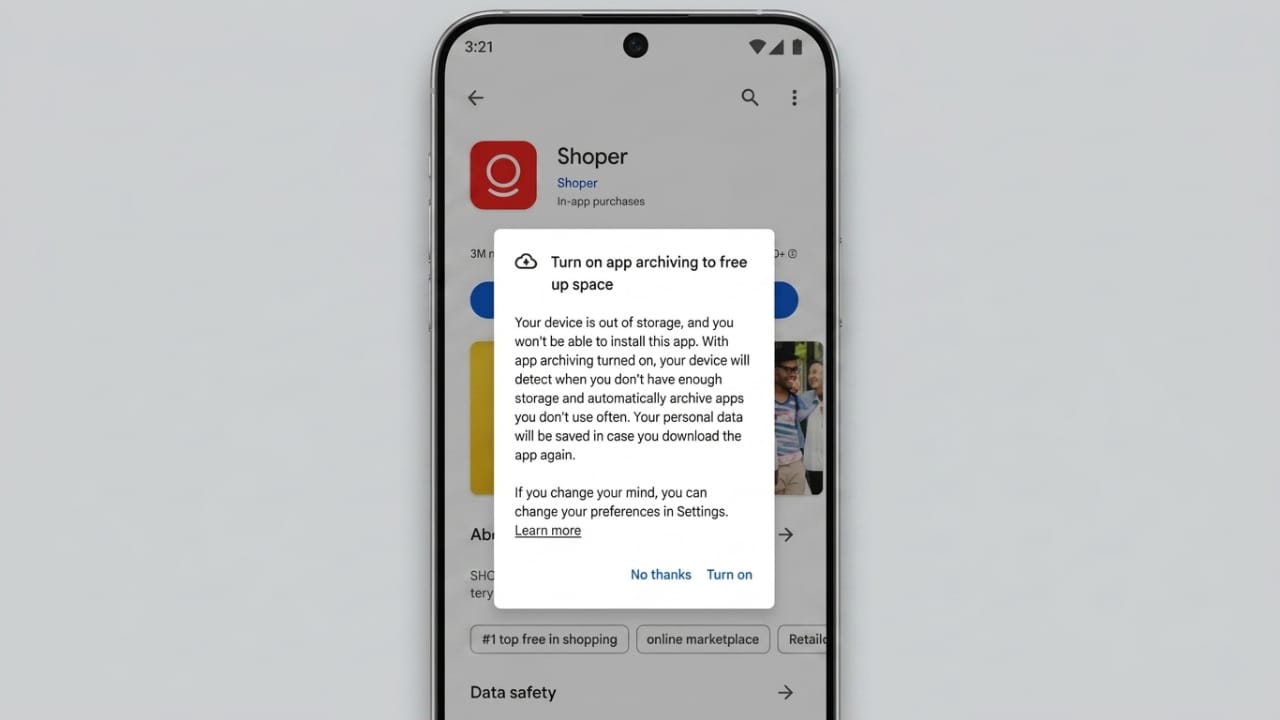
Running out of storage is a common problem for Android users. Over time, we install many apps for different reasons—shopping deals, entertainment, travel bookings, special offers, or temporary tasks. Once their purpose is over, those apps often stay on the phone without being used again.
Although unused apps may not affect your phone much, they still occupy valuable storage space. As modern apps and games continue to grow in size, available storage can disappear quickly. This can make it difficult to install new apps, save photos, record videos, or keep your device running smoothly.
To help users manage storage more effectively, Android offers a useful feature called Auto-Archive Apps.
Also read: How to Save GIFs from X (Twitter) on Mobile and Computer
Why Storage Space Becomes Full
Most people download apps regularly and rarely think about removing them later. After months of use, dozens of forgotten apps can accumulate on a device.
When storage starts running low, users may face problems such as:
- Inability to install new applications
- Difficulty saving photos and videos
- Frequent low-storage warnings
- Slower device performance
- Limited space for important files
In many cases, people begin deleting content in a hurry and may accidentally remove valuable photos, documents, or other important data.
What Is Auto-Archive Apps?
Auto-Archive is a storage-saving feature that helps manage unused applications automatically.
Instead of completely uninstalling apps that are rarely used, Android archives them. This means the app’s main installation files are removed to free up storage, while important user information remains safely stored.
When an app is archived:
- The app’s installation package is removed
- Personal data is preserved
- Settings remain saved
- Login details stay intact
- Progress and preferences are kept
As a result, you gain extra storage space without losing important information connected to the app.
How Archived Apps Appear
Archived apps do not disappear from your phone.
You can still find them:
- In the app drawer
- On the home screen
- Alongside your other apps
To help you identify them easily, Android displays archived apps with a faded or grayed-out icon.
This visual indicator shows that the app has been archived but is still available for restoration whenever needed.
What Happens When You Open an Archived App?
Reusing an archived app is simple.
When you tap its icon, Android automatically downloads the necessary files again through the Google Play Store. Once restored, the app opens with your previous data and settings intact.
You do not need to:
- Sign in again
- Reconfigure settings
- Start from scratch
Everything returns as it was before the app was archived.
How to Enable Auto-Archive Apps
The feature is available through the Google Play Store and can be turned on in a few steps.
Step 1: Open Google Play Store
Launch the Play Store app on your Android device.
Step 2: Tap Your Profile Icon
Select your profile picture in the top-right corner.
Step 3: Open Settings
From the menu, tap Settings.
Step 4: Go to General
Expand the General section to view additional options.
Step 5: Find the Auto-Archive Setting
Scroll through the available settings until you see Automatically archive apps.
Step 6: Turn It On
Enable the toggle switch. The feature will start working automatically.
How to Turn Off Auto-Archive
If you decide not to use the feature, you can disable it at any time.
Simply follow the same path:
- Open Google Play Store
- Tap your profile icon
- Open Settings
- Select General
- Turn off the Auto-Archive option
Once disabled, Android will stop archiving apps automatically.
Can’t Find the Option?
If the Auto-Archive setting does not appear on your device, the Play Store may need an update.
Try the following:
- Update the Google Play Store
- Close and reopen the app
- Restart your phone if necessary
- Check the settings again
The option should become available once the latest version is installed.
Benefits of Using Auto-Archive Apps
Frees Up Storage Automatically
Unused apps no longer occupy unnecessary space on your device.
Keeps Important Data Safe
Your personal information, preferences, and app progress remain protected.
Reduces Manual Cleanup
You don’t need to spend time searching for apps to remove. Android handles the process automatically.
Helps During Low-Storage Situations
The feature creates additional space when needed, making storage management easier.
Useful for Large Apps and Games
Games and media apps often consume significant storage. Archiving helps manage them without losing saved data.
Quick and Easy Restoration
Archived apps can be restored in just a few moments whenever you need them again.
Less Storage Stress
You can worry less about constantly checking available storage space.
Also read: How to Turn Off Touchscreen Input on Android Phones
Final Thoughts
Android’s Auto-Archive Apps feature offers a smart way to free up storage while keeping your important app data safe. Instead of permanently removing rarely used apps, the system archives them and allows quick restoration whenever needed.
If your device often runs low on storage, enabling this feature can help keep your phone organized, efficient, and ready for everyday use.

Jatin Rajput (Tech Golu) — Tech blogger & YouTuber with 6+ years of experience in WhatsApp, Instagram, Facebook, and mobile guides. Founder of TechGolu.in.