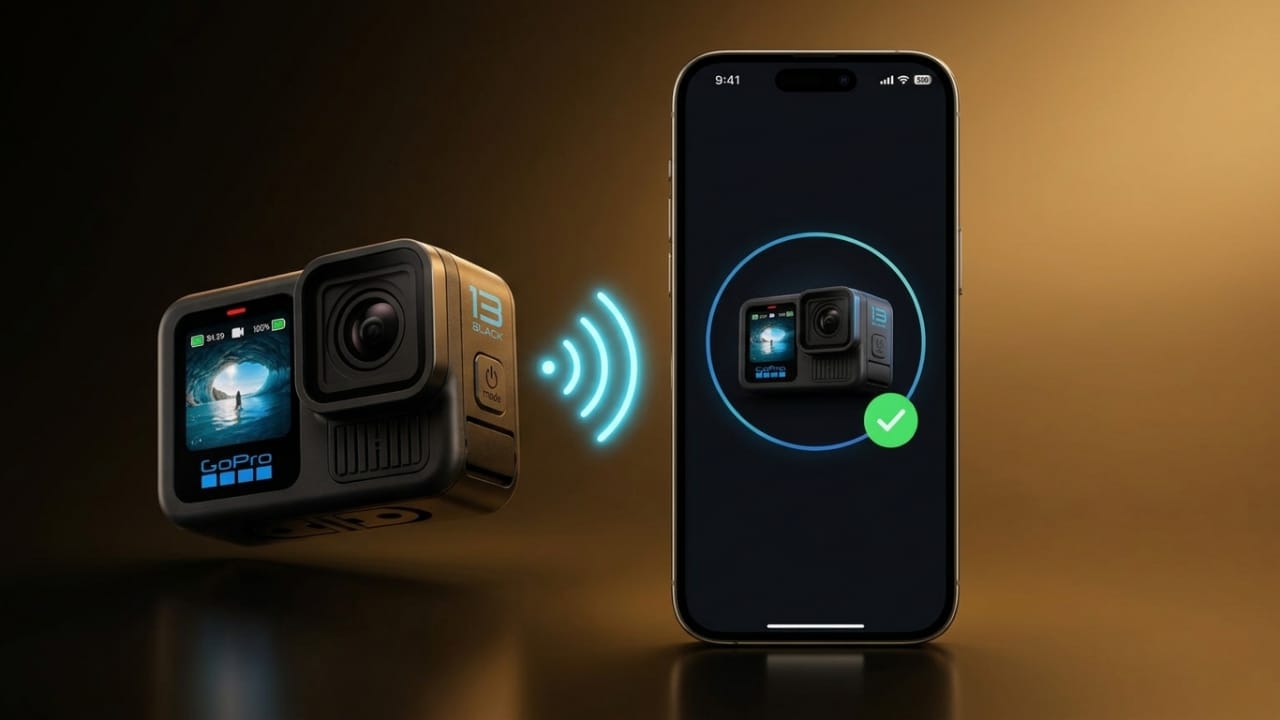
Using a GoPro with your smartphone makes recording and managing videos much easier. Once connected, you can control the camera remotely, view footage, transfer files, and share your content without needing a computer.
This guide explains how to connect a GoPro to both Android and iPhone devices and how to transfer videos smoothly.
Also read: How to Turn Your Android Phone into a Webcam for Windows 11
Things to Check Before You Start
Before connecting your GoPro, make sure both your camera and phone are ready.
Make Sure Your GoPro Supports Wireless Connections
Most modern GoPro cameras include Wi-Fi and Bluetooth, which are needed for pairing with a smartphone. If you are using an older model, check the camera specifications to confirm that wireless connectivity is available.
Install the Official GoPro App
To connect your camera, you’ll need the official GoPro app. Many users also use the Quik app, which is developed by GoPro and offers tools for media management and editing.
You can download the app from:
- Google Play Store for Android
- App Store for iPhone
The app is free to install, although some optional features may require a subscription or in-app purchase.
Verify Phone Compatibility
Your smartphone should meet the minimum software requirements:
- iPhone: iOS 13 or newer
- Android: Android 7.0 or newer
It’s also a good idea to install the latest system updates and ensure you have enough available storage for videos.
Enable Wireless Features
For a successful connection:
- Turn on Wi-Fi and Bluetooth when needed
- Keep the phone and camera close to each other
- Avoid weak or unstable network environments
Keep in mind that connection menus may look slightly different depending on your GoPro model.
Connecting a GoPro to an Android Phone
Android users can usually complete the setup within a few minutes.
Step 1: Install the App
Open the Google Play Store and download the GoPro or Quik app.
After installation, launch the app and allow any requested permissions so it can communicate with the camera properly.
Step 2: Turn On Pairing Mode
Power on your GoPro and open its settings menu.
Look for options such as:
- Connections
- Pair Device
- Wireless Connections
Select the pairing option to make the camera discoverable.
Step 3: Connect the Camera
Open the GoPro app and choose the option to add or connect a camera.
The app will search for nearby GoPro devices. Select your camera from the list and follow the instructions displayed on the screen.
If a verification code appears, enter it when prompted.
After the setup is complete, the camera and phone will connect automatically.
What You Can Do After Connecting
Once paired, you can:
- Start and stop recordings remotely
- Switch between shooting modes
- View a live camera preview
- Adjust framing before recording
- Access and organize media files
- Share videos directly from your phone
The live preview may appear lower in quality to improve performance, but your recorded footage remains in full resolution.
Connecting a GoPro to an iPhone
The process for iPhone users is very similar.
Step 1: Download the App
Install the GoPro app from the App Store and grant the permissions requested during setup.
Step 2: Enable Wireless Connections on the Camera
Turn on your GoPro and activate its wireless connection settings.
Depending on the model, you may need to navigate through the camera menu to enable Wi-Fi or pairing mode.
Step 3: Pair the Devices
Open the GoPro app and tap the option to connect a camera.
Follow the on-screen instructions. If prompted, connect to the GoPro’s Wi-Fi network and enter any required password.
Once the pairing process finishes, you will be able to view a live feed from the camera directly on your iPhone.
Features Available After Pairing
Connecting your iPhone unlocks several useful functions, including:
- Remote recording control
- Live camera monitoring
- Quick access to saved footage
- Downloading videos directly to the phone
- Adjusting camera settings remotely
Many GoPro models also allow advanced settings adjustments such as exposure, white balance, and ISO control.
How to Transfer Videos from GoPro to Your Phone
One of the biggest advantages of connecting a GoPro to a smartphone is easy file transfer.
Transfer Videos Using the App
Follow these steps:
- Open the GoPro app.
- Connect to your camera.
- Go to the Media section.
- Browse the camera’s files.
- Select the videos you want.
- Tap the download option.
- Wait for the transfer to finish.
Transfer speed depends on factors such as file size, connection quality, and the distance between devices.
After downloading, the videos can be accessed from the app and, in many cases, saved to your phone’s gallery or camera roll.
Alternative Method: Use the microSD Card
If you prefer not to use wireless transfer, you can move files directly from the memory card.
Steps:
- Power off the camera.
- Remove the microSD card.
- Insert it into a compatible card reader.
- Connect the reader to your phone or computer.
- Copy the desired files.
This method can be useful when transferring large video files.
Benefits of Pairing a GoPro with Your Smartphone
Connecting your camera to a phone offers several practical advantages:
- Wireless camera control
- Faster access to recorded footage
- Easy sharing to social media platforms
- Improved editing workflow
- Live monitoring while filming
- Quick media organization
- Convenient firmware updates
Keeping your camera firmware updated can improve performance and sometimes introduce new features.
Common GoPro Connection Problems and Fixes
If you experience issues while connecting your devices, these simple solutions may help.
GoPro Won’t Connect
Try the following:
- Restart both devices
- Reset the camera’s wireless settings
- Remove the saved connection and reconnect
- Repeat the pairing process from the beginning
Videos Are Not Playing Correctly
Possible fixes include:
- Update the GoPro app
- Clear the app cache (Android)
- Restart the phone
- Check that the video format is supported
Slow Transfer Speeds
To improve performance:
- Keep devices close together
- Reduce interference from other networks
- Avoid heavy internet activity during transfers
- Use a strong and stable Wi-Fi connection
App Keeps Crashing
You can try:
- Updating the app
- Reinstalling the app
- Restarting the smartphone
- Installing the latest operating system updates
Android Switches Networks Automatically
Some Android phones may disconnect from the camera network automatically.
To prevent this:
- Temporarily disable mobile data if needed
- Turn off automatic network switching
- Stay within the camera’s connection range
Compatibility Issues
Before troubleshooting further, verify:
- Your phone meets app requirements
- The GoPro model supports app connectivity
- The latest software updates are installed
Also read: How to Download the Official macOS 27 Golden Gate Wallpaper Released at WWDC 2026
Final Thoughts
Connecting a GoPro to an Android phone or iPhone is a straightforward process that can greatly improve your recording experience. Once paired, you can control the camera remotely, preview shots, transfer videos, and manage content more efficiently.
With the right setup and a stable connection, your phone becomes a convenient companion for capturing, organizing, and sharing GoPro footage.

Jatin Rajput (Tech Golu) — Tech blogger & YouTuber with 6+ years of experience in WhatsApp, Instagram, Facebook, and mobile guides. Founder of TechGolu.in.