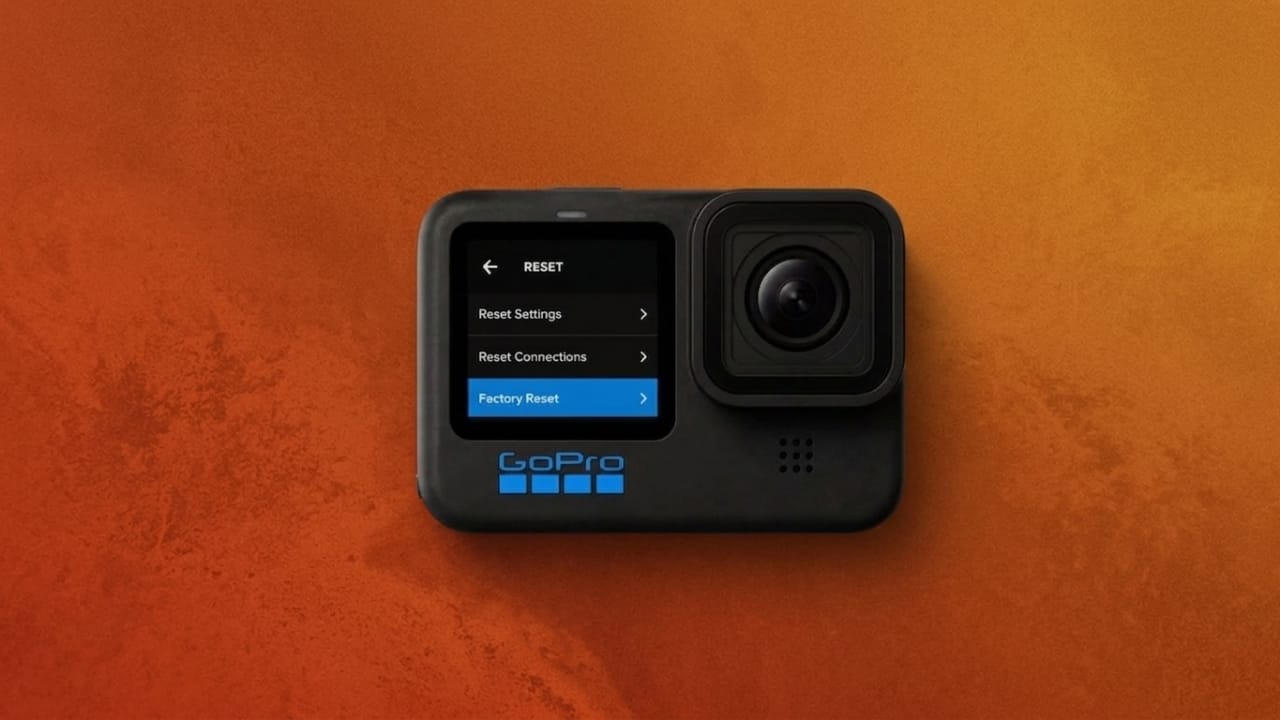
If your GoPro is acting strangely, freezing, or having trouble connecting to other devices, resetting it can often solve the problem. Over time, changes in camera settings or connection configurations may cause unexpected issues. Restoring the camera to its default settings is a quick way to bring everything back to normal.
This guide explains when you should reset your GoPro and how to do it on different HERO, Fusion, and Session models.
Also read: How to Connect Your GoPro to a Phone and Move Videos Easily
Why You May Need to Reset Your GoPro
GoPro cameras are built to perform reliably, but occasional software or settings-related problems can occur. A reset helps remove unwanted configurations and restores the camera to a clean state.
Common reasons to reset a GoPro include:
- Slow or unresponsive performance
- Wi-Fi or Bluetooth connection issues
- Problems pairing with smartphones or accessories
- Unexpected behavior after changing settings
- General software glitches
- Preparing the camera for a new owner before selling it
In many cases, a reset can fix these problems without affecting your recorded videos and photos.
Before You Start
Make sure your GoPro has enough battery power and can turn on normally.
To access reset options on most models:
- Power on the camera.
- Open the settings menu.
- Navigate to the reset section.
Most newer GoPro cameras provide reset options directly through the touchscreen interface, while some older models require button combinations.
Resetting HERO7, HERO8, HERO9, HERO10, HERO11, and HERO12
Modern GoPro cameras make the reset process simple.
How to Perform a Factory Reset
- Start from the main screen.
- Swipe down from the top of the display.
- On HERO9 and newer models, open the dashboard and swipe left if needed.
- Tap Preferences.
- Select Reset.
- Choose Factory Reset.
- Confirm your selection.
The camera will restart automatically after the process is complete.
What Happens During a Factory Reset?
A factory reset restores most camera settings to their original values. However, your media files remain safe.
The following items are usually not removed:
- Photos and videos stored on the memory card
- Installed camera software
- Language settings
- Camera name
- Password
- Date and time settings
- Video format preferences
This allows you to solve software-related issues without losing important recordings.
Reset Camera Tips
GoPro cameras display helpful setup and usage tips when they are first activated. If you want to see those instructions again, you can reset the tips section.
Steps:
- Open Preferences.
- Select Reset.
- Tap Reset Camera Tips.
The introductory guidance screens will appear again the next time you use the camera.
Using the Reset Defaults Option
Some GoPro models offer a more extensive reset option called Reset Defaults.
To access it:
- Open the dashboard.
- Tap Preferences.
- Select Reset.
- Choose Reset Defaults.
This option clears additional information such as:
- Date and time settings
- Saved connections
- Account associations
If your camera is linked to a GoPro account, that connection may also be removed.
Resetting Connections Only
If the issue is related to pairing or wireless connectivity, you may not need a full factory reset.
To clear connection settings:
- Swipe down from the home screen.
- Open Preferences.
- Select Connections.
- Tap Reset Connections.
This process removes saved device pairings and restores connection settings to their default state.
Supported on models including:
- HERO12 Black
- HERO8 Black
- HERO7 Black
- HERO7 Silver
- HERO7 White
This is often the quickest solution for Wi-Fi or Bluetooth problems.
Resetting HERO6 Black, HERO5 Black, and HERO
Older touchscreen GoPro models use a slightly different menu structure.
Factory Reset Steps
- Swipe down from the main screen.
- Open Preferences.
- Select Factory Reset.
- Tap Reset.
The camera will automatically restore its default settings.
Information Removed During Reset
A factory reset may erase:
- Date and time settings
- Camera name
- Password information
- GoPro account registration details
After the reset, you’ll need to configure these settings again.
Reset Camera Settings Without a Full Reset
If you only want to restore shooting settings, use the Camera Defaults option.
Steps:
- Open Preferences.
- Tap Camera Defaults.
- Select Reset.
This returns camera settings to their original values while leaving account-related information intact.
How to Reset a GoPro Fusion
The GoPro Fusion relies on physical buttons instead of a touchscreen.
Reset Procedure
- Turn on the camera.
- Press the Mode button until you reach Settings.
- Press the Shutter button.
- Continue navigating through the menu using the Mode button.
- Open Preferences.
- Locate Reset.
- Select it with the Shutter button.
- Confirm the reset.
The camera will restart automatically once the process finishes.
How to Reset a HERO5 Session
The HERO5 Session uses a button-based reset method.
Steps to Reset
- Turn the camera off.
- Press the Menu button to access the status screen.
- Continue pressing Menu until you reach the end of the menu options.
- Hold the Shutter button for several seconds.
- Use the Menu and Shutter buttons to navigate.
- Select Yes when prompted.
- Confirm the reset.
The camera will begin restoring factory settings immediately.
What Gets Removed?
The reset clears:
- Camera settings
- Date and time information
- Camera name
- Password settings
- Account registration details
Once complete, the camera returns to its original factory state.
Also read: How to Turn Your Android Phone into a Webcam for Windows 11
Final Thoughts
Resetting a GoPro is one of the easiest ways to fix software-related issues and restore smooth performance. Whether you’re experiencing connection problems, unexpected glitches, or simply preparing the camera for a new owner, a reset can help get everything working properly again.
Most reset options do not affect photos or videos stored on the memory card, making the process safe for users who want to troubleshoot their camera without risking their recordings.

Jatin Rajput (Tech Golu) — Tech blogger & YouTuber with 6+ years of experience in WhatsApp, Instagram, Facebook, and mobile guides. Founder of TechGolu.in.