If you use your iPhone at night or in low-light environments, a bright screen can quickly become uncomfortable. Fortunately, iPhone includes several built-in settings that help create a much darker and more comfortable viewing experience.
By combining Dark Mode with a few accessibility and display options, you can reduce glare, improve readability, and make your screen easier on your eyes. Here’s how to get the most out of your iPhone’s dark appearance.
Also read: How to Enable the Microphone on an Android Phone
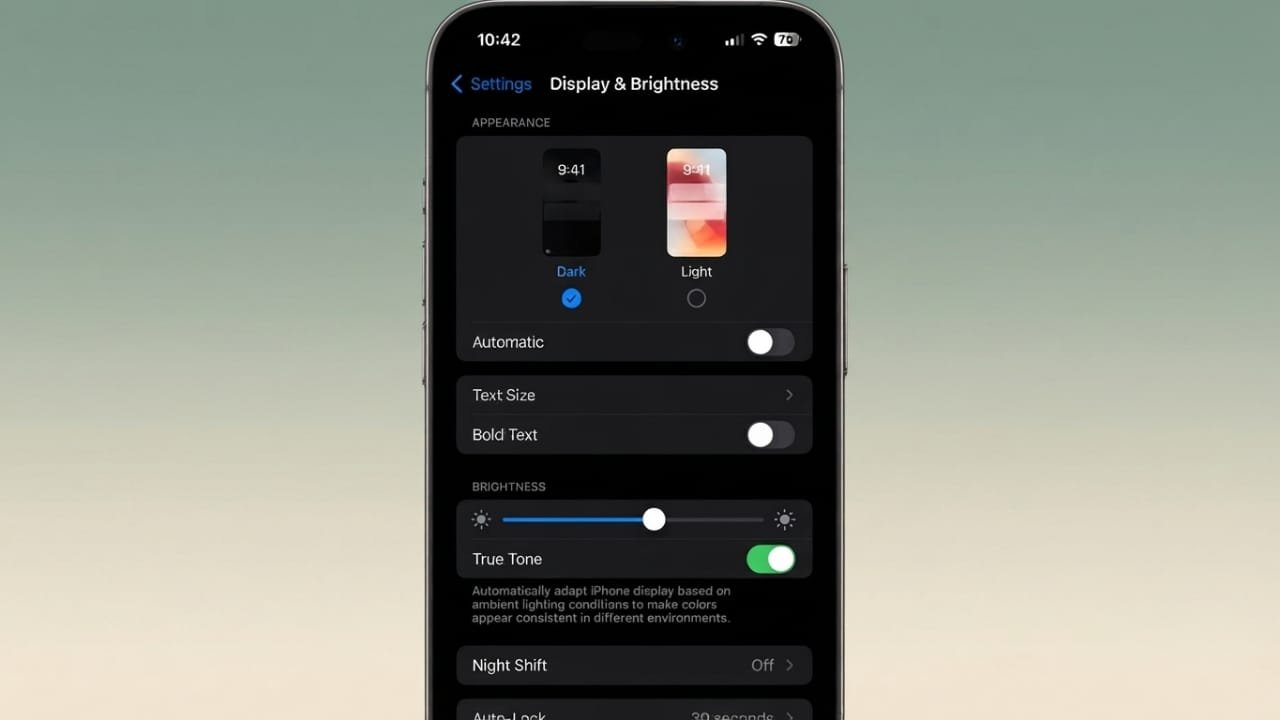
Turn On Dark Mode
Dark Mode is the easiest way to give your iPhone a darker look. It changes the appearance of many system menus and supported apps by replacing light backgrounds with dark ones.
To enable it:
- Open Settings.
- Tap Display & Brightness.
- Under Appearance, select Dark.
Your iPhone will immediately switch to the dark theme. Most Apple apps support this feature, and many third-party apps automatically follow the same appearance.
Use Control Center for Quick Access
You can also switch between Light and Dark Mode without opening Settings.
- Swipe down from the top-right corner of the screen.
- Press and hold the brightness slider.
- Tap the Dark Mode button to turn it on or off.
This shortcut makes changing the display mode much faster.
Schedule Dark Mode Automatically
Instead of switching themes manually every day, you can let your iPhone handle it automatically.
To set this up:
- Open Settings.
- Go to Display & Brightness.
- Turn on Automatic.
Your iPhone can switch between Light and Dark Mode based on sunrise and sunset, creating a smooth experience throughout the day.
Set Custom Times
If you prefer fixed hours instead of sunrise and sunset, you can create your own schedule.
- Tap Options.
- Choose Custom Schedule.
- Set the time for Light Mode.
- Choose when Dark Mode should begin.
Your selected schedule will repeat daily until you change it.
Use Dark App Icons
A dark Home Screen can look even better with matching app icons. Newer versions of iOS allow you to apply darker icon styles for a more consistent appearance.
To change them:
- Touch and hold an empty area on the Home Screen.
- Tap Edit.
- Select Customize.
- Choose Dark.
- Select Always if you want dark icons to remain active.
This creates a cleaner look, especially when paired with a dark wallpaper.
Improve the Display with Accessibility Settings
iPhone also offers accessibility features that can make the interface easier to read while giving the screen a darker appearance.
Reduce Transparency
Transparent effects can sometimes make the display look brighter. Turning them off creates a more solid and cleaner interface.
Steps:
- Open Settings.
- Tap Accessibility.
- Select Display & Text Size.
- Turn on Reduce Transparency.
Increase Contrast
Increasing contrast helps text, buttons, and menus stand out more clearly.
In the same Display & Text Size menu, enable Increase Contrast.
Together, these settings improve visibility without changing how the phone works.
Show Borders Around Interface Elements
Another useful accessibility feature adds clearer outlines around certain interface sections.
To enable it:
- Stay in Display & Text Size.
- Turn on Show Borders.
This can make widgets, notifications, search bars, and other interface elements easier to identify.
Reduce White Point for Night Viewing
Even the lowest brightness setting may still feel too bright in a dark room. Reduce White Point lowers the intensity of bright colours, making nighttime use more comfortable.
To enable it:
- Open Settings.
- Go to Accessibility.
- Tap Display & Text Size.
- Scroll down and turn on Reduce White Point.
- Adjust the slider until the screen feels comfortable.
You can increase the slider for a dimmer display or lower it if you prefer a little more brightness.
Try Additional Display Options (Supported Devices)
Some newer iPhone models and iOS versions include extra display customization options that can make the interface appear darker.
If your device supports features such as Tinted Liquid Glass, you can find them under Settings > Display & Brightness and choose the available appearance options.
These features may vary depending on your iPhone model and iOS version.
Combine These Settings for the Best Results
For the darkest possible experience, use multiple settings together:
- Enable Dark Mode.
- Schedule it automatically if desired.
- Use dark app icons.
- Turn on Reduce Transparency.
- Enable Increase Contrast.
- Use Show Borders for clearer navigation.
- Adjust Reduce White Point for comfortable nighttime viewing.
Using these features together creates a darker, cleaner interface that is easier to use in low-light conditions.
Also read: How to Use Roku Without the Internet: Offline Features You Can Still Enjoy
Final Thoughts
You don’t need any third-party apps to give your iPhone a darker appearance. The built-in display and accessibility settings provide everything needed to create a more comfortable viewing experience.
Whether you’re reading before bed, browsing in a dim room, or simply prefer a darker interface, these settings can help reduce glare while keeping your screen clear and easy to use.

Jatin Rajput (Tech Golu) — Tech blogger & YouTuber with 6+ years of experience in WhatsApp, Instagram, Facebook, and mobile guides. Founder of TechGolu.in.