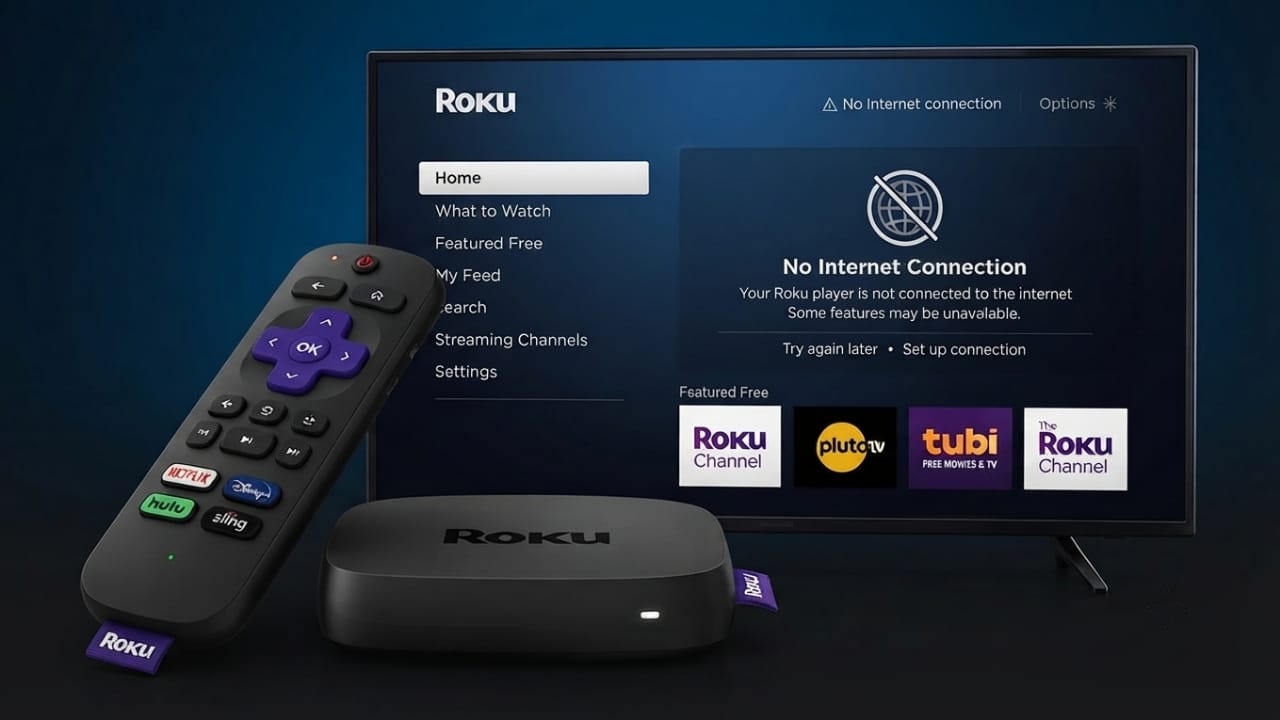
Most people think a Roku device becomes useless as soon as the internet goes down. That is not entirely true. While online streaming services stop working without a connection, Roku still offers several useful features that let you enjoy your TV offline.
Whether you’re dealing with an internet outage, traveling, or simply want backup entertainment, knowing these offline options can help you get more from your Roku device.
Also read: Samsung Galaxy Unpacked July 2026: Key Announcements from Samsung’s Biggest Event
What You Can Do on Roku Without Internet
Although Roku is designed for streaming, many built-in features continue working even when you’re offline. The available options depend on your Roku model, but both Roku streaming devices and Roku TVs support several offline functions.
Here are some things you can still do:
- Watch free over-the-air TV channels with a digital antenna (Roku TVs).
- Use a cable or satellite receiver connected to your TV.
- Connect a Blu-ray or DVD player through an HDMI port.
- Play games from gaming consoles without online access.
- Connect a desktop or laptop using HDMI.
- Mirror your phone, tablet, or computer screen over a local Wi-Fi network.
- Play videos, music, and photos stored on a USB drive.
- Stream media from a local home media server.
Some Roku models also support SD cards, making it even easier to access your saved content. Keeping your media files organized before an internet outage makes offline viewing much more convenient.
What Won’t Work Without Internet
Some Roku features rely completely on an active internet connection. If your network is unavailable, the following functions will not work:
- Netflix
- Disney+
- Apple TV
- Sling TV
- YouTube TV
In addition, you cannot:
- Set up a Roku device for the first time.
- Create or sign in to a Roku account during setup.
- Download new apps or channels.
- Install software updates.
You may also notice missing home screen ads or occasional network error messages. These do not affect offline features like HDMI inputs or USB playback.
Use Screen Mirroring Without Internet
Screen mirroring is one of the easiest ways to watch offline content on Roku. As long as your Roku device and phone or computer are connected to the same local Wi-Fi network, internet access is usually not required.
Unlike casting, which often depends on online services, screen mirroring simply displays your device’s screen on the TV.
Devices That Support Screen Mirroring
Roku works with several popular technologies, including:
- Apple AirPlay
- Android Screen Mirroring
- Samsung Smart View
- Windows Cast
If you plan to use this feature during an internet outage, make sure both devices stay connected to the same router.
Enable Screen Mirroring on Roku
Before connecting another device, turn on screen mirroring in Roku settings.
- Open Settings.
- Select System.
- Choose Screen Mirroring.
- Open Screen Mirroring Mode.
- Select Always Allow or Prompt.
Choosing Always Allow lets approved devices connect more quickly, while Prompt asks for permission each time.
Connect Your Phone or Computer
The connection process varies slightly depending on your device.
iPhone or iPad
- Open Control Center.
- Tap Screen Mirroring.
- Select your Roku device.
Android Phone
- Open Quick Settings.
- Tap Screen Mirroring, Smart View, or a similar option.
- Choose your Roku device.
Windows PC
- Open Quick Settings.
- Select Cast.
- Connect to your Roku.
If Roku asks for permission, approve the request to begin mirroring.
Play Media from USB Storage
Many Roku devices include a USB port, allowing you to enjoy saved media without an internet connection.
To get started:
- Copy your videos, music, or photos to a USB drive.
- Insert the USB drive into your Roku device.
- Open the Roku Media Player app.
- Browse your files.
- Select the content you want to play.
Keeping files in clearly named folders makes them easier to find later.
Stream from a Local Media Server
If you have a home media server, you can stream your personal library without internet access.
Popular options include:
- Plex
- Jellyfin
Your Roku device and media server only need to be connected to the same local network. Before an outage, make sure your server is fully configured so everything works smoothly offline.
Use HDMI Devices
HDMI connections continue working even when your internet service is unavailable.
You can connect devices such as:
- Blu-ray players
- DVD players
- Gaming consoles
- Desktop computers
- Laptop computers
If you own a Roku TV, you can also switch to an antenna input to watch local broadcast channels.
Keep in mind that if your cable television and internet come from the same provider, both services may be affected during certain outages.
Use Your Phone as a Mobile Hotspot
If you need online access temporarily, your smartphone can act as a Wi-Fi hotspot for Roku.
On iPhone
- Open Settings.
- Tap Personal Hotspot.
- Turn on Allow Others to Join.
On Android
- Open Quick Settings.
- Enable Hotspot.
Next, connect Roku:
- Open Settings.
- Select Network.
- Choose Set Up Connection.
- Select Wireless.
- Connect to your phone’s hotspot.
Once your home internet returns, reconnect Roku to your regular Wi-Fi network.
Things to Consider Before Using a Hotspot
Mobile hotspots are useful but have a few limitations:
- Mobile data may be limited.
- Some carriers restrict hotspot usage.
- Extra charges may apply depending on your plan.
- Speeds can vary based on signal strength.
- High-quality streaming may buffer during network congestion.
Checking your mobile plan before using a hotspot can help avoid unexpected charges.
Check Your Roku Network Information
If you’re having connection issues, Roku lets you view useful network details.
Follow these steps:
- Press the Home button.
- Open Settings.
- Select Network.
- Choose About.
Here you can view information such as:
- Network name
- Connection status
- Connection type
- IP address
- MAC address
- Signal strength (Wi-Fi)
- Download speed (wired connections)
Strong network signals generally provide a better streaming experience when internet service is available.
Also read: How to Do a Reverse Image Search on Phone and PC
Final Thoughts
A Roku device can still be useful even without an internet connection. Features such as USB media playback, HDMI inputs, screen mirroring, local media servers, and broadcast TV allow you to continue enjoying entertainment when online services are unavailable.
Preparing your device in advance by saving media files, configuring screen mirroring, or setting up a local media server can make unexpected internet outages much less disruptive.

Jatin Rajput (Tech Golu) — Tech blogger & YouTuber with 6+ years of experience in WhatsApp, Instagram, Facebook, and mobile guides. Founder of TechGolu.in.