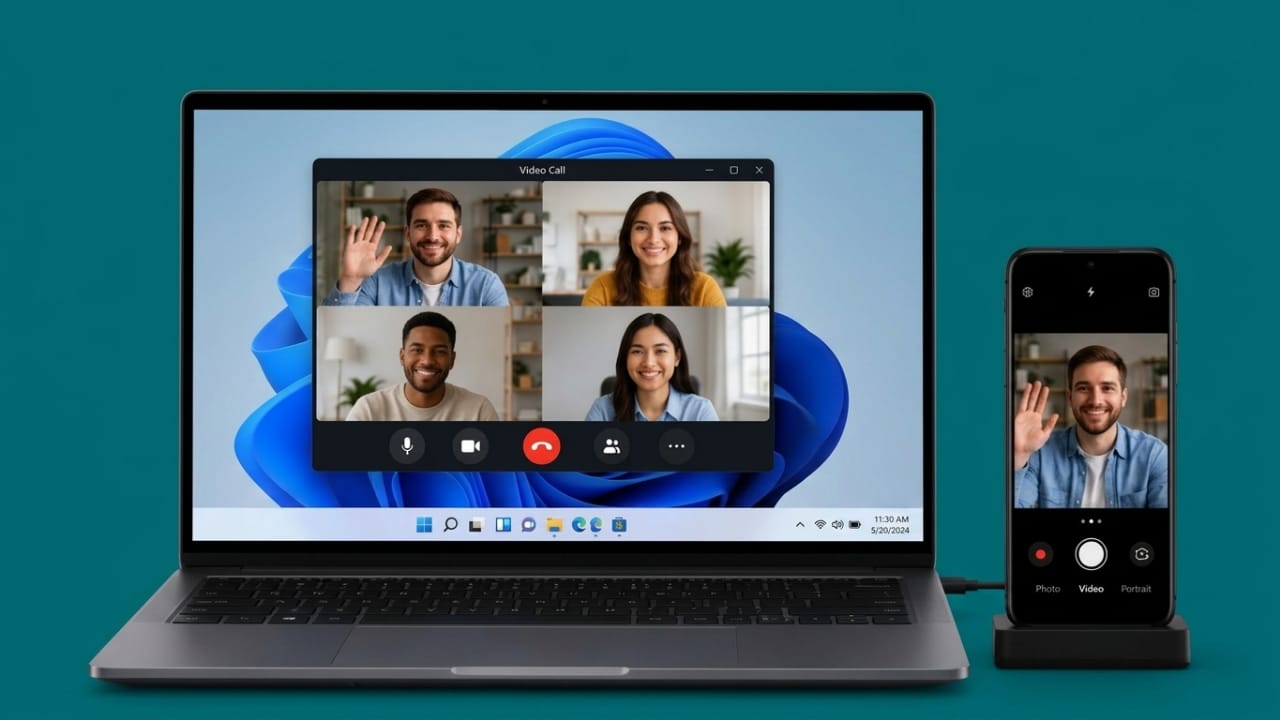
Most laptop webcams are good enough for basic video calls, but they often struggle with image quality. If you own an Android phone, you already have access to a much better camera. Windows 11 allows you to use your Android device as a webcam, making your video calls, online classes, and meetings look much clearer.
Also read: How to Download the Official macOS 27 Golden Gate Wallpaper Released at WWDC 2026
Why Use an Android Phone as a Webcam?
Clear video has become important for work, study, and communication. Built-in laptop cameras often produce grainy or low-quality footage, especially in poor lighting conditions.
Modern Android phones are equipped with advanced cameras that can capture sharper details, better colors, and improved brightness. By using your phone as a webcam, you can instantly improve your video quality without purchasing extra hardware.
Another advantage is flexibility. A laptop webcam remains fixed in one position, while a phone camera can be moved easily to show documents, products, notes, or other objects during a presentation or online session.
This feature can be useful for:
- Video meetings
- Online classes
- Remote work
- Virtual presentations
- Live streaming
- Family video calls
- Product demonstrations
In the past, users often needed third-party apps to connect their phones as webcams. Windows 11 now offers built-in support, making the setup process much simpler and more reliable.
Requirements Before You Begin
Before setting everything up, make sure both your Android phone and Windows PC meet the necessary requirements.
Android Requirements
Your Android device should have:
- Android 9 or later
- The Link to Windows app installed
- A recent version of the Link to Windows app
- Internet access
- A Microsoft account
Depending on your region and app version, feature availability may vary. Keeping the app updated is recommended.
Windows 11 Requirements
Your computer should have:
- Windows 11 installed
- The latest Windows updates
- The Phone Link app
- Bluetooth enabled
- A Microsoft account connected to Windows
Microsoft releases some features gradually, so availability may differ between devices.
Install and Configure Link to Windows
The connection between your phone and computer relies on Microsoft’s Link to Windows and Phone Link services.
Besides webcam support, these tools allow you to:
- View phone notifications on your PC
- Make and receive calls
- Access mobile apps
- Share files
- Copy and paste content between devices
On Your Android Phone
- Open the Google Play Store.
- Search for Link to Windows.
- Install the app if it is not already available.
- Launch the app.
- Sign in using your Microsoft account.
On Your Windows 11 PC
- Open the Phone Link app.
- Sign in with the same Microsoft account.
- Follow the setup instructions.
- A QR code will appear on the screen.
- Scan the QR code with your Android phone.
- Complete the verification process.
Once completed, both devices will be linked.
Connect Your Phone to Windows 11
After linking your devices, you can enable the webcam feature.
Open Device Settings
- Press Windows + I to open Settings.
- Select Bluetooth & devices.
- Open Mobile devices.
- Turn on mobile device access.
- Click Manage devices.
Add Your Phone
If your phone is not already listed:
- Select Add device.
- Scan the QR code shown on your computer.
- Enter any verification code if requested.
- Finish the pairing process.
- Continue through the remaining setup screens.
Windows may automatically install additional components needed for the connection.
Enable Camera Access
After pairing:
- Locate your connected phone.
- Turn on the device connection switch.
- Enable the option to use the phone as a connected camera.
- Wait for activation to finish.
Your Android phone is now ready to work as a webcam.
How to Use Your Phone Camera
Once setup is complete, supported applications can detect your phone automatically.
Compatible Applications
Many popular apps support this feature, including:
- Zoom
- Microsoft Teams
- Google Meet
- Windows Camera
- Various streaming applications
Simply open the app and choose your Android phone from the available camera sources.
Using the Windows Camera App
You can also test the connection directly:
- Open the Camera app in Windows.
- Select the camera switch option.
- Choose your Android device.
Your phone’s camera feed should appear immediately.
Useful Features
Using an Android phone as a webcam provides several convenient options.
Switch Between Cameras
You can change between the front and rear cameras whenever needed.
- Front camera: Ideal for meetings and video chats.
- Rear camera: Usually provides higher image quality and better detail.
Pause Video Temporarily
If you need a short break or want to hide your video briefly, you can pause the camera feed without disconnecting the entire setup.
HDR Support
Some Android phones support HDR video. When available, HDR can improve brightness, contrast, and color accuracy, especially in challenging lighting conditions.
Wireless Convenience
One of the biggest benefits is that everything works wirelessly. There is no need to keep your phone connected with a USB cable, allowing greater freedom of movement during calls and meetings.
Troubleshooting Common Issues
If the webcam feature is not working correctly, try these solutions.
Phone Camera Does Not Appear
- Restart both devices.
- Update Windows and the Link to Windows app.
- Verify that both devices use the same Microsoft account.
- Reconnect the pairing process.
Permission Problems
Make sure camera permissions are allowed on your Android device. Without proper permissions, Windows may not be able to access the camera.
External Webcam Conflicts
If another webcam is connected to your computer, temporarily disconnect it and test again. This helps determine whether a device conflict exists.
Check Windows Camera Settings
Open the camera settings in Windows and confirm that your Android device is detected correctly. Built-in troubleshooting options can also help identify connection issues.
Also read: Apple Introduces Siri AI and iOS 27 at WWDC 2026
Final Thoughts
Using an Android phone as a webcam on Windows 11 is an easy way to improve video quality without buying extra equipment. Thanks to Microsoft’s built-in support, the setup process is straightforward and works wirelessly.
Whether you’re attending online classes, joining business meetings, or chatting with family, your phone’s camera can deliver a clearer and more professional video experience.

Jatin Rajput (Tech Golu) — Tech blogger & YouTuber with 6+ years of experience in WhatsApp, Instagram, Facebook, and mobile guides. Founder of TechGolu.in.