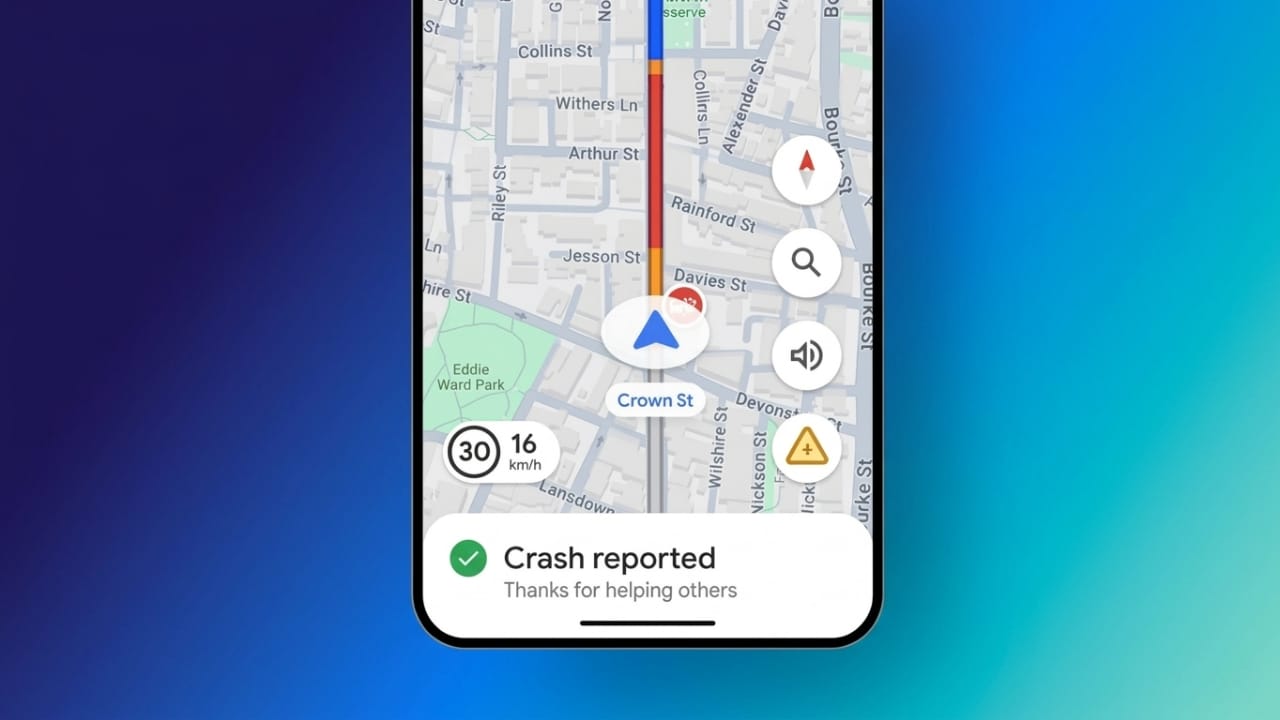
Many people prefer a quieter driving experience while using Google Maps. Constant voice instructions can sometimes feel distracting, especially on familiar routes or during phone calls. Thankfully, Google Maps gives users multiple ways to mute navigation sounds without affecting the map display.
In this guide, you’ll learn how to disable voice navigation in Google Maps on both Android and iPhone devices in a simple and safe way.
Also read: How to Save Instagram Videos Safely and Easily in 2026
Turn Off Voice Navigation from Google Maps Settings
Google Maps has built-in sound controls that allow you to disable spoken directions completely. The steps are almost the same on Android and iPhone.
Open Google Maps
Start by launching the Google Maps app on your smartphone. Make sure your internet connection is active so the app works properly.
Go to Your Profile Menu
Tap your profile picture in the top-right corner of the screen. This opens the main menu where account and app settings are available.
Open Navigation Settings
Scroll down and select Settings.
After that, tap Navigation Settings.
Here you will find all sound and voice-related options for navigation.
Mute Voice Directions
Inside the sound settings section, choose the Muted option.
Once enabled, Google Maps will stop speaking turn-by-turn directions during navigation.
Why Some Drivers Prefer Silent Navigation
Many users are comfortable following the visual route shown on the map. Continuous spoken instructions may sometimes interrupt concentration, music, or conversations.
Silent navigation can help create a calmer driving environment while still showing the route clearly on screen.
Visual Directions Still Work
Muting voice navigation does not disable the map itself. Google Maps will continue to:
- Show the route normally
- Display turns and exits
- Provide live traffic information visually
- Update directions in real time
Drivers should still pay attention to the road and avoid excessive phone interaction while driving.
Mute Google Maps During Active Navigation
If you are already navigating to a destination, you can quickly silence directions without opening the full settings menu.
Start Navigation
Search for your destination in Google Maps and tap Directions to begin navigation.
Voice instructions will start automatically.
Find the Speaker Icon
During navigation, look at the top-right area of the screen. You’ll see a speaker icon beside the route controls.
Turn Off the Voice
Tap the speaker icon once. A small sound menu will appear.
Select the mute option with the crossed speaker symbol.
Google Maps will immediately stop speaking directions.
Continue Using the Map Normally
Even after muting the voice, the app will still display:
- Turn instructions
- Estimated arrival time
- Traffic conditions
- Route changes
This makes the feature useful for people who want a quieter trip while still using navigation safely.
Disable Google Maps Voice During Phone Calls
Google Maps can sometimes interrupt important calls with spoken directions. Thankfully, there’s an option to stop navigation audio while talking on the phone.
Open Navigation Settings Again
Go to:
Google Maps → Profile Picture → Settings → Navigation Settings
Find Call Audio Controls
Scroll down until you see Play Voice During Phone Calls.
This option is usually turned on by default.
Turn the Feature Off
Disable the toggle next to Play Voice During Phone Calls.
After turning it off, Google Maps will stop speaking during active phone conversations while still showing the route visually.
Why This Option Is Useful
This setting can help during:
- Business calls
- Emergency conversations
- Long discussions while traveling
- Professional driving situations
It prevents repeated interruptions while still keeping navigation active on the screen.
Use “Alerts Only” Mode in Google Maps
Some users want silence but still prefer hearing important traffic alerts. Google Maps offers an Alerts Only mode for this purpose.
Open Sound Settings
Go to:
Google Maps → Settings → Navigation Settings
Look for the sound controls section.
Choose Alerts Only
Select the Alerts Only option.
With this mode enabled:
- Regular turn-by-turn voice directions are muted
- Important traffic alerts still play
- Accident and road closure warnings remain active
Enable Alerts During Navigation
You can also activate this mode while navigating:
- Tap the speaker icon
- Select the alerts option
This is useful for drivers who want fewer distractions but still need important road updates.
Benefits of Muting Google Maps Voice Navigation
Here are some common reasons why users disable spoken directions:
- More peaceful driving experience
- Less distraction during traffic
- Better focus on the road
- Easier phone conversations
- Uninterrupted music or podcasts
- Comfortable navigation on familiar routes
Since visual guidance stays active, many drivers find silent navigation more convenient for everyday travel.
Also read: How to Fix White Screen on Android Phones Safely and Easily
Frequently Asked Questions (FAQs)
Can I still use Google Maps after muting the voice?
Yes. The map, route guidance, traffic updates, and directions will continue to appear on your screen normally.
Does muting Google Maps affect traffic alerts?
If you choose full mute, all spoken alerts stop.
If you select Alerts Only, important traffic notifications will still play.
Can I turn the voice back on later?
Absolutely. Tap the speaker icon again or return to Navigation Settings and choose a normal sound option.
Is the process the same on Android and iPhone?
Yes. Google Maps uses very similar navigation settings on both platforms.
Final Thoughts
Google Maps provides flexible sound controls that make navigation more comfortable for different driving situations. Whether you want complete silence, traffic alerts only, or no interruptions during calls, the app offers simple options to customize your experience.
Muting voice navigation can help create a calmer and less distracting journey while still allowing you to follow directions safely using the on-screen map.

Jatin Rajput (Tech Golu) — Tech blogger & YouTuber with 6+ years of experience in WhatsApp, Instagram, Facebook, and mobile guides. Founder of TechGolu.in.