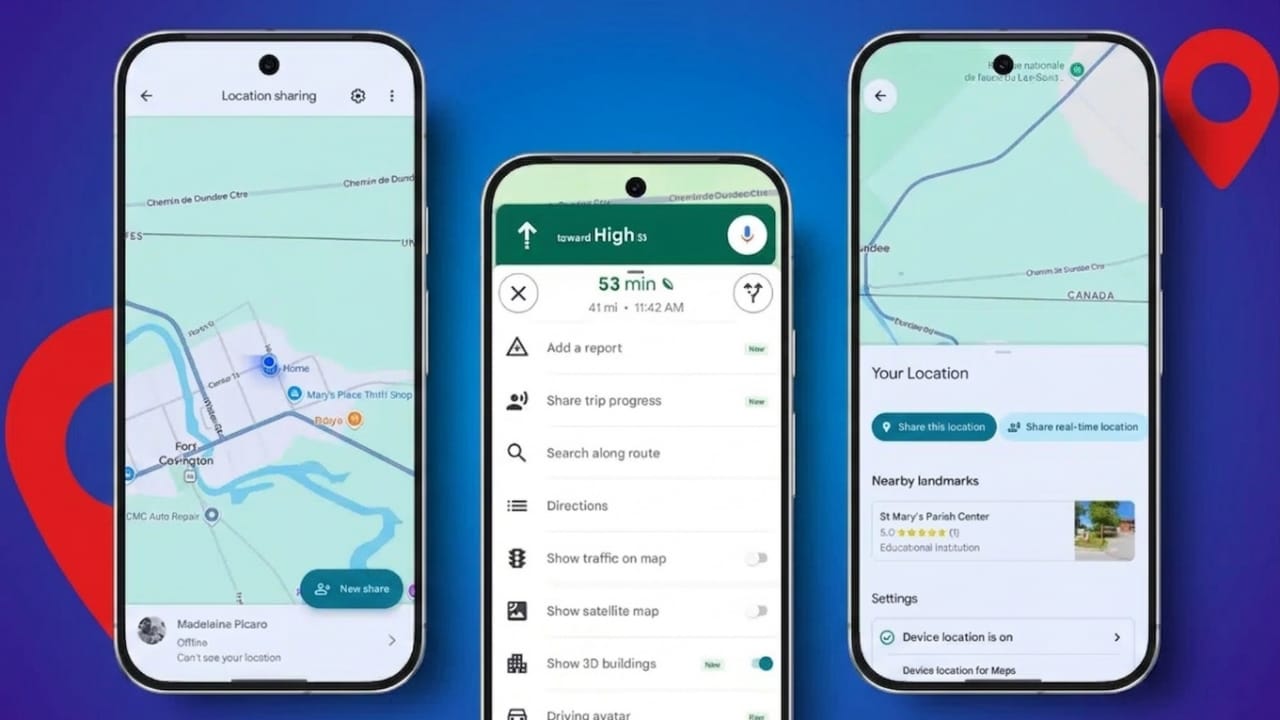
Sharing your location on Android can be useful in many everyday situations. It helps when meeting friends, tracking travel progress, or letting family know where you are during emergencies. Most Android phones already include built-in tools or apps that make this process quick and simple.
You can share either a live location that updates as you move, or a fixed location that only shows your current position. Let’s look at the most common ways to do it.
Also read: How to Switch Back to the Old Google Dialer UI on Android
Share Your Location with Google Maps
Google Maps is one of the easiest and most reliable tools for location sharing. It works on Android and can also be opened by people using other devices.
Advertisements
Share Live Location
If you want someone to follow your movement in real time:
- Open Google Maps on your Android phone.
- Tap your profile picture in the top corner.
- Select Location Sharing.
- Tap New Share.
- Choose how long you want to share your live location.
- Select a contact or create a shareable link.
The other person can view your movement while location sharing is active. In some cases, Google Maps may also show helpful details like phone battery level.
Share Your Current Location
If you only want to send a fixed location:
- Open Google Maps.
- Tap the blue dot showing your location.
- You can also press and hold any place on the map.
- A pin will appear.
- Tap Share.
- Send the link through any chat app.
This only shows your selected location. It does not update while you move.
Share Trip Progress
Google Maps also allows trip progress sharing while using navigation.
- Start navigation to your destination.
- Tap the travel time panel.
- Choose Share Trip Progress.
- Select a contact.
The person can see your route and estimated arrival time. Sharing usually ends when the trip is complete.
Share with People Without Google Accounts
Even if someone does not use Google services, you can still share a location link.
- Open location sharing settings in Google Maps.
- Create a shareable link.
- Copy and send it through any messaging app.
Anyone with the link can open and view the shared location.
Android Privacy and Location Access
Android gives users control over app permissions. You can decide whether an app can access your location while using it, always, or not at all.
To manage this:
- Open Settings
- Tap Apps
- Select the app
- Open Permissions
- Adjust location access
This helps protect privacy while still allowing location sharing when needed.
Share Location Through Messaging Apps
Many people already use messaging apps daily. Sharing location inside chats can be faster than opening a separate map app.
Share Location with Google Messages
Google Messages supports location sharing inside conversations.
- Open a chat.
- Tap the plus icon.
- Select Location (if available on your version).
- Choose your location.
- Send it.
The receiver may get a map preview directly inside the conversation.
Share Location on WhatsApp
WhatsApp is one of the most popular messaging apps and includes both live and fixed location sharing.
Send Live Location
- Open WhatsApp.
- Open a chat.
- Tap the attachment icon.
- Select Location.
- Tap Share Live Location.
- Choose a time duration.
- Send it.
The other person can track your movement until the timer ends or until you stop sharing.
Send Current Location
For a fixed location:
- Open a chat.
- Tap Location.
- Choose Send Current Location.
This is useful for meetups, restaurants, or quick directions.
Share Location with Facebook Messenger
Messenger also supports map-based location sharing.
Send Live Location
- Open Messenger.
- Open a conversation.
- Tap the location option.
- Allow permission if needed.
- Start live location sharing.
This lets someone view your position for a limited time.
Send a Pinned Location
If you want to send a specific place:
- Open the map inside Messenger.
- Drop a pin.
- Send the location.
This works well for sharing a meeting point.
Share Location with Telegram
Telegram offers similar location tools.
Live Location
- Open Telegram.
- Open a chat.
- Tap the attachment icon.
- Select Location.
- Tap Share My Live Location.
- Choose a duration.
The app stops sharing automatically when the selected time ends.
Share Nearby Places
Telegram may also show nearby public places such as restaurants or shops, which can be shared directly in chat.
Share Location with Snapchat
Snapchat also includes location-sharing features.
- Open Snapchat.
- Go to chats.
- Open a conversation.
- Use the available location-sharing option if supported.
This can help friends quickly find each other during outings.
Use Android Safety Features in Emergencies
Location sharing becomes especially helpful during unexpected situations.
Some Android devices include safety tools that can notify trusted contacts.
Personal Safety App
If your device supports it, the Personal Safety app can help during solo travel or emergency check-ins.
Common features may include:
- Safety check timers
- Emergency contact alerts
- Location sharing with trusted contacts
- Optional battery information
You can set trusted contacts and allow them to receive updates if needed.
Also read: Instagram Launches ‘Instants’ Feature for Private Photo Sharing
Final Thoughts
Location sharing on Android makes travel, communication, and safety easier. Google Maps gives the most complete experience, while apps like WhatsApp, Telegram, and Messenger offer quick sharing directly inside chats.
Before sharing, always check your privacy settings and only send your location to people you trust. Used carefully, these tools can make daily life more convenient and safer.

Jatin Rajput (Tech Golu) — Tech blogger & YouTuber with 6+ years of experience in WhatsApp, Instagram, Facebook, and mobile guides. Founder of TechGolu.in.