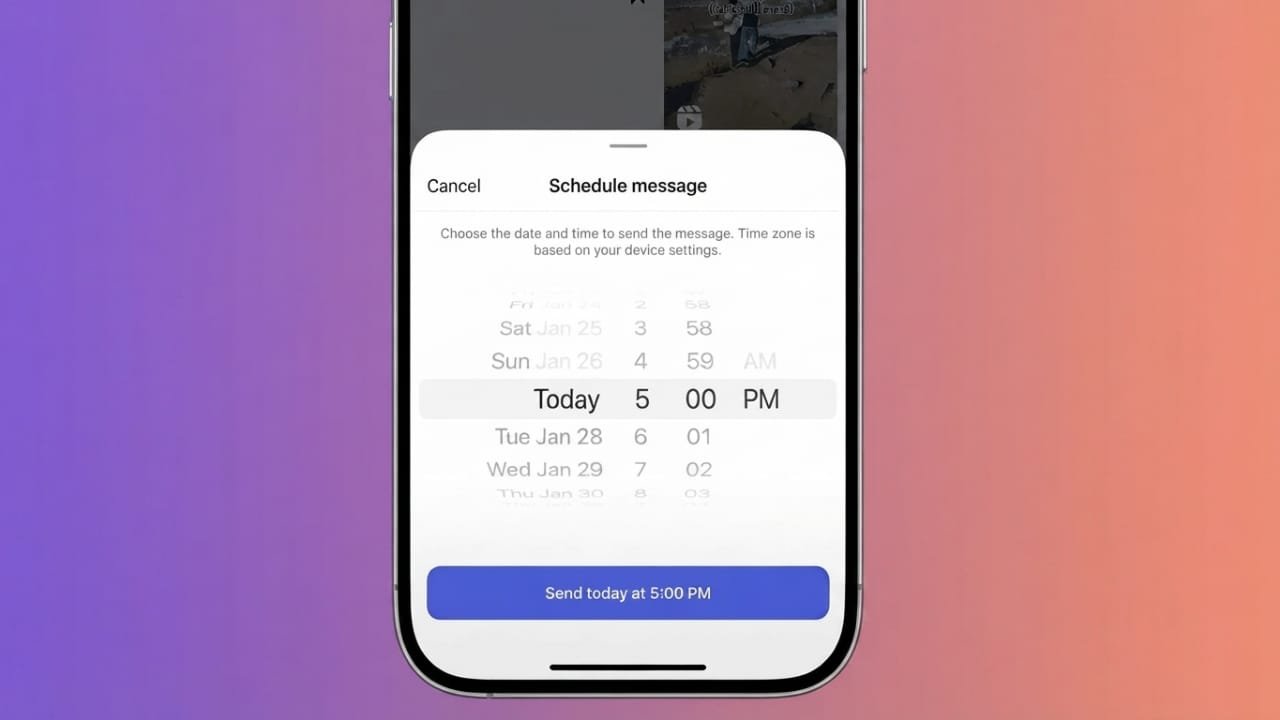
Instagram lets you schedule certain direct messages (DMs) so they can be sent at a later time. This can be useful when you want to send a message at a specific time without having to remember to do it manually.
For example, you can prepare a birthday wish in advance, send a reminder to someone later, or plan communication with your followers.
Here’s how Instagram’s message scheduling feature works and how you can manage messages after scheduling them.
Also read: Photo Recovery App: A Simple Way to Find Deleted Photos and Videos
How to Schedule an Instagram Message on iPhone
Before getting started, make sure you are using the latest version of the Instagram app. The steps may vary slightly depending on your app version.
Follow these steps:
- Open Instagram on your iPhone.
- Go to your Direct Messages by tapping the messages icon.
- Open an existing conversation or start a new chat.
- Type the message you want to send later.
- Press and hold the Send button instead of tapping it normally.
- Instagram will show an option to schedule the message.
- Choose the date and time when you want the message to be delivered.
- Tap the option to confirm the scheduled time.
Once the message is scheduled, Instagram will display a notice in the conversation showing that there are scheduled messages.
You can repeat these steps whenever you need to schedule additional messages.
How to Check Scheduled Messages
You may want to review your scheduled messages before they are sent. This can help you confirm the delivery time or check the message for any mistakes.
To view them:
- Open the Instagram conversation where you scheduled the message.
- Look for the scheduled-message notice above the message box.
- Tap it to open the list of messages waiting to be sent.
- You will see the scheduled messages along with their selected date and time.
How to Send a Scheduled Message Immediately
Plans can change, and you may decide that you don’t want to wait until the scheduled time.
Instagram provides an option to send a scheduled message right away.
Open the scheduled messages section, then press and hold the message you want to send. From the menu that appears, choose Send Now.
The message will then be sent immediately instead of waiting for its scheduled time.
How to Delete a Scheduled Message
If you notice a spelling mistake or simply change your mind, you can remove a scheduled message before it is sent.
Here’s what to do:
- Open the conversation containing the scheduled message.
- Go to the scheduled messages section.
- Press and hold the message you want to remove.
- Select Delete from the available options.
If Instagram does not provide an editing option for the scheduled message in your current app version, deleting it and creating a new message can be the simplest solution.
Why Schedule Instagram Messages?
Message scheduling can be useful in several everyday situations. You don’t need to be a content creator or business owner to find it helpful.
Here are some possible advantages:
Stay Consistent
If you regularly communicate with friends, followers, or other contacts, scheduling can help you remember important messages.
Plan Messages in Advance
You can prepare a message ahead of time instead of waiting until the exact moment you want to send it.
Save Time
If you already know what you want to say, scheduling messages can reduce the need to stop what you’re doing later just to send them.
Send Messages at a Convenient Time
You can choose a specific delivery time that works better for your schedule rather than relying on memory.
Check Your Message Before Scheduling
It is always a good idea to read your message once before scheduling it. Check names, dates, spelling, and any other important details.
This is especially useful for birthday wishes, reminders, announcements, or messages where the timing matters.
If you are unsure about the wording, you can also draft the message in your notes app first and review it before sending or scheduling it.
Also read: How to Install Fonts on a Mac: A Simple Step-by-Step Guide
Final Thoughts
Instagram’s message scheduling feature can be a convenient way to plan DMs ahead of time. Whether you’re sending a personal message or communicating with followers, it can help you avoid forgetting something important.
The feature is also easy to manage. You can check scheduled messages, send them immediately, or delete them before they are delivered.
Just remember to review your message and scheduled time before confirming it. A quick check can help prevent simple mistakes and ensure the message goes out when you actually want it to.

Jatin Rajput (Tech Golu) — Tech blogger & YouTuber with 6+ years of experience in WhatsApp, Instagram, Facebook, and mobile guides. Founder of TechGolu.in.