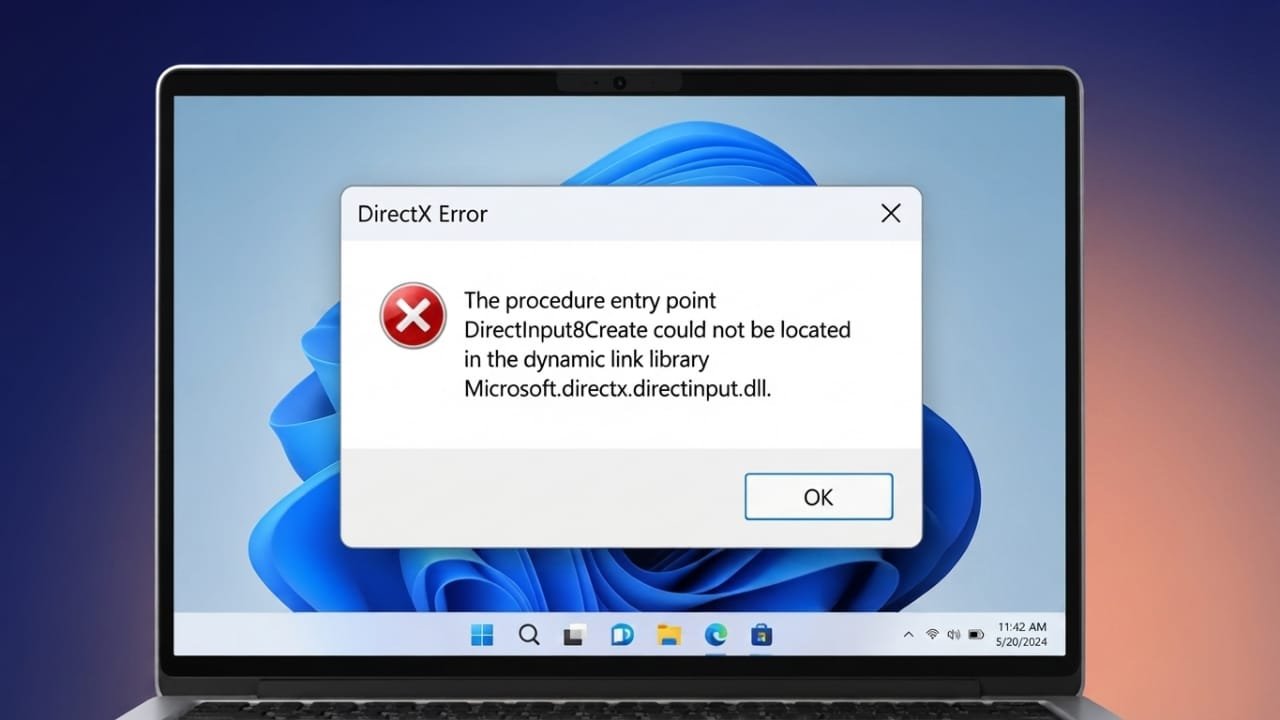
The Microsoft.directx.directinput.dll error can appear when a Windows program cannot find or properly use a DirectX component. It is commonly noticed when launching older games or applications that rely on DirectInput for controller and other input-device support.
The message may say that the DLL is missing, cannot be found, or could not be loaded. Fortunately, you can try several safe troubleshooting methods without downloading a random DLL file from the internet.
Also read: How to Schedule Messages on Instagram: A Simple Guide
Restart Your Computer First
Before changing system files or reinstalling software, restart Windows.
Advertisements
A temporary Windows or application problem can sometimes prevent a DirectX component from loading correctly. A restart clears temporary processes and gives Windows another opportunity to load the required components normally.
If the error returns after restarting, move on to the next solution.
Install DirectX From Microsoft
DirectInput is part of Microsoft’s DirectX technology, which is used by many games and multimedia applications.
If a required DirectX component is missing or damaged, reinstalling the appropriate DirectX components can help restore it.
Use Microsoft’s official DirectX installer rather than downloading the DLL file separately from an unknown website. Third-party DLL download sites may provide files that are outdated, modified, or incompatible with your system.
After the DirectX installation finishes, restart your computer and try opening the affected application again.
Check the Program’s Installation Files
Some older games and applications include their own DirectX setup files. This is particularly common with software distributed on physical discs or older installation packages.
Look inside the application’s original installation media for a DirectX or similar setup folder. If the developer provided a DirectX installer with the program, installing those components may improve compatibility.
This can be useful when an older application expects legacy DirectX components that are not included with a standard Windows installation.
Follow the installation instructions supplied with the software and restart Windows afterward.
Reinstall the Affected Game or Application
The problem may not always be caused by Windows itself. An application’s installation files can become corrupted or incomplete.
To rule this out, uninstall the affected program using its normal uninstall option. Restart your computer after removing it, then reinstall the application using a trusted installer or the software developer’s official distribution method.
Once the installation is complete, launch the program and check whether the DLL error has disappeared.
Check for Windows Compatibility Issues
Older applications can sometimes behave differently after Windows updates or when running on a newer version of Windows.
If the application was designed for an older Windows release, check its official documentation for compatibility information. Windows also provides compatibility options that may help certain older programs run more reliably.
Avoid installing unofficial system files simply because an error message mentions a particular DLL. The name of the missing file does not necessarily mean that downloading that file individually is the correct solution.
Update Your Graphics Driver
Although a graphics driver does not directly replace a missing DirectInput DLL, outdated drivers can contribute to problems when running games and other graphics-intensive applications.
Check which graphics hardware is installed on your computer and visit the manufacturer’s official website for the appropriate driver.
Install a driver that supports your version of Windows and your graphics hardware. Restart the computer after the installation and test the affected application again.
For gaming PCs, keeping graphics drivers reasonably up to date is a useful general troubleshooting step.
Check the Application’s Requirements
Some games and programs have specific software and hardware requirements. Older titles may depend on legacy DirectX components, while controller-based applications may require DirectInput functionality.
Check the application’s official system requirements and support documentation. Make sure your version of Windows, graphics hardware, controllers, and other required components are supported.
This can help determine whether the problem is caused by a missing component or by a broader compatibility issue.
Avoid Downloading the DLL Separately
Searching for the exact DLL name and downloading it from a random website may seem like the quickest solution, but it is not a good troubleshooting practice.
A DLL obtained from an unknown source may be incompatible with your Windows installation or could contain unwanted software. Manually copying system DLL files can also create additional problems if the wrong version is used.
Instead, repair or reinstall the software package that legitimately provides the required component.
When Nothing Else Works
If the error continues after reinstalling DirectX, reinstalling the affected application, and checking drivers and compatibility, the problem may involve a deeper Windows or software configuration issue.
At that point, consider using Microsoft’s official support resources or getting help from a qualified technician. Before performing major Windows repairs, make sure important personal files are backed up.
Also read: Photo Recovery App: A Simple Way to Find Deleted Photos and Videos
Final Thoughts
The Microsoft.directx.directinput.dll error does not necessarily mean that you need to find and download the DLL manually.
Start with simple steps such as restarting Windows and checking the affected application’s installation. If DirectX components are missing, use Microsoft’s official installation packages. For older games, check whether the original software includes the DirectX components it requires.
Updating compatible graphics drivers and checking application requirements can also help identify related problems.
Most importantly, avoid random DLL download websites and use trusted software sources whenever you need to repair DirectX or other Windows components.

Jatin Rajput (Tech Golu) — Tech blogger & YouTuber with 6+ years of experience in WhatsApp, Instagram, Facebook, and mobile guides. Founder of TechGolu.in.