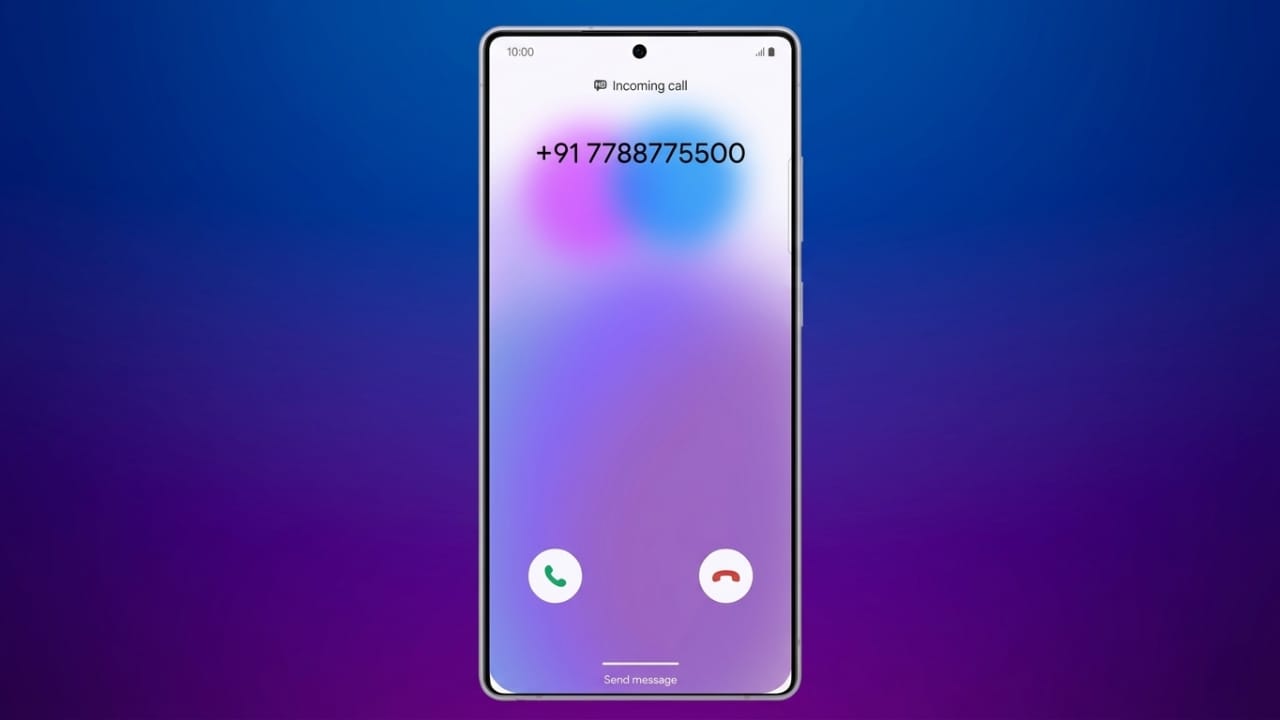
It can be frustrating when your Android phone shows only a phone number instead of the saved contact name during incoming calls. This problem is quite common and usually happens because of small setting errors, app permissions, outdated software, or syncing issues.
The good news is that you can fix it easily by checking a few settings on your device. Below are the most effective methods to solve this problem.
Also read: How to Fix Steam Disk Write Error (Simple and Effective Methods)
Allow Contact Permission for the Phone App
Your Phone app needs access to saved contacts. If this permission is disabled, incoming calls may display only numbers instead of names.
Follow these steps to enable contact permission:
- Press and hold the Phone app icon.
- Tap the App Info or information icon.
- Open the Permissions section.
- Select Contacts.
- Choose Allow.
Once permission is enabled, your phone should start showing saved contact names during calls.
Turn On Caller Identification
Some Android devices include a caller identification feature that helps display caller details properly. If this option is disabled, contact names may not appear correctly.
To enable it:
- Open the Phone app.
- Tap the three-dot menu in the top corner.
- Open Settings.
- Find Caller Identification or similar settings.
- Turn the feature on.
You can also enable network-based caller identification if your device supports it.
Update the Phone App
An outdated Phone app may contain bugs that affect caller name display.
To update the app:
- Open the Google Play Store.
- Tap your profile icon.
- Select Manage apps & device.
- Open Updates available.
- Find the Phone app and tap Update.
Keeping apps updated improves stability and fixes common software issues.
Enable Contact Sync
If contact syncing is disabled, your saved contacts may not update correctly across your device.
Here is how to enable sync:
- Open Settings.
- Tap Accounts or Passwords & accounts.
- Select Manage accounts.
- Choose your Google account.
- Tap Account sync.
- Enable the toggle for Contacts.
This keeps your contacts updated and helps the phone recognize saved numbers correctly.
Clear the Phone App Cache
Temporary files stored in the Phone app can sometimes create performance issues.
To clear cache:
- Press and hold the Phone app icon.
- Tap App Info.
- Open Storage or Storage & cache.
- Tap Clear cache.
This removes temporary files without deleting your call history or settings.
After clearing the cache, restart your phone for better results.
Install Android System Updates
Older Android versions may contain software bugs that affect core apps like the Phone app.
To check for updates:
- Open Settings.
- Scroll to System.
- Tap System update.
- Check for available updates.
- Download and install updates if available.
Restart your device after installation to apply all changes properly.
Delete and Re-Add the Contact
Sometimes the issue affects only one specific contact. Incorrect details or formatting problems may stop the name from appearing.
Delete the Contact
- Open the Contacts app.
- Find the contact with the issue.
- Tap the contact name.
- Open the three-dot menu.
- Select Delete.
- Confirm the action.
Add the Contact Again
- Open the Contacts app.
- Tap the plus (+) icon.
- Enter the phone number carefully.
- Add the correct contact name.
- Save the contact.
Always use the correct country code when saving phone numbers.
You can also save a contact directly from the Phone app by entering the number manually and selecting Add to contact.
Restart Your Phone
A simple restart can refresh system processes and fix temporary glitches. After making changes, restart your device once to ensure everything updates correctly.
Also read: How to Check Your Computer’s Last Boot Time on Windows, Mac, and Linux
Final Words
When contact names are not showing during incoming calls on Android, the problem is usually linked to permissions, syncing, cache files, or outdated software. In most cases, checking these settings solves the issue quickly.
Try each method step by step, and your saved contact names should start appearing normally again during calls.

Jatin Rajput (Tech Golu) — Tech blogger & YouTuber with 6+ years of experience in WhatsApp, Instagram, Facebook, and mobile guides. Founder of TechGolu.in.