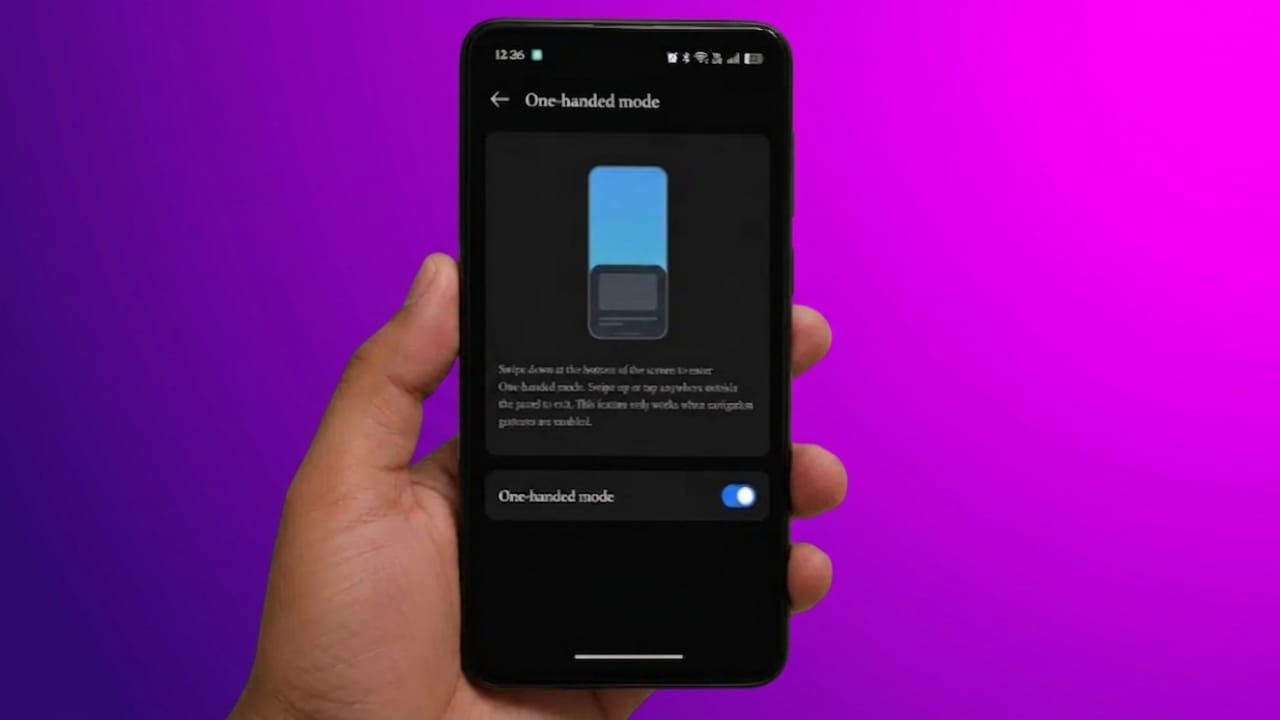
Big smartphones are everywhere now. Larger displays are great for watching videos, gaming, reading, and multitasking. But using these phones with one hand can feel uncomfortable, especially when you need to reach the top of the screen quickly.
I used to constantly adjust my grip just to open notifications or tap buttons placed near the top. Sometimes it slowed me down, and other times it felt like I might accidentally drop the phone.
That changed after I started using Android’s one-handed mode. At first, it felt unnecessary. But after using it for a few days, I realized how practical it actually is.
Also read: How to Check Your Computer’s Last Boot Time on Windows, Mac, and Linux
What Is Android’s One-Handed Mode?
One-handed mode is a built-in Android feature designed to make large phones easier to use with a single hand.
When enabled, it temporarily shifts the usable screen area lower so important controls become easier to reach with your thumb. Instead of stretching across the entire display, you can comfortably access menus, notifications, search bars, and apps from the lower half of the screen.
The best part is that it works smoothly across most apps without breaking the layout or making the interface feel awkward.
How to Enable One-Handed Mode
Setting it up only takes a minute.
On Most Android Phones
- Open Settings
- Go to System & Updates
- Tap System Navigation
- Select Gestures
- Return to Settings and open Accessibility & Convenience
- Find One-Handed Mode
- Turn it on
On Google Pixel Phones
Go to:
Settings → System → Gestures → One-Handed Mode
Then enable the feature.
On Samsung Phones
Go to:
Settings → Advanced Features → One-Handed Mode
Samsung also allows extra customization options for activation methods.
If you cannot find the setting, simply search for “One-Handed Mode” inside the Settings app.
Once enabled, you can usually activate it with a downward swipe near the bottom edge of the screen. To exit, tap outside the reduced area or swipe upward.
My First Experience
Initially, the smaller screen area felt strange. It looked like the display was compressed, and I wasn’t fully comfortable with it.
But after a few hours, that feeling disappeared.
I noticed I was no longer stretching my thumb or shifting my phone around in my hand. Everyday tasks became faster and more comfortable without me even thinking about it.
What surprised me most was how naturally it fit into regular phone use. It is not flashy or exciting, but it quietly solves a real problem.
Gesture navigation also makes the experience smoother. Swiping from the sides to go back feels easier than reaching for old navigation buttons.
Other Settings That Make Big Phones Easier to Use
One-handed mode helps a lot, but a few additional tweaks can improve comfort even more.
1. Use One-Handed Keyboard Mode
This became one of my favorite features.
Apps like Gboard and Microsoft SwiftKey allow you to shrink the keyboard and move it closer to your thumb. Typing becomes much easier because your fingers no longer need to stretch across the screen.
On Gboard
- Open the keyboard
- Tap the four-square menu icon
- Select One-Handed Mode
You can also long-press the comma key to access it quickly.
After enabling it, place the keyboard on either the left or right side based on your preference.
2. Change the Home Screen Layout
Crowded home screens can make large phones feel even bigger.
Switching to a layout with larger icons and fewer rows brings apps closer to the bottom of the display, making them easier to reach.
You can usually find this option under:
Home Screen Settings → Home Screen Layout
Even this small change makes daily navigation feel more comfortable.
3. Keep Important Apps Near the Bottom
I reorganized my home screen so the apps I use most stay within easy reach.
Apps like WhatsApp, Chrome, Camera, Notes, and Google Search now sit in the bottom rows or dock area. This simple adjustment reduced unnecessary hand movement throughout the day.
4. Use Built-In Reachability Features in Apps
Some apps already include features that improve one-handed use.
For example:
- Chrome allows you to move the address bar to the bottom
- Messaging apps support swipe gestures
- Some camera apps place controls lower for easier access
Move Chrome’s Address Bar
- Open Chrome
- Tap the three-dot menu
- Go to Settings
- Select Address Bar
- Choose Bottom
This makes browsing noticeably easier on large phones.
Situations Where One-Handed Mode Helps Most
While it is not ideal for watching videos or gaming, there are many everyday situations where it becomes extremely useful.
1. While Commuting
Using a large phone while walking or traveling can be difficult with one hand.
One-handed mode made checking notifications, replying to messages, and using maps much easier without constantly adjusting my grip.
2. During Multitasking
At home, I often use my phone while carrying something, cooking, or drinking coffee.
Before using this feature, I either struggled awkwardly or ignored notifications completely. Now I can quickly check messages or scroll through apps without interrupting what I’m doing.
3. For People With Smaller Hands
Modern smartphones can feel oversized for users with smaller palms.
One-handed mode does not physically reduce the phone’s size, but it changes how you interact with it. That difference matters more than expected.
Instead of forcing your hand to adapt to the phone, the interface adapts to you.
Things I Learned After Using It Longer
Gesture navigation plays a huge role in making this feature feel smooth. Combining swipe gestures with one-handed mode creates a much more natural experience.
I also expected some apps to behave strangely, but most apps handled the resized interface without problems.
Another unexpected benefit was reduced hand strain. I didn’t realize how often I was stretching or readjusting my grip until I stopped doing it.
Still, the feature is not perfect.
- Typing long messages can feel cramped
- Landscape mode is not very practical
- There is sometimes a slight delay when activating it
Some users may still prefer alternatives like floating cursors or compact launchers instead of shrinking the display.
Also read: How to Fix Contact Names Not Showing During Incoming Calls on Android
Final Thoughts
Android’s one-handed mode may seem like a small feature, but it genuinely improves daily phone use.
Unlike flashy features that people forget after a week, this one solves a real problem in a simple and practical way.
If you often struggle to reach the top of your screen or feel uncomfortable using large phones with one hand, it’s definitely worth trying. After using it regularly, going back to normal navigation feels surprisingly difficult.

Jatin Rajput (Tech Golu) — Tech blogger & YouTuber with 6+ years of experience in WhatsApp, Instagram, Facebook, and mobile guides. Founder of TechGolu.in.