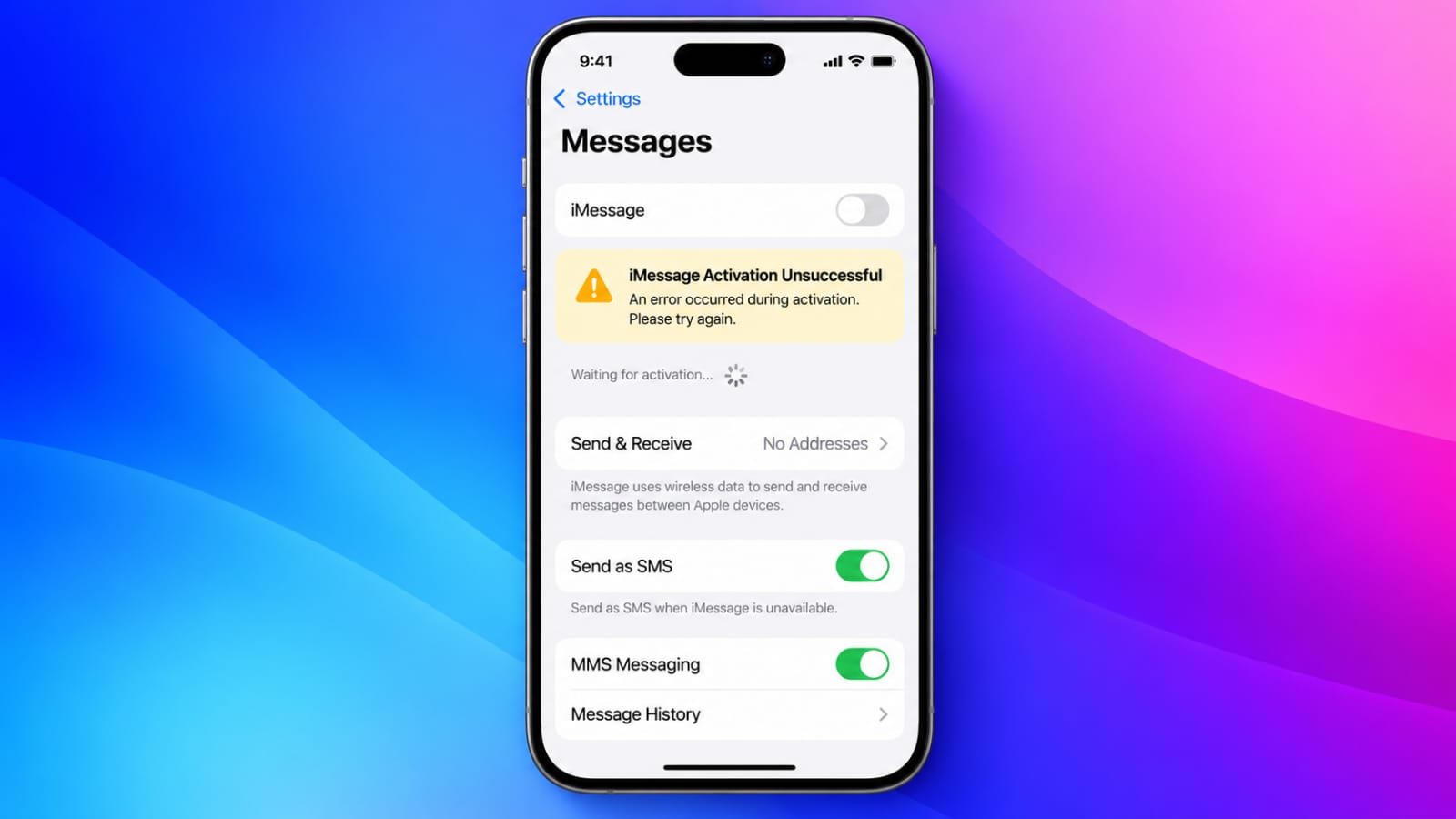
Did iMessage stop working after updating your iPhone to iOS 26? You may notice that messages are not sending, your phone number is stuck on “Waiting for Activation,” or your conversations suddenly appear with green bubbles instead of blue ones.
This can happen for several reasons, including software bugs, SIM-related problems, network issues, or activation delays. Fortunately, there are several troubleshooting steps you can try before contacting Apple Support.
Here are some practical ways to get iMessage working again.
Also read: How to Reduce Loud Sounds on iPhone With iOS 27
1. Update Your iPhone to the Latest iOS Version
Software updates often include fixes for problems discovered after an iOS release. Apple has also addressed an inactive SIM issue affecting some dual-SIM iPhone users in a later iOS update.
First, check whether a newer version of iOS is available.
- Open Settings.
- Tap General.
- Select Software Update.
- Wait for your iPhone to check for updates.
- If an update is available, tap Update Now.
You can also choose the option to install the update later if available.
Keep your iPhone connected to power or make sure it has enough battery before starting the installation. After updating, restart the phone and check iMessage again.
2. Check for an Inactive SIM
If you use two SIMs on your iPhone, an inactive SIM may sometimes interfere with phone-number activation.
Go to Settings > Cellular and review the SIMs listed on your device. Look for an old or inactive SIM that may be associated with the same phone number.
If you no longer need a physical SIM, turn off your iPhone, remove the SIM card, and restart the device.
For an unused eSIM, you can check its settings under Settings > Cellular. If you are certain that the eSIM is no longer required, you can remove it from the device.
Afterward, open:
Settings > Apps > Messages > Send & Receive
Check whether your phone number can now be selected for iMessage.
Important: Do not remove a SIM or eSIM that you still need for your active mobile service.
3. Turn iMessage Off and On Again
A temporary activation problem can sometimes be resolved by restarting the iMessage service.
Try this:
- Open Settings.
- Go to Apps > Messages.
- Turn iMessage off.
- Restart your iPhone.
- Return to Settings > Apps > Messages.
- Turn iMessage back on.
- Open Send & Receive.
- Check whether your phone number is selected.
Once the service is activated, send a test message to another iPhone user and check whether it appears as a blue bubble.
4. Restart FaceTime Along With iMessage
iMessage and FaceTime both use activation and account verification services. If both services are having trouble, restarting them can be worth trying.
Go to Settings > Apps > Messages and turn off iMessage.
Then open Settings > Apps > FaceTime and turn off FaceTime as well.
Restart your iPhone and enable both services again.
While doing this, also check your date and time settings:
Settings > General > Date & Time
Turn on Set Automatically and make sure the displayed time zone is correct.
Incorrect date or time settings can sometimes interfere with account and service activation.
5. Check Your Apple Account
Problems with your Apple Account can also affect services connected to your iPhone.
If you need to refresh your account login, open Settings, tap your name, and scroll down to the sign-out option.
Before signing out, make sure you know your Apple Account password and understand what information will remain on the iPhone.
After signing out, restart your device and sign in again through Settings.
Then go back to:
Settings > Apps > Messages > Send & Receive
Check whether your phone number and Apple Account email address are correctly selected.
If the sign-out option is unavailable, check whether Screen Time restrictions are preventing account changes.
6. Give iMessage Some Time to Activate
Sometimes iMessage activation is not instant. Your iPhone may display a message such as Waiting for Activation or Activation Unsuccessful.
Your phone number may require SMS-based verification through your mobile carrier. Apple advises allowing up to 24 hours for activation in some situations.
During this period:
- Keep your iPhone connected to the internet.
- Make sure your SIM can send SMS messages.
- Avoid repeatedly switching activation settings.
- Give the activation process enough time to complete.
If iMessage still has not activated after 24 hours, contact your carrier and ask whether your number can send the SMS messages required for activation, including international SMS where applicable.
7. Use Your Apple Account Email for iMessage
If your phone number cannot be activated immediately, you may still be able to use iMessage through your Apple Account email address.
Open:
Settings > Apps > Messages > Send & Receive
Under the available contact options, select your Apple Account email address.
With this setup, people may see your email address rather than your phone number when receiving an iMessage from you.
This can be useful as a temporary option while you troubleshoot phone-number activation.
8. Check Your Internet Connection
iMessage needs an internet connection. A weak or unstable Wi-Fi or mobile-data connection can cause messages to remain undelivered.
Try switching between Wi-Fi and mobile data.
For example:
- Turn off Wi-Fi.
- Enable mobile data.
- Open Messages.
- Send a test iMessage.
If that does not work, connect to a reliable Wi-Fi network and test again.
If iMessage works on one connection but not another, the problem may be related to the network you were previously using. For Wi-Fi problems, restarting your router may also help.
9. Check With Your Mobile Carrier
Your carrier can sometimes help identify issues that cannot be fixed through the iPhone’s settings.
Contact your mobile provider if activation continues to fail and ask them to check:
- Whether there is an outage in your area.
- Whether your account has any messaging restrictions.
- Whether your SIM is working correctly.
- Whether SMS messaging is available on your number.
- Whether international SMS is supported or restricted.
This is particularly useful when your iPhone repeatedly shows an activation error even though your internet connection is working normally.
10. Reset Network Settings
If the problem continues, resetting your network settings can be another troubleshooting option.
Go to:
Settings > General > Transfer or Reset iPhone > Reset > Reset Network Settings
You may need to enter your iPhone passcode before confirming the reset.
Keep in mind that this does not perform a factory reset. However, it will remove saved Wi-Fi networks and other network-related settings, so you will need to reconnect to Wi-Fi afterward.
Once the iPhone restarts, connect to the internet and test iMessage again.
What If iMessage Still Doesn’t Work?
If you have tried these steps and iMessage is still not activating, the problem may require further investigation.
At this point, contact your mobile carrier first if the issue appears to involve SMS or your phone number. If your carrier confirms that everything is working normally, contacting Apple Support can help determine whether the problem is related to your iPhone, Apple Account, or iMessage activation.
Also read: iPhone Touch Disease: Symptoms, Causes, Affected Models and Repair Options
Final Thoughts
An iMessage problem after an iOS 26 update does not necessarily mean that your iPhone has a serious issue. Start with the simplest checks: install the latest iOS update, review your SIM settings, restart iMessage, and verify your internet connection.
If your phone number remains stuck on activation, give the process up to 24 hours and check with your carrier about SMS support. For persistent problems, Apple Support can help with further troubleshooting.
These steps cover the most common things to check without requiring you to erase your iPhone or remove your personal data.

Jatin Rajput (Tech Golu) — Tech blogger & YouTuber with 6+ years of experience in WhatsApp, Instagram, Facebook, and mobile guides. Founder of TechGolu.in.