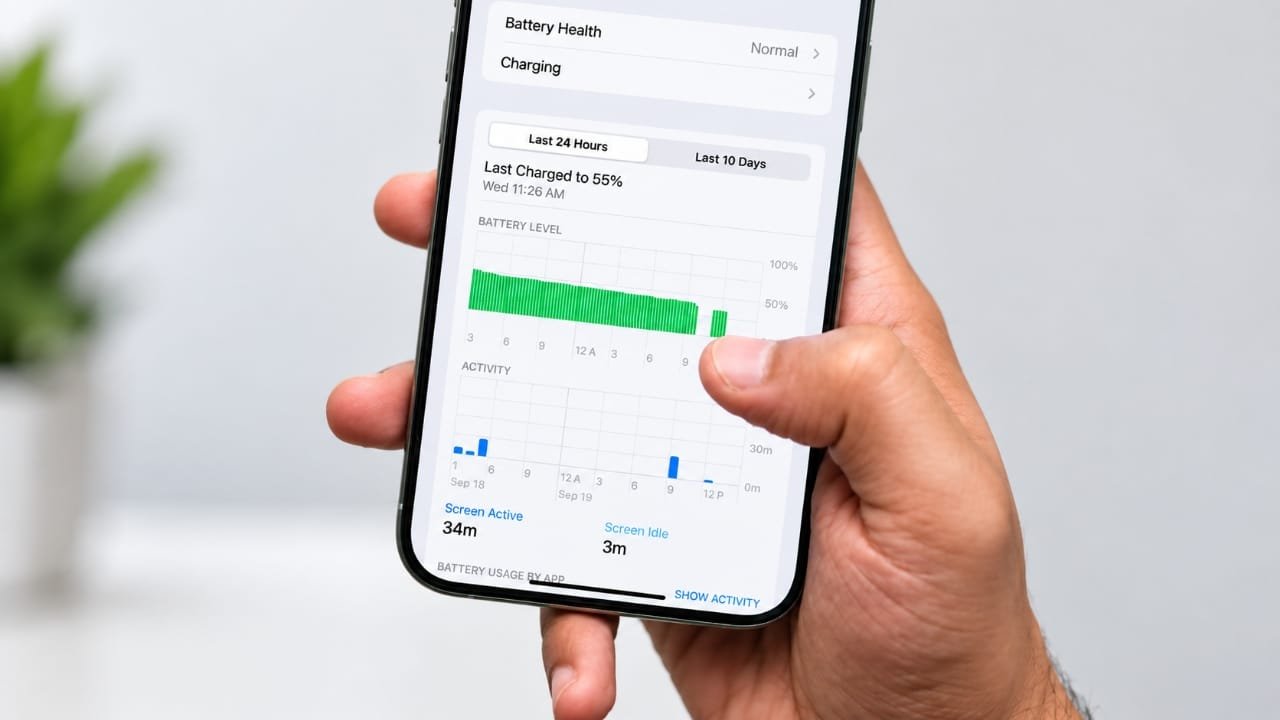
Has your iPhone started losing battery faster after installing iOS 26? You may notice the battery percentage dropping more quickly than usual, especially during the first few hours or days after the update.
A major iOS update can temporarily increase background activity. Your iPhone may need to index files, sync information, update apps, and complete other tasks after installation. These processes can use more power than normal.
However, if the battery drain continues for several days, it is worth checking your battery settings and the apps running on your device.
In this guide, we’ll look at the common reasons behind increased battery usage after iOS 26 and the settings you can adjust to reduce unnecessary power consumption.
Also read: How to Use the Calculator App on Apple Watch
Why Is Your iPhone Battery Draining Faster After iOS 26?
There isn’t always a single reason for increased battery usage. Several things can contribute to it.
1. Background activity after the update
After installing a major iOS update, the iPhone may perform several tasks in the background. These can include indexing files, syncing data and processing updated system information.
This extra activity can temporarily increase power consumption.
2. Apps may need updates
Some apps may not be fully optimized for a new iOS version immediately after its release. An outdated app can sometimes use more battery than expected.
Checking the App Store for available updates is therefore a good first step.
3. More screen usage
When a new iOS version arrives, it is natural to spend more time exploring new features, settings and design changes.
Since the display is one of the major sources of power consumption on a smartphone, increased screen time can have a noticeable effect on battery life.
4. Location and background services
Apps that frequently use your location or refresh information in the background can consume additional power.
Navigation, weather, delivery, travel and other location-based apps are common examples.
5. Poor cellular signal
Your iPhone may use more power when it is trying to maintain a cellular connection in an area with weak signal strength.
If you regularly use your phone in places with poor reception, this can contribute to faster battery loss.
How Long Should Battery Drain Last After an iOS Update?
Some additional battery activity immediately after a major iOS update can be normal.
Your iPhone may need time to finish background processes such as indexing, syncing and updating information. During this period, battery consumption can be higher than usual.
If battery life improves after these tasks finish, there may not be a problem with your iPhone.
On the other hand, persistent or unusually severe battery drain should be investigated through the Battery settings and other troubleshooting steps.
Check Battery Usage First
Before changing a large number of settings, check which apps and activities are actually using your battery.
Open:
Settings → Battery
Look at the battery usage information and identify apps that are consuming an unusually large amount of power.
If one particular app is using much more battery than expected, check whether an update is available. You can also review whether that app really needs access to features such as location services or background activity.
This is more useful than turning off every battery-related feature without knowing what is causing the problem.
Update Your iPhone Apps
App developers often release updates around major iOS launches to improve compatibility and fix bugs.
Open the App Store and check for available updates.
Keeping your frequently used apps updated can help avoid problems caused by older app versions.
Reduce Background App Refresh
Background App Refresh allows apps to update their content while you’re not actively using them.
You can limit this feature if you don’t need apps to refresh in the background.
Go to:
Settings → General → Background App Refresh
You can either turn it off completely or disable it for individual apps, depending on your preference.
Disabling it may mean that some apps take a little longer to display the latest information when you open them.
Review Location Access
Constant or frequent location access can increase battery usage.
Go to:
Settings → Privacy & Security → Location Services
Review the apps listed there and decide which ones actually need your location.
For apps that don’t require continuous access, choose a less frequent location option where available, or disable location access altogether.
You don’t necessarily need to turn Location Services off for every app. Keeping location access enabled for apps that genuinely need it can be more convenient.
Try Low Power Mode
If you need your iPhone to last longer, Low Power Mode can reduce some background activity and power consumption.
Go to:
Settings → Battery
Then enable Low Power Mode.
It can be particularly useful when your battery is already running low and you won’t have access to a charger for some time.
Check Adaptive Power
Depending on your iPhone model and the version of iOS 26 installed, you may also have access to Adaptive Power.
If the option is available on your device, you can check:
Settings → Battery → Power Mode
Adaptive Power is designed to make automatic adjustments when the iPhone detects situations where additional power management could help.
The availability of this feature depends on the device and software version, so don’t worry if you don’t see the option.
Turn Off Always-On Display
On supported iPhone models, the Always-On Display keeps certain information visible even when the phone isn’t actively being used.
If maximizing battery life is more important to you than keeping the display information visible, you can disable it.
Go to:
Settings → Display & Brightness → Always On Display
Then turn the feature off.
Reduce Screen Brightness
The display can use a significant amount of power, particularly when brightness is set high for long periods.
You can lower the brightness manually from Control Center or enable automatic brightness.
To check the setting, go to:
Settings → Accessibility → Display & Text Size → Auto-Brightness
Keeping the screen at a comfortable but lower brightness level can help reduce unnecessary power consumption.
Use Dark Mode
If you have an iPhone with an OLED display, Dark Mode can reduce power consumption in some situations because black areas of an OLED screen require less power than bright areas.
To enable it, go to:
Settings → Display & Brightness → Dark
You can also schedule Dark Mode if you prefer it to turn on automatically.
The battery difference will depend on your usage, so consider Dark Mode mainly as one part of a broader battery-saving setup.
Reduce Auto-Lock Time
Leaving the display switched on when you’re not using the phone wastes battery.
Go to:
Settings → Display & Brightness → Auto-Lock
Choose a shorter period that still works comfortably for you, such as 30 seconds or 1 minute.
If you frequently read long articles or follow recipes, you may prefer a longer setting.
Check Mail Fetch Settings
Your iPhone may regularly check for new emails and other account information.
If you don’t need instant email updates, adjusting the Fetch settings can reduce some background activity.
Go to:
Settings → Apps → Mail → Mail Accounts → Fetch New Data
Review the available Push and Fetch options and select a schedule that suits your needs.
The exact options can vary depending on the accounts configured on your iPhone.
Reduce Unnecessary Widgets
Widgets can be useful, but some of them regularly update information in the background.
If you have many widgets that you rarely use, consider removing them from your Home Screen or Today View.
Keeping only the widgets you actually need can also make your Home Screen less cluttered.
Turn Off Raise to Wake
Raise to Wake automatically activates the display when you pick up your iPhone.
If you don’t use this feature, you can turn it off.
Go to:
Settings → Display & Brightness
Then disable Raise to Wake.
This can prevent the display from turning on unnecessarily.
Reduce Motion Effects
iOS includes animations and visual effects throughout the interface.
If you prefer a simpler interface, you can reduce some of these effects.
Go to:
Settings → Accessibility → Motion → Reduce Motion
Then turn on Reduce Motion.
The primary purpose of this setting is to reduce visual motion, but it can also reduce some graphical activity.
Turn Off Keyboard Haptics
The keyboard can provide a small vibration every time you type.
If you don’t need keyboard haptics, disabling them can eliminate that additional activity.
Go to:
Settings → Sounds & Haptics → Keyboard Feedback
You can turn off Haptics. You can also disable keyboard sounds if you don’t want them.
Use Airplane Mode in Very Weak-Signal Areas
When cellular reception is extremely poor, your iPhone may work harder to maintain a connection.
If you are somewhere you don’t need cellular connectivity—for example, during a flight or in an area where you don’t need to receive calls—you can use Airplane Mode.
For normal daily use, however, there is usually no need to keep Airplane Mode enabled simply for battery saving.
Don’t Constantly Force-Close Every App
It may seem logical to close every app from the app switcher to save battery, but doing this repeatedly isn’t always helpful.
iOS manages background apps automatically. Instead of constantly closing everything, focus on apps that are actually showing unusually high battery usage in the Battery section of Settings.
If a particular app is behaving abnormally, closing and reopening it can be a reasonable troubleshooting step.
Check Your iPhone’s Battery Health
If your iPhone is several years old, the battery itself may be contributing to poor battery life.
Go to:
Settings → Battery → Battery Health
Check the information shown there, including the maximum capacity and any battery-related messages.
A major iOS update can make an existing battery limitation more noticeable because your usage and system activity may change after the update.
When Should You Be Concerned?
A temporary increase in battery usage after installing a major iOS update isn’t necessarily a sign that your iPhone has a hardware problem.
Give the device some time to finish its background tasks and monitor the Battery section in Settings.
If the battery continues to drain unusually quickly after the initial post-update period, check:
- Which apps are using the most battery
- Whether all apps are updated
- Battery Health information
- Location permissions
- Background App Refresh
- Screen brightness and Auto-Lock
- Cellular signal strength
- Whether the iPhone becomes unusually warm
If you notice severe overheating, unexpected shutdowns, swelling, or other unusual hardware symptoms, stop using the device if necessary and contact Apple Support or an authorized service provider.
Also read: iPhone Duo vs Samsung Galaxy Z Fold 8: Price, Camera, Display and Specs Compared
Final Thoughts
Fast battery drain after installing iOS 26 can have several possible causes. Some increased activity immediately after an update can be temporary, while continued drain may be related to an app, settings, battery condition, network signal or normal changes in usage.
Start by checking Settings → Battery to identify what’s actually consuming power. Then make only the changes that fit your needs, such as reducing background activity, reviewing location permissions, lowering screen brightness or using Low Power Mode.
You don’t need to disable every feature on your iPhone. The goal is to find the settings or apps that are using unnecessary power while keeping the features you actually use.

Jatin Rajput (Tech Golu) — Tech blogger & YouTuber with 6+ years of experience in WhatsApp, Instagram, Facebook, and mobile guides. Founder of TechGolu.in.