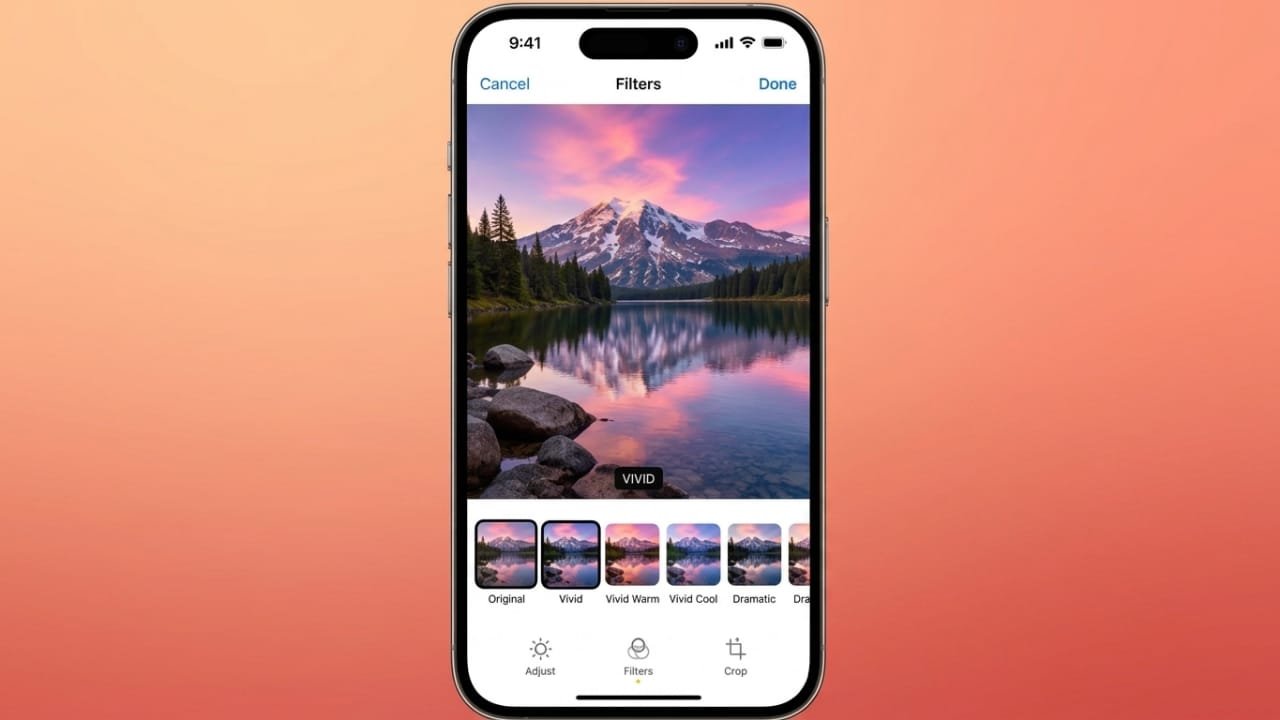
Adding filters to photos on an iPhone is one of the easiest ways to improve your pictures. Apple includes several built-in filters that let you change the look of an image in just a few taps. If you want even more creative options, you can also use photo editing apps from the App Store.
Also read: How to Create and Share a Wi-Fi QR Code on Android and iPhone
Why Use Photo Filters?
A good photo doesn’t always need heavy editing, but a simple filter can make it look more attractive. Filters adjust elements like color, brightness, contrast, and tone automatically, so you don’t have to edit every setting yourself.
Some filters make colors more vibrant, while others create a softer, cooler, or black-and-white look. They also help you keep a consistent editing style across your photo collection or social media posts.
Advertisements
For example:
- Vivid makes colors appear brighter and more colorful.
- Dramatic increases contrast for a bold appearance.
- Mono creates a timeless black-and-white effect.
Keep in mind that not every picture needs a filter. Photos taken in beautiful natural light often look great without any editing.
Apply Filters Before Taking a Photo
If you want the filter applied as you capture the image, the iPhone Camera app lets you preview different styles in real time.
Follow these steps:
- Open the Camera app.
- Tap the Filters icon (three overlapping circles).
- Swipe through the available filter options.
- Preview how each filter changes the scene.
- Select the one you like.
- Capture your photo as usual.
The selected filter is saved with the photo automatically.
Add Filters to Existing Photos
You can also edit pictures you’ve already taken.
Here’s how:
- Open the Photos app.
- Select the photo you want to edit.
- Tap Edit.
- Tap the Filters icon.
- Browse the available filters by swiping left or right.
- Choose the filter that looks best.
- If your iPhone supports filter intensity adjustments, use the slider to make the effect stronger or softer.
- Tap Done to save your changes.
Because Apple’s editing is non-destructive, you can always return to the original photo later.
Cancel Unsaved Changes
If you decide not to keep your edits before saving:
- Tap Cancel.
- Choose Discard Changes.
Your photo will remain exactly as it was before editing.
Remove a Filter Later
If you’ve already saved a filtered photo, you can still remove the effect.
- Open the edited photo in Photos.
- Tap Edit.
- Select Revert.
- Tap Revert to Original.
You can also replace the current filter with a different one instead of removing it completely.
Use Third-Party Photo Editing Apps
While Apple’s built-in filters work well for everyday editing, some users prefer more creative tools.
Popular apps include:
- VSCO
- Snapseed
- Adobe Lightroom
These apps offer additional filters, presets, and advanced editing features such as selective adjustments, color grading, and detailed exposure controls.
Edit Photos with App Extensions
Some editing apps integrate directly with Apple’s Photos app, allowing you to use their tools without leaving the Photos application.
To enable this feature:
- Install a compatible editing app.
- Open a photo in Photos.
- Tap Edit.
- Tap the More button (three dots).
- Choose More.
- Enable the extension for your installed app.
- Return to the editing screen and open the extension whenever you want to use its tools.
The available features depend on the app you install.
Popular Apps for Creative Filters
Different apps are designed for different editing styles.
Afterlight 2 offers a large collection of filters, textures, frames, and adjustment tools.
Camera+ combines manual camera controls with photo editing features, making it useful for users who like greater control while shooting.
Halftone 2 transforms photos into comic-book style artwork with speech bubbles, captions, and creative layouts.
Litely focuses on subtle, natural-looking edits and includes easy before-and-after comparisons.
Quick Photo Tuning Bundle is useful for creating images with decorative text, fonts, and graphic effects.
Prisma applies artistic filters that give photos a painted or illustrated appearance.
Improve Photos with Manual Adjustments
Filters don’t have to be your final edit. Small manual changes can make your photos look even better.
You can adjust:
- Brightness
- Contrast
- Saturation
- Highlights
- Shadows
Use these controls carefully. Small improvements usually produce more natural-looking results than heavy editing.
Match Filters to Your Photo Style
Different types of photos often look better with different editing styles.
Some ideas include:
- Beach photos: Warm and vibrant filters
- Winter landscapes: Cool blue tones
- Wedding photos: Soft black-and-white effects
- Food photography: Slightly warmer colors
- Portraits: Gentle, natural filters
- Travel photos: Bright, colorful filters like Vivid
Choosing a consistent style can also make your social media profile look more polished.
Should You Use RAW Photos?
Advanced photographers may prefer shooting in RAW format because it preserves more image information for editing.
Certain iPhone Pro models support Apple ProRAW, giving you greater flexibility when adjusting exposure, color, and detail later.
However, for everyday photography, standard iPhone photos are usually more than enough.
Avoid Overusing Filters
It’s easy to over-edit a photo. Strong filters can make images appear unnatural and reduce image quality.
For better results:
- Use filters in moderation.
- Make small manual adjustments when needed.
- Compare the edited version with the original.
- Leave naturally beautiful photos mostly untouched.
Sometimes the best edit is only a subtle enhancement.
Also read: How to Turn Off the Passcode on Your iPhone: Simple and Safe Instructions
Final Thoughts
Adding photo filters on an iPhone is a quick and simple way to improve your pictures. You can apply filters while taking a photo or edit existing images later using the Photos app. If you want more advanced creative tools, third-party editing apps provide additional filters and editing options.
The key is to use filters thoughtfully. Small, natural adjustments often create the best-looking photos while preserving their original beauty.

Jatin Rajput (Tech Golu) — Tech blogger & YouTuber with 6+ years of experience in WhatsApp, Instagram, Facebook, and mobile guides. Founder of TechGolu.in.