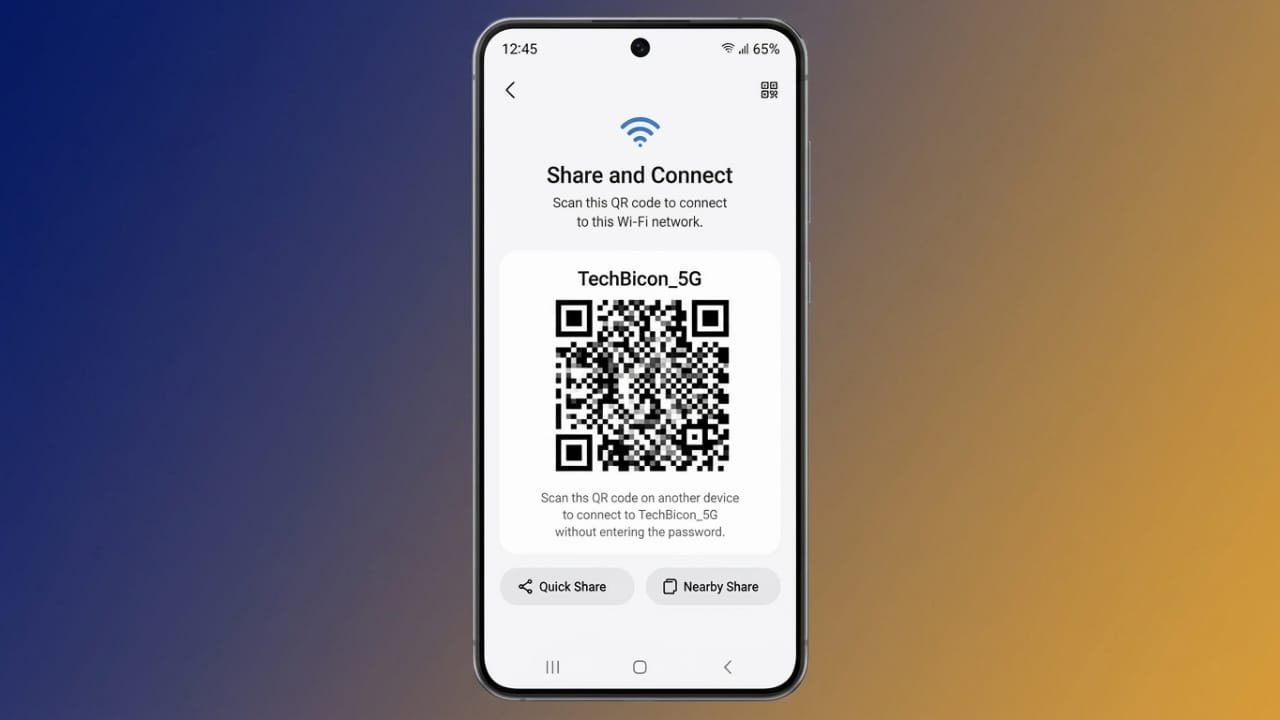
Sharing your Wi-Fi password doesn’t have to be a hassle. Instead of spelling out a long password or typing it repeatedly for every guest, you can create a Wi-Fi QR code. Anyone with a compatible smartphone can scan the code and connect to your network within seconds.
This simple method works on most modern Android phones and iPhones, making it a fast and convenient way to share internet access at home, in offices, cafés, hotels, or events.
Also read: How to Turn Off the Passcode on Your iPhone: Simple and Safe Instructions
What Is a Wi-Fi QR Code?
A Wi-Fi QR code is a special QR code that stores your wireless network details. When someone scans it with their phone, the device automatically reads the information and offers to connect to the network.
Advertisements
A Wi-Fi QR code usually contains:
- Your Wi-Fi network name (SSID)
- Your Wi-Fi password
- The network security type, such as WPA, WPA2, or WEP
Since this information follows a standard format, most modern smartphones can read it without installing any extra apps.
Why Use a Wi-Fi QR Code?
Using a QR code makes sharing your internet connection much easier. Instead of manually entering passwords, guests only need to scan the code.
Some of the main benefits include:
- Faster Wi-Fi access
- Fewer typing mistakes
- Easier sharing with visitors
- Works with most recent Android and iPhone devices
- Helpful for homes, businesses, hotels, cafés, and events
Displaying a QR code in a common area allows visitors to connect quickly without asking for the password.
How to Create a Wi-Fi QR Code on Android
Many Android phones include a built-in option for sharing Wi-Fi using a QR code.
Follow these steps:
- Connect your phone to the Wi-Fi network.
- Open Settings.
- Go to Wi-Fi or Network & Internet.
- Select your connected network.
- Tap Share or the QR Code option.
- Verify your identity using your PIN, password, fingerprint, or face unlock if requested.
Your Wi-Fi QR code will appear on the screen. Other users can scan it with their phones to connect.
Save the QR Code
If you plan to use it again, simply take a screenshot or print the QR code. If needed, you can generate it again later from your Wi-Fi settings.
Sharing Internet Using an Android Hotspot
Some Android devices also let you share internet through a mobile hotspot.
To use this feature:
- Open the Quick Settings panel.
- Turn on Mobile Hotspot.
- On another device, search for available Wi-Fi networks.
- Select your hotspot and connect.
Keep in mind that a hotspot uses your phone’s mobile data and may not provide the same speed as your regular Wi-Fi connection.
How to Create a Wi-Fi QR Code on iPhone
Recent iPhone models also make Wi-Fi sharing simple.
To access your network information:
- Open Settings.
- Tap Wi-Fi.
- Select your connected network.
- Follow the available sharing option on your device.
- Complete Face ID, Touch ID, or passcode verification if required.
Your QR code will then be available for others to scan.
Share the QR Code with Others
If you want to send it before someone arrives, you can save a screenshot or use the built-in sharing options available on your device, such as AirDrop or email.
Create a Wi-Fi QR Code Using an Online Generator
If your phone doesn’t provide a built-in QR code option, you can create one using a trusted online QR code generator.
Step 1: Gather Your Network Information
You’ll need:
- Wi-Fi network name (SSID)
- Wi-Fi password
- Security type (WPA, WPA2, or WEP)
Make sure every detail is entered correctly because even a small mistake can prevent devices from connecting.
Step 2: Generate the QR Code
Enter your network details into the generator, and it will create your Wi-Fi QR code.
For downloads:
- PNG is suitable for digital sharing and standard printing.
- SVG is better for larger prints because it stays sharp at any size.
Step 3: Test the QR Code
Before printing or sharing it widely, test the code on at least one Android phone and one iPhone.
If both devices connect successfully, your QR code is ready to use.
Static vs Dynamic Wi-Fi QR Codes
There are two common types of Wi-Fi QR codes.
Static QR Codes
Static QR codes permanently store your Wi-Fi details inside the code.
Advantages:
- Simple to create
- No internet service required
- Ideal for homes and small offices
If your Wi-Fi password changes, you’ll need to create and print a new QR code.
Dynamic QR Codes
Dynamic QR codes use a managed link that allows the stored information to be updated later without replacing the printed code.
They are useful for:
- Businesses
- Hotels
- Event venues
- Guest networks with changing passwords
Some dynamic QR services also provide statistics such as scan counts and usage information.
Keep Your Wi-Fi QR Code Secure
Although QR codes make sharing easier, they should still be used carefully.
Use a Guest Network
Instead of sharing your main home network, create a separate guest network whenever possible.
A guest network helps protect:
- Personal devices
- Smart home equipment
- Shared files
- Private network resources
Most modern routers include a guest network option.
Update Passwords Regularly
If many people use your guest network, changing the password from time to time improves security.
After updating the password:
- Create a new static QR code, or
- Update your dynamic QR code if your service supports it.
Avoid posting your private Wi-Fi QR code on public websites or social media.
Tips for Better QR Code Scanning
A properly designed QR code is easier to scan.
For best results:
- Print it at a readable size.
- Use black on a white background.
- Avoid decorative backgrounds.
- Place it where visitors can easily see it.
- Protect printed copies with a frame or lamination.
Adding a simple message like “Scan to Connect to Wi-Fi” helps visitors understand its purpose immediately.
Where to Display Your Wi-Fi QR Code
Good locations include:
- Reception desks
- Hotel rooms
- Café counters
- Waiting areas
- Meeting rooms
- Event registration tables
- Guest rooms at home
Choose places where people naturally look while waiting.
How to Scan a Wi-Fi QR Code
On iPhone
- Open the Camera app.
- Point it at the QR code.
- Tap the notification that appears.
- Confirm the connection.
On Android
- Open the Camera app or Google Lens.
- Scan the QR code.
- Tap the connection prompt.
- Join the Wi-Fi network.
Some older devices may require a QR code scanning app if built-in support is unavailable.
Common Problems and Their Solutions
QR Code Doesn’t Scan
Try these simple fixes:
- Increase screen brightness.
- Clean the camera lens.
- Move the phone slightly closer or farther away.
- Avoid reflections or glare.
- Try Google Lens or another built-in scanner.
QR Code Scans but Wi-Fi Doesn’t Connect
This usually happens because:
- The Wi-Fi password has changed.
- The network name is incorrect.
- The security type doesn’t match.
- The QR code contains outdated information.
Check your network settings and create a new QR code if necessary.
Older Phones Cannot Read the Code
Older smartphones may not support Wi-Fi QR codes. In that case, users can either install a QR scanner or enter the Wi-Fi password manually.
Smart Devices Can’t Connect
Some smart home devices only work with specific Wi-Fi bands, such as 2.4 GHz. Router settings or guest network restrictions can also affect compatibility.
Also read: How to Use Google Drive Offline on Any Device
Final Thoughts
A Wi-Fi QR code is an easy way to share internet access without repeatedly telling people your password. It saves time, reduces connection errors, and offers a smoother experience for both homes and businesses.
Before sharing your QR code, always test it on different devices and keep your network information up to date. With a correctly generated QR code, connecting to Wi-Fi becomes quick, simple, and convenient.

Jatin Rajput (Tech Golu) — Tech blogger & YouTuber with 6+ years of experience in WhatsApp, Instagram, Facebook, and mobile guides. Founder of TechGolu.in.