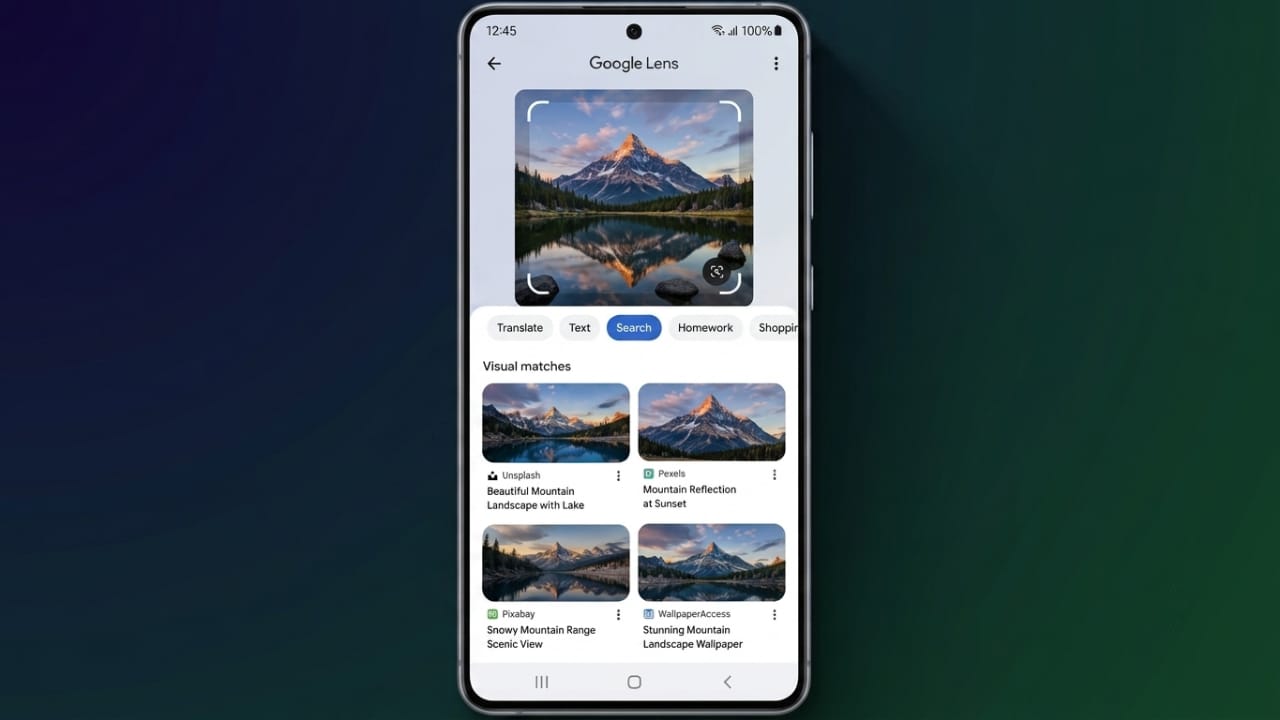
Reverse image search is an easy way to learn more about a picture. Instead of typing keywords, you upload an image or use its link to search for related information.
It can help you identify products, landmarks, artwork, plants, animals, and many other objects. You can also find similar images, locate the original source, or check where a photo has appeared online. The good news is that several free tools make this process simple on both computers and smartphones.
Also read: How Many Books Can a Kindle Store? A Simple Kindle Storage Guide
How to Reverse Image Search on a Computer
Use Google Images
Google Images is one of the easiest and most popular tools for reverse image searches. It works with browsers such as Chrome, Firefox, Safari, and Microsoft Edge.
Advertisements
To get started, open Google Images and click the Google Lens icon. You can then:
- Upload an image from your computer.
- Paste the image URL.
- Drag and drop an image into the search area.
Google analyzes the picture and shows matching results within seconds. Depending on the image, you may see similar photos, related websites, recognized objects, shopping suggestions, and other useful information.
Search Images Directly in Google Chrome
If you’re using Google Chrome, you don’t always need to visit Google Images.
Simply right-click any image on a webpage and choose Search with Google Lens. Chrome will instantly open search results related to that image, making the process much faster.
Try Bing Visual Search
Microsoft Bing also includes a powerful visual search feature.
Open Bing, click the camera icon, and upload an image, drag and drop it, paste an image link, or capture a new photo. Bing often performs well when identifying products and may also display similar items and shopping information.
Use TinEye
TinEye is another reliable reverse image search tool. It focuses on finding where an image has appeared across the web.
This makes it useful for checking image sources, locating edited versions, and helping photographers, designers, or content creators discover where their work has been used.
Ask AI Image Questions
AI assistants such as ChatGPT, Google Gemini, and Microsoft Copilot can also analyze uploaded images.
After uploading a picture, you can ask questions about what it contains. For example, you can identify landmarks, products, artwork, or other visible objects.
Since AI responses may occasionally contain mistakes, it’s always a good idea to verify important information using trusted sources.
Reverse Image Search on Android
Android users have several easy options for searching with images.
Google Lens
Google Lens is available on many Android devices and is one of the quickest ways to perform a reverse image search.
Open the Google app or Chrome, tap the Lens icon, and either capture a new photo or select one from your gallery. You can also long-press an image while browsing the web and choose Search image with Google Lens.
Google will quickly display matching results and related information.
Circle to Search
Many newer Android phones include the Circle to Search feature.
Activate it using your device’s supported gesture or navigation button, then circle, highlight, or tap any object on your screen. The search begins instantly without switching between apps.
Google Gemini
Google Gemini also supports image analysis. Upload a saved picture or use your camera on supported devices, then ask questions about what you see.
Google regularly improves Gemini with software updates, so its image capabilities continue to grow.
ChatGPT
ChatGPT can analyze uploaded images and answer questions about them. For the most accurate results, ask clear and specific questions, then confirm important details through reliable websites.
Reverse Image Search on iPhone
iPhone users also have multiple ways to search using images.
Newer iPhone models support Apple features such as Visual Intelligence, while Google Lens, Gemini, and ChatGPT are available through their respective apps.
You can capture or upload a photo, then search for information about products, landmarks, text, or other objects shown in the image.
Some newer iOS versions also allow image searches directly from screenshots, making visual searches even more convenient.
Other Helpful Reverse Image Search Tools
Google Lens
Google Lens offers much more than image recognition. Besides identifying objects, it can:
- Translate text from images.
- Copy printed text.
- Scan barcodes and QR codes.
- Recognize products for shopping.
- Identify food and restaurant information.
You can either take a new photo or upload an existing image.
Pinterest Lens
Pinterest Lens is especially useful for visual shopping and style inspiration.
Open the Pinterest app, tap the search icon, then select the camera option. Upload a picture or take a new one, and Pinterest will show visually similar products and ideas.
Benefits of Reverse Image Search
Using reverse image search can help you:
- Find the original source of an image.
- Discover similar photos online.
- Identify unknown products.
- Recognize landmarks and famous places.
- Learn about celebrities and public figures.
- Check where an image has been used.
- Compare shopping options.
- Detect edited versions of an image.
- Translate text from photos.
- Locate royalty-free or public-domain images.
The Future of Reverse Image Search
Visual search technology continues to improve as artificial intelligence becomes more advanced.
New features are making image recognition faster and more accurate across phones, computers, and wearable devices. Future innovations, including AI-powered smart glasses and mixed reality technology, are expected to make visual searching even more useful in everyday life.
Even with these improvements, AI-generated results should always be verified before relying on them for important decisions.
Also read: Best Android Volume Customization App with Neon RGB Effects
Final Thoughts
Reverse image search is a simple and effective way to learn more about almost any picture. Whether you’re using Google Lens, Bing Visual Search, TinEye, ChatGPT, Google Gemini, or Pinterest Lens, each tool offers useful features for identifying images, finding similar content, and discovering additional information.
For the best experience, compare results from multiple trusted sources, especially when accuracy is important.
If you’d like, I can also optimize this article for SEO with a keyword-rich title, meta description, FAQs, and proper H2/H3 headings while keeping it AdSense-friendly.

Jatin Rajput (Tech Golu) — Tech blogger & YouTuber with 6+ years of experience in WhatsApp, Instagram, Facebook, and mobile guides. Founder of TechGolu.in.