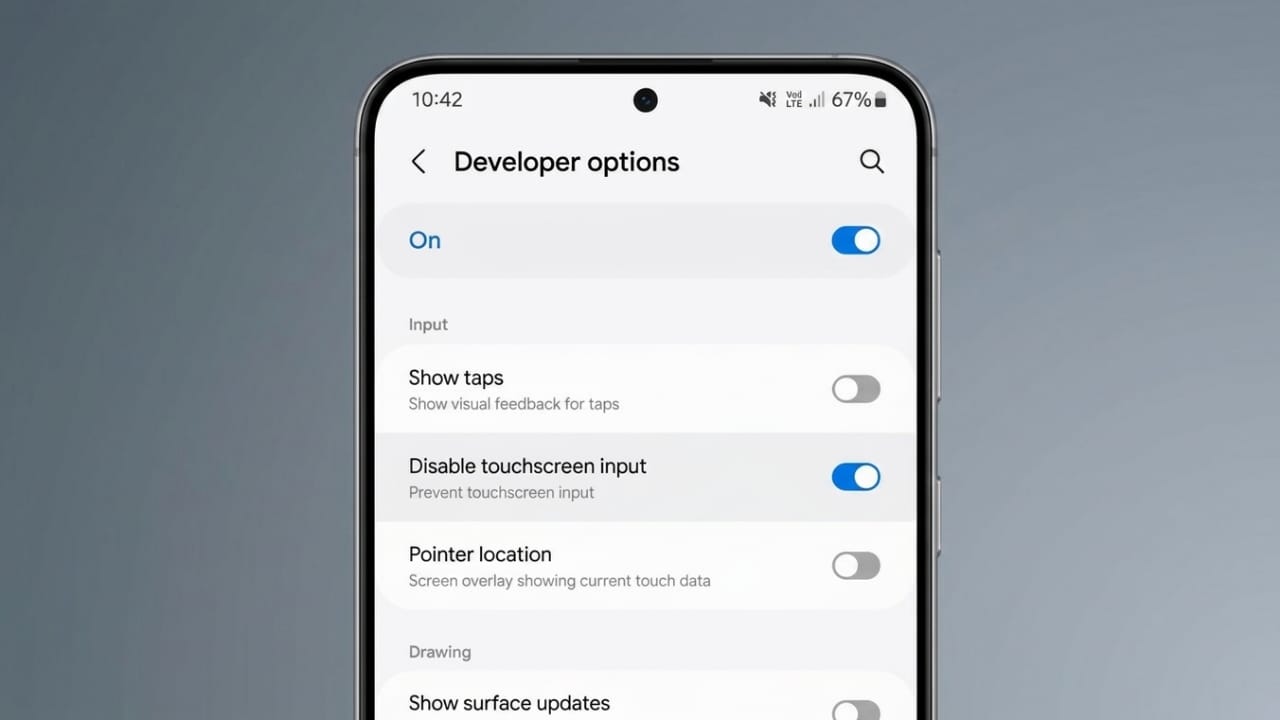
Accidental screen touches can be frustrating, especially when you’re watching videos, recording content, exercising, or letting kids use your phone. A random tap can pause a movie, open unwanted menus, or interrupt what you’re doing.
Although Android does not offer a built-in option to lock touchscreen input, you can easily achieve this using a trusted third-party app such as Touch Lock.
Also read: Hidden iPhone Setting That Can Help Reduce Eye Strain: How to Turn On Screen Distance
Why Locking the Touchscreen Can Be Useful
There are many situations where disabling touch input can help:
- Watching movies without accidental pauses.
- Giving your phone to children while playing videos.
- Recording videos without touching on-screen controls.
- Using your phone during workouts.
- Following recipes in the kitchen.
- Carrying your phone during outdoor activities.
By locking the touchscreen, you can prevent unwanted interactions and enjoy a smoother experience.
Install Touch Lock on Android
Getting started is simple and only takes a few minutes.
Steps to Install the App
- Open the Google Play Store.
- Search for Touch Lock.
- Download and install the app.
- Launch the application.
- Grant any permissions requested during setup.
- Tap the option to enable Touch Lock.
- Select Touch Lock from the available services list.
- Allow display overlay permission when prompted.
The overlay permission is important because it lets the app place a floating lock button on your screen.
Show the Floating Lock Button
After granting permissions, you can activate the floating button.
How to Enable It
- Open Touch Lock.
- Tap the Show button.
- A floating lock icon will appear on your screen.
- Drag the icon to any position you find convenient.
The button stays accessible whenever you need it.
Disable Touchscreen Input
Once the floating icon is active, locking the screen becomes easy.
Steps to Lock the Screen
- Open any app you want to use.
- Tap the floating lock icon.
- Touch input will be disabled immediately.
Your screen will remain visible, but taps and gestures will no longer work until you unlock it.
How to Unlock the Screen
When you want to use your phone normally again:
- Double-tap anywhere on the screen.
- The lock icon will appear.
- Double-tap the lock icon.
- Touch controls will be restored.
The process is quick and takes only a few seconds.
Hide the Floating Button
If you don’t want the lock icon visible all the time, you can hide it.
Steps
- Open the Touch Lock app.
- Tap Hide.
- The floating button will disappear.
You can bring it back later whenever needed.
Advanced Lock Features
For users who need extra protection, Touch Lock offers advanced locking options.
These features can block access to important controls and help prevent accidental changes.
What Advanced Lock Can Restrict?
Depending on your device, advanced settings may help prevent access to:
- Quick Settings panel
- Notification panel
- Navigation controls
- Back gestures
- Volume buttons
This provides additional protection during video playback, workouts, or when children are using the phone.
Enable Advanced Lock
- Open Touch Lock.
- Find the Advanced Lock section.
- Turn the feature on.
- Grant the required permissions.
- Follow the on-screen instructions to complete setup.
After activation, accidental changes to important settings become less likely.
Create Custom Lock Areas
Not everyone wants to lock the entire screen. Sometimes only certain sections need protection.
Touch Lock allows you to create custom lock zones.
How to Set a Custom Area
- Open the app.
- Tap the settings icon.
- Locate the screen lock options.
- Choose Custom Lock.
- Select the area you want to protect.
- Save the changes.
This feature can be useful when you want some controls to remain available while protecting specific buttons or screen sections.
Add PIN Protection
For additional security, you can require a PIN before unlocking the screen.
Set Up a PIN
- Open Touch Lock settings.
- Find the PIN or security option.
- Enable PIN protection.
- Create a four-digit PIN.
- Confirm the PIN and save it.
After setup, unlocking the screen will require the PIN code, helping prevent accidental access.
What If You Forget the PIN?
If you forget your PIN, check the recovery instructions provided within the app. Some versions may offer emergency recovery methods, but available options can vary depending on the app version and device.
Extra Customization Options
Touch Lock also includes additional settings that may allow you to:
- Adjust lock behavior.
- Customize lock areas.
- Change visual preferences.
- Configure security options.
Available features can differ between free and premium versions.
How iPhone Users Can Lock Touch Input
Unlike Android, iPhones include a built-in feature called Guided Access.
This tool helps limit screen interactions and can prevent accidental touches while using a specific app.
Enable Guided Access
- Open Settings.
- Go to Accessibility.
- Tap Guided Access.
- Turn the feature on.
- Create a passcode.
- Optionally enable Face ID or Touch ID.
- Enable the Accessibility Shortcut.
Start Guided Access
- Open the app you want to use.
- Triple-click the Side button or Home button.
- Select the desired options.
- Mark areas you want to disable if needed.
- Tap Start.
The selected areas will no longer respond to touch.
Exit Guided Access
- Triple-click the Side button or Home button.
- Enter your passcode or use Face ID.
- Tap End.
Your device will return to normal operation.
Also read: OPPO Introduces Bubble Magnetic Screen Accessory for Better Selfies and Smart Features
Final Thoughts
Locking touchscreen input can help avoid accidental taps and interruptions during everyday activities. Android users can use apps like Touch Lock to temporarily disable touch controls, while iPhone users can rely on the built-in Guided Access feature.
Whether you’re watching videos, exercising, recording content, or sharing your device with children, touchscreen locking can make the experience more convenient and distraction-free.

Jatin Rajput (Tech Golu) — Tech blogger & YouTuber with 6+ years of experience in WhatsApp, Instagram, Facebook, and mobile guides. Founder of TechGolu.in.