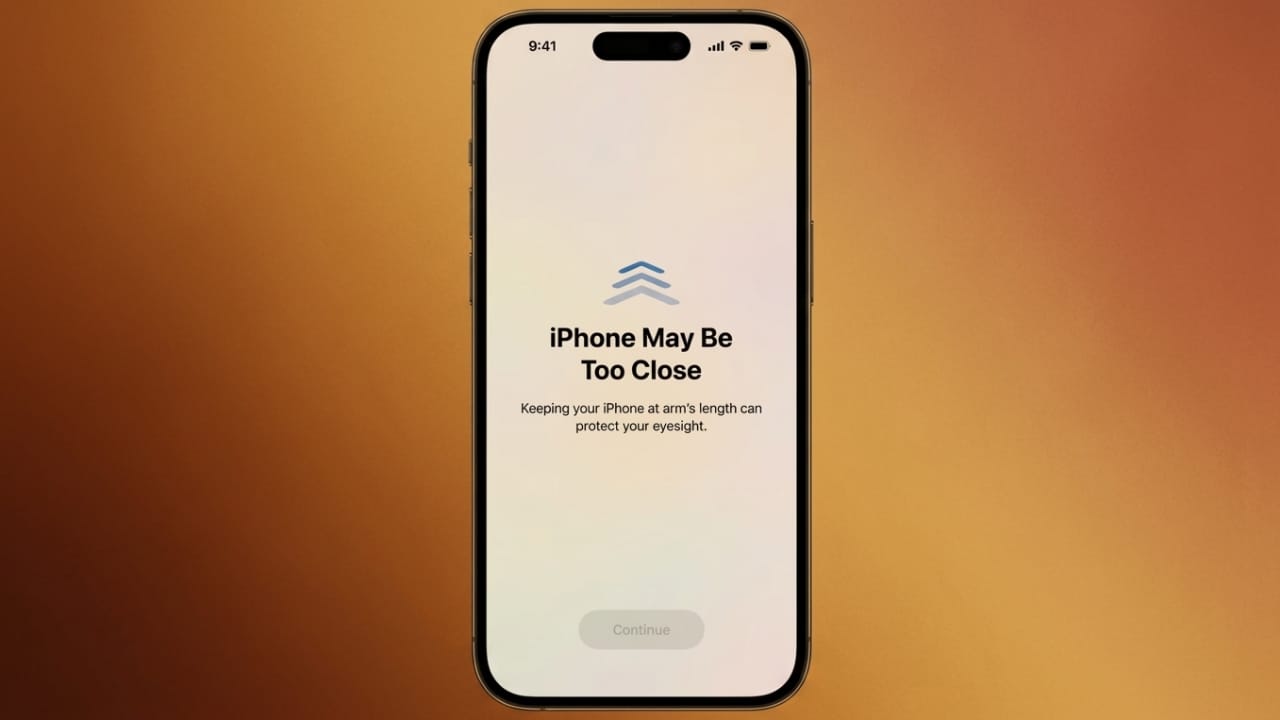
Most people use their smartphones for several hours every day. Whether it’s reading messages, watching videos, browsing social media, or working online, many users unknowingly hold their phones too close to their eyes. Over time, this habit can lead to eye discomfort and fatigue.
To help users maintain healthier viewing habits, Apple introduced a useful feature called Screen Distance in iOS 17. Although it is built into the iPhone, many people are still unaware that it exists.
Also read: OPPO Introduces Bubble Magnetic Screen Accessory for Better Selfies and Smart Features
What Is Screen Distance?
Screen Distance is a feature designed to encourage safer phone viewing habits. It monitors how close your face is to the screen and gently reminds you when the device is being held too near for an extended period.
Unlike many popular iOS features that received immediate attention after launch, Screen Distance quietly works in the background to support better eye comfort during daily phone use.
Why Apple Introduced This Feature
As smartphone usage continues to increase, eye strain has become a common concern. Spending long periods focusing on a screen at a very close distance may cause symptoms such as:
- Tired eyes
- Eye discomfort
- Temporary blurry vision
- Headaches after extended use
Apple created Screen Distance to help users become more aware of their viewing habits and encourage a healthier distance between their eyes and the screen.
Benefits of Using Screen Distance
Turning on this feature can offer several advantages:
- Encourages proper screen-viewing habits
- Helps reduce eye discomfort during long sessions
- Provides timely reminders when the phone is too close
- Supports healthier smartphone usage
- Can be useful for both adults and children
- Promotes long-term eye comfort
Because the feature works automatically, users do not need to constantly monitor their screen position themselves.
How Screen Distance Works
Screen Distance uses the same TrueDepth camera technology that powers Face ID on supported iPhones and iPads.
The system measures how far your face is from the screen while you use the device. If the iPhone detects that you are holding it closer than the recommended distance for an extended period, it displays a reminder.
The feature is designed to avoid unnecessary interruptions. Brief moments of close viewing usually won’t trigger a warning.
When Does the Warning Appear?
If your face remains too close to the screen for a certain amount of time, the iPhone will display a message suggesting that you move the device farther away.
Once you increase the distance, the notification disappears and normal use resumes. This simple reminder helps users become more aware of habits they may not even notice.
Why You May Notice It More at Night
Many people use their phones before going to sleep. During late-night browsing, users often hold their devices closer to their faces without realizing it.
As a result, Screen Distance reminders may appear more frequently during nighttime use. These alerts can help build awareness and encourage better viewing habits over time.
Helpful for Both Adults and Children
Screen Distance is useful for users of all ages. Adults can benefit from improved viewing habits, while children can learn healthier smartphone usage from an early age.
Apple has also highlighted the importance of maintaining proper viewing distance as part of overall eye-care awareness, especially for younger users who spend significant time on digital devices.
Supported Devices
Screen Distance requires a device with Apple’s TrueDepth camera system. Most Face ID-enabled iPhones and supported iPads can use this feature.
Generally, compatible devices include:
- Face ID iPhones
- iPhones with a notch display
- Dynamic Island iPhone models
- Supported Face ID iPads
Devices that do not include TrueDepth camera hardware are not compatible.
Family Sharing Support
For children under 13 who are part of a Family Sharing group, Apple may enable Screen Distance automatically.
This helps encourage healthy screen habits without requiring parents to manually configure the feature.
Adult users, however, need to activate it themselves if they want to use it.
How to Enable Screen Distance on iPhone
You can turn on the feature in just a few steps:
- Open the Settings app.
- Tap Screen Time.
- Select Screen Distance.
- Turn on the toggle switch.
- Follow any on-screen instructions if prompted.
Once enabled, the feature starts working automatically in the background.
Should You Turn It On?
Screen Distance is one of those useful iPhone features that many people overlook. It takes only a minute to enable and requires almost no effort afterward.
The feature doesn’t interfere with normal phone use and only provides reminders when necessary. For people who spend a lot of time reading, browsing, or watching content on their phones, it can be a simple way to build healthier habits.
Also read: How to Save and Share Your Favorite Netflix Scenes with the Moments Feature
Final Thoughts
Screen Distance is a small but practical feature available in iOS 17 and later. By monitoring how close you hold your phone and offering gentle reminders when needed, it helps encourage better screen-viewing habits.
If you use your iPhone frequently throughout the day, enabling Screen Distance can be a simple step toward improving comfort and maintaining healthier smartphone usage habits.

Jatin Rajput (Tech Golu) — Tech blogger & YouTuber with 6+ years of experience in WhatsApp, Instagram, Facebook, and mobile guides. Founder of TechGolu.in.