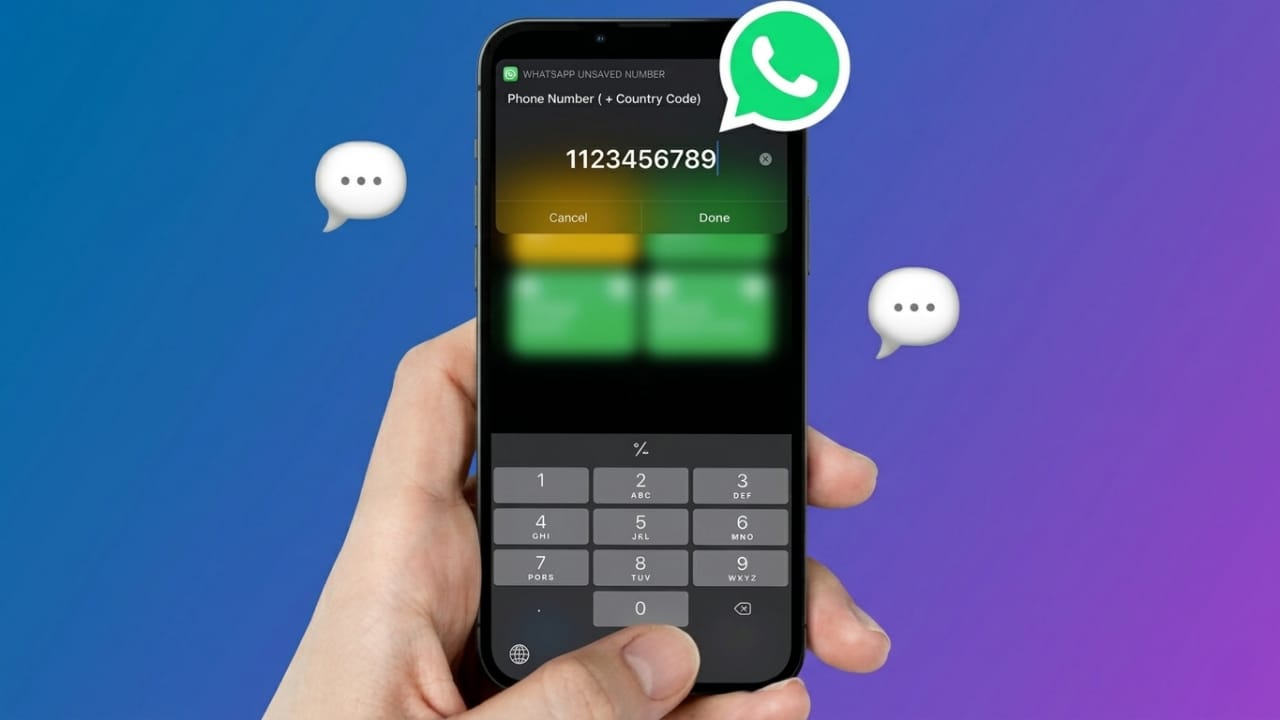
Sometimes you need to send a quick WhatsApp message to someone without adding their number to your phonebook. This usually happens when talking to delivery agents, customers, temporary clients, or service providers. Saving every number can make your contact list messy and difficult to manage.
Although WhatsApp still does not offer a direct “message without saving” button, there are several simple methods that work on both Android and iPhone devices.
Also read: How to Share Your Location on Android Using Google Maps, WhatsApp, and Other Apps
Why People Prefer Messaging Without Saving Numbers
Many users only need a one-time conversation. Adding temporary contacts again and again wastes time and fills the contact list with unnecessary numbers.
Advertisements
This feature is especially useful for:
- Delivery and courier communication
- Business inquiries
- Online marketplace conversations
- Temporary office coordination
- Customer support chats
The good news is that you can easily start a WhatsApp chat without permanently saving the number.
Method 1: Use WhatsApp’s “Message Yourself” Feature
WhatsApp now includes a “Message Yourself” chat that can also help start conversations with unsaved numbers.
Steps to Follow
- Open WhatsApp on your phone.
- Open your personal chat marked as “You”.
- Type or paste the mobile number.
- Send the message to yourself.
- Tap the highlighted number in the chat.
- Select the “Chat with” option.
- WhatsApp will open a direct conversation window.
This is one of the easiest methods because it does not require any extra app or website.
Method 2: Message Unsaved Numbers Through Group Chats
If the person is already in a WhatsApp group with you, you can message them directly without saving their contact.
How to Do It
- Open the shared WhatsApp group.
- Find the person’s number in the conversation.
- Tap on the number.
- Choose the message option.
- A private chat window will open instantly.
You can also find the number from the group participant list.
Alternative Steps
- Open the group info section.
- Scroll through the member list.
- Tap the unsaved number.
- Select “Message”.
This method works well for office groups, study groups, and community chats.
Method 3: Use WhatsApp Click-to-Chat Links
WhatsApp officially supports a browser-based messaging feature called Click-to-Chat.
You only need a web browser and the correct phone number.
Link Format
https://wa.me/phone-number
Replace “phone-number” with the full mobile number including the country code.
Important Rules
- Do not use spaces
- Avoid brackets or dashes
- Do not add the plus sign (+)
Example
https://wa.me/919876543210
After opening the link, tap “Continue to Chat” and WhatsApp will start the conversation.
This method works on:
- Android phones
- iPhones
- Tablets
- Desktop browsers
Method 4: Use WhatsApp API Links
Another easy option is using WhatsApp API links in a browser.
Link Format
https://api.whatsapp.com/send?phone=919876543210
Replace the example number with the actual phone number and country code.
Once the page opens:
- Tap “Continue to Chat”.
- WhatsApp will launch automatically.
- Start messaging instantly.
If the number is not registered on WhatsApp, you may see an error message.
Method 5: Use Siri Shortcuts on iPhone
iPhone users can also use Apple Shortcuts for faster messaging.
Steps
- Open the Shortcuts app.
- Add a WhatsApp unsaved number shortcut.
- Run the shortcut.
- Enter the mobile number with country code.
- WhatsApp will open the chat automatically.
This option is useful for users who prefer automation and quick actions.
Method 6: Use Truecaller
Truecaller can also help you start WhatsApp chats without storing numbers permanently.
Steps
- Open Truecaller.
- Search for the unknown number.
- Open the profile.
- Tap the WhatsApp icon.
- The chat window will open directly.
This is helpful when dealing with unknown callers regularly.
Method 7: Use Trusted Third-Party Apps Carefully
Some apps are specially designed to start WhatsApp chats without saving contacts.
Basic Process
- Install a trusted app from the official app store.
- Enter the mobile number with country code.
- Tap the “Start Chat” button.
- WhatsApp opens automatically.
Safety Tips
- Download apps only from trusted developers
- Avoid apps asking for unnecessary permissions
- Check reviews before installing any application
Using reliable apps helps protect your privacy and device security.
Benefits of Messaging Without Saving Contacts
Using these methods offers several advantages:
- Keeps your contact list clean
- Saves time during temporary conversations
- Works across Android and iPhone
- No need to store unnecessary numbers
- Useful for business and customer communication
Also read: WhatsApp Plus: Features, Price, Availability, and Everything You Should Know
Final Words
Sending WhatsApp messages without saving contacts is simple once you know the right method. Features like Click-to-Chat links, group messaging, and personal chats make the process quick and convenient.
Whether you use Android or iPhone, these tricks help you start conversations instantly without filling your phonebook with temporary numbers.

Jatin Rajput (Tech Golu) — Tech blogger & YouTuber with 6+ years of experience in WhatsApp, Instagram, Facebook, and mobile guides. Founder of TechGolu.in.