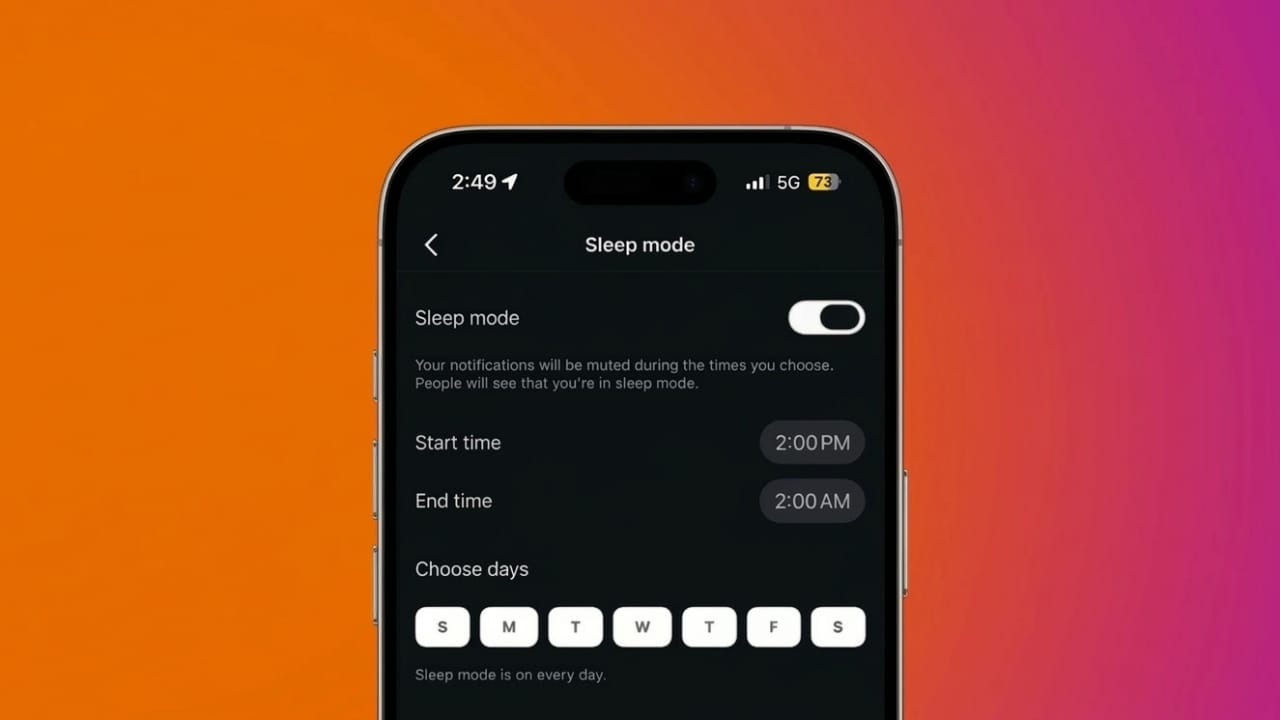
Instagram notifications can appear almost every minute—messages, likes, comments, story mentions, and other activity. While these alerts help users stay connected, they can also become distracting, especially during work hours or late at night.
To help users take a break from constant alerts, Instagram introduced Sleep Mode (previously called Quiet Mode). This feature temporarily stops notifications from the app during a scheduled time so your phone doesn’t keep buzzing.
Below is a simple guide explaining what Instagram Sleep Mode is, how it works, and how you can enable or disable it.
Also read: How to Save and Back Up Instagram Messages – A Clear Step-by-Step Guide
What Is Sleep Mode on Instagram?
Sleep Mode is a built-in Instagram setting that temporarily silences most notifications for a period of time that you choose.
When it is active, the app stops sending alerts for activities such as:
- Direct messages
- Likes and comments
- Mentions in stories
- New followers
- Reels interactions
Instead of sending these alerts instantly, Instagram holds them until Sleep Mode ends. After the scheduled time finishes, the app shows a summary of the notifications you missed.
The feature also updates your activity status so others know you are unavailable. If someone sends you a message during this period, Instagram may inform them that you are currently in Sleep Mode and might respond later.
How Instagram Sleep Mode Works
Sleep Mode is designed to automatically manage notifications for you.
Instead of manually turning alerts on and off every time you want fewer interruptions, you can set a schedule. Once the schedule is set, Instagram will automatically mute notifications during those hours.
You can customize:
- The days Sleep Mode should run
- The start and end time
- The schedule whenever your routine changes
During the scheduled time, several things happen inside the app.
Notifications Are Muted
All push notifications from Instagram are temporarily paused. This helps prevent your phone from lighting up repeatedly while you are sleeping, working, or focusing on other tasks.
Automatic Message Reply
If someone sends you a direct message while Sleep Mode is active, Instagram may notify them that you are currently unavailable and will reply later.
Activity Status Changes
Your profile status changes to show that Sleep Mode is enabled. Instead of the usual green “active” indicator, Instagram may display a moon icon to signal that you are not currently active.
How to Turn On Sleep Mode on Instagram
Activating Sleep Mode only takes a few steps:
- Open the Instagram app.
- Go to your profile page.
- Tap the menu icon (three lines) in the top-right corner.
- Open Settings & Activity.
- Select Notifications or Time Management.
- Tap Sleep Mode.
- Turn the toggle on.
- Choose the start time, end time, and days you want the feature to run.
After setting it up, Instagram will automatically activate Sleep Mode during the selected hours.
How to Turn Off Sleep Mode on Instagram
Sleep Mode normally switches off once the scheduled time ends. However, you can disable it manually if you want notifications to start arriving again.
Follow these steps:
- Open Instagram and go to your profile.
- Tap the menu icon.
- Go to Settings & Activity.
- Select Notifications or Time Management.
- Tap Sleep Mode.
- Turn the toggle off.
Notifications will resume immediately.
Sleep Mode vs. Pause All Notifications
Although both features reduce interruptions, they work differently.
Sleep Mode
- Runs on a custom schedule
- Shows that you are unavailable
- Can send an automatic DM notice
- Ideal for regular quiet hours
Pause All Notifications
- Temporarily stops alerts for a short period
- Does not change your activity status
- No auto-reply in messages
- Best for short breaks
Why Using Instagram Sleep Mode Can Be Helpful
Managing screen time can be difficult when social media apps constantly send updates. Sleep Mode helps create healthier usage habits.
Better Focus
Without continuous alerts, it becomes easier to concentrate on studying, working, or other important tasks.
Healthier Digital Routine
Scheduled breaks from notifications can help reduce unnecessary screen time.
Fewer Night-Time Interruptions
Activating Sleep Mode during the night prevents late-night alerts that may disturb your sleep.
Improved Productivity
Silencing notifications during work hours reduces the urge to check your phone repeatedly.
Also read: How to Delete Your Threads Account Without Removing Instagram
Final Thoughts
Instagram’s Sleep Mode is a simple feature that can make the app far less distracting. By scheduling quiet hours, you can avoid constant notifications while still catching up on activity later.
If you often feel interrupted by social media alerts, enabling Sleep Mode is an easy way to create a calmer and more focused routine.

Jatin Rajput (Tech Golu) — Tech blogger & YouTuber with 6+ years of experience in WhatsApp, Instagram, Facebook, and mobile guides. Founder of TechGolu.in.