Quick Settings on Android give fast access to important phone controls. But if these options stay open on the lock screen, anyone holding your phone can change them. In today’s world, this is a serious risk.
A stolen phone can be put offline in seconds by turning off location, mobile data, or Wi-Fi. Once that happens, tracking and remote security features may stop working. The good news is that Android offers ways to lock these controls and protect your data.
Let’s break it down step by step.
Also read: How to Fix Game Sound Not Working on Android (Simple Solutions That Really Help)
Why Locking Quick Settings Is Important
Quick Settings appear when you swipe down from the top of the screen. They include controls like internet, Bluetooth, location, airplane mode, and screen recording.
On many Android phones, these options work even when the device is locked. This creates a security gap. A stranger can disable tracking, block alerts, or interfere with safety features before you even realize your phone is missing.
By restricting access, you make sure that only you can change these critical settings.
How to Restrict Quick Settings on Android
1. Disable Quick Settings Access on the Lock Screen
Open Settings on your phone.
Go to Security & Privacy or Lock Screen (the name may vary by brand).
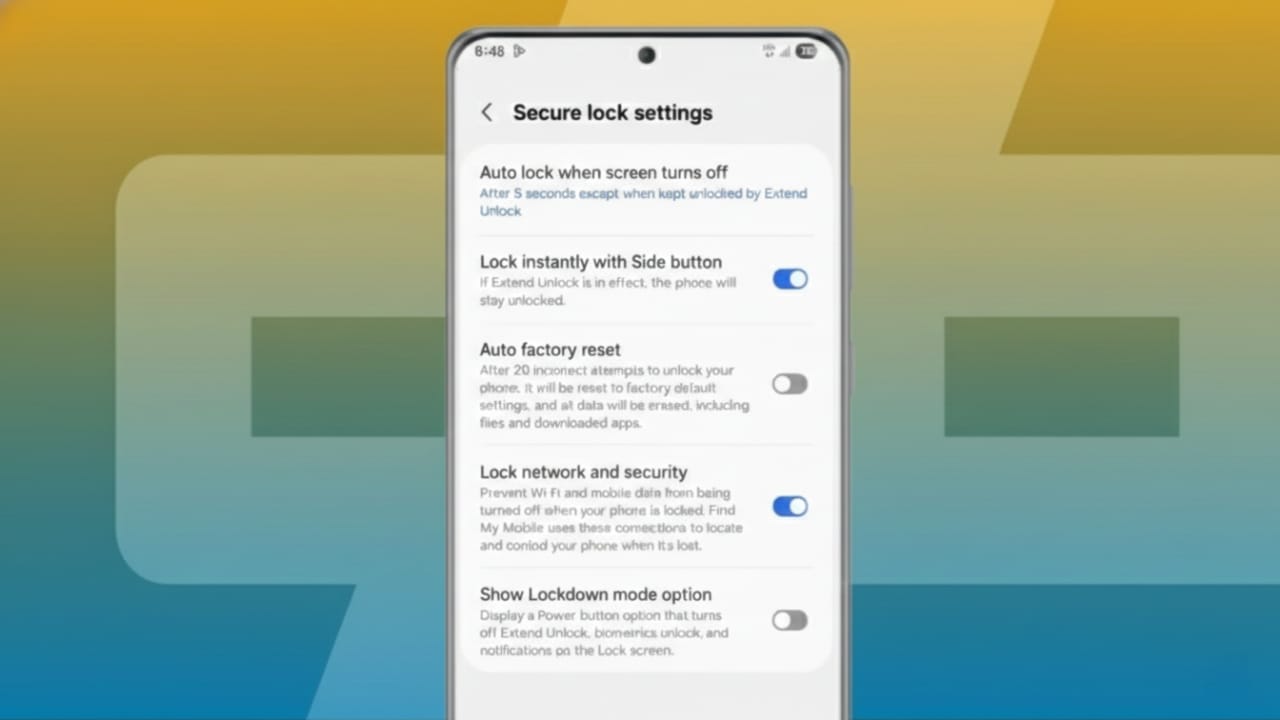
Look for Secure Lock Settings or Control from Locked Device.
Turn off any option that allows Quick Settings or network controls when the phone is locked.
Also enable Lock network and security, which prevents changes to Wi-Fi, Bluetooth, or airplane mode until the phone is unlocked.
2. Set a Strong Screen Lock
Phones without a PIN, password, or pattern leave Quick Settings fully exposed.
Go to Settings > Security > Screen Lock.
Choose a PIN, pattern, or password.
If your phone offers Secure Lock Settings, enable it. This ensures no system changes can be made without unlocking the device first.
3. Remove Sensitive Tiles from Quick Settings
Swipe down the Quick Settings panel and tap the edit (pencil) icon.
Move risky options like:
- Location
- Airplane mode
- Mobile data
- Screen recording
to the hidden or inactive section.
Keep only harmless tools such as flashlight, sound mode, or calculator in the main panel. This limits what someone can do if they access your phone.
4. Add Extra Protection with Security Apps
Some trusted apps from the Play Store can add another security layer. They can block Quick Settings, hide notifications, or prevent power and airplane mode changes while the phone is locked.
Always download apps from official sources and avoid unknown developers to stay safe from spyware.
Extra Security Tips for Better Protection
- Enable Secure Startup so the phone cannot turn on without a password
- Turn off Developer Options to prevent USB-based attacks
- Use biometrics plus a PIN for stronger protection
- Set a short auto-lock time so the phone locks quickly when idle
- Keep Emergency Info available, but restrict other controls
Also read: Android
Final Thoughts
Leaving Quick Settings open on the lock screen makes your Android phone vulnerable. Anyone can disable tracking, block security features, or interfere with your data in seconds.
By locking Quick Settings, removing risky tiles, and using a strong screen lock, you greatly reduce this risk. Adding extra security tools makes your phone even safer.
These small changes turn your Android device into a strong barrier that protects your privacy at all times.

Jatin Rajput (Tech Golu) — Tech blogger & YouTuber with 6+ years of experience in WhatsApp, Instagram, Facebook, and mobile guides. Founder of TechGolu.in.