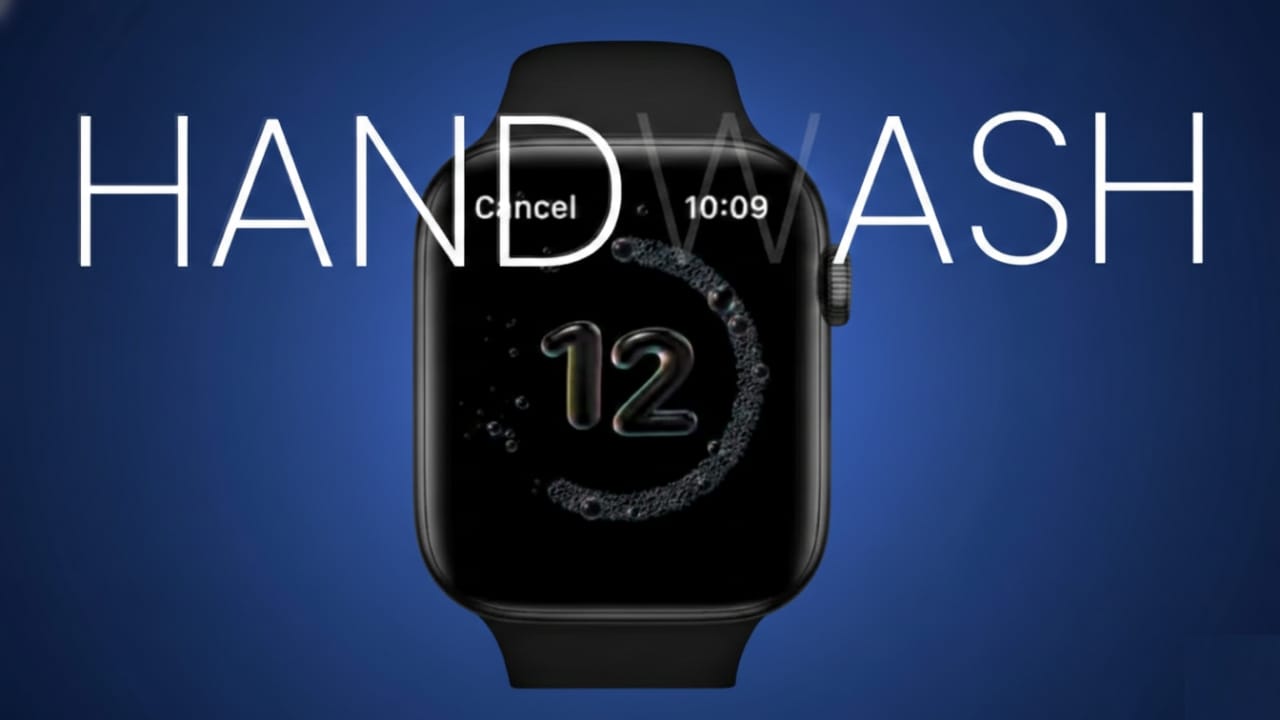
Clean hands play an important role in everyday health. Still, many people wash their hands for only a few seconds without noticing the time. Health experts usually suggest washing hands for about 20 seconds, but it is easy to stop early.
Apple Watch includes a built-in Handwashing feature that helps you follow this habit correctly. It works on its own while you wash your hands and gently guides you to complete the full duration. You do not need to start or stop anything manually.
Also read: How to Use Reader Mode in Safari on iPhone
How the Apple Watch Handwashing Feature Works
This feature runs quietly in the background. It activates only during real handwashing and does not interrupt your daily routine.
How Apple Watch Detects Handwashing
Apple Watch combines two signals to understand that you are washing your hands:
- The sound of running water picked up by the microphone
- Natural hand and arm movements during washing
Both signals must occur together. If only one is detected, the timer will not start. This helps prevent false alerts.
Automatic 20-Second Countdown
Once handwashing is detected, a 20-second timer appears on the watch screen. This time matches commonly recommended hygiene guidelines.
- You do not need to start the timer yourself
- The countdown begins as soon as washing starts
If you stop before the timer finishes, the watch gently nudges you to continue.
If you complete the full time, you will see a confirmation and feel a light vibration.
There are no loud sounds or distractions. The process is subtle and respectful of privacy. Apple Watch does not store conversations—it only recognizes water-like sound patterns.
Supported Apple Watch Models
This feature requires newer hardware and is not available on older models.
Compatible Models
The Handwashing feature works on:
- Apple Watch Series 4
- Apple Watch Series 5
- Apple Watch Series 6
- Apple Watch Series 7
- Apple Watch Series 8
- Apple Watch Series 9
- Apple Watch Ultra
- Apple Watch Ultra 2
Older models, such as Apple Watch Series 3, do not support this feature due to hardware limitations.
Software Requirement
Your Apple Watch must be running watchOS 7 or later. Keeping your device updated ensures better accuracy and performance.
Important Points to Keep in Mind
Some conditions can affect how well the feature works:
- Water must be running while washing
- Using soap without water will not start the timer
- The 20-second duration cannot be changed
- Very low water flow may reduce detection
- Loud surroundings can interfere with recognition
- Thick cases or screen protectors may block microphones
Tips for Best Results
- Use steady running water
- Wash hands with natural movements
- Avoid very noisy environments
Setup, Reminders, History, and Troubleshooting
Setting up the Handwashing feature takes less than a minute. Once enabled, it runs automatically.
Turn On Handwashing from Apple Watch
- Open Settings on your Apple Watch
- Scroll down and tap Handwashing
- Turn on Handwashing Timer
That’s it. The feature is now active.
Turn On Handwashing from iPhone
You can also enable it through your iPhone:
- Open the Watch app
- Tap My Watch
- Scroll and select Handwashing
- Turn on Handwashing Timer
- Optionally enable Handwashing Reminders
How Handwashing Reminders Work at Home
Apple Watch can remind you to wash your hands when you arrive home. It uses your saved home address and location services.
When you reach home:
- A gentle notification appears
- It suggests washing your hands
There are no repeated or loud alerts—just a single soft reminder.
Requirements for Handwashing Reminders
To use home reminders correctly:
- Your home address must be saved in your contact card
- Location Services must be enabled
- Location access should be set to Always
- Precise Location must be turned on
View Your Handwashing History
Apple Watch tracks your handwashing habits and stores the data in the Health app.
Steps to Check History
- Open the Health app on iPhone
- Tap Browse
- Go to Other Data
- Select Handwashing
You can see:
- Average handwashing time
- How often you complete the full 20 seconds
This information helps you become more aware of your hygiene routine over time.
If the Handwashing Feature Is Not Working
If the timer does not appear, try these steps:
- Make sure the Handwashing Timer is turned on
- Confirm your watch model supports the feature
- Check that watchOS is updated
- Restart both Apple Watch and iPhone
- Wash hands under steady water flow
- Avoid very low water pressure
- Remove thick cases or screen protectors
- Ensure the microphone area is clean
- Verify that your home address is saved
- Set location access to Always
- Enable Precise Location
If the issue continues:
- Unpair the Apple Watch from your iPhone
- Pair it again as a new device
This often resolves stubborn detection problems.
How to Turn Off the Handwashing Feature
You can disable the feature anytime.
Steps to Turn It Off
- Open Settings on Apple Watch
or - Open the Watch app on iPhone
- Tap Handwashing
- Turn off Handwashing Timer
- Turn off Handwashing Reminders if needed
Also read: How to Protect Your OpenAI Account Using Passkeys (Easy Security Guide)
Final Thoughts
The Handwashing feature on Apple Watch makes it easier to follow good hygiene habits without extra effort. It works automatically, uses recommended timing, and stays out of your way.
Supported models provide reliable detection, setup is quick, reminders are gentle, and history data helps you stay aware. Overall, it is a simple tool that quietly supports better daily habits.

Jatin Rajput (Tech Golu) — Tech blogger & YouTuber with 6+ years of experience in WhatsApp, Instagram, Facebook, and mobile guides. Founder of TechGolu.in.