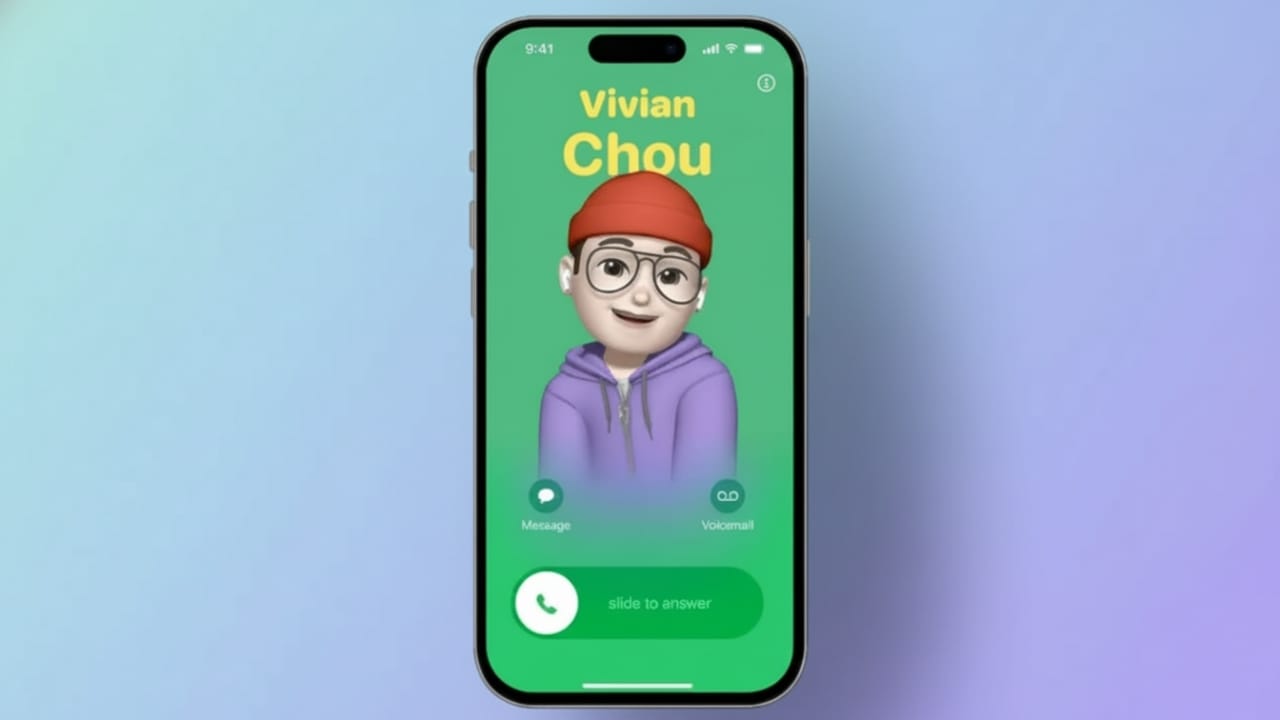
Apple has added a fresh way to show your identity during calls with the Contact Poster feature. When someone calls you, your poster appears in full screen. It is also visible inside the Contacts app. This small change makes calling feel more personal and modern.
With Contact Posters, you can display a photo, a Memoji, or simple initials. You can also change fonts, colors, and layouts to match your style. This feature was introduced with iOS 17 and is designed to make everyday communication more expressive and visually appealing.
Also read: How to Merge Duplicate Contacts on iPhone Using iOS Features
What You Need Before Setting Up a Contact Poster
Before you start, make sure your iPhone is updated to iOS 17 or a newer version. Contact Posters do not work on older iOS versions. For the best experience, the people you communicate with should also be using an updated iOS version.
You also need to turn on Name and Photo Sharing during setup. FaceTime and Messages must be signed in with the same Apple ID. Using one Apple ID helps your poster appear correctly across calls, messages, and FaceTime.
Having a clear photo ready is useful. Portrait-style photos usually look the best. If you prefer, you can also prepare a Memoji in advance. If you like a clean and simple look, initials work well too.
How to Start Creating Your Contact Poster
Open the Phone app on your iPhone and go to the Contacts tab. You can also open the Contacts app directly. At the top, tap My Card, then select Shared Name and Photo. Now tap the Poster tab.
You will see three main styles:
- Photos for real images
- Memoji for animated characters
- Monogram for initials only
Choose the option that fits your style.
Customizing a Photo Contact Poster
If you choose the Photos option, tap the photo icon and open your Photo Library. Your iPhone may suggest suitable images, but you can pick any photo you like. Portrait photos usually give the best results.
The system will crop the image automatically. Your name appears at the top, and you can swipe to try different visual effects. You can change the font style, color, and thickness by tapping your name. All changes are shown instantly, making it easy to adjust the look.
Once you are happy with the design, tap Done. You will then see an option to link your Contact Photo with the poster. This keeps your appearance consistent across apps.
Creating a Memoji Contact Poster
To use a Memoji, select the Memoji option under the Poster tab. Your existing Memoji will appear automatically. Tap it to choose a different expression or capture a new one using the camera.
After selecting the expression, tap Next and choose a background color. You can again edit the font style, color, and thickness of your name. Review everything carefully, then tap Done to save your Memoji poster.
Using a Monogram Style Poster
If you prefer a minimal design, the Monogram option is a great choice. This style shows your initials in large text. You can pick a background color and choose between clean or bold font styles. It is simple, clear, and works well for a professional look.
How Contact Posters Appear Across Your iPhone
Contact Posters are designed like Lock Screen layouts. They combine images with bold text for a clear and attractive look. Your poster shows up during incoming calls and inside the Contacts app.
Apple also allows developers to support Contact Posters in third-party calling apps using special tools. This means the feature can appear in VoIP apps, not just the default Phone app.
Managing Sharing and Privacy Settings
After creating your Contact Poster, you need to control how it is shared. Posters are not shared automatically. Open the Phone app, go to Contacts, tap My Card, and select Shared Name and Photo.
Scroll down and turn on Name and Photo Sharing. You can edit your first and last name if needed. Then choose who can see your poster. You can share it only with saved contacts or ask for approval each time. These options help protect your privacy.
Whenever you update your Contact Poster, the changes are synced automatically. Your updated poster will appear during calls, in Messages, and on FaceTime. For the best experience, your contacts should also enable sharing on their devices.
Also read: How to Organize iMessage Apps on iPhone and iPad
Final Thoughts
Setting up a Contact Poster on your iPhone is simple and rewarding. It adds personality to calls and keeps your identity consistent across apps. Whether you choose a photo, a Memoji, or initials, you have full control over the design.
With flexible customization and strong privacy options, iOS 17 makes communication more personal without compromising safety. Anyone can use this feature comfortably and give their calls a more modern, expressive touch.

Jatin Rajput (Tech Golu) — Tech blogger & YouTuber with 6+ years of experience in WhatsApp, Instagram, Facebook, and mobile guides. Founder of TechGolu.in.