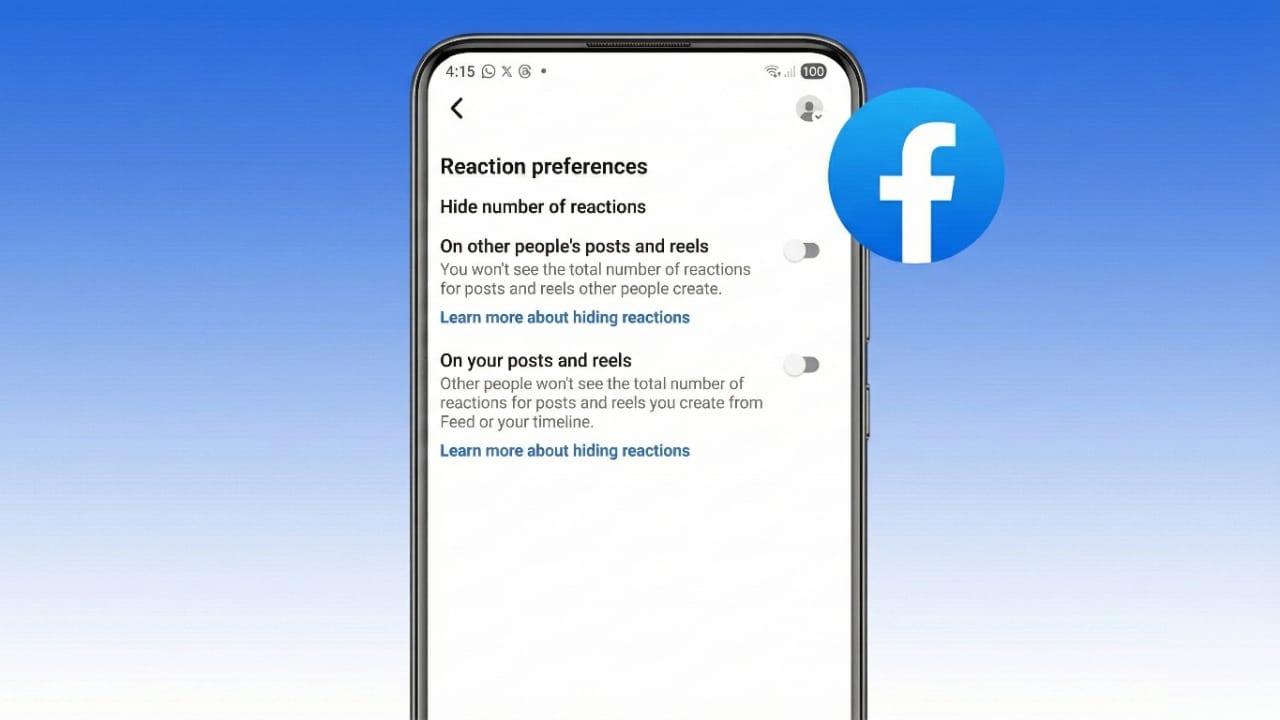
Facebook now gives users the option to hide likes and reaction counts. This simple setting helps reduce stress and makes the platform feel less competitive. Instead of focusing on numbers, you can enjoy posts for what they really are.
By hiding likes and reactions, you decide how much visibility these counts get. It’s a useful way to scroll peacefully and interact without comparing popularity.
Why Facebook Added the Hide Likes Feature
Facebook introduced this option to improve how people feel while using the platform. Many users felt pressured when they saw reaction numbers on posts. Over time, likes became a way to judge popularity, which created unnecessary stress.
To address this, Facebook rolled out a feature that lets users hide reaction counts. Similar tools were first tested on Instagram and received positive feedback. The goal is simple: help people focus on content, not competition.
This feature is completely optional. You can turn it on or off anytime. Facebook gives you full control, whether you want to hide reactions on your own posts, posts from others, or both.
Also read: How to Buy Groceries on Zepto Online: A Simple Beginner’s Guide
How to Hide Likes and Reactions on the Facebook Mobile App
You can change these settings easily using the Facebook app on Android or iPhone. Just make sure your app is updated to the latest version.
Steps to Hide Likes on Mobile:
- Open the Facebook app.
- Tap the menu icon in the top-right corner.
- Go to Settings & Privacy, then tap Settings.
- Scroll to Preferences and select Reaction Preferences.
- You’ll see two options:
- On your posts
- On posts from others
- Turn on both toggles to hide reaction counts.
Once enabled, likes and reactions will no longer be visible. You won’t see counts on other people’s posts, and others won’t see them on yours. The change applies instantly and syncs across all your devices.
Why This Is Useful on Mobile:
- Works on both Android and iOS.
- Updates your account instantly.
- Easy to turn on or off.
- Helps reduce social pressure while scrolling.
Many users prefer this setting because it creates a calmer and more natural social media experience.
How to Hide Likes and Reactions on Facebook Using a Web Browser
If you use Facebook on a computer, you can adjust the same settings through any browser. The process is quick and changes apply everywhere.
Steps to Hide Likes on Desktop:
- Visit facebook.com and log in.
- Click your profile icon in the top-right corner.
- Select Settings & Privacy, then Settings.
- From the left menu, choose Reaction Preferences.
- Turn on:
- On your posts to hide reactions on your posts.
- On posts from others to hide counts in your feed.
These settings take effect immediately. If you ever want to see reaction counts again, you can turn the options off anytime.
Benefits of Using Browser Settings:
- Works on Windows and Mac.
- Accessible from any modern browser.
- Syncs automatically with the mobile app.
- Keeps your experience consistent across devices.
If you don’t see the Reaction Preferences option yet, you can still hide likes using a free browser extension.
Using Browser Extensions:
- Chrome / Edge: Install a free “Hide Likes” extension.
- Firefox: Use a free “Hide Likes” add-on.
Once installed, reaction numbers disappear automatically when you open Facebook.
How to Hide Page Likes for Better Privacy
Facebook also allows you to hide the pages you like. This includes interests such as music, movies, sports teams, or brands. By default, these likes are visible to others, but you can change that.
Steps to Hide Page Likes:
- Open Facebook on a browser.
- Go to your profile page.
- Click More under your name and select Likes.
- Click the three-dot menu near the top.
- Choose Edit the Privacy of Your Likes.
- You’ll see different page categories.
- Click the globe icon next to a category.
- Select Only Me to keep it private.
You can also choose options like Friends or Custom if you want limited visibility. Once saved, others won’t be able to see those page likes.
Why Hiding Page Likes Helps:
- Keeps your interests private.
- Reduces unwanted attention.
- Gives you better control over your profile.
- Protects your personal preferences.
Extra Tips to Improve Facebook Privacy
- Review your privacy settings regularly.
- Control who can comment or react to your posts.
- Use built-in tools to limit unwanted interactions.
- Keep your app updated for new privacy features.
Small changes like these can make your time on Facebook more comfortable and personal.
Also read: How to Fix an Unresponsive iPhone Touchscreen (Step-by-Step Guide)
Final Thoughts
Knowing how to hide likes and reactions on Facebook gives you more control over your online experience. It helps reduce pressure, protects privacy, and encourages healthier interactions.
Whether you use Facebook on mobile or desktop, these settings are easy to manage and can be changed anytime. If you want a calmer and more private social media space, hiding likes and reactions is a smart step.

Jatin Rajput (Tech Golu) — Tech blogger & YouTuber with 6+ years of experience in WhatsApp, Instagram, Facebook, and mobile guides. Founder of TechGolu.in.