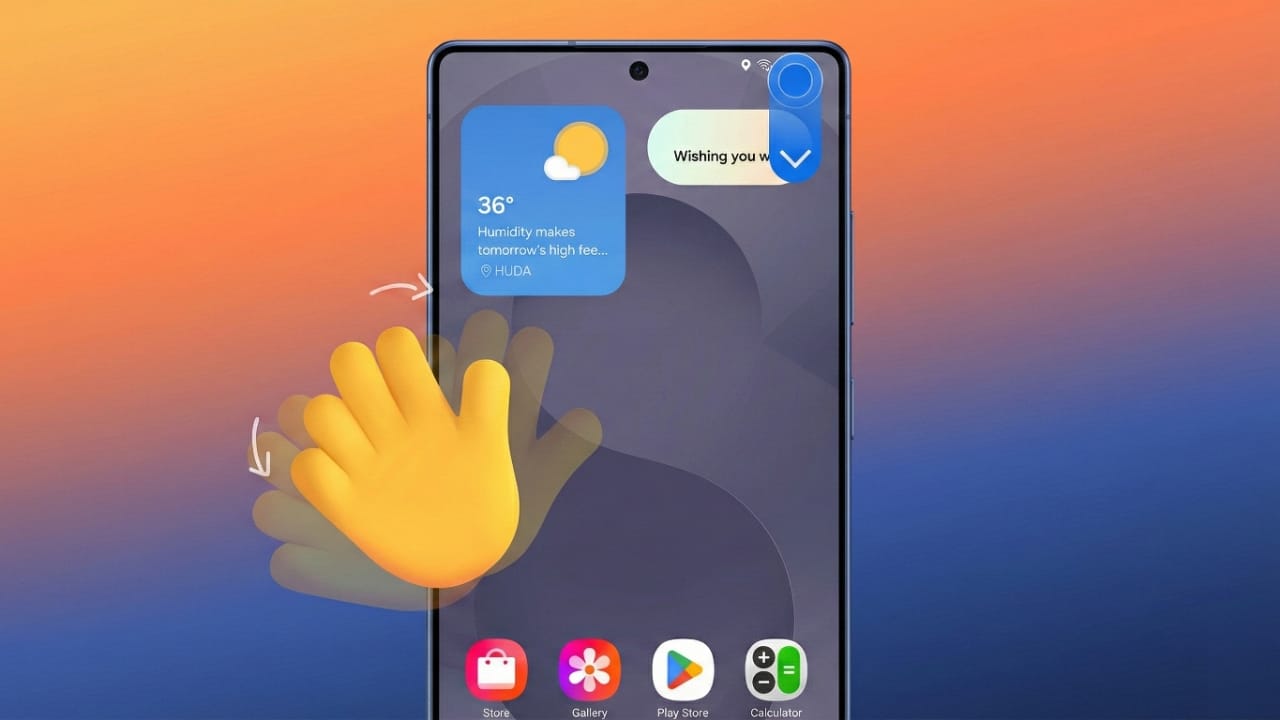
Custom gestures make using your Android phone faster and more comfortable. With just a swipe, tap, or tilt, you can unlock shortcuts and reach apps without scrolling or searching. Many phones offer gesture controls in their settings, while others allow deeper customization using apps. This guide explains both options clearly.
Also read: Best Ways to Share Mobile Data with Multiple Devices (Beginner Guide)
Using Built-In Settings to Enable Gestures
Most Android phones running Android 9 or newer support gesture controls. The steps vary slightly depending on the brand, but the basic idea remains the same.
- Open the Settings app.
- Look for the section related to navigation or gestures.
- On Pixel phones, this is found under System.
- On Samsung, you will usually find it under Display.
- On LG, check the Display section as well.
- Tap on Navigation or Gestures.
- Choose the option you prefer:
- Swipe controls (bottom or edges)
- System navigation
- Adjust gesture sensitivity if your phone provides the option.
If you’re unable to find the menu, use the Settings search bar and type “Gestures” or “Navigation.” Phone makers may use different names, but the route is similar.
Built-in gestures commonly include:
- Go back
- Go home
- View recent apps
Some phones also allow shortcut openings, depending on the model.
If your phone doesn’t offer these custom features, you can still achieve them through gesture apps.
Using Gesture Apps for More Customization
Gesture apps give you more control than standard Android settings. You can assign actions to swipes, taps, or tilts, making your phone feel truly personal. These apps may ask for permissions like overlay access to function properly.
Here are the most helpful gesture apps available:
Gesture Suite
Gesture Suite supports over 70 unique gesture actions. You can:
- Launch apps
- Turn on the flashlight
- Control settings
- Trigger actions at specific times
The app uses overlays to recognize gestures anywhere on your screen.
- Free version: 2 gestures
- Ads unlock all gestures temporarily
- Premium is available for a small fee
Micro Gesture
This app uses your phone’s movement sensors instead of touch gestures. Small tilts left, right, or backward can trigger shortcuts.
- Default actions include notifications and recent apps
- Supports up to 12 gestures
- Great for users who prefer motion-based control
T-Swipe Gestures
With this app, swiping from any edge of the screen can launch apps or tools.
- Each edge of the screen can hold up to 5 actions
- Example: Swipe up from the bottom to open your browser
- All features are available in the free version
- Premium removes ads
Gesture Control
Gesture Control lets you swipe from the edges or bottom to do tasks like navigation, app launching, or music control.
- Free version gives one side of the screen
- Paid version unlocks every side
- Even the free version works well without ads
One Hand Operation+ (Samsung Only)
Designed especially for Samsung users, this app makes one-hand use simple.
- Swipes can be straight or diagonal
- Long swipes add extra options
- Helps with navigation and app shortcuts
- Completely free with no ads
All In One Gestures
A flexible app that works even on older devices (Android 4.1+).
- Allows gestures from corners and screen edges
- Can launch apps, work as Home/Back, or open recent apps
- Lets you remap hardware buttons like volume keys
- Includes status bar double-tap shortcuts
- Contains ads; premium removes them
Other Helpful Apps
Tools like iGest and Wave Launcher provide extra flexibility and unique swipe menus. They’re worth trying if you want additional customization options.
Why Use Custom Gestures? Benefits Explained
Using gestures makes your phone easier and faster to operate. Some key advantages:
- Access apps without searching
- Keep your screen clean without navigation buttons
- Perform actions with one hand comfortably
- Speed up everyday tasks
- Personalize how your phone behaves
- Reduce the need for tapping multiple buttons
Whether you tilt, swipe, or tap, gestures improve convenience and productivity.
Also read: How to Turn On Android Developer Options: Simple Guide for Indian Users
Final Thoughts
Setting up custom gestures on Android makes daily phone use smoother and more efficient. Use your phone’s built-in options for basic navigation, and try gesture apps for advanced shortcuts.
Apps like Gesture Suite, T-Swipe, and All In One Gestures offer powerful customization. With just a few minutes of setup, your Android can feel faster, smarter, and tailored to your style.
Start customizing your gestures today and enjoy a more seamless mobile experience!

Jatin Rajput (Tech Golu) — Tech blogger & YouTuber with 6+ years of experience in WhatsApp, Instagram, Facebook, and mobile guides. Founder of TechGolu.in.