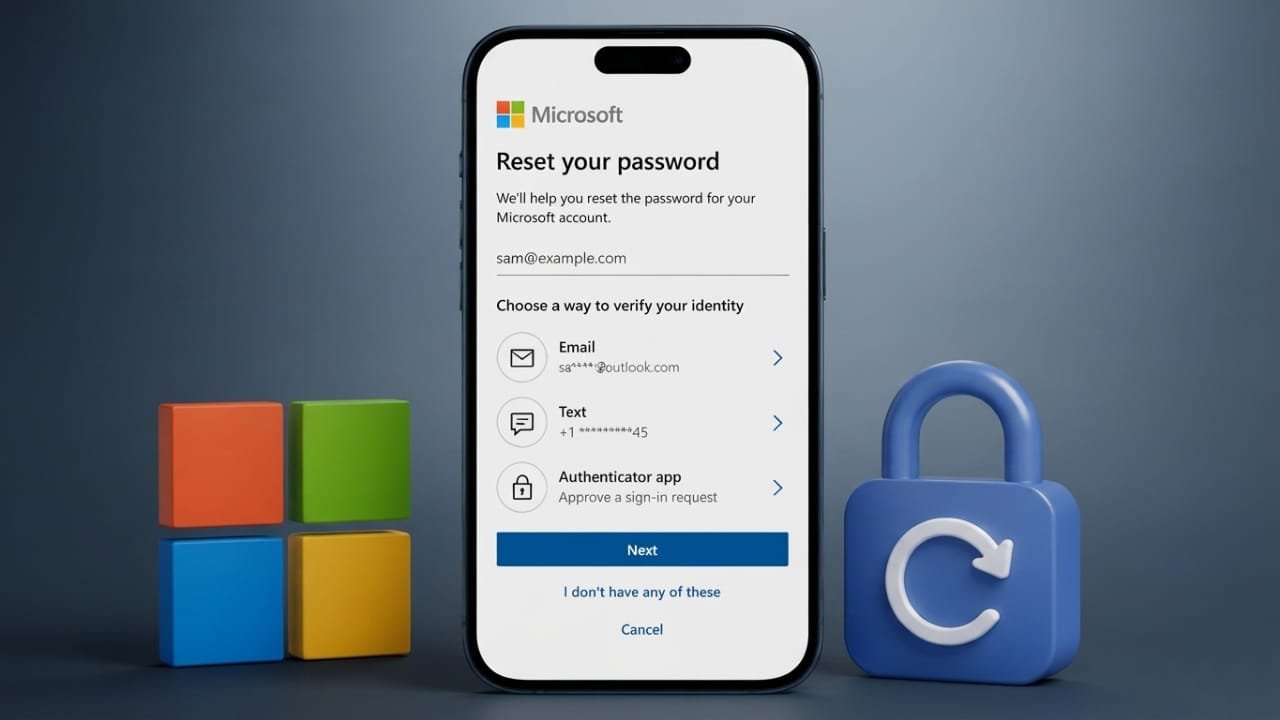
Forgetting your Microsoft account password can be frustrating, but getting back into your account is usually straightforward. Microsoft offers several secure recovery options to help you regain access. Whether you use Outlook, OneDrive, Xbox, Windows, Microsoft 365, or other Microsoft services, you can reset your password using official recovery methods.
This guide explains how to reset your password, recover your account if you no longer have access to your recovery information, change your password while signed in, and enable passwordless sign-in for better security.
Also read: Google Pixel Watch 5 Launches in India With Smarter Health and Performance Upgrades
Why You May Need to Reset Your Password
There are several situations where resetting your Microsoft account password is necessary:
Advertisements
- You forgot your password.
- You believe someone else may have accessed your account.
- You want to improve your account security.
- Microsoft asks you to verify your identity after unusual sign-in activity.
Using Microsoft’s official recovery process helps protect your account and connected services.
How to Reset Your Microsoft Account Password
You can reset your password from any computer, tablet, or smartphone with an internet connection.
Step 1: Visit Microsoft’s Recovery Page
Open your preferred web browser and go to Microsoft’s official account recovery page.
Step 2: Enter Your Account Information
Sign in by entering one of the following:
- Microsoft email address
- Registered phone number
- Skype username
After entering your information, click Next.
Step 3: Verify Your Identity
Microsoft will ask you to confirm that you own the account. Depending on your security settings, you may receive a verification code through:
- Recovery email
- Registered mobile number
- Microsoft Authenticator app
Choose a method you can access.
If your preferred option is unavailable, select Use a different verification option to see other available methods.
Step 4: Enter the Security Code
Once you receive the verification code:
- Open your email or text message.
- Copy the code.
- Enter it on the verification screen.
- Select Next.
If two-step verification is enabled, complete all additional verification steps before continuing.
Step 5: Create a New Password
After your identity has been confirmed:
- Enter a new password.
- Confirm it by typing it again.
- Save the changes.
Microsoft does not allow recently used passwords, so create a completely new one.
For better security, choose a password that:
- Is at least 12 characters long.
- Includes uppercase and lowercase letters.
- Contains numbers and symbols.
- Avoids personal information like birthdays or names.
Once finished, use your new password to sign in to all Microsoft services.
Recover Your Account Without Access to Verification Methods
If you no longer have access to your recovery email or registered phone number, Microsoft provides an alternative recovery process.
Here’s how:
- Start the password recovery process as usual.
- When you reach the identity verification page, choose I don’t have any of these.
- Enter another email address that you can currently access.
- Complete the CAPTCHA verification.
- Microsoft will send a security code to the new email.
- Enter the received code.
- Follow the remaining instructions to create a new password.
Keeping your recovery email and phone number up to date makes future account recovery much easier.
How to Change Your Password When You Already Know It
If you can still sign in, changing your password is much quicker.
Steps:
- Sign in to your Microsoft account.
- Open the Security section.
- Select Password security.
- Choose Change my password.
- Enter your current password.
- Create and confirm your new password.
- Save your changes.
After updating your password, you may need to sign in again on your devices and Microsoft apps.
Enable Passwordless Sign-In
Microsoft also allows you to sign in without using a traditional password.
Instead, you can use the Microsoft Authenticator app or supported passkeys for a faster and more secure login experience.
To enable passwordless authentication:
- Install the Microsoft Authenticator app on your smartphone.
- Sign in to your Microsoft account.
- Open Security settings.
- Go to Additional security options.
- Turn on Passwordless account.
- Follow the on-screen instructions.
- Approve the request using the Authenticator app.
Once completed, you can sign in without entering a password while still maintaining strong account security.
Tips to Keep Your Microsoft Account Secure
Following a few simple habits can reduce the chances of future login problems.
- Create a unique password for your Microsoft account.
- Never reuse passwords across different websites.
- Use a trusted password manager to store complex passwords.
- Keep your recovery email and phone number updated.
- Enable two-step verification for extra protection.
- Consider using Microsoft Authenticator or passkeys for passwordless access.
- Never share verification codes with anyone.
- Only enter your login information on Microsoft’s official websites.
Also read: How to Set Up Two-Factor Authentication (2FA) on Facebook
Final Thoughts
Resetting your Microsoft account password is a simple process when you use Microsoft’s official recovery tools. Whether you forgot your password, need to recover an account without access to old recovery methods, or simply want to improve your account security, Microsoft provides multiple safe options to help you regain access.
Keeping your recovery information updated, using strong passwords, and enabling additional security features such as two-step verification or passwordless sign-in can help protect your Microsoft account and reduce the risk of future login issues.

Jatin Rajput (Tech Golu) — Tech blogger & YouTuber with 6+ years of experience in WhatsApp, Instagram, Facebook, and mobile guides. Founder of TechGolu.in.