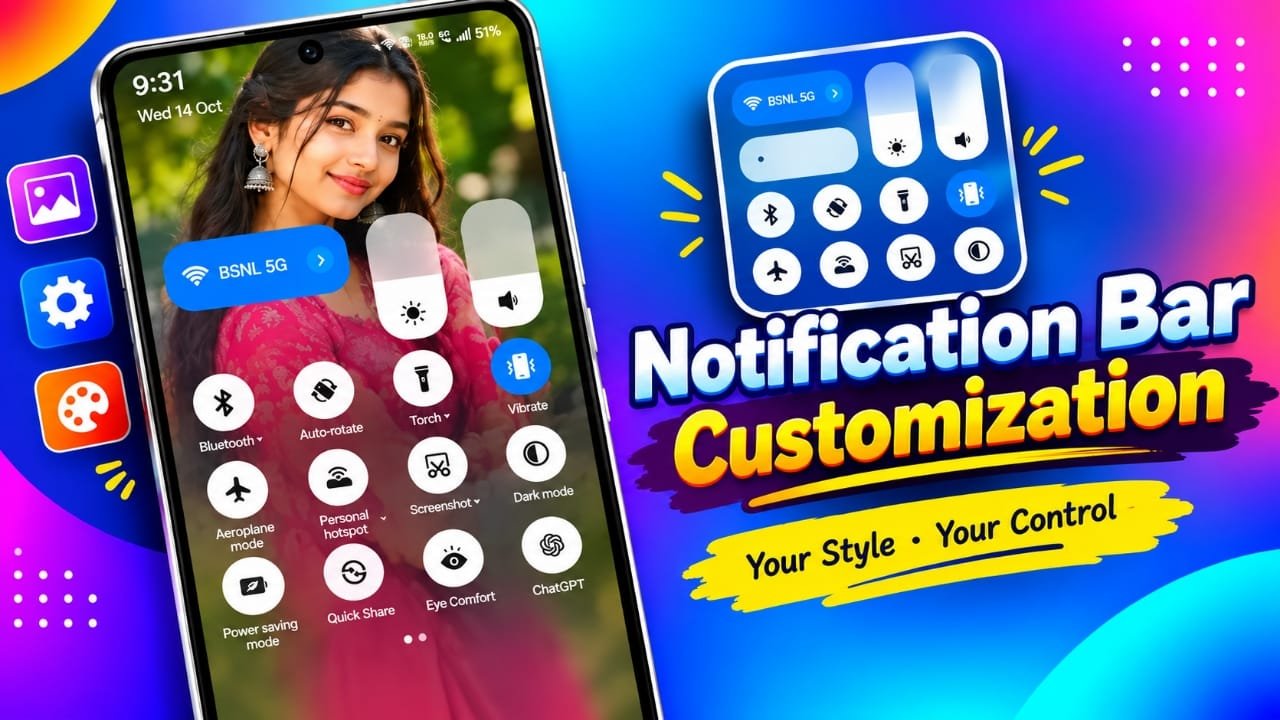
Customizing an Android phone is not just about changing wallpapers, themes, or app icons. You can also explore ways to change the look of your status bar and notification panel. These areas are part of your everyday phone experience, but their default appearance often goes unnoticed.
Notification Bar Customization is an app designed to give users more control over the appearance of these parts of the Android interface. Depending on the app version and your device, it may offer options for changing colours, adjusting text styles, adding background images, and accessing shortcuts to frequently used settings.
Advertisements
If you want to give your phone a fresh look without replacing your launcher, this app could be worth exploring. Let’s look at its possible features, benefits, and important points to consider before installing it.
Also read: How to Create 1080p Videos With Grok Imagine: A Beginner’s Guide
What Is Notification Bar Customization?
Notification Bar Customization is an Android personalization app that focuses on the status bar and notification area. It aims to provide additional styling options beyond those available in your phone’s default settings.
The status bar normally displays information such as the time, battery level, and network connection. The notification panel, meanwhile, helps you view alerts and access quick settings.
Depending on the version and device compatibility, the app may provide features such as:
- Changing the status bar’s appearance and colours.
- Adjusting supported text styles and display options.
- Using a custom image as a notification background.
- Applying different notification panel themes.
- Accessing shortcuts for common phone functions.
Not every feature will necessarily work on all Android phones. Some options may depend on your Android version, manufacturer settings, or the permissions available to the app.
1. Give Your Android Status Bar a New Look
The status bar is one of the most frequently viewed parts of a smartphone. It displays useful details without requiring you to open another app.
With supported customization options, Notification Bar Customization may help you adjust certain visual elements to better match your preferred style.
Some of the options you may find include:
Status bar colours: Explore different colours to complement your wallpaper or phone theme.
Battery percentage: Check whether the app supports adjustments to the way battery information is displayed.
Time display: Look for available options to change the time format or its appearance.
Carrier information: Depending on your device, certain network or carrier details may be customizable.
Signal indicators: Some display-related settings may allow adjustments to supported network information.
Text styling: Available options may include changes to text colour, size, or font appearance.
These adjustments can help create a more personalized interface. However, Android controls many status bar elements at the system level, so a third-party app may have limited access to certain features.
2. Use a Personal Image as the Notification Background
A custom notification background is an interesting option for users who enjoy personalizing their phones. Instead of keeping the default appearance, you may be able to choose a picture that reflects your taste.
Depending on the available features, you could try a photograph from your gallery, a landscape image, or a simple design that matches your home screen.
Here are a few background ideas:
- Nature photographs or scenic views.
- Travel pictures from your favourite destinations.
- Minimal patterns with subtle colours.
- Abstract artwork that complements your wallpaper.
- Personal images that give your phone a distinctive appearance.
Before choosing a picture, consider how well notification text and icons will stand out against it. Images with too many details or colours similar to the text can make notifications difficult to read.
A clean background with good contrast is usually a better choice. It can improve the overall appearance while keeping important alerts easy to recognize.
3. Find Useful Phone Controls More Easily
Another feature associated with notification customization apps is access to shortcuts for everyday phone settings. These controls can help users reach frequently used functions without navigating through several menus.
Depending on your device and Android version, the available shortcuts may include:
- Wi-Fi and mobile data.
- Bluetooth connectivity.
- Flashlight.
- Screen rotation.
- Silent mode and vibration.
- Location settings.
- Mobile hotspot.
- Do Not Disturb.
- Airplane mode.
- Night mode.
- Screenshot tools.
- Calendar information.
For example, you might want to turn on the flashlight in a dark room or enable Do Not Disturb when you need some quiet time. Quick access to frequently used controls can make these tasks more convenient.
However, the actual functions available will depend on your phone’s software and the permissions granted to the app. Some controls may already be accessible through Android’s built-in Quick Settings panel, making an additional app unnecessary for those tasks.
4. Explore Different Notification Panel Themes
If you enjoy trying new themes on your smartphone, the app’s appearance settings may provide another way to personalize your interface.
Depending on the supported options, you may be able to combine different colours, background images, and text styles to create a notification panel that suits your preferences.
For instance, you could choose a simple design that matches your wallpaper or experiment with a more colourful appearance. The aim is to make the interface feel more personal without changing your entire home screen layout.
When selecting a theme, pay attention to readability. Notification messages, icons, and important system information should remain clearly visible.
A visually appealing design is useful only when you can still read your notifications comfortably.
5. Who Can Benefit from This App?
Notification Bar Customization may be useful for Android users who want more personalization options than their phone’s standard settings provide.
You may want to explore it if you:
- Like experimenting with different colours and themes.
- Want to customize the appearance of your notification panel.
- Prefer using personal photographs as backgrounds.
- Enjoy adjusting supported status bar elements.
- Want convenient access to certain phone controls.
- Like making your smartphone’s interface feel more individual.
On the other hand, if your main goal is to change your wallpaper, app icons, or basic Quick Settings layout, your phone may already offer everything you need.
Before installing another app, compare its features with the customization options available in your device’s settings. This can help you avoid unnecessary apps and permissions.
6. Important Things to Check Before Installing
Before using Notification Bar Customization, take a few minutes to review its compatibility and privacy details. Personalization apps can work differently across devices, particularly when they need access to system-level features.
Check Android compatibility
Visit the app’s current Google Play Store listing and review its supported Android versions and device requirements. An app that works on one phone may not provide the same features on another.
Review the requested permissions
Some notification-related functions may require access to notifications or special system settings. Read each permission request carefully and consider whether it is necessary for the feature you want to use.
Avoid granting permissions that you do not understand or feel comfortable with.
Test the features one by one
After installation, try the available customization options individually. This makes it easier to identify which features work correctly and whether any settings affect your usual phone experience.
Keep notifications easy to read
Choose colours and images that provide enough contrast between the background and notification text. Avoid designs that hide important information or make alerts difficult to understand.
Check your phone’s built-in settings
Many Android devices include their own options for themes, notification styles, and Quick Settings. Exploring these features first may help you achieve the desired result without installing additional software.
Read recent user reviews
User feedback can provide useful information about compatibility, performance, and problems reported by other users. Pay attention to recent reviews, as app behaviour may change after updates.
Remember that a feature mentioned in an app description is not a guarantee that it will work on every device.
How to Find Notification Bar Customization
If you want to try the app, look for its current listing on the Google Play Store.
Before installing, confirm that you have selected the correct app and review its developer information, supported devices, permissions, and recent reviews. These checks can help you make a more informed decision.
You should also verify that the features you want are available in the current version. Avoid relying on outdated descriptions or unofficial download pages that make unsupported claims.

Also read: Instagram Keeps Crashing? 10 Ways to Fix It on Android and iPhone
Final Thoughts
Notification Bar Customization provides another option for Android users who want to personalize their phones beyond the usual wallpaper and icon changes.
Depending on device compatibility, its features may include status bar styling, notification backgrounds, text adjustments, themes, and shortcuts to common settings. These options can help you create an interface that better reflects your preferences.
The ability to use a personal image as a notification background may appeal to users who enjoy experimenting with different designs. Other customization options may also be useful if the phone’s default interface feels too limited.
However, the experience can vary depending on your Android version and device manufacturer. Some features may be restricted by system settings, and certain options could require additional permissions.
Overall, Notification Bar Customization may be worth considering if you want more control over your Android phone’s appearance. Check its current features and compatibility before installing it, and choose customization settings that keep your notifications clear, accessible, and easy to read.

Jatin Rajput (Tech Golu) — Tech blogger & YouTuber with 6+ years of experience in WhatsApp, Instagram, Facebook, and mobile guides. Founder of TechGolu.in.
Advertisements