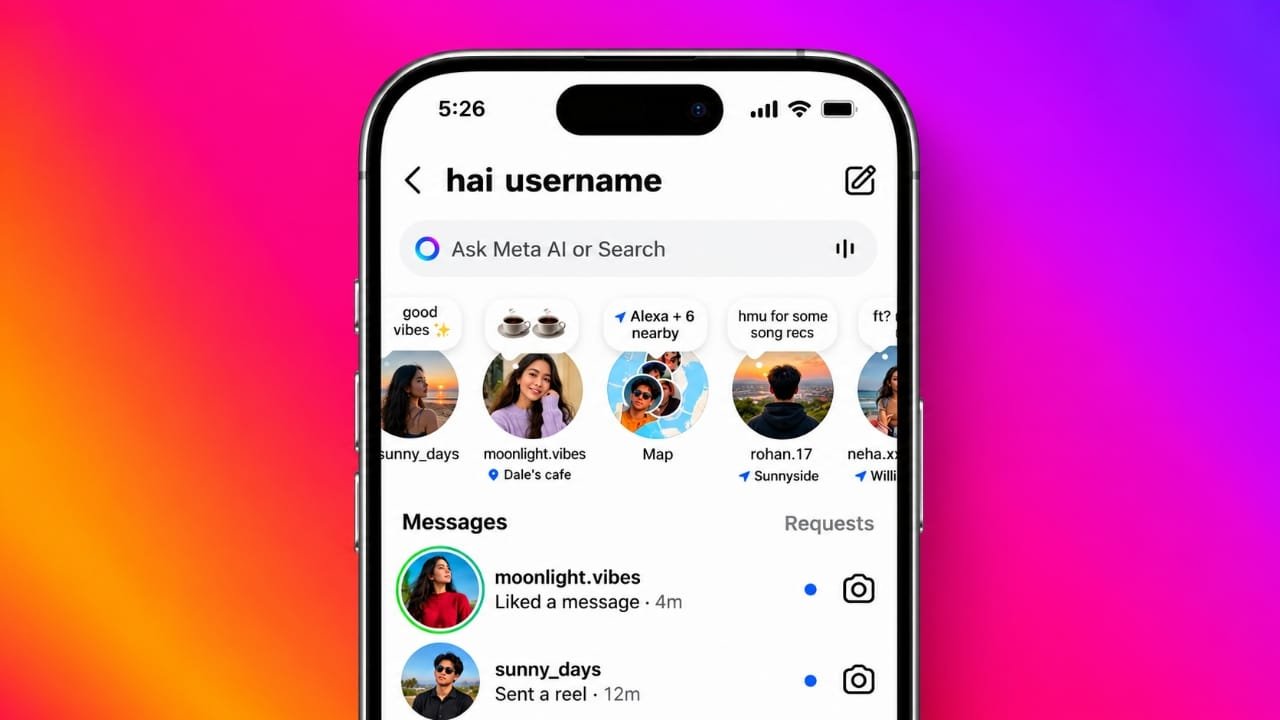
Instagram Notes are a simple way to share short messages with friends and followers. However, sometimes the Notes section disappears from the inbox, or you may be unable to see notes posted by other people.
This issue can happen for several reasons, including an outdated app, a temporary technical problem, incorrect settings, or limited feature availability. The good news is that you can try several straightforward solutions before assuming something is wrong with your account.
In this guide, you will learn how Instagram Notes work, why they might not appear, and eight practical ways to troubleshoot the issue.
Also read: Facebook Your Algorithm: How to Control What You See in Feed and Reels
How Do Instagram Notes Work?
Instagram Notes are short text updates that appear near the top of the direct message inbox. Depending on the available features and interface, you may also see your note near your profile picture in certain areas of Instagram.
Here are some important things to know about Notes:
- Character limit: A note can contain up to 60 characters.
- Duration: Notes generally remain visible for up to 24 hours.
- One active note: Posting another note replaces your previous one.
- Audience settings: You can choose an available audience before sharing a note.
- Availability: Instagram does not make every feature available to all accounts at the same time.
These details can help explain why a note is missing. For example, someone may have deleted their note, allowed it to expire, or shared it with an audience that does not include you.
Why Are Instagram Notes Not Showing?
Before trying the solutions, it helps to understand what might be causing the problem.
1. Your Instagram app is outdated
An older app version may not support the latest interface or features correctly.
2. The note has expired
Instagram Notes are temporary. Once the allowed period ends, the note disappears automatically.
3. The person selected a limited audience
If someone shares a note only with their Close Friends, you will not see it unless you belong to that audience.
4. You muted the person’s notes
Instagram allows users to mute notes from specific accounts. If you enabled this setting, their notes may not appear in your inbox.
5. Your internet connection is unstable
A weak Wi-Fi or mobile data connection can prevent parts of the inbox from loading properly.
6. Instagram is experiencing a temporary problem
An app bug, service interruption, or account-specific issue can affect how features appear.
7. The feature is not available to your account
Instagram sometimes introduces features gradually. As a result, two people may see different options even when they use the same app version.
Understanding these possibilities makes it easier to choose the right fix.
How to Fix Instagram Notes Not Showing
Try the following methods in order, starting with the simplest options.
1. Update Instagram to the Latest Version
Updating the app is a sensible first step because older versions may have bugs or may not display newer features correctly.
For Android users:
- Open the Google Play Store.
- Search for Instagram.
- Open the app’s store page.
- Tap Update if the option is available.
- Once the update finishes, open Instagram and check your inbox.
For iPhone users:
- Open the Apple App Store.
- Search for Instagram.
- Open its app page.
- Tap Update if an update is available.
- Reopen Instagram and see whether Notes are visible.
If the button says Open instead of Update, you may already have the latest version available to your device.
2. Restart Instagram and Check Your Internet Connection
Sometimes, Instagram fails to load certain sections correctly because of a temporary app or network problem.
Follow these steps:
- Close Instagram completely rather than leaving it running in the background.
- Open the app again.
- Switch from Wi-Fi to mobile data, or try another reliable network.
- Visit your direct message inbox and check the Notes section.
- If the problem continues, restart your phone.
You can also check whether other parts of Instagram load normally. If messages, profiles, and posts are also failing to load, the issue may be related to your connection or a temporary service problem.
3. Check Whether You Muted Someone’s Notes
If you can see notes from other people but cannot see updates from one particular account, check your mute settings.
To review them:
- Open Instagram and visit the person’s profile.
- Tap Following.
- Look for the Mute option.
- Check whether Notes are muted.
- If they are, turn off the relevant mute setting.
The wording and menu layout may vary slightly depending on your app version.
After changing the setting, return to your inbox and check again. This method is especially useful when the problem affects only one person’s notes rather than the entire Notes section.
4. Check the Note’s Expiry Time and Audience
Not every missing note indicates a technical issue.
Instagram Notes are temporary, and a note generally disappears after 24 hours. The person who posted it may also remove it earlier.
The audience setting matters, too. Someone can choose to share a note with an eligible audience, such as followers they follow back or their Close Friends, depending on the options available to their account.
If you cannot see a friend’s note, consider these questions:
- Was the note posted more than 24 hours ago?
- Could the person have deleted it?
- Did they share it with Close Friends?
- Are you included in the audience they selected?
If the note has expired or your account is not part of the selected audience, changing your app settings will not make that note appear.
5. Log Out and Sign In Again
Refreshing your account session may help when Instagram is behaving unexpectedly.
Before logging out, make sure you know your password and can access any verification method required to sign in again.
Then follow these steps:
- Open your Instagram profile.
- Tap the three-line menu.
- Find the account logout option in Settings and activity.
- Log out of the account.
- Open Instagram again and sign in.
- Visit your inbox to check whether Notes are available.
The exact menu location may differ between app versions.
Logging out is not guaranteed to fix the problem, but it can be worth trying if the previous methods have not helped.
6. Clear the Instagram Cache on Android
Temporary files stored by an app can sometimes contribute to loading problems. Clearing Instagram’s cache may help the app work properly again.
On most Android phones, you can try the following:
- Open your phone’s Settings.
- Select Apps or App management.
- Find and open Instagram.
- Tap Storage or Storage usage.
- Select Clear cache.
- Reopen Instagram and check the Notes section.
The menu names may vary depending on your phone manufacturer.
Important: Choose Clear cache, not Clear data or Clear storage. The latter options can remove local app information and may require you to sign in again.
What about iPhone?
iPhones do not offer the same built-in cache-clearing button for Instagram. One option is to offload the app:
- Open Settings.
- Go to General.
- Select iPhone Storage.
- Choose Instagram.
- Tap Offload App.
- Reinstall the app using the option provided.
Offloading is designed to remove the app while retaining its documents and data, although you should not treat it as a complete backup. If you decide to delete the app instead, make sure you can sign in again and have saved any important local information.
7. Review Your Account and Feature Availability
Instagram supports different account types, including Personal, Creator, and Business accounts. Available tools and interfaces can vary, and some features may reach accounts at different times.
If the Notes option is missing entirely, consider whether the feature is currently available to your account.
You can also check whether other people using similar devices and updated app versions are experiencing the same problem.
Switching between account types is not a reliable solution for missing Notes. It may also change which professional tools are available to you. Therefore, avoid changing your account type just to troubleshoot this issue unless you understand the possible effects.
If everything else works normally, the feature may simply not be available to your account yet.
8. Report the Problem to Instagram
If you have tried the previous solutions and Notes are still missing, report the issue through Instagram’s official support tools.
Here is how to do it:
- Open Instagram.
- Go to your profile.
- Tap the three-line menu.
- Open Help.
- Select Report a problem.
- Describe what is happening.
- Attach a screenshot if it helps explain the issue.
- Submit your report.
For example, you could write:
“Instagram Notes are not appearing at the top of my direct message inbox. I have updated the app, checked my internet connection, and restarted my phone, but the problem continues. Please review this issue.”
Keep your description accurate and mention the troubleshooting steps you have already completed.
Instagram may not respond immediately, and submitting a report does not guarantee that the feature will be restored right away.
When Should You Wait Instead of Trying More Fixes?
If your app is updated, your internet connection is working, and your settings appear correct, the issue may not be something you can fix yourself.
Instagram may be experiencing a temporary service problem, or the Notes feature may not yet be available to your account.
In that situation, waiting a little while and checking again later is reasonable. You can also check whether Instagram has acknowledged a broader service issue.
Avoid third-party apps or websites that promise to unlock hidden Instagram features. Such services may request unnecessary account permissions or put your login information at risk.
You do not need to share your Instagram password with an unofficial tool to troubleshoot missing Notes.
Quick Checklist: Instagram Notes Not Showing
Before contacting support, go through this checklist:
- Update Instagram through the official app store.
- Close and reopen the app.
- Switch between Wi-Fi and mobile data.
- Restart your phone.
- Check whether you muted the person’s notes.
- Confirm that the note has not expired.
- Check whether you are included in the selected audience.
- Clear the cache on Android or consider offloading the app on iPhone.
- Sign out and sign in again if necessary.
- Report the issue through Instagram’s Help section if it continues.
You do not need to try every method if you have already identified the cause. For example, if the person deleted their note, clearing your cache will not bring it back.
Frequently Asked Questions
Why Can My Friend See Instagram Notes, but I Cannot?
There are several possible explanations. Your app may be outdated, your account may not have access to the feature yet, or a temporary technical issue may be affecting your inbox. If you cannot see only one person’s notes, check the note’s audience and your mute settings.
How Long Do Instagram Notes Last?
Instagram Notes generally remain visible for up to 24 hours. The person who posted a note can also delete it before that period ends.
Why Can I Not See One Person’s Instagram Notes?
The person may have deleted the note, it may have expired, or they may have selected an audience that does not include you. You might also have muted their notes. Check these possibilities before changing other settings.
Also read: Samsung Galaxy S27 Ultra Leaks: Expected Camera, Battery, Features and Price
Final Thoughts
Instagram Notes not showing is a frustrating problem, but it does not necessarily mean that something is wrong with your account.
Start by updating Instagram, restarting the app, and checking your internet connection. If only one person’s notes are missing, review your mute settings and remember that Notes can expire or be shared with a limited audience.
If the Notes section is still unavailable, try clearing the cache on Android or offloading the app on iPhone. You can also submit a report through Instagram’s Help menu.
Finally, remember that not every issue can be solved through phone settings. Sometimes, the feature is not available to a particular account or Instagram needs time to resolve a temporary problem.
Use the official app, avoid unofficial tools that promise to unlock features, and work through the fixes one at a time. This approach can help you identify the likely cause without making unnecessary changes to your account.

Jatin Rajput (Tech Golu) — Tech blogger & YouTuber with 6+ years of experience in WhatsApp, Instagram, Facebook, and mobile guides. Founder of TechGolu.in.