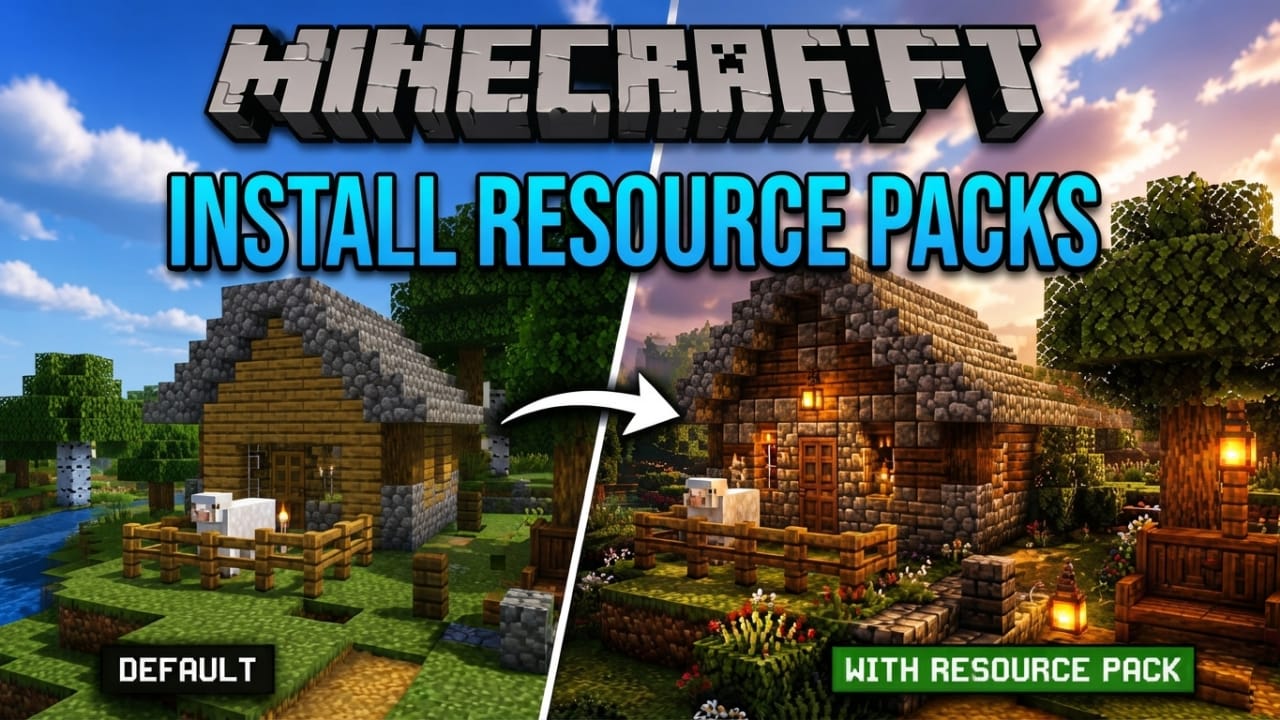
Minecraft resource packs are one of the easiest ways to give the game a fresh new look. They can improve textures, replace sounds, and change the overall feel of your world without affecting core gameplay. Whether you play Java Edition or Bedrock Edition, installing a resource pack is simple when you follow the correct steps.
Also read: How to Downgrade Your Google One Plan Without Cancelling Your Subscription
What Are Minecraft Resource Packs?
Resource packs let you customize the appearance and audio of Minecraft. They can replace textures, change sound effects, update menus, and even create a completely different visual style while keeping the game mechanics the same.
Older texture packs may still work, but they should match your Minecraft version and edition to avoid display issues or missing textures.
Advertisements
Some popular styles include realistic graphics, medieval themes, brighter nature textures, cleaner user interfaces, or custom sound effects. With so many options available, you can choose a pack that matches your personal preference.
Download Resource Packs from Trusted Sources
Before installing anything, download your resource pack from a reliable website. Trusted community websites help reduce the risk of unsafe or damaged files.
Some well-known sources include:
- CurseForge
- Planet Minecraft
- ResourcePacks.net
- MinecraftTexturePacks
- MCPEDL (for Bedrock Edition)
- Vanilla Tweaks
Always check that the pack supports your Minecraft edition and game version. After downloading, save the file somewhere easy to find, such as your Desktop or Downloads folder.
Check Your Minecraft Edition
Minecraft is available in two official editions:
- Java Edition
- Bedrock Edition
The installation method is different for each version, so confirm which edition you are using before continuing.
How to Install Resource Packs in Minecraft Java Edition
Step 1: Download a Compatible Pack
Download a resource pack that matches your installed Minecraft version. Most Java resource packs are provided as ZIP files.
Step 2: Launch Minecraft
Open Minecraft and wait until the main menu appears.
Step 3: Open Resource Pack Settings
Go to Options, then select Resource Packs.
Step 4: Open the Resource Pack Folder
Click Open Resource Pack Folder. A folder will open on your computer.
Move or drag the downloaded ZIP file into this folder. Some creators may recommend extracting the files first, so check the instructions included with the download.
Step 5: Refresh the List
Return to Minecraft. If the pack does not appear immediately, close and reopen the Resource Packs screen to refresh the list.
Step 6: Enable the Resource Pack
Your resource pack will appear under Available Resource Packs.
Click the arrow icon to move it into the active section, then select Done. Minecraft will apply the new textures and sounds.
Using Multiple Resource Packs
Minecraft allows several resource packs to be active at the same time.
The pack placed at the top has the highest priority. Lower packs only affect textures or sounds that are not replaced by higher ones.
You can change the order using the arrow buttons before saving your settings.
Removing a Resource Pack
If you no longer want to use a pack, open the Resource Packs menu again.
Click the left arrow next to the active pack to move it back to the available list, then select Done to save your changes.
How to Install Resource Packs in Minecraft Bedrock Edition
Download the Correct File
Bedrock Edition usually uses .mcpack files.
After downloading the file, open it. Minecraft should automatically import the resource pack.
Enable Resource Packs for All Worlds
To activate the pack globally:
- Open Minecraft.
- Go to Settings.
- Select Global Resources.
- Open My Packs.
- Choose your resource pack.
- Click Activate.
The pack will now be used in all compatible worlds.
Enable a Resource Pack for One World
If you want the changes to apply only to a specific world:
- Select Play.
- Click the pencil icon beside your world.
- Open Resource Packs.
- Select My Packs.
- Choose the resource pack.
- Click Activate.
Only that world will use the selected resource pack.
Using Resource Packs with Older Minecraft Versions
Some classic resource packs are designed for older releases of Minecraft.
To play with an earlier version in Java Edition:
- Open the Minecraft Launcher.
- Select Installations.
- Click New Installation.
- Choose the Minecraft version you want.
- Save the installation and launch the game.
After starting that version, install a compatible resource pack using the normal steps.
When Is OptiFine Required?
Some advanced resource packs include features such as improved lighting, connected textures, or other visual enhancements.
These packs may require OptiFine or another compatible mod to display all features correctly.
Before installing any resource pack, read the creator’s instructions to see if additional software is needed.
Helpful Tips Before Installing
For the best experience, keep these points in mind:
- Download files only from trusted websites.
- Make sure the pack matches your Minecraft edition.
- Use a version that is compatible with your game.
- Keep downloaded files in an easy-to-find location.
- Read any installation notes provided by the creator.
- Refresh the resource pack menu if a pack does not appear.
- Arrange pack priority correctly when using multiple packs.
- Keep backups of your favorite resource packs.
These simple steps can help prevent common installation problems.
Understanding Minecraft X-Ray Resource Packs
X-Ray resource packs are different from standard visual packs. They make many blocks transparent, allowing valuable ores, caves, and other underground areas to become easier to see.
Because this can provide an unfair advantage in multiplayer games, many servers do not allow their use. Server administrators may monitor gameplay and take action if they believe prohibited packs are being used.
For the best experience, always follow the rules of the server you are playing on.
Also read: How to Play Minecraft Multiplayer: A Complete Guide to LAN, Realms, Servers, and Split Screen
Final Thoughts
Installing Minecraft resource packs is a simple way to refresh the game without changing its core mechanics. Whether you play Java Edition or Bedrock Edition, using the correct files and following the proper installation steps will help everything work smoothly.
Always download resource packs from trusted sources, choose versions that match your game, and read any instructions included by the creator. With the right resource pack, you can enjoy improved visuals, better sounds, and a more personalized Minecraft experience.

Jatin Rajput (Tech Golu) — Tech blogger & YouTuber with 6+ years of experience in WhatsApp, Instagram, Facebook, and mobile guides. Founder of TechGolu.in.